Manual Testing – Actions

Last Updated on August 5, 2024 by Parth Parikh

Manual Testing – Sections

  • UI Areas – what user sees in an area before taking any user action
  • Actions – changes that happen when user takes action in the UI
  • Testing Sequences – follow these sequences to test changes & releases
  • Logic – testing CF7 Skins Logic (both Backend & Frontend)
  • Testing Forms – CF7 Skins forms used to help with testing
  • Front End Forms – how CF7 Skins forms display on WordPress website
  • Responsive Styling – WP Backend/Admin at different screen sizes

ACTIONS #

Actions – changes that happen when user takes action in the UI

InstructionsManual Testing
Images – ..\Sync\..\Testing\Test Site\Manual Testing\ACTIONS\

Checklist #

Create new CF7 form #

back to top

Checklist #

Create new CF7 form – Hidden Lists #

back to top

Images – ..\Sync\..\Testing\Test Site\Manual Testing\ACTIONS\Create new CF7 form\

Checklist

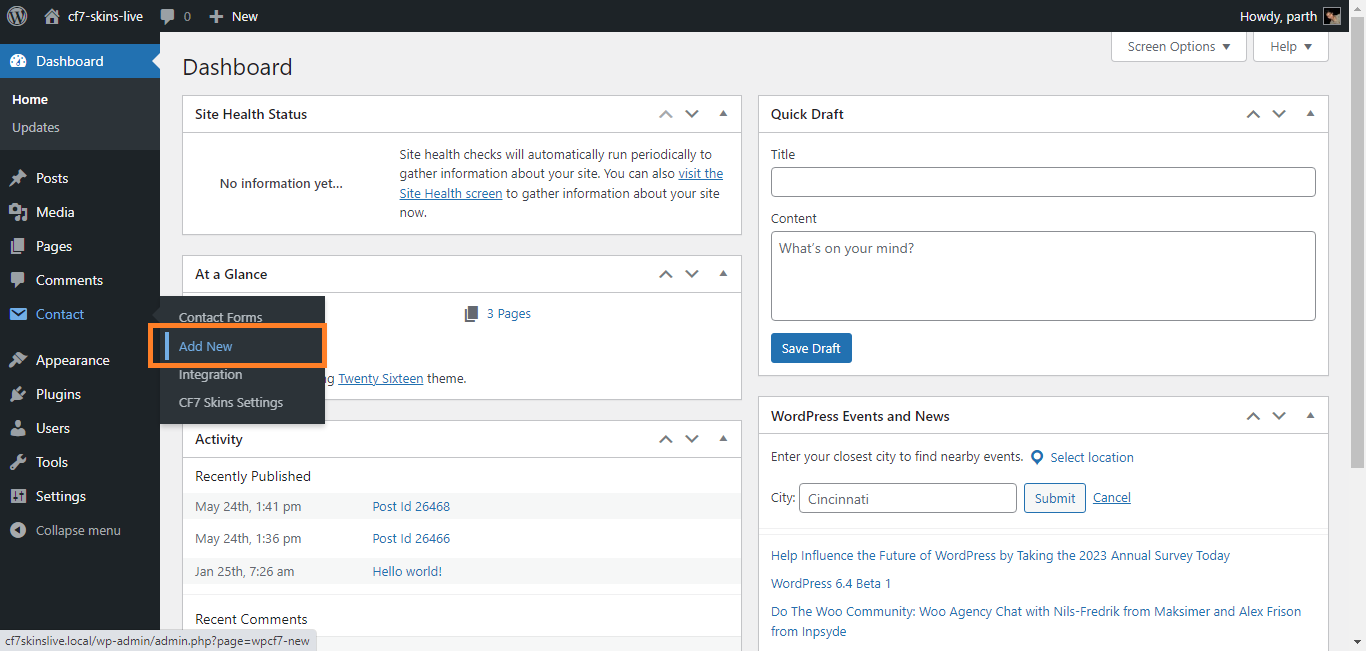
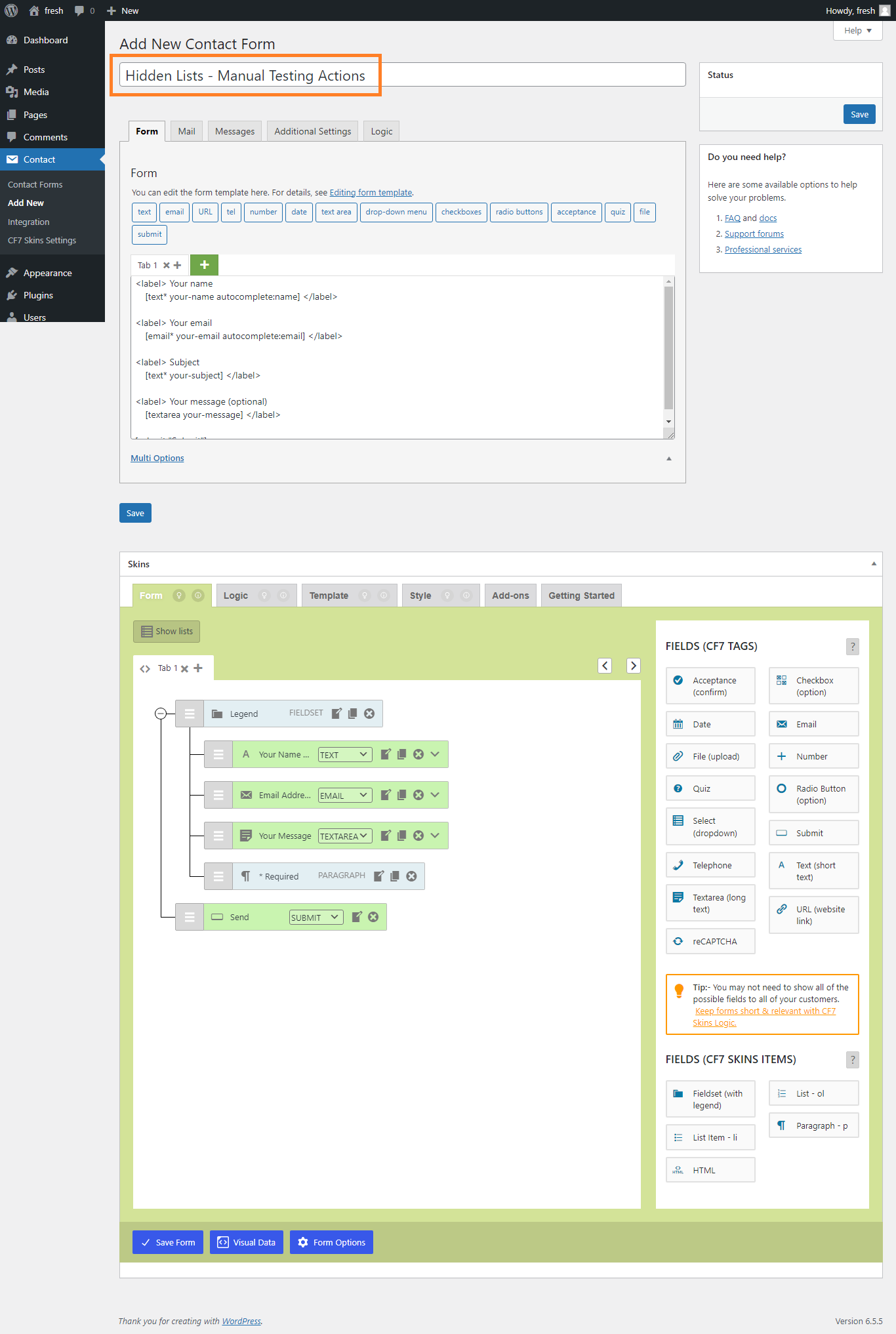
  1. Add New Form – Hidden Lists
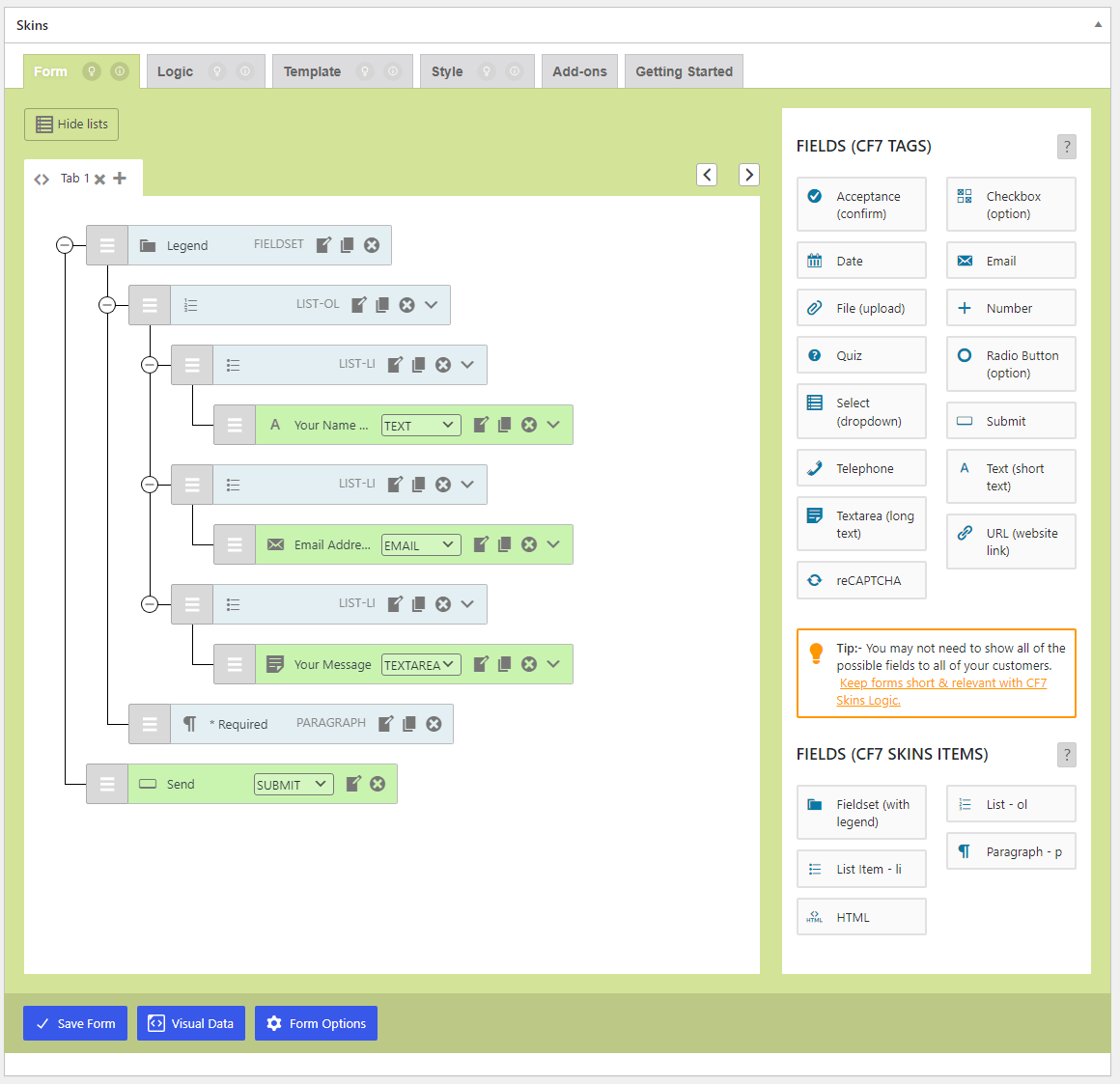
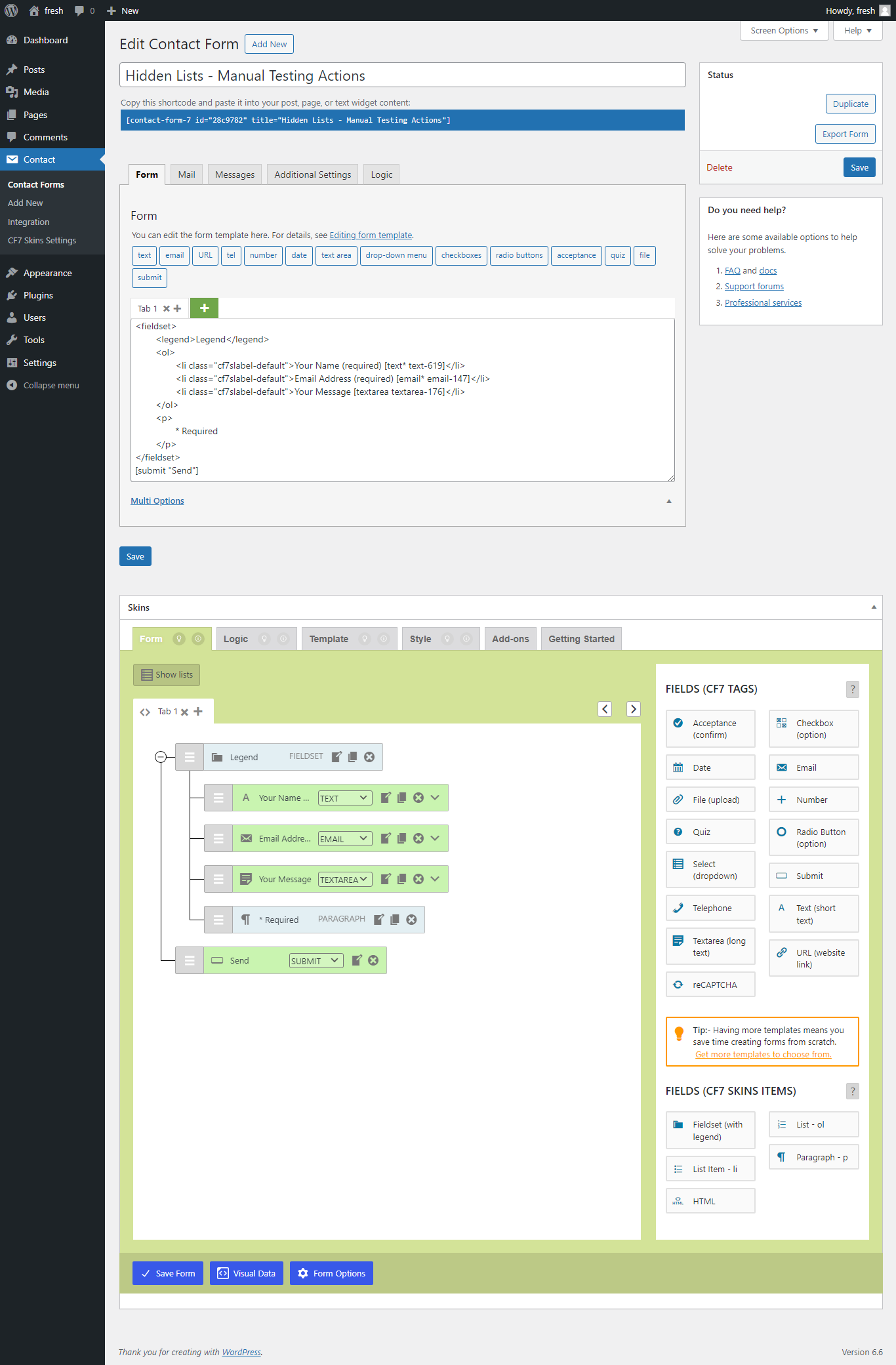
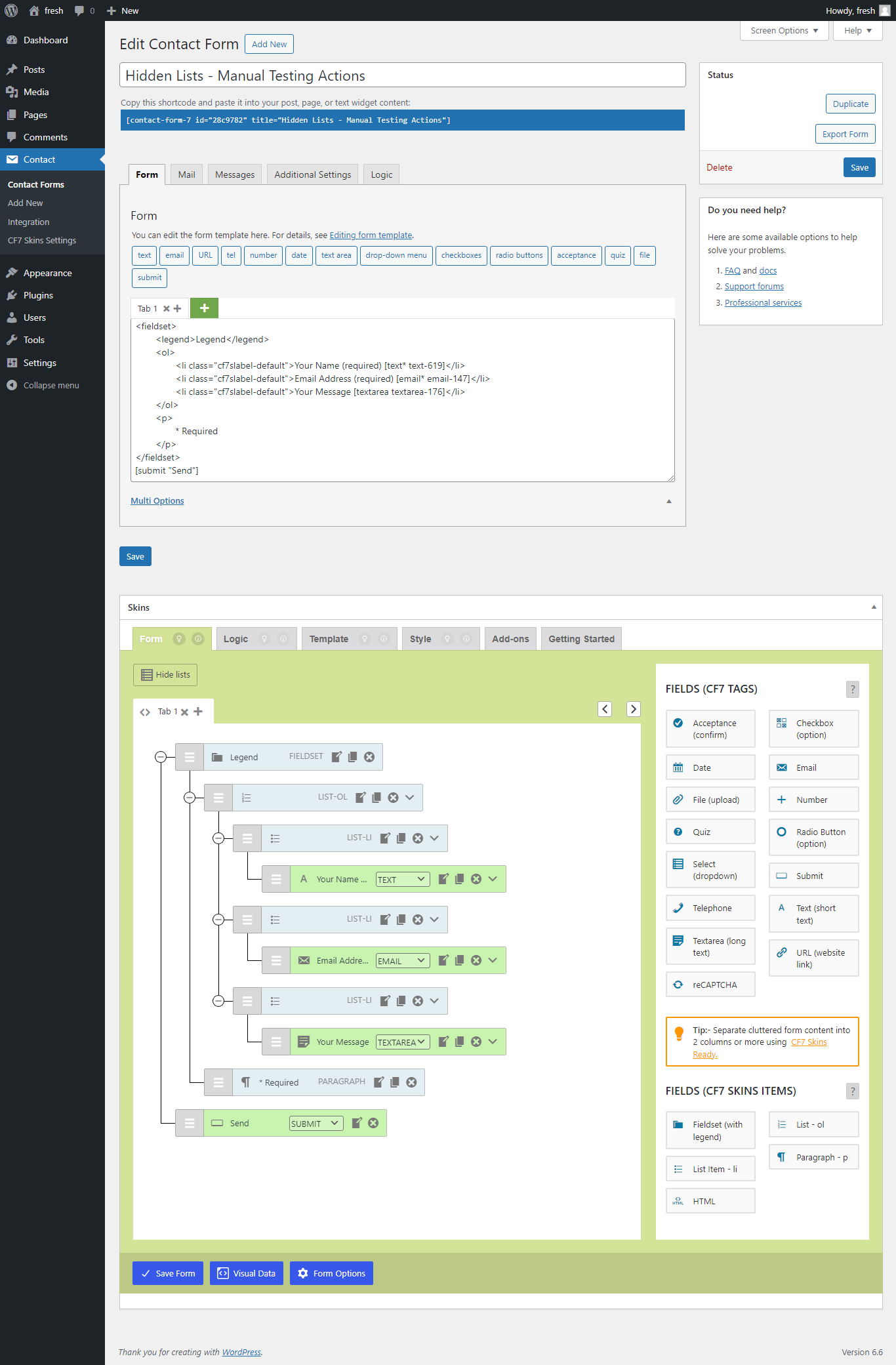
  2. New Form with name – Hidden Lists
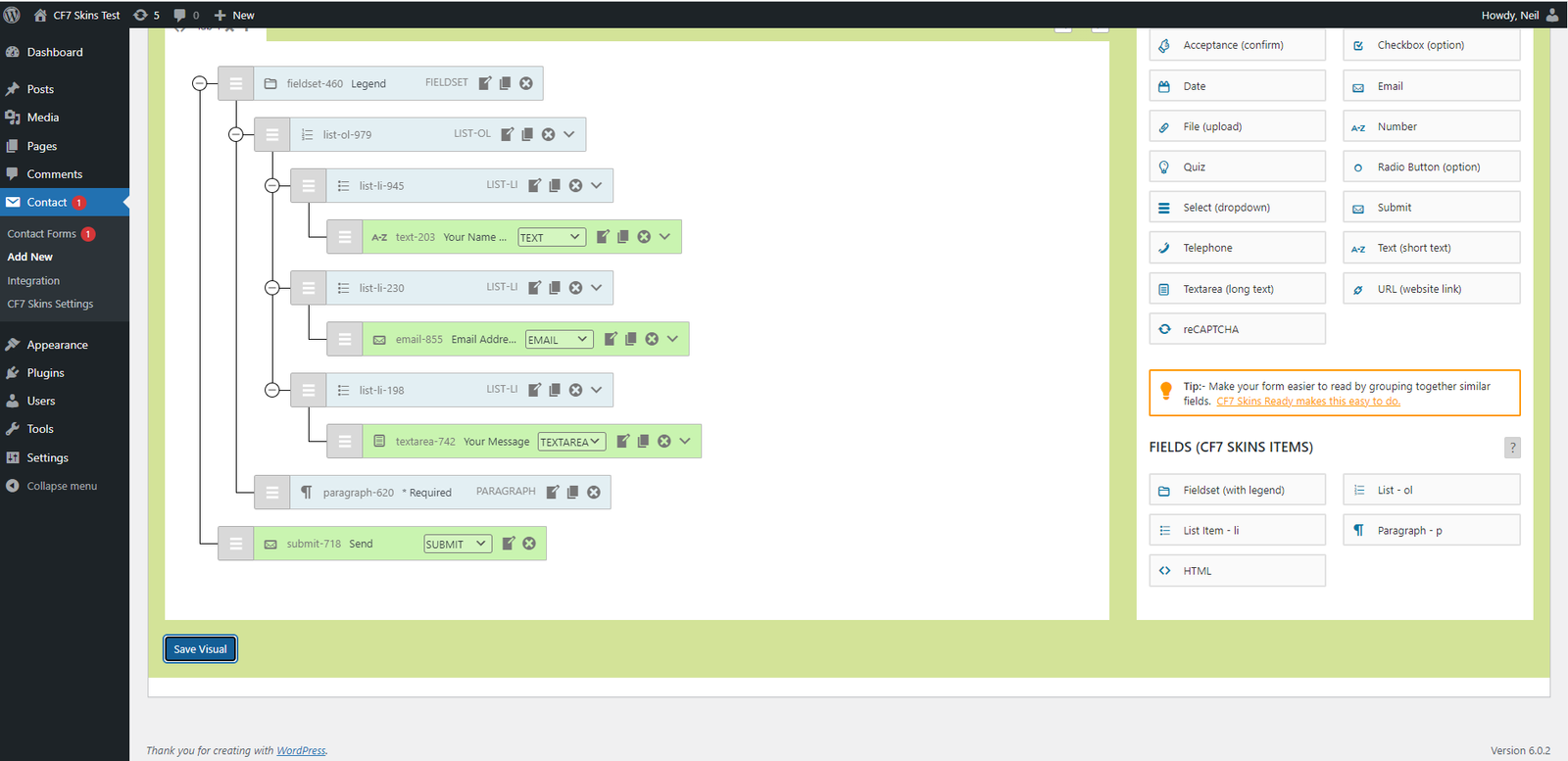
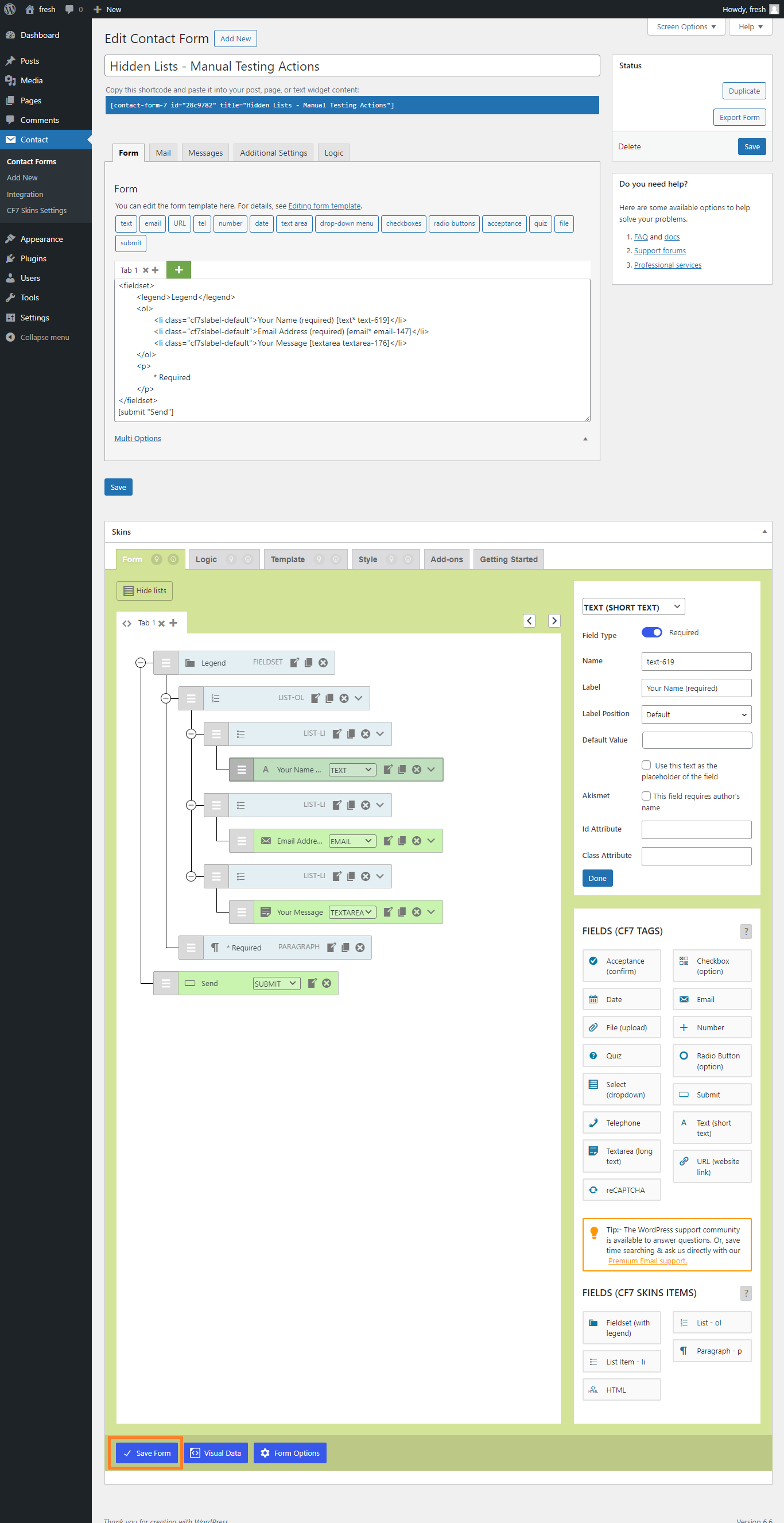
  3. Clicking on Save Visual button – Hidden Lists
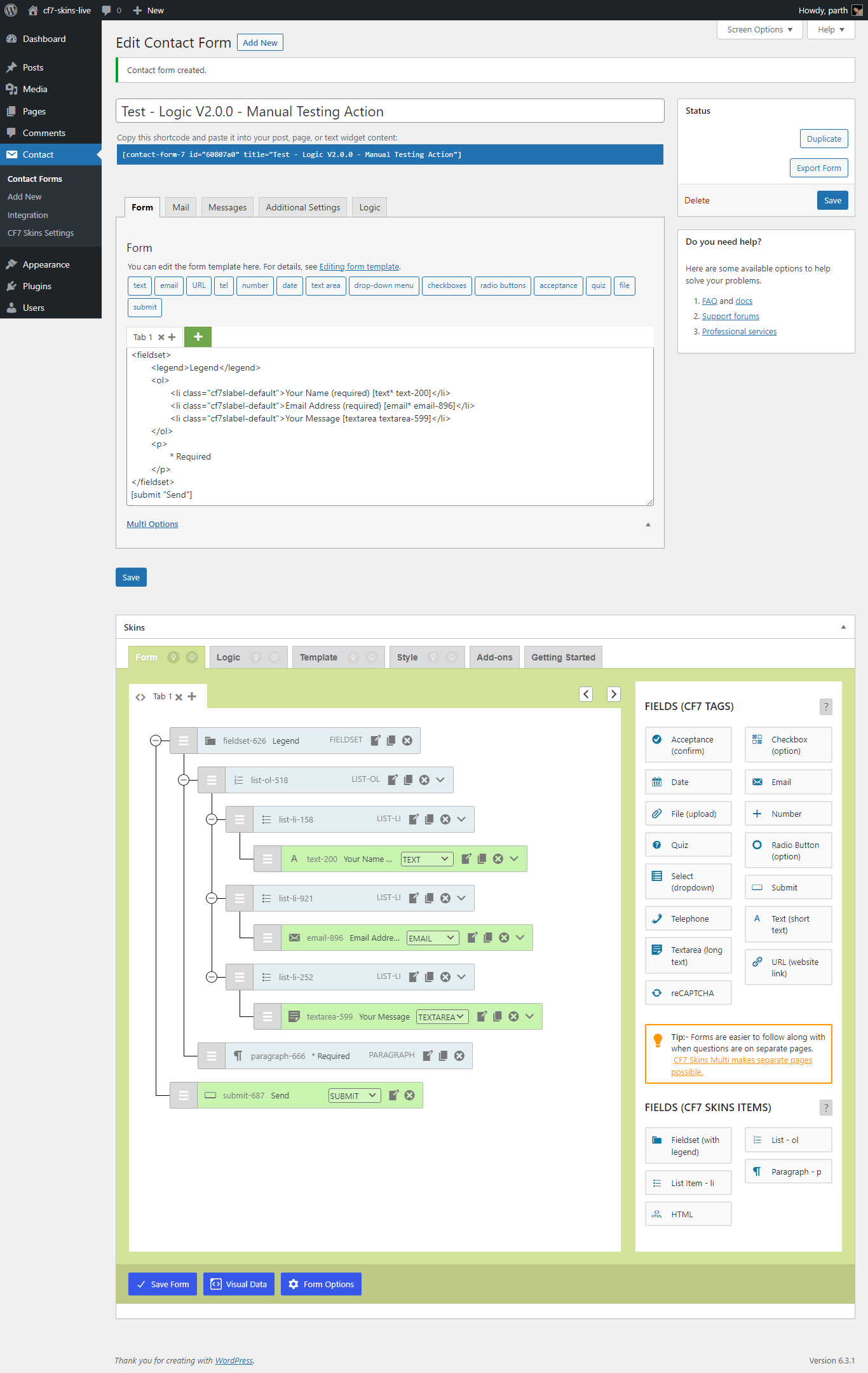
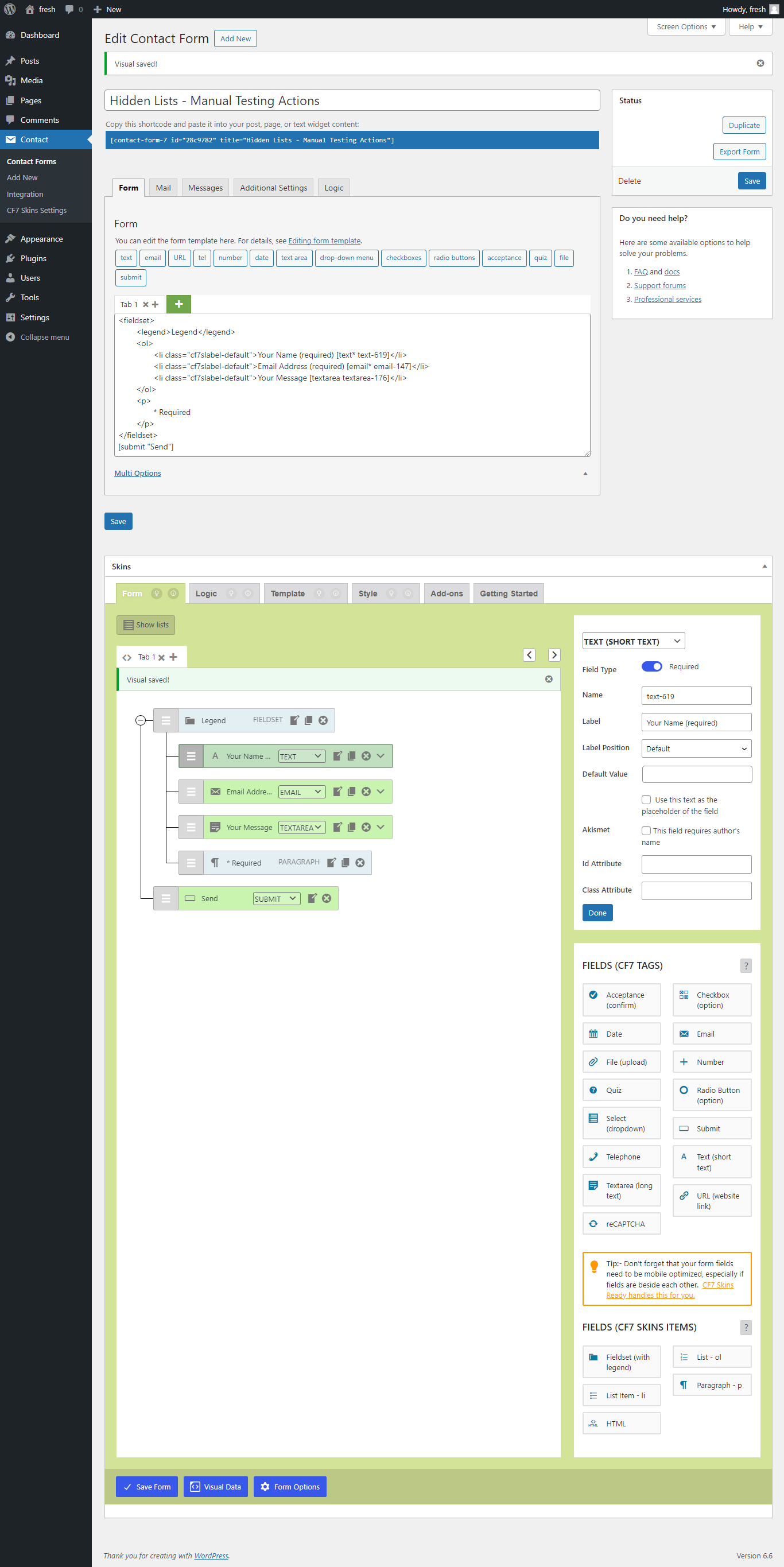
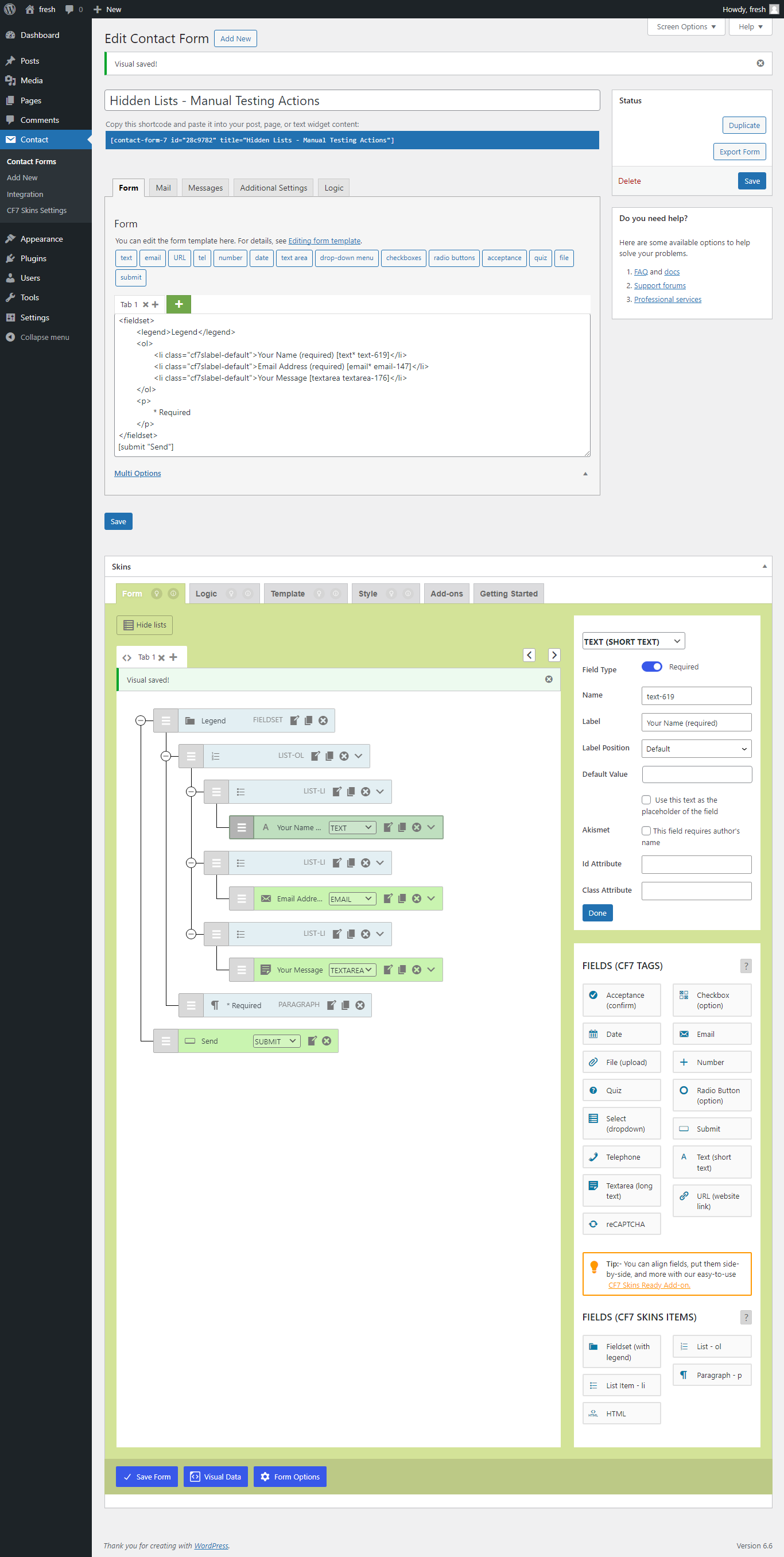
  4. Clicked on Save Visual button – Hidden Lists

Add New Form – Hidden Lists #

Add New Form – Create new CF7 form (Hidden Lists_01_Create new CF7 form – Add New Form_commit-5372329_2024-07-02.png)

New Form with name – Hidden Lists #

New Form with name – Create new CF7 form (Hidden Lists_02_Create new CF7 form – New Form with name_commit-5372329_2024-07-02.png)

Clicking on Save Visual button – Hidden Lists #

Clicking on Save Visual button – Create new CF7 form (Hidden Lists_03_Create new CF7 form – Clicking on Save Visual Button_commit-5372329_2024-07-02.png)

Clicked on Save Visual button – Hidden Lists #

Clicked on Save Visual button – Create new CF7 form (Hidden Lists_04_Create new CF7 form – Clicked on Save Visual Button_commit-5372329_2024-07-02.png)

Create new CF7 form – Visible Lists #

back to top

Images – ..\Sync\..\Testing\Test Site\Manual Testing\ACTIONS\Create new CF7 form\

Checklist

  1. Add New Form – Visible Lists
  2. Click Show Lists – Visible Lists
  3. Clicked Show Lists – Visible Lists
  4. New Form with name – Visible Lists
  5. Clicking on Save Visual button – Visible Lists
  6. Clicked on Save Visual button – Visible Lists

Add New Form – Visible Lists #

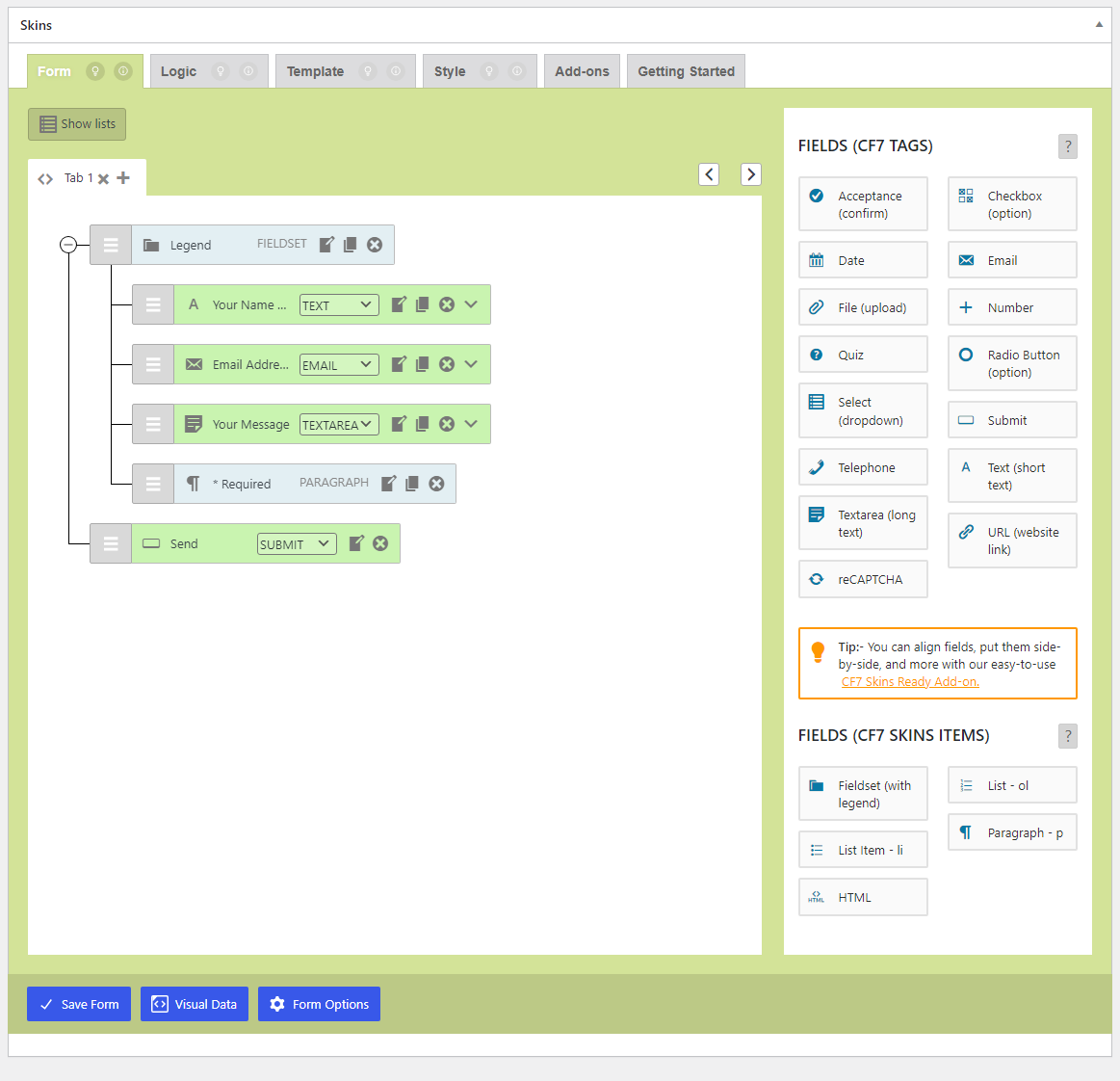
Add New Form – Create new CF7 form (Create new CF7 form – Add New Form_logic-v2.0.0_2023-09-28.png)

Click Show Lists – Visible Lists #

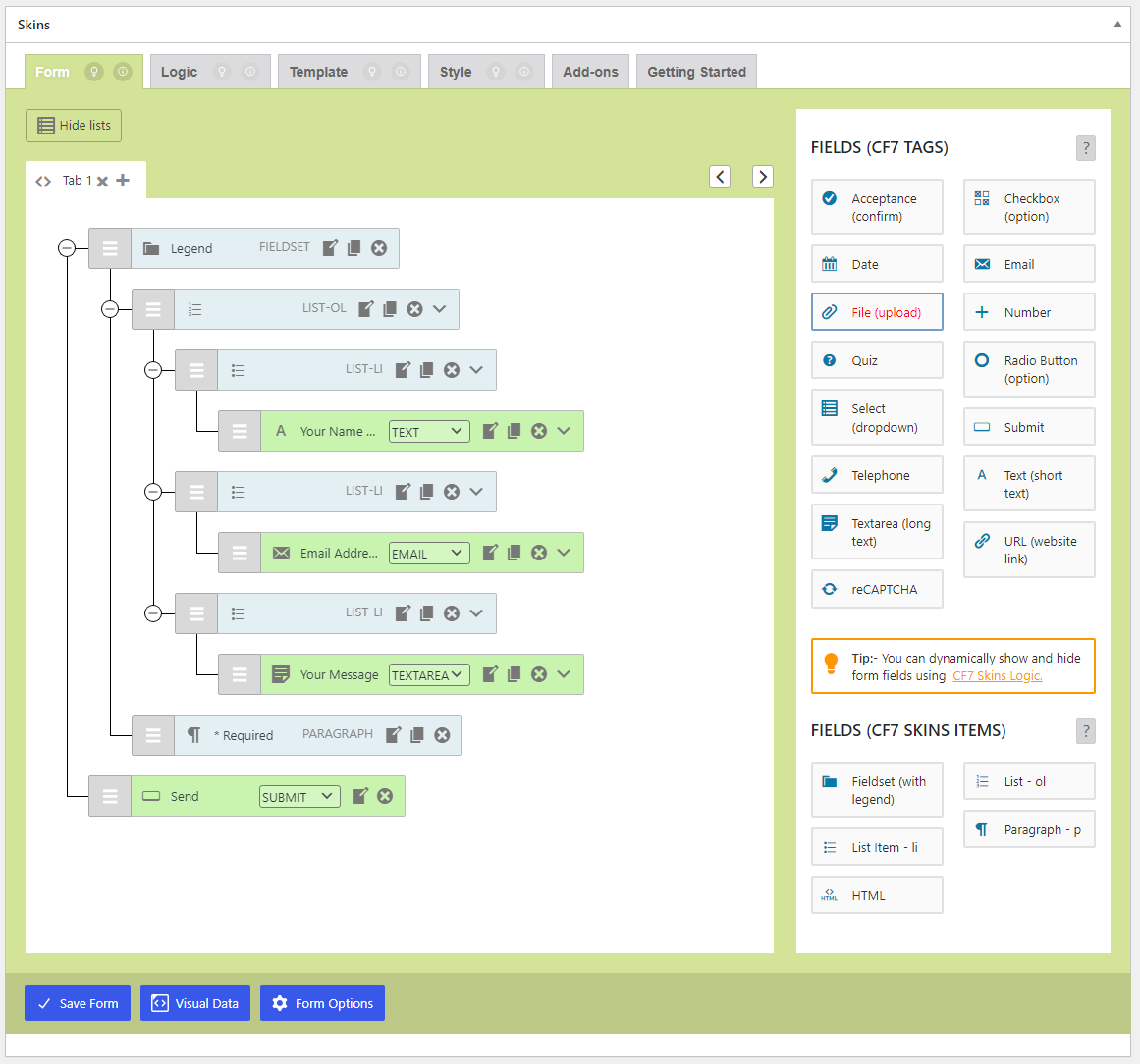
Add New Form – Clicking Show Lists (Visible Lists_06_Create new CF7 form – clicking show lists button_commit-5372329_2024-07-02.png)

Clicked Show Lists – Visible Lists #

Add New Form – Clicked Show Lists (Visible Lists_07_Create new CF7 form – clicked show lists button_commit-5372329_2024-07-02.png)

New Form with name – Visible Lists #

New Form with name – Create new CF7 form (Create new CF7 form – New Form with name_logic-v2.0.0_2023-09-28.png)

Clicking on Save Visual button – Visible Lists #

Clicking on Save Visual button – Create new CF7 form (Create new CF7 form – Clicking on Save Visual Button_2.5.3_B_2022-09-15.png)

Clicked on Save Visual button – Visible Lists #

Clicked on Save Visual button – Create new CF7 form (Create new CF7 form – Clicked on Save Visual Button_logic-v2.0.0_2023-09-28.png)

back to top


Select Fields #

back to top

Images – ..\Sync\..\Testing\Test Site\Manual Testing\ACTIONS\Select Fields\

Checklist #

Select Fields – Hidden Lists #

back to top

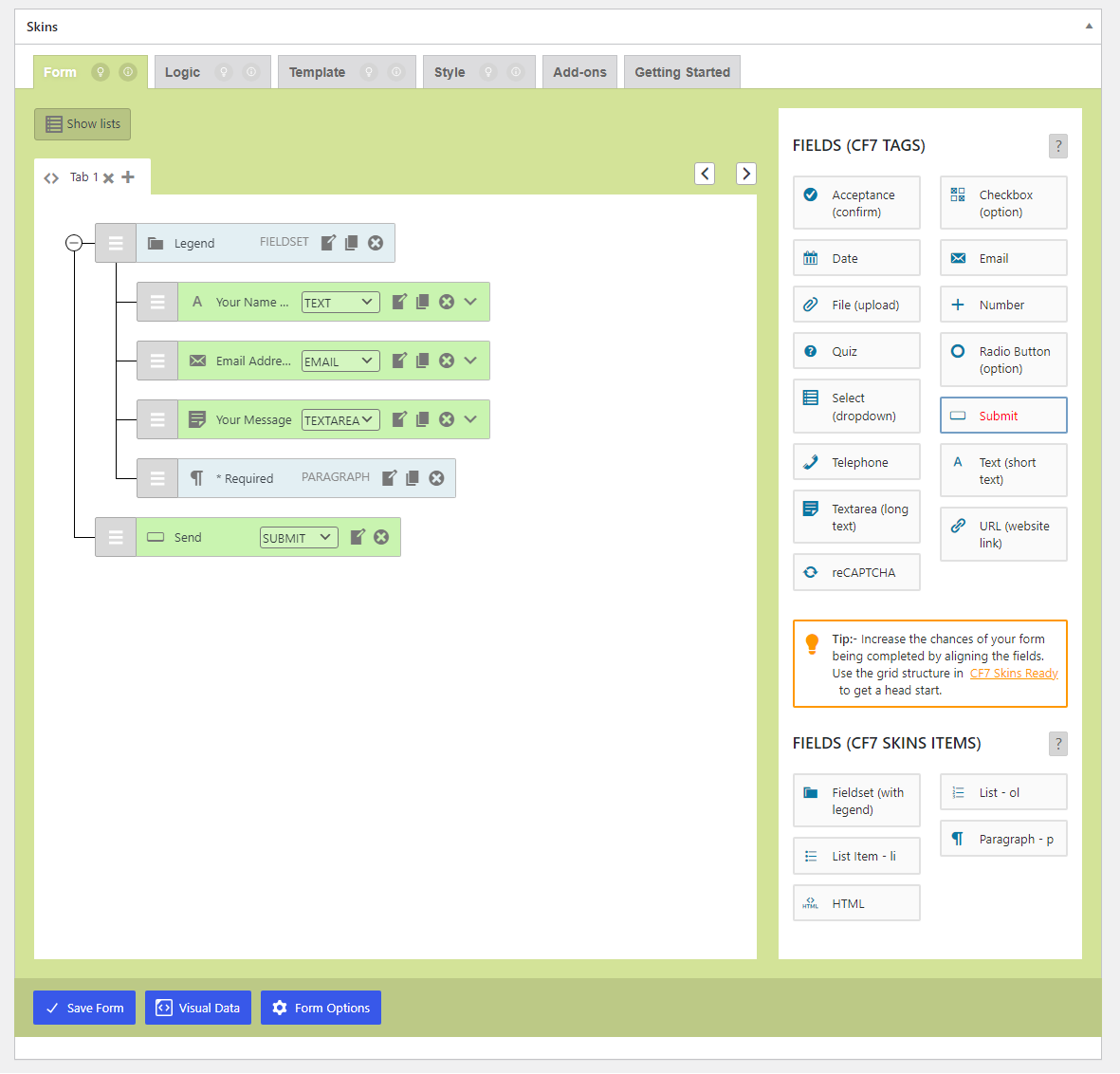
Full Form – Hidden Lists (Hidden Lists_01_Full Form_commit-5372329_2024-07-03.png)

Checklist #

  1. Select Selection
  2. Clicking on the field button
  3. Clicked on the field button and added field
  4. Dragging new field button
  5. Dragged and added field

Select Selection #

back to top

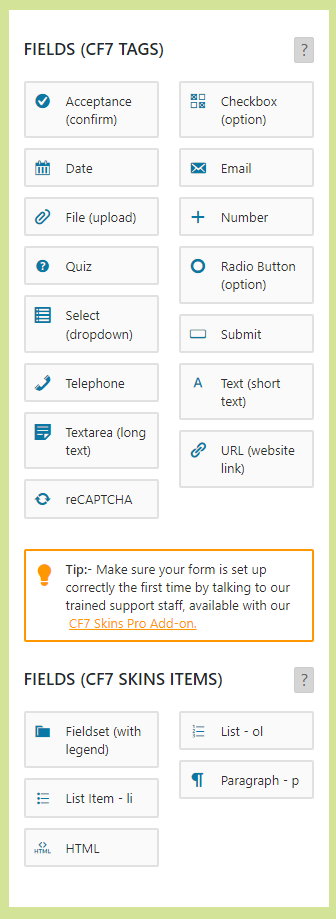
Select Selection – Hidden Lists (Hidden Lists_02_Select Section_commit-5372329_2024-07-03.png)

Clicking New Field Button #

back to top

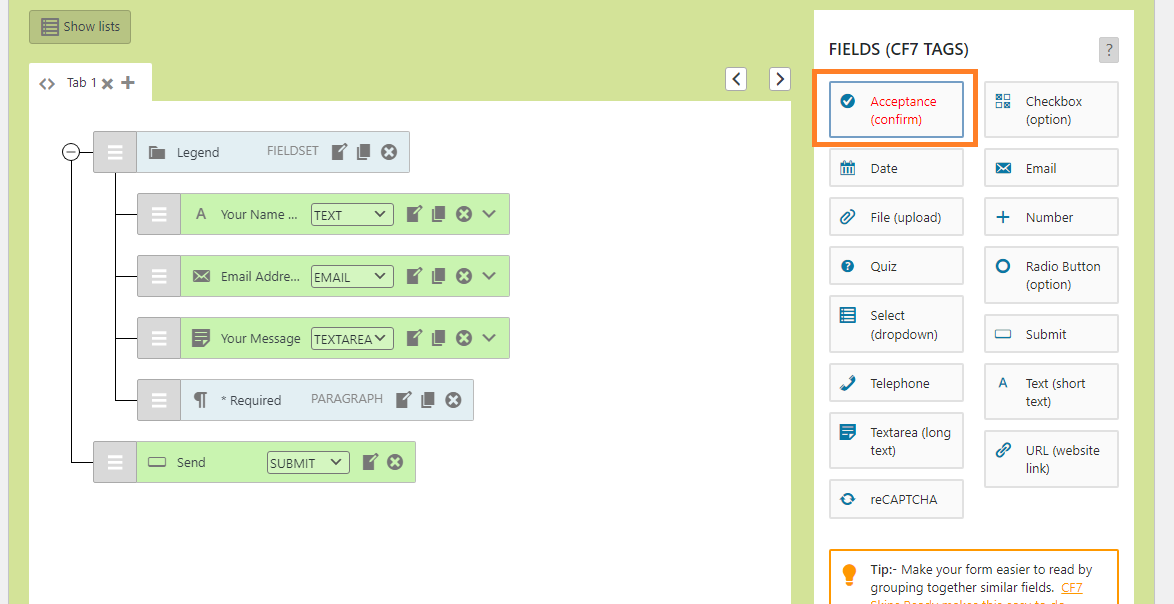
Clicking on the field button – Select Section – Hidden Lists (Hidden Lists_03_Clicking on the field to add it to form_commit-5372329_2024-07-03.png)

Clicked on the field button and added field #

back to top

Clicked on the field button and added field – Select Section – Hidden Lists (Hidden Lists_04_Clicked on the field and added it to form_commit-5372329_2024-07-03.png)

Dragging New Field Button #

back to top

Dragging new field button – Select Section – Hidden Lists (Hidden Lists_05_dragging new field to form_commit-5372329_2024-07-03.png)

Dragged and new field added to form #

back to top

Dragged and New field added to form – Select Selection – Hidden Lists (Hidden Lists_06_dragged and new field added to form_commit-5372329_2024-07-03.png)

Select Fields – Visible Lists #

back to top

Full Form – Visible Lists (Visible Lists_07_Full Form_commit-5372329_2024-07-05.png)

Checklist #

  1. Select Selection
  2. Clicking on the field button
  3. Clicked on the field button and added field
  4. Dragging new field button
  5. Dragged and added field

Select Selection #

back to top

Select Selection – Visible Lists (Visible Lists_08_Select Section_commit-5372329_2024-07-03.png)

Clicking on the field button #

back to top

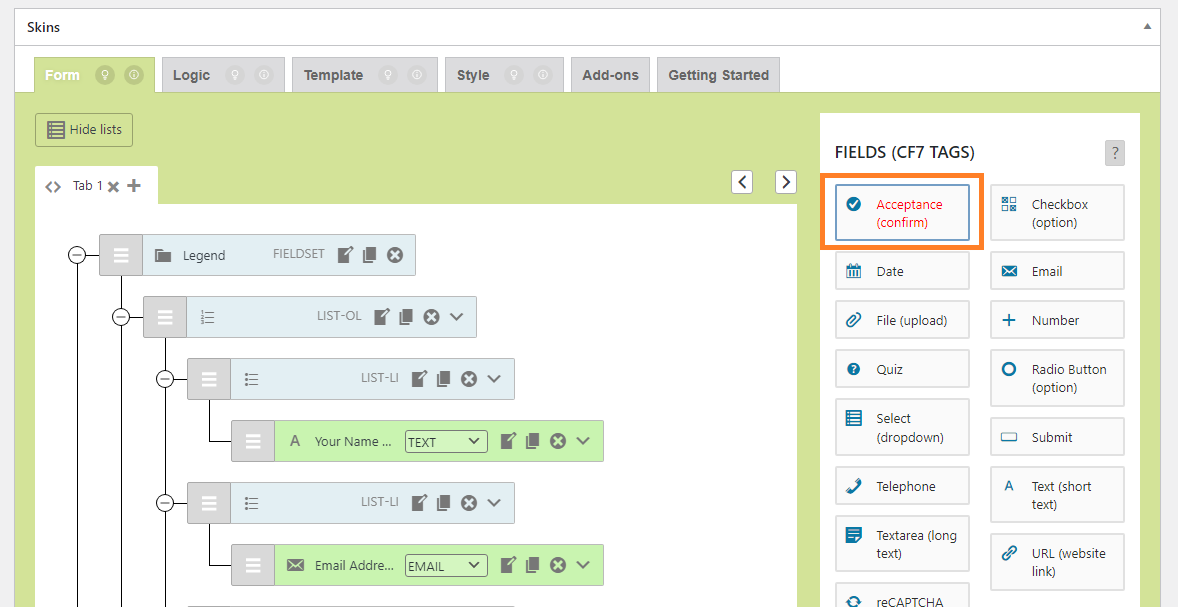
Clicking on the field button – Select Section – Visible Lists (Visible Lists_09_Clicking on the field to add it to form_commit-5372329_2024-07-03.png)

Clicked on the field button and added field #

back to top

Clicked on the field button and added field – Select Section – Visible Lists (Visible Lists_10_Clicked on the field and added it to form_commit-5372329_2024-07-03.png)

Dragging new field button #

back to top

Dragging new field button – Select Section – Visible Lists (Visible Lists_11_dragging new field to form_commit-5372329_2024-07-03.png)

Dragged and added field #

back to top

Dragged and New field added to form – Select Selection – Visible Lists (Visible Lists_12_dragged and new field added to form_commit-5372329_2024-07-03.png)

Form Options #

back to top

Images – ..\Sync\..\Testing\Test Site\Manual Testing\ACTIONS\Form Options\

Checklist

Form Options – Blank #

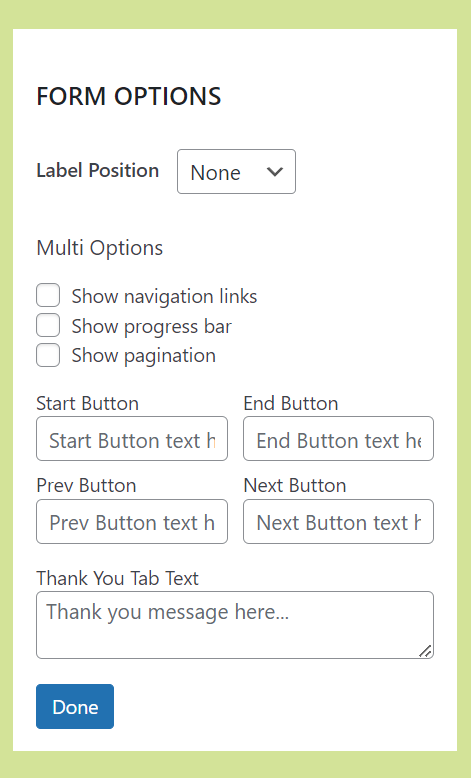
Form Options – Blank (FormOptions – Blank_v2.5.3_2023-04-08.png)

Form Options – Label Position #

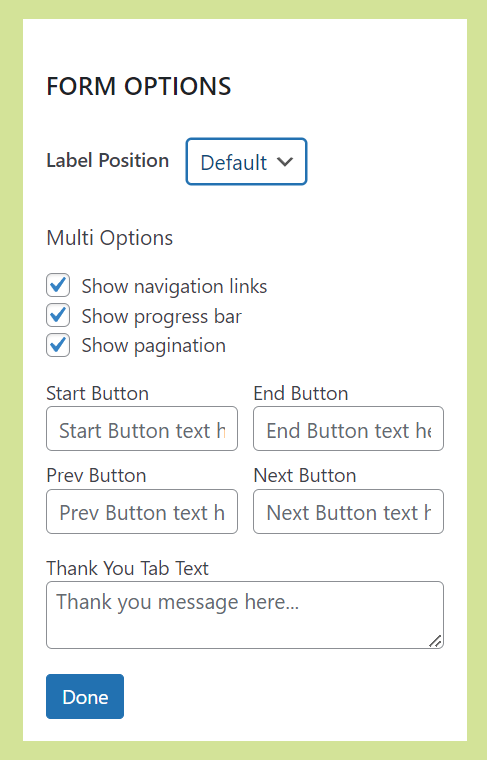
Form Options – chngeLabel Position – Default (Form Options – Label Position – Default_v2.5.3_2023-04-08.png)

Refer Change Label Position.

Form Options – Multi Options #

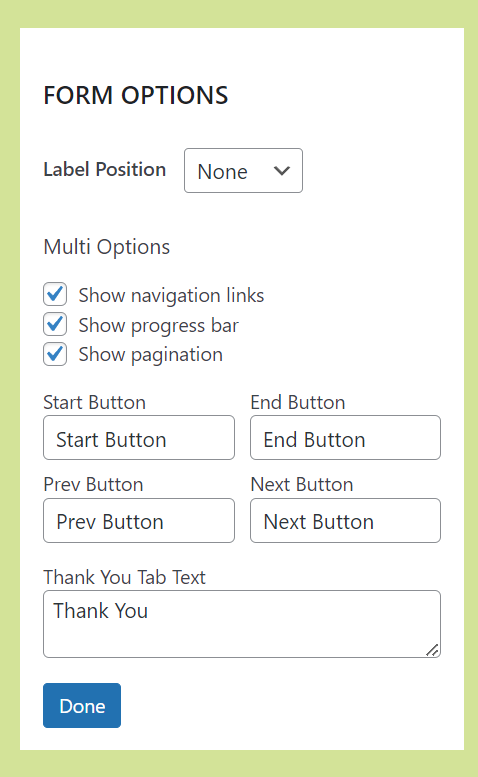
Form Options – Multi Options (Form Options – All Multi Button Texts Filled_v2.5.3_2023-04-08.png)

Refer Multi Options.

back to top


Template Tab #

back to top

Images – ..\Sync\..\Testing\Test Site\Manual Testing\ACTIONS\Template Tab\

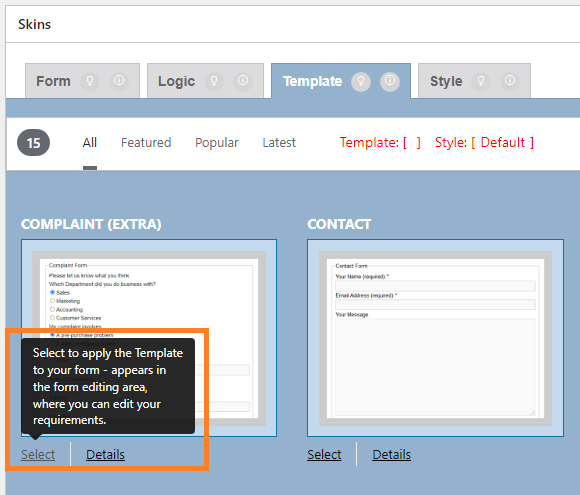
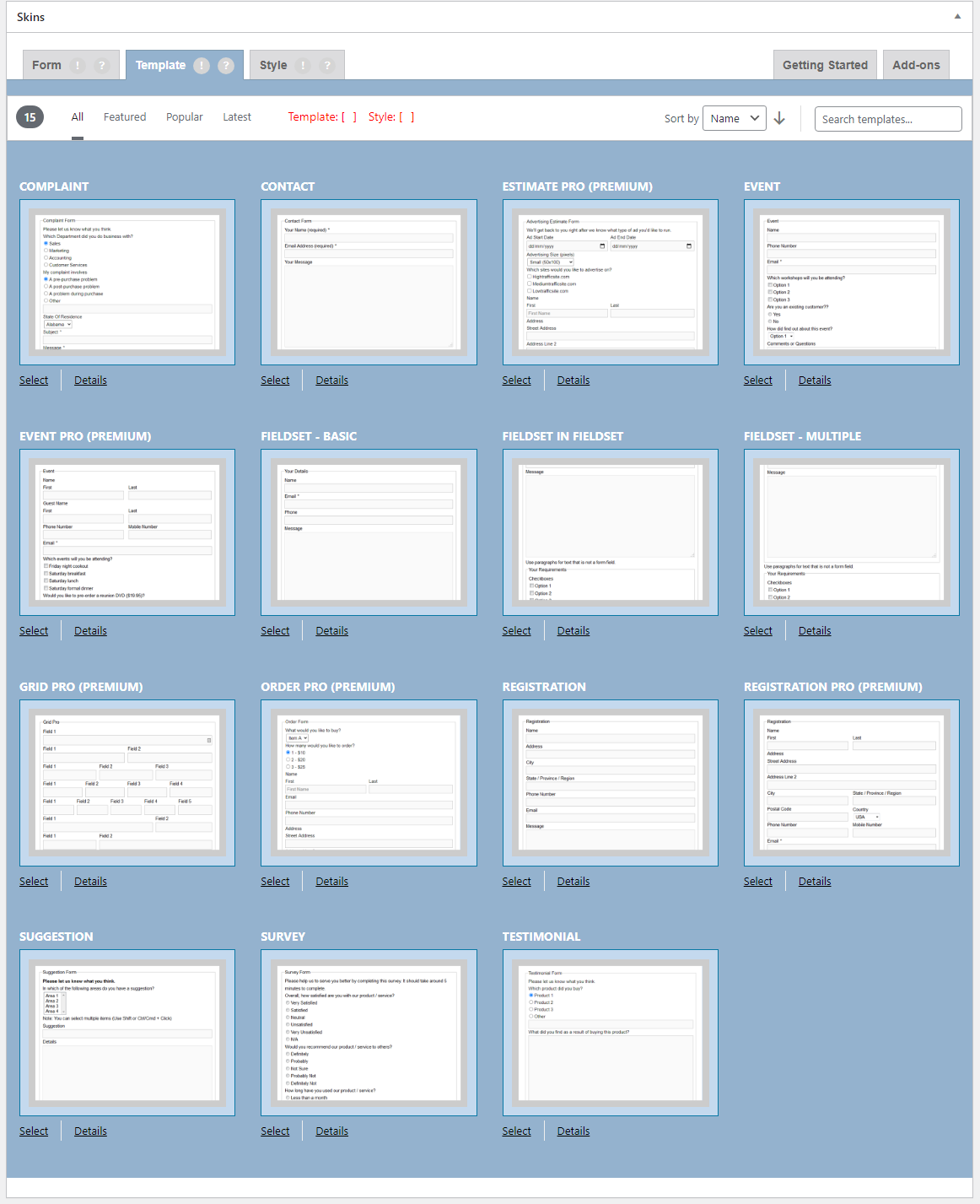
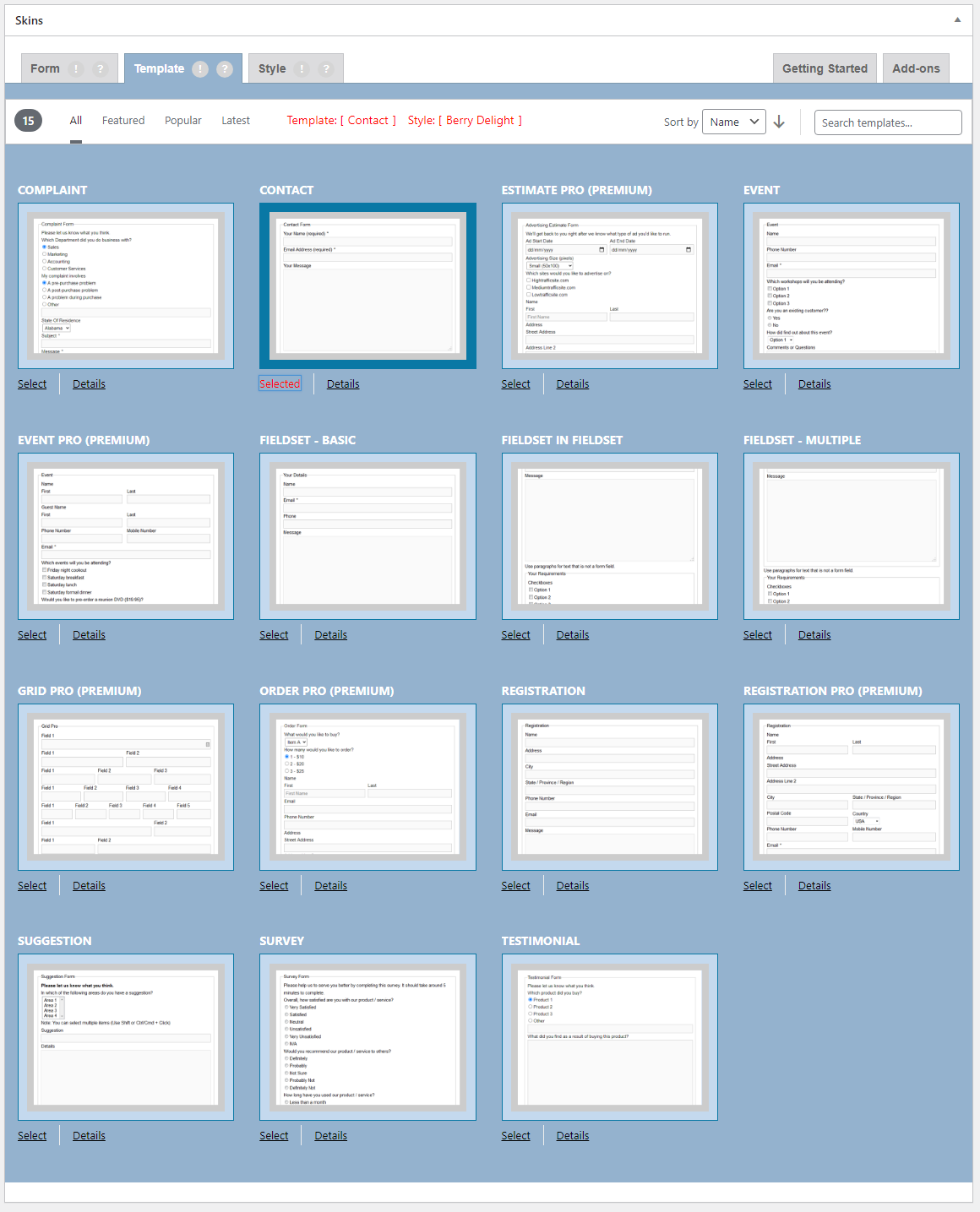
Template Tab (01_Template Tab_V2.7.0_commit-2f4d7d2_2024-07-31.png)

Checklist

  1. Select Template
  2. Deselect Template
  3. Select Different Template
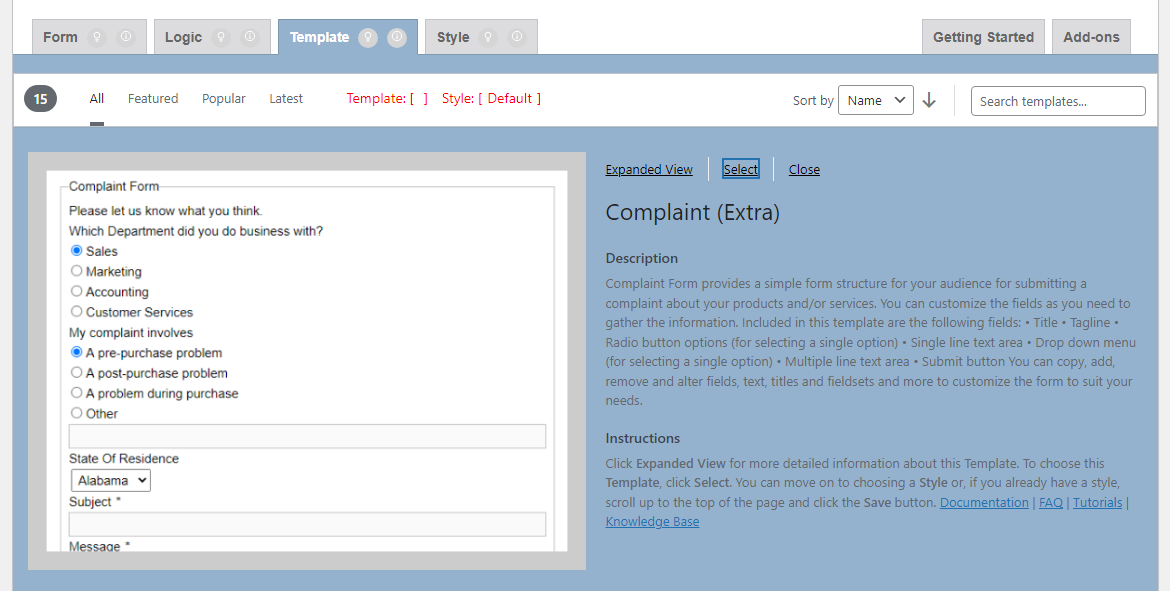
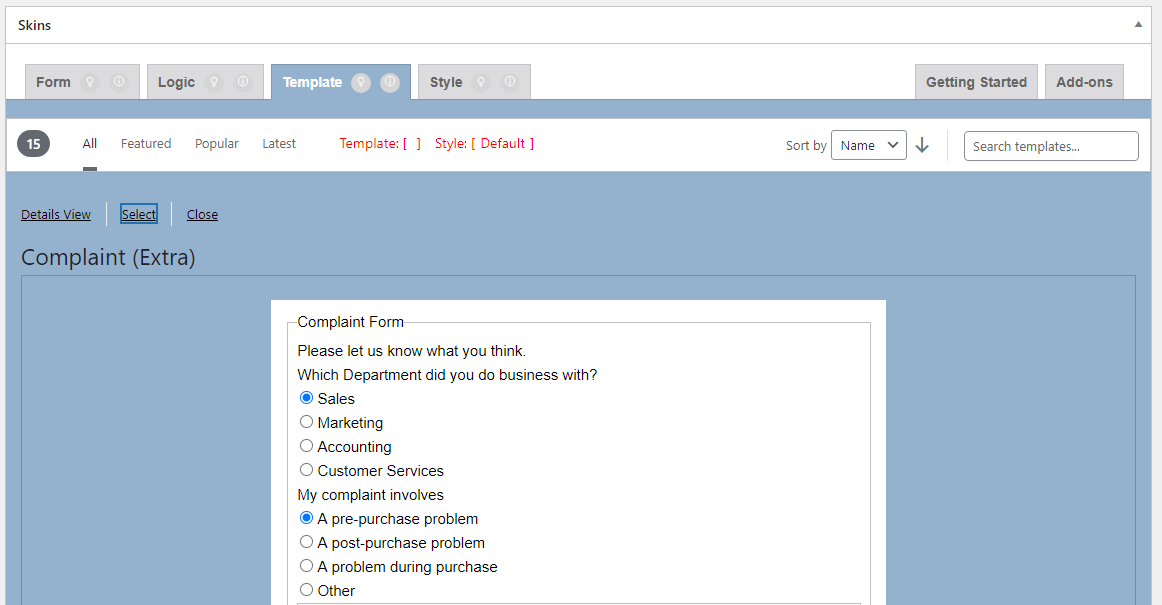
  4. Details View
  5. Expanded View
  6. Sort Templates

Select Template #

back to top

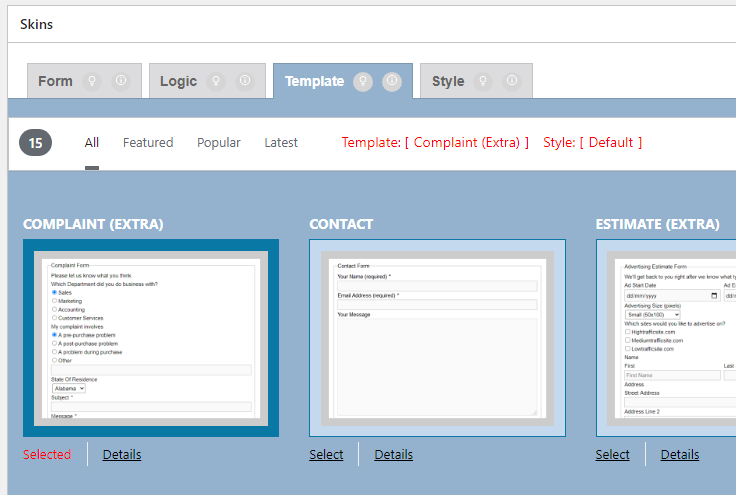
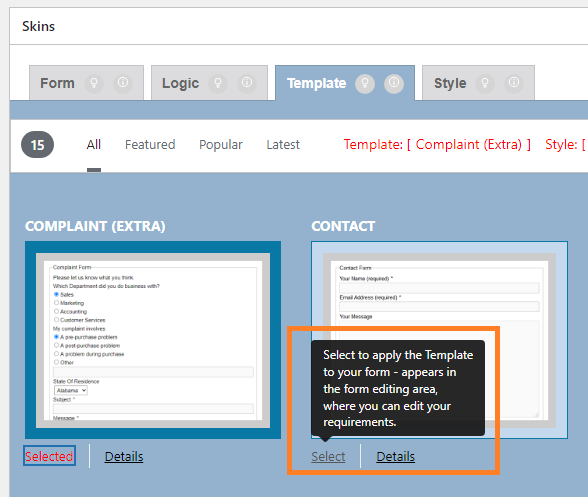
Clicking on Select Template – Template Tab (02_Clicking on Select – Template Tab_V2.7.0_commit-2f4d7d2_2024-07-31.png)
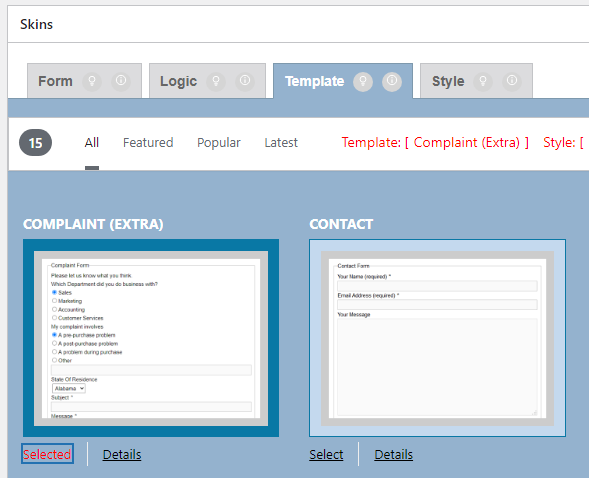
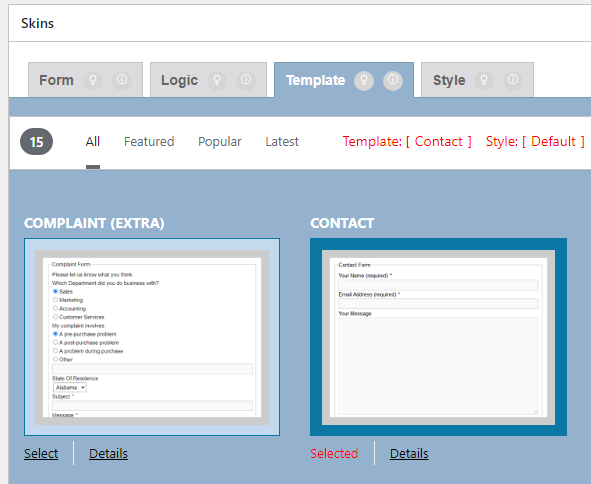
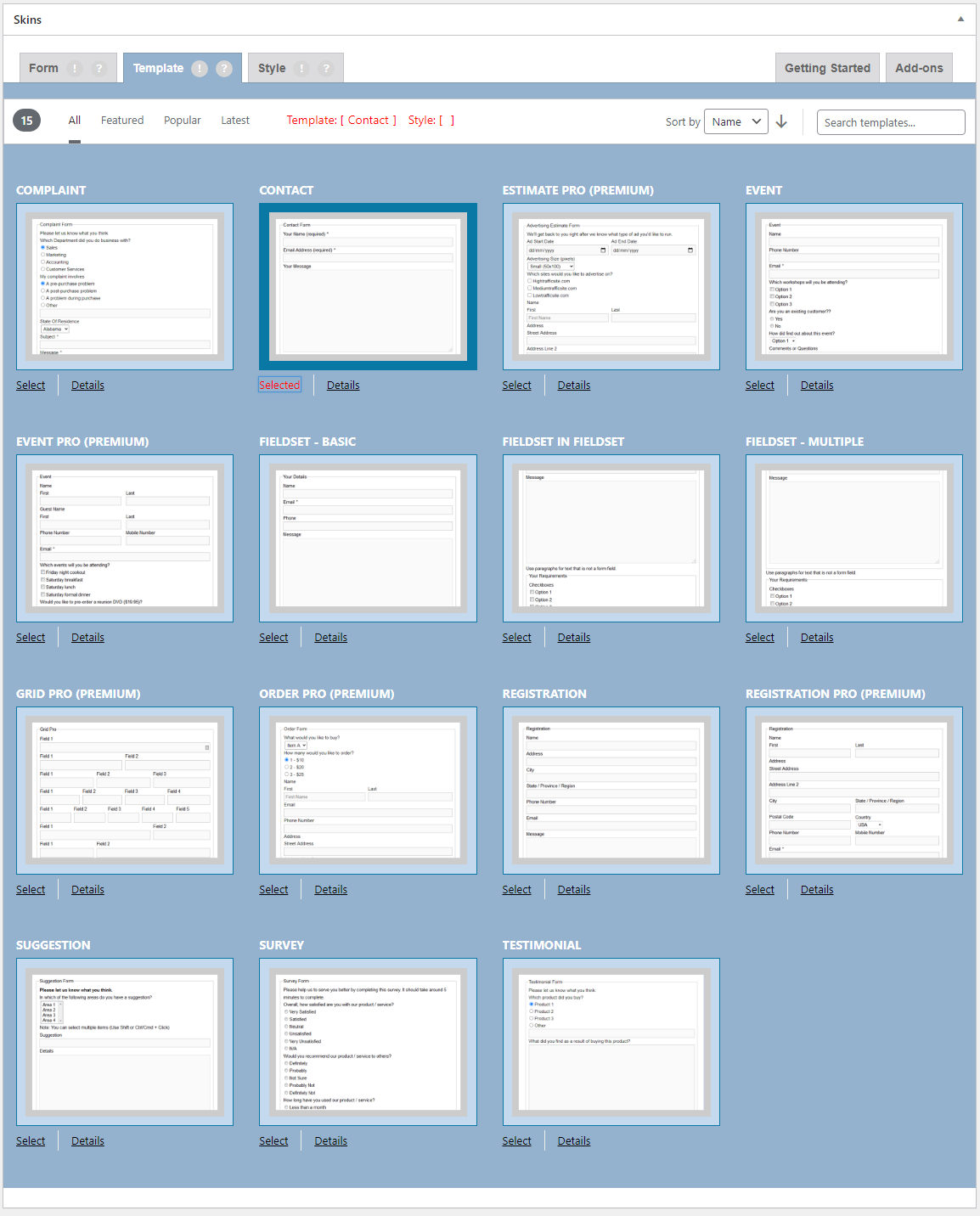
Clicked on Select Template – Template Tab (03_Clicked on Select – Template Tab_V2.7.0_commit-2f4d7d2_2024-07-31.png)

Checklist

  1. After clicking on select, the “Select” button Changes to Selected
  2. After Clicking on Select, the Template Status shows the selected template name.

Deselect Template #

back to top

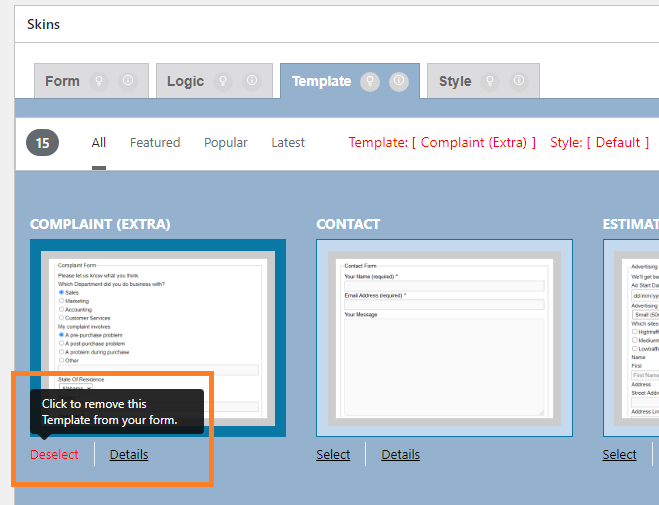
Clicking Deselect Template (04_Clicking on Deselect – Template Tab_V2.7.0_commit-2f4d7d2_2024-07-31.png)
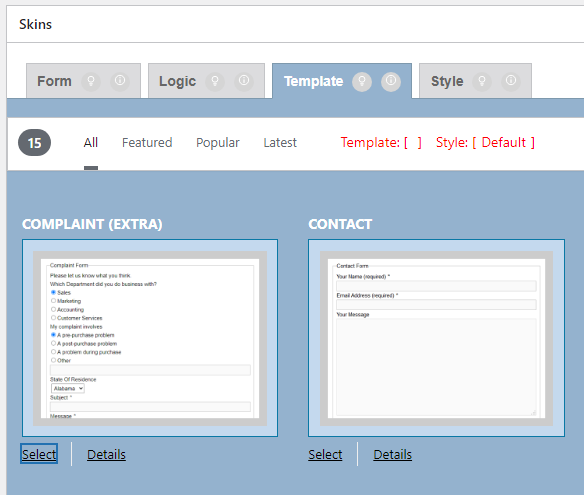
Clicked on Deselect Template (05_Clicked on Deselect – Template Tab_V2.7.0_commit-2f4d7d2_2024-07-31.png)

Checklist

  1. After clicking on Deselect, the “Selected” button changes back to select
  2. After Clicking on Deselect, the Template Status shows selected template name blank.

Select Different Template #

back to top

Template Selected (06_Template Selected -Template Tab_V2.7.0_commit-2f4d7d2_2024-07-31.png)
Clicking Select on Different Template (07_Clicking Select on Different Template – Template Tab_V2.7.0_commit-2f4d7d2_2024-07-31.png)
Clicked on Select of Different Template (08_Clicked Select on Different Template – Template Tab_V2.7.0_commit-2f4d7d2_2024-07-31.png)

Checklist

  1. After clicking on “Select” button of different template, the button changes to “Selected”
  2. The previously selected template’s “Seleted” button changes to “Select”
  3. After Clicking on Select, the Template Status shows the selected template name.

Details View #

back to top

Images – ..\Sync\..\Testing\Test Site\Manual Testing\ACTIONS\Template Tab – Details View\

Clicking on Details (01_Clicking on Details – Template Tab_V2.7.0_commit-2f4d7d2_2024-08-01.png)
Clicked on Details (02_Clicked on Details – Template Tab_V2.7.0_commit-2f4d7d2_2024-08-01.png)

Checklist

  1. After Clicking on “Details View”, it is opening the Detailed View window
  2. Template Description and Instructions matches the template

Select Template – Details View #

back to top

Clicking on Select – Template Tab – Details View (03_Clicking on Select – Template Tab – Details View_V2.7.0_commit-2f4d7d2_2024-08-01.png)
Clicked on Select – Template Tab – Details View (04_Clicked on Select – Template Tab – Details View_V2.7.0_commit-2f4d7d2_2024-08-01.png)

Checklist

  1. After clicking on Select button it chages to Selected
  2. Template Status is showing the current selected Template

Deselect Template – Details View #

back to top

Clicking on Deselect – Template Tab – Details View (05_Clicking on Deselect – Template Tab – Details View_V2.7.0_commit-2f4d7d2_2024-08-01.png)
Clicked on Deselect – Template Tab – Details View (06_Clicked on Deselect – Template Tab – Details View_V2.7.0_commit-2f4d7d2_2024-08-01.png)

Checklist

  1. While hovering on “Selected” button, it changes to “Deselect”.
  2. Once Clicked on “Deselect” button, it changes to “Select”.

Close Details – Details View #

back to top

Clicking on Close – Template Tab – Details View (07_Clicking on close – Template Tab – Details View_V2.7.0_commit-2f4d7d2_2024-08-01.png)
Clicked on Close – Template Tab – Details View (08_Clicked on close – Template Tab – Details View_V2.7.0_commit-2f4d7d2_2024-08-01.png)

Checklist

  1. The details view getting disappeared when clicked on “Close”

Expanded View #

back to top

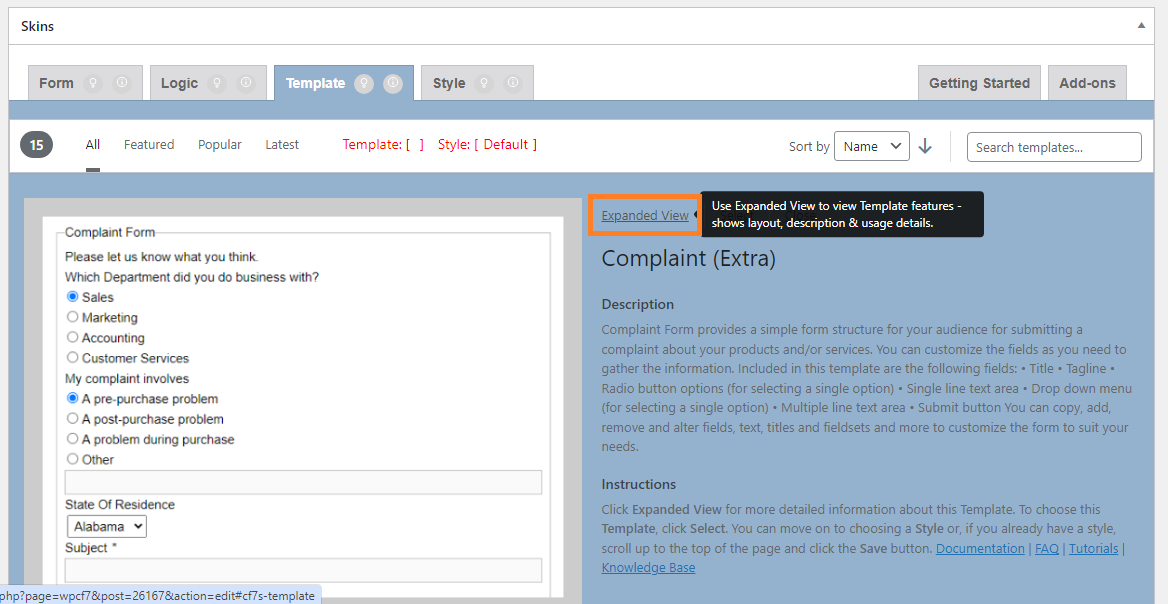
Clicking on Expanded View (01_Clicking on Expanded View – Template Tab_V2.7.0_commit-2f4d7d2_2024-08-01.png)
Clicked on Expanded View (02_Clicked on Expanded View – Template Tab_V2.7.0_commit-2f4d7d2_2024-08-01.png)

Checklist

  1. After Clicking on Expanded view, the Expanded View window is opening
  2. Template Description and Instructions matches the template

Select Template – Expanded View #

back to top

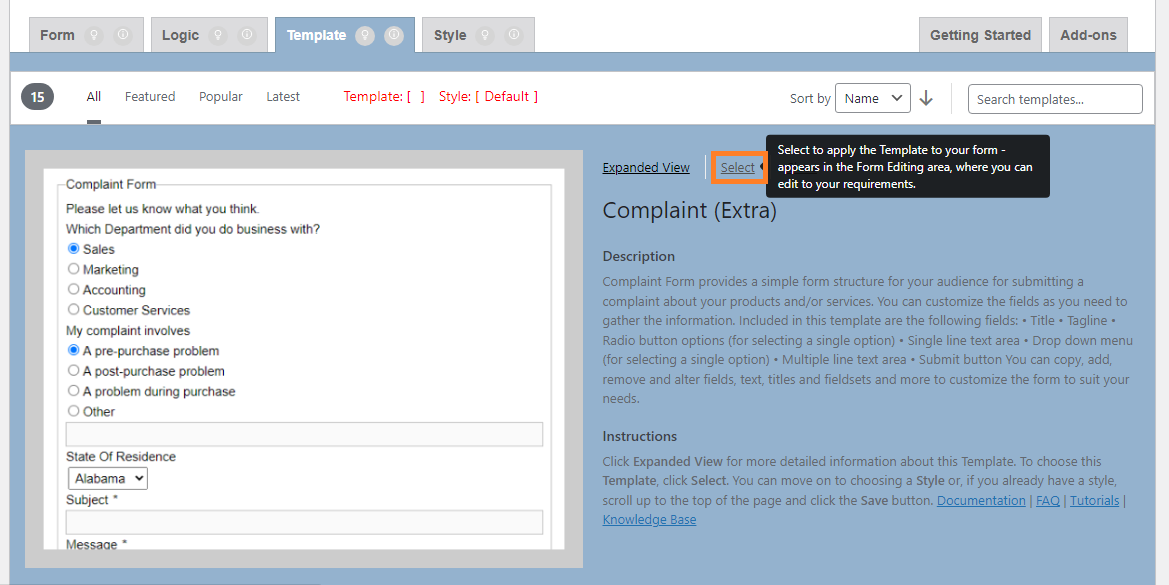
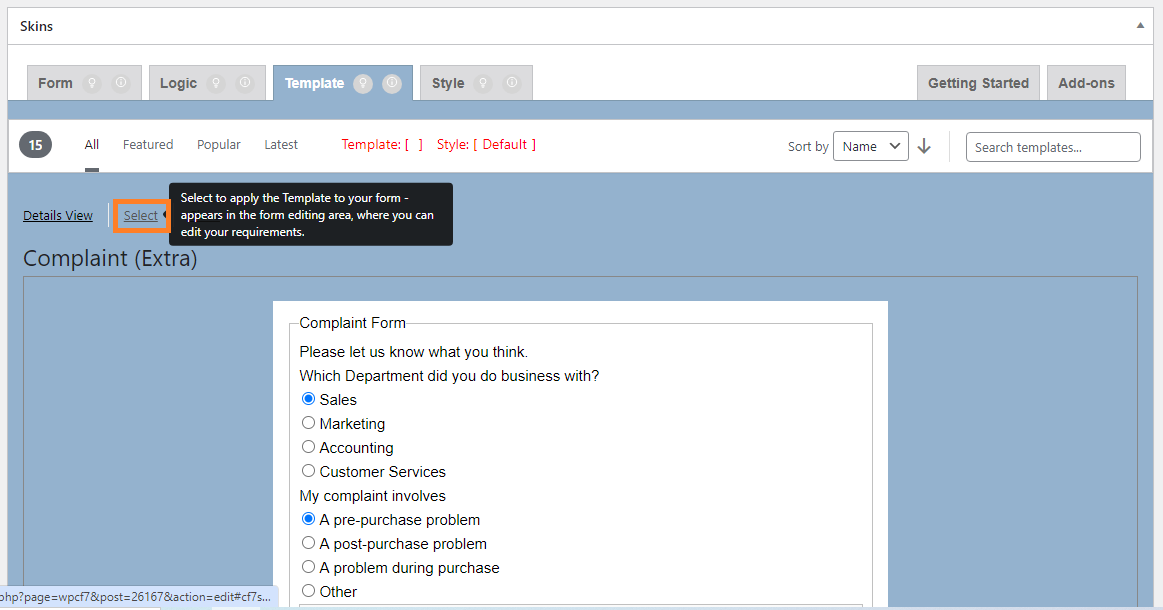
Clicking on Select Template – Template Tab – Expanded View (03_Clicking on Select Template – Template Tab – Expanded View_V2.7.0_commit-2f4d7d2_2024-08-01.png)
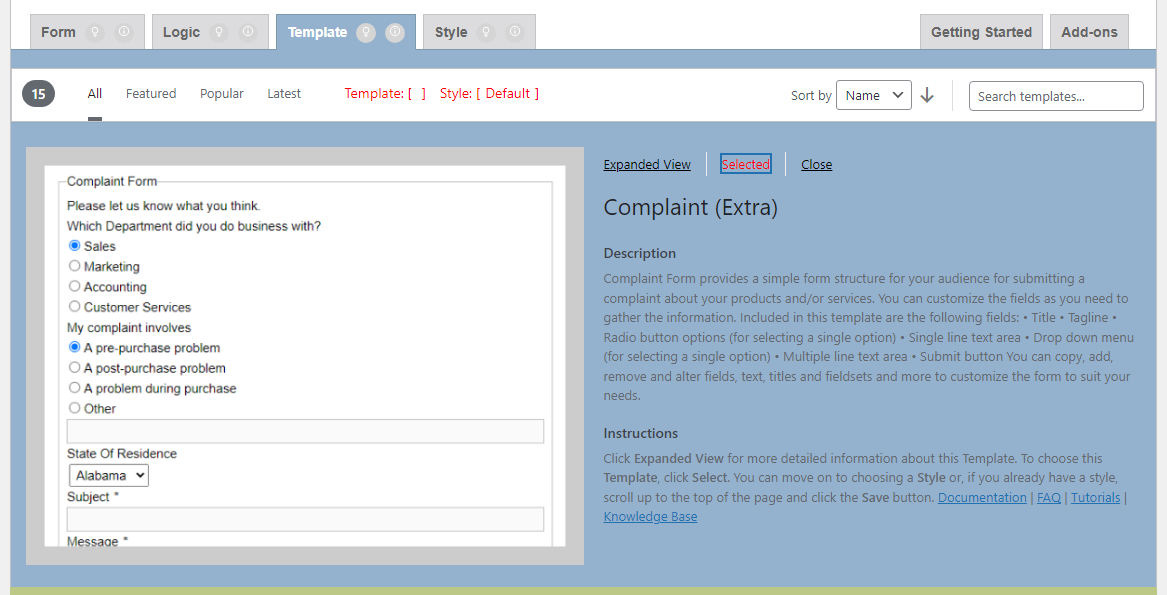
Clicked on Select Template – Template Tab – Expanded View (04_Clicked on Select Template – Template Tab – Expanded View_V2.7.0_commit-2f4d7d2_2024-08-01.png)

Checklist

  1. After clicking on Select button it chages to Selected
  2. Template Status is showing the current selected Template

Deselect Template – Expanded View #

back to top

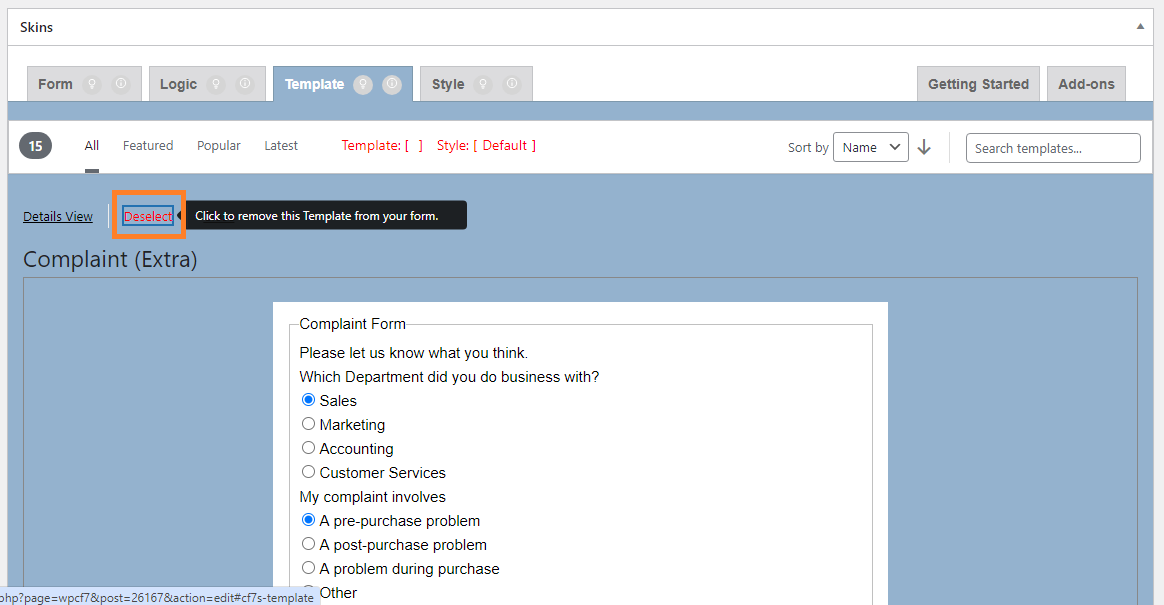
Clicking on deselect Template – Template Tab – Expanded View (05_Clicking on deselect Template – Template Tab – Expanded View_V2.7.0_commit-2f4d7d2_2024-08-01.png)
Clicked on deselect Template – Template Tab – Expanded View (06_Clicked on deselect Template – Template Tab – Expanded View_V2.7.0_commit-2f4d7d2_2024-08-01.png)

Checklist

  1. While hovering on “Selected” button, it changes to “Deselect”.
  2. Once Clicked on “Deselect” button, it changes to “Select”.

Close Details – Expanded View #

back to top

Clicking on close details – Template Tab – Expanded View (07_Clicking on close details – Template Tab – Expanded View_V2.7.0_commit-2f4d7d2_2024-08-01.png)
Clicked on close details – Template Tab – Expanded View (08_Clicked on close details – Template Tab – Expanded View_V2.7.0_commit-2f4d7d2_2024-08-01.png)

Checklist

  1. The details view getting disappeared when clicked on “Close”

Sort Templates #

back to top

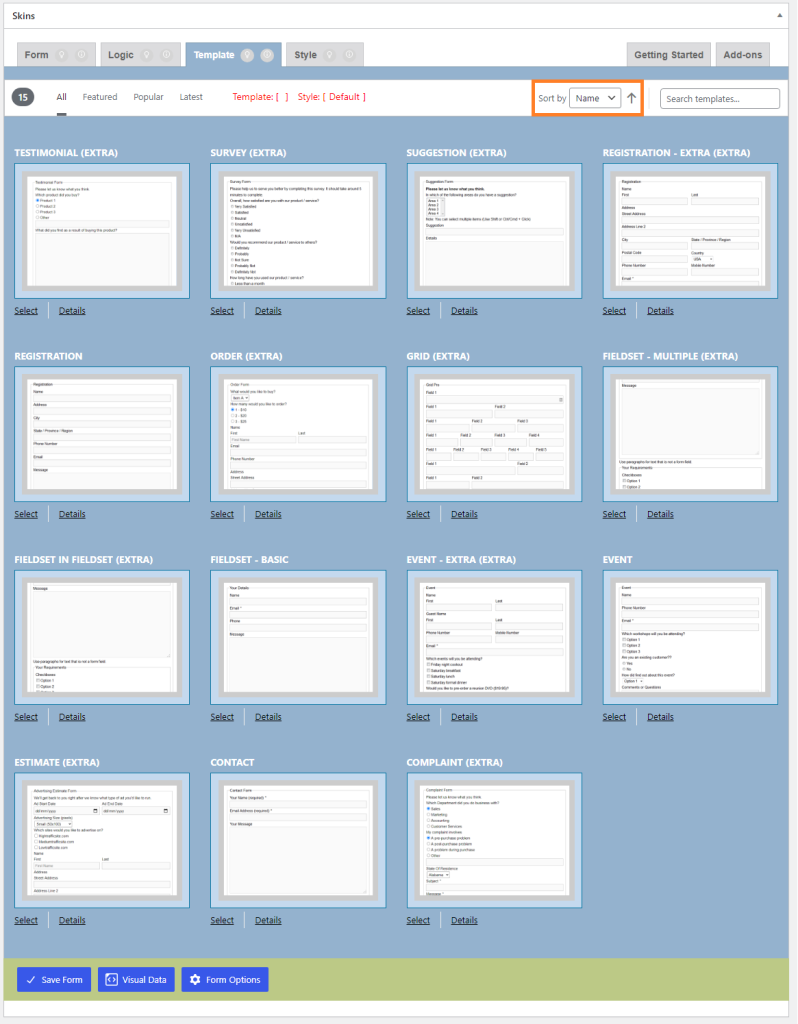
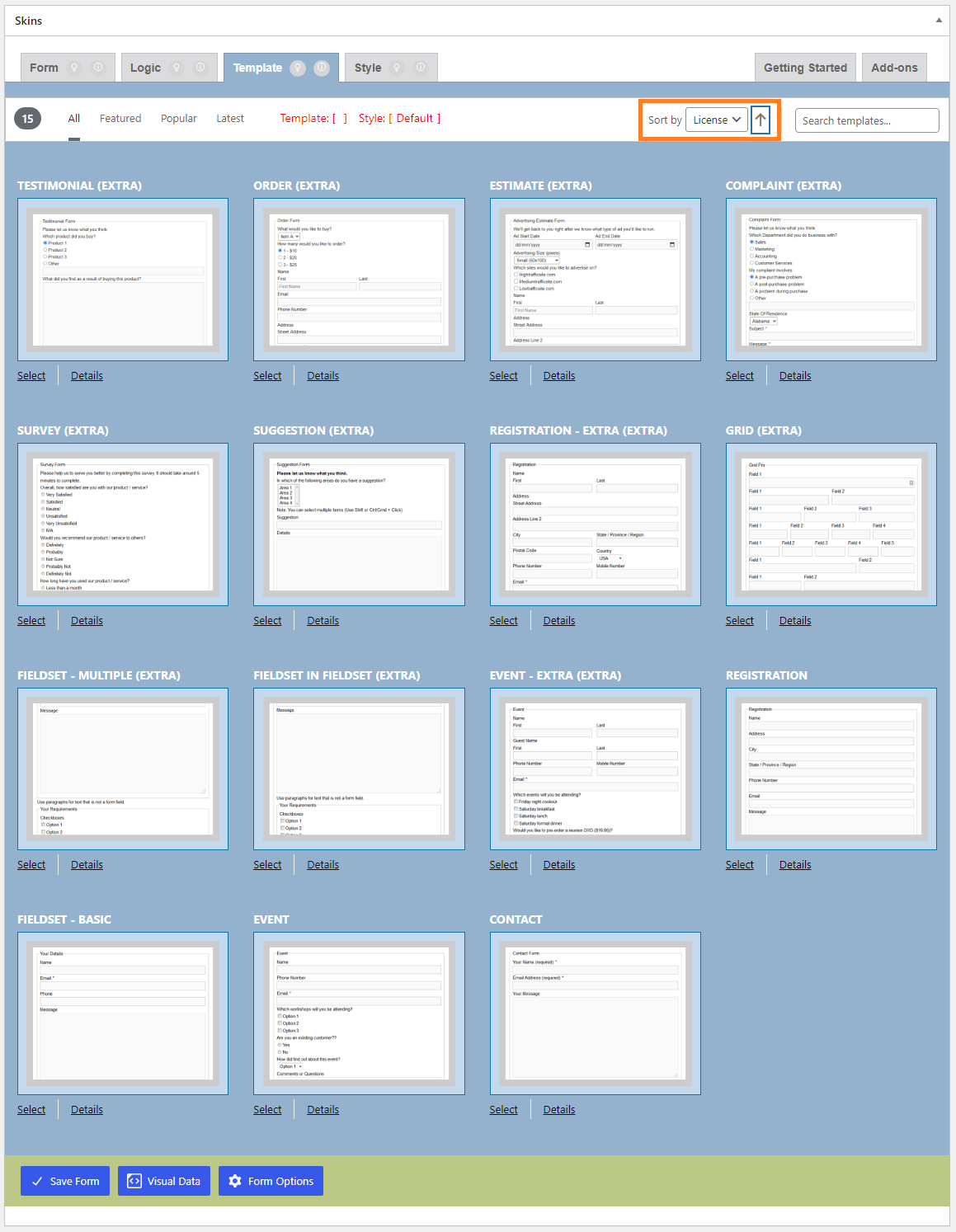
Sort Options – Template Tab (01_Sort by options – Template Tab_V2.7.0_commit-2f4d7d2_2024-08-01.png)
Sort by Name Ascending – Templates Tab (02_Sort by Name Ascending – Template Tab_V2.7.0_commit-2f4d7d2_2024-08-01.png)
Sort by Name Descending – Template Tab (03_Sort by Name Descending – Template Tab_V2.7.0_commit-2f4d7d2_2024-08-01.png)
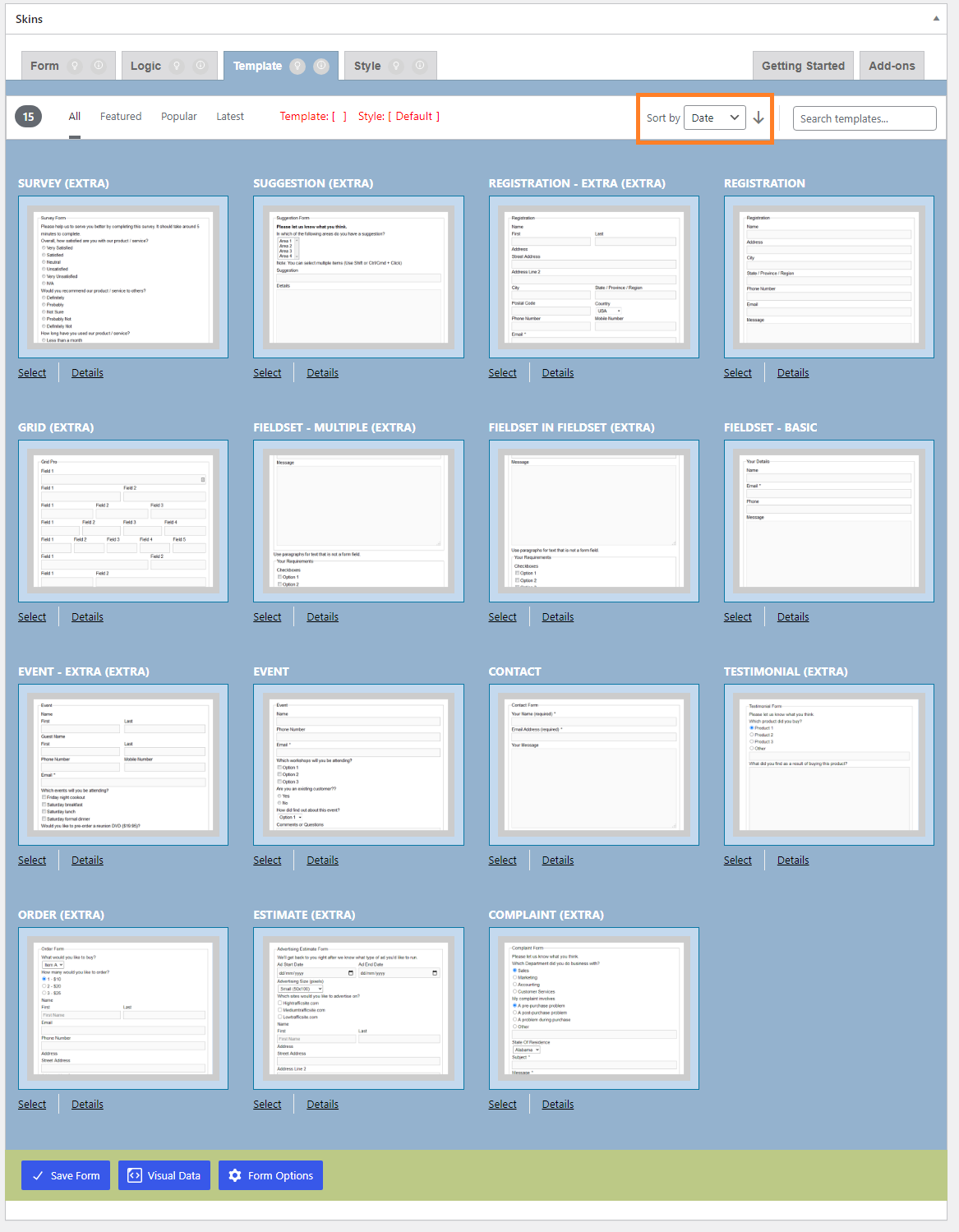
Sort by Date Ascending – Template Tab (04_Sort by Date Ascending – Template Tab_V2.7.0_commit-2f4d7d2_2024-08-01.png)
Sort by Date Descending – Template Tab (05_Sort by Date Descending – Template Tab_V2.7.0_commit-2f4d7d2_2024-08-01.png)
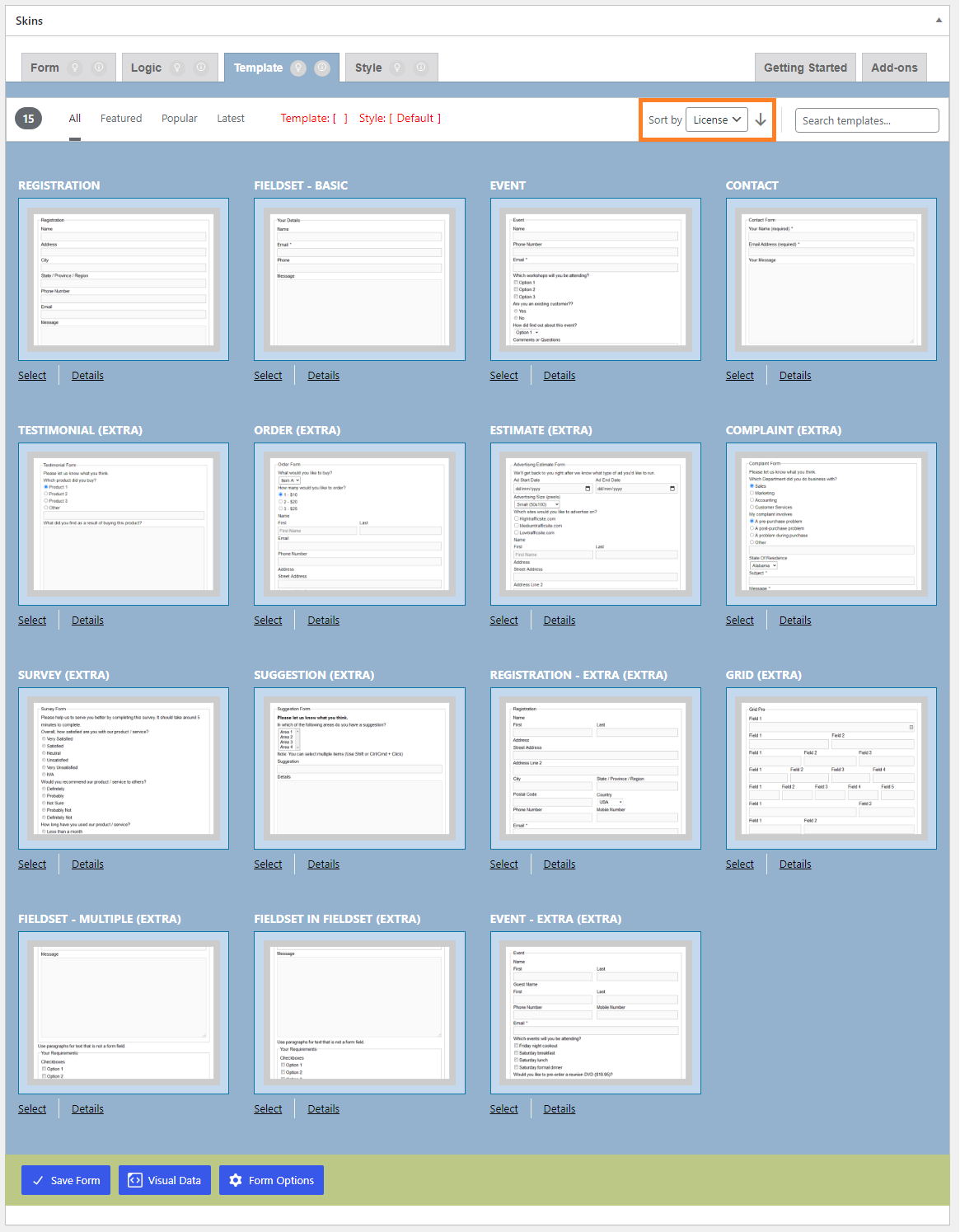
Sort by License Ascending – Template Tab (06_Sort by License Ascending – Template Tab_V2.7.0_commit-2f4d7d2_2024-08-01.png)
Sort by License Descending – Template Tab (07_Sort by License Descending – Template Tab_V2.7.0_commit-2f4d7d2_2024-08-01.png)

Checklist

  1. The templates are sorted as ascending order (A-Z) and descending order (Z-A)
  2. The sort option select box changed to “Name”
  3. Repeat the Test with Date and License, also check this checklist item 1 and 2 for corresponding options.

back to top


Style Tab #

back to top

Images – ..\Sync\..\Testing\Test Site\Manual Testing\ACTIONS\Styles Tab\

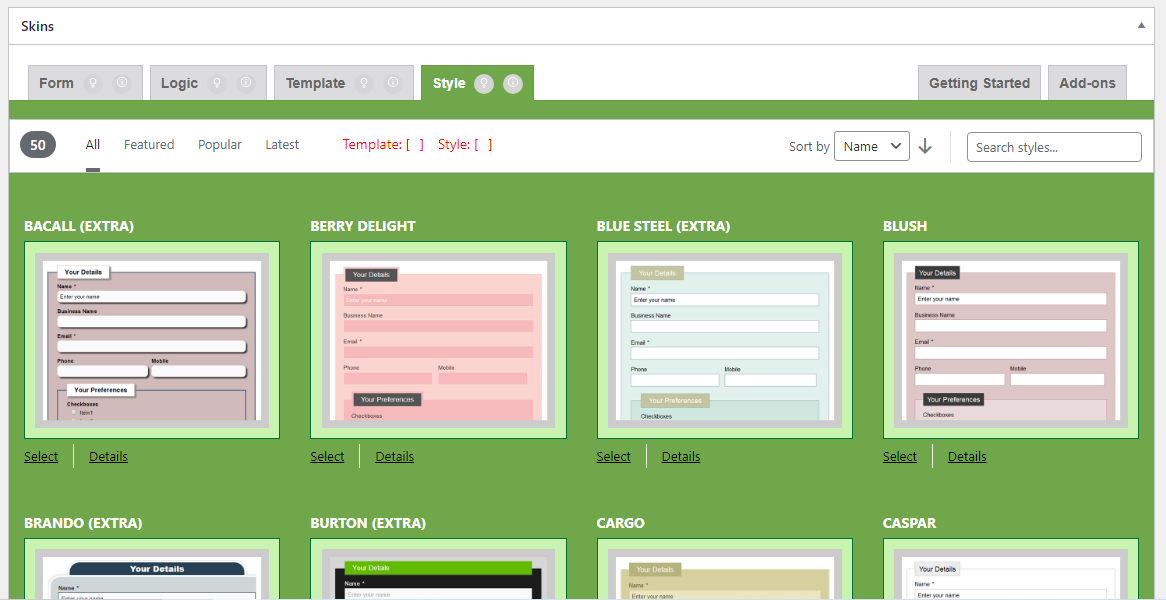
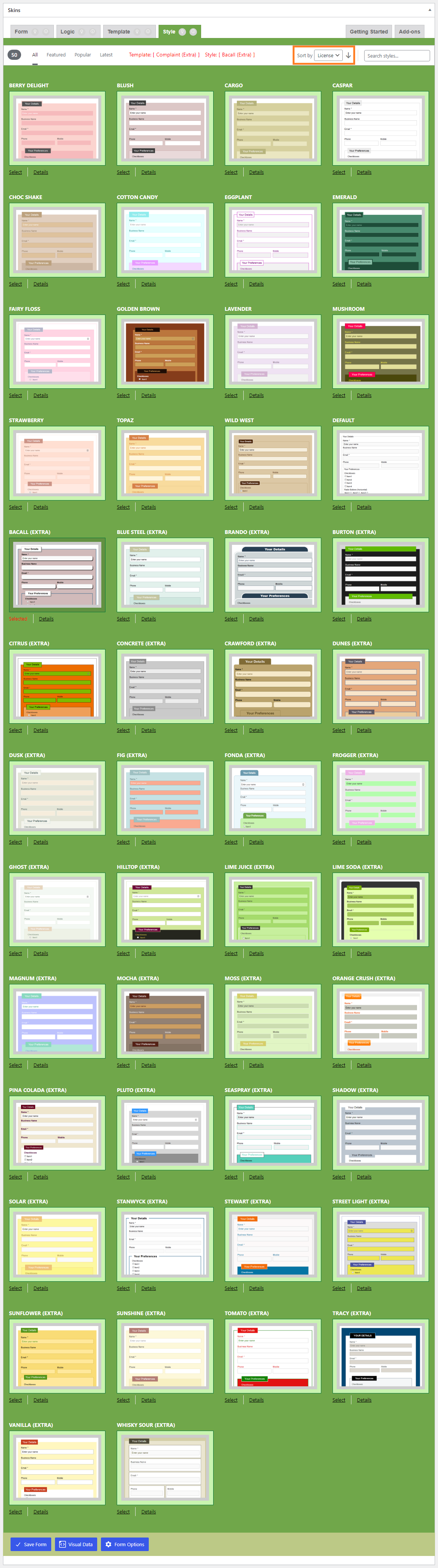
Style Tab (01_Style Tab_V2.7.0_commit-2f4d7d2_2024-08-01.png)

Checklist

  1. Select Style
  2. Deselect Style
  3. Select Different Style
  4. Details View
  5. Expanded View
  6. Sort Style

Select Style #

back to top

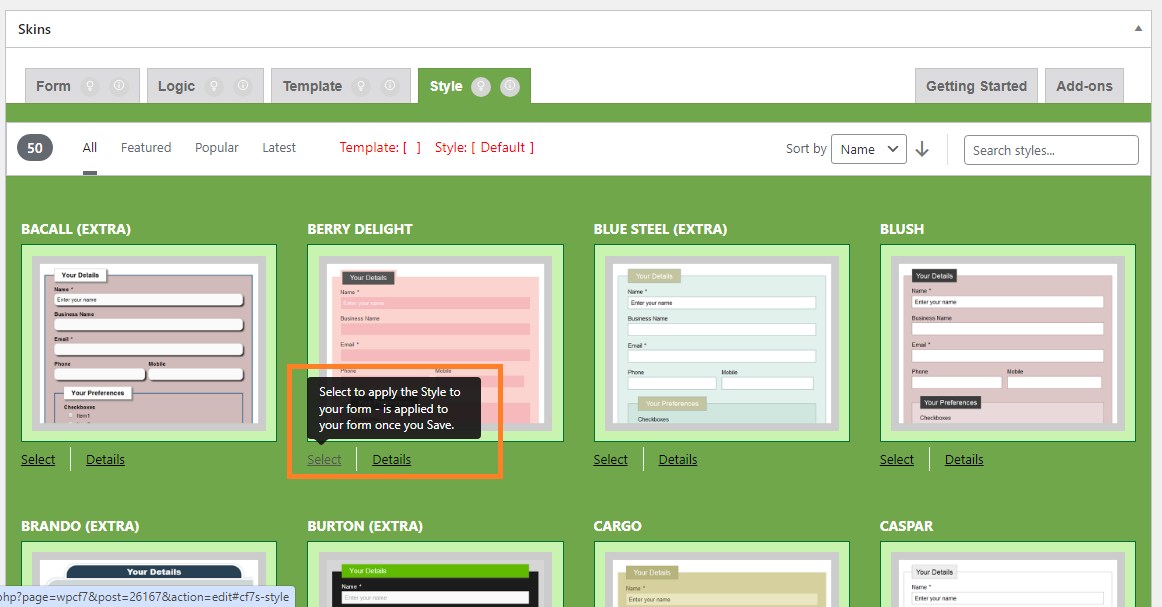
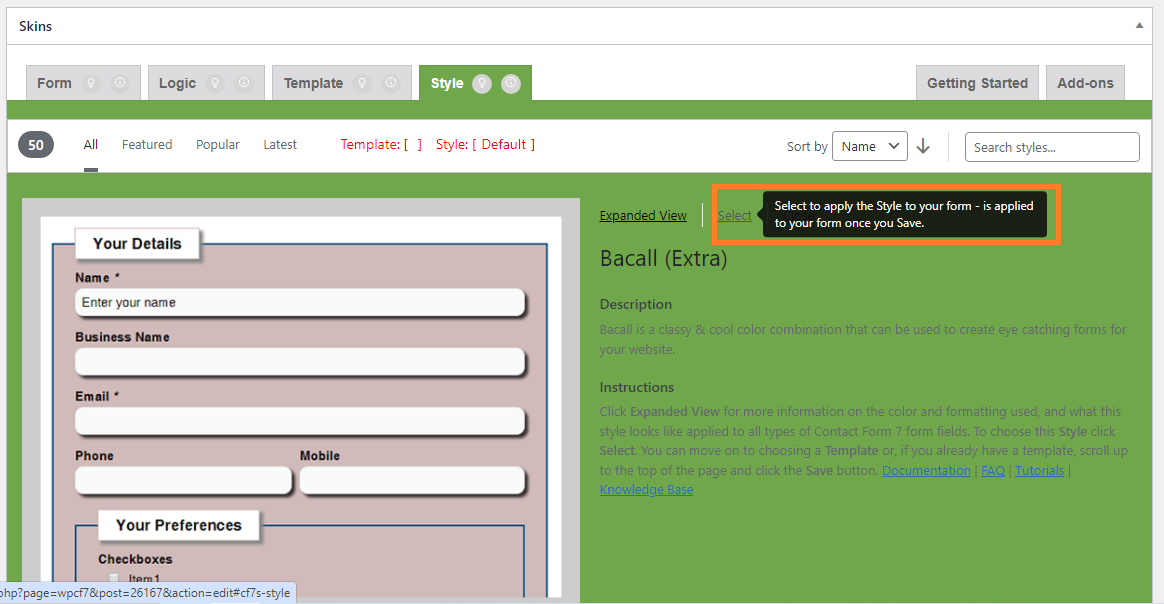
Clicking on Select Style (02_Style Tab – Clicking on Select_V2.7.0_commit-2f4d7d2_2024-08-01.png)
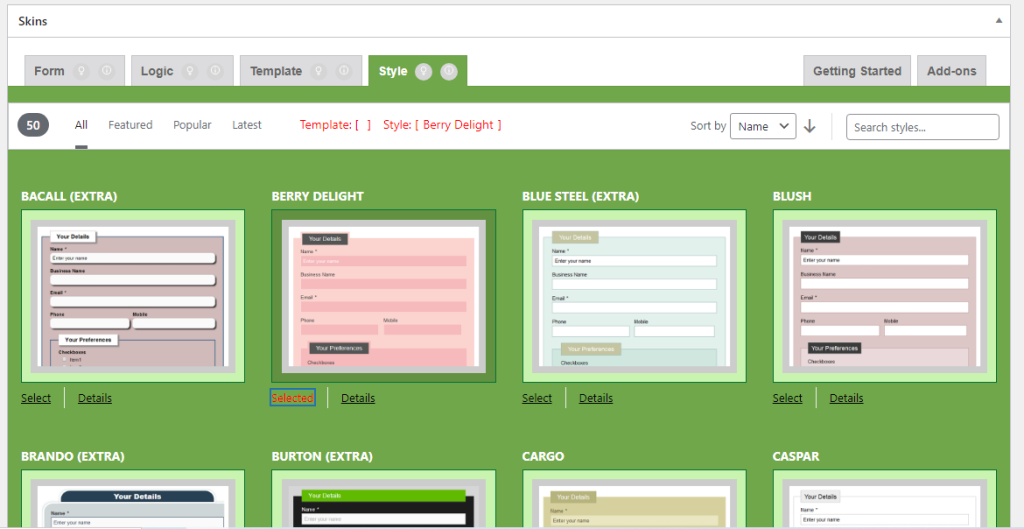
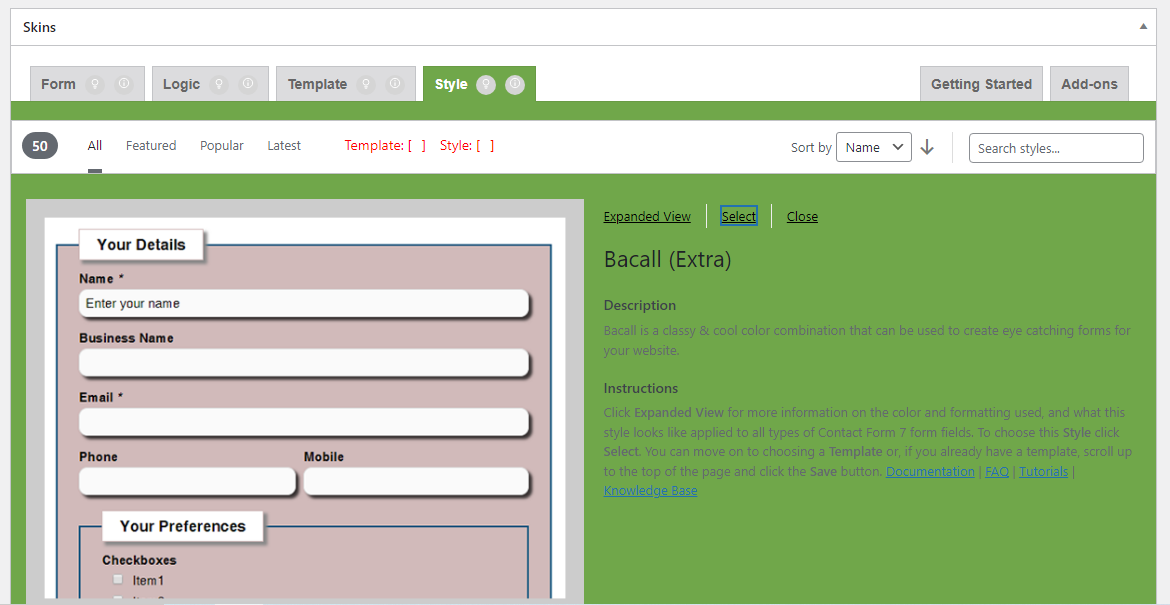
Clicked on Select Style (03_Style Tab – Clicked on Select_V2.7.0_commit-2f4d7d2_2024-08-01.png)

Checklist

  1. After clicking on select, the “Select” button Changes to Selected
  2. After Clicking on Select, the Style Status shows the selected style name.

Deselect Style #

back to top

Clicking Deselect Style (04_Style Tab – Clicking on Deselect_V2.7.0_commit-2f4d7d2_2024-08-01.png)
Clicked on Deselect Style (05_Style Tab – Clicked on Deselect_V2.7.0_commit-2f4d7d2_2024-08-01.png)

Checklist

  1. After clicking on Deselect, the “Selected” button changes back to select
  2. After Clicking on Deselect, the Style Status shows selected style name blank.

Select Different Style #

back to top

Style Selected (06_Style Tab – Style Selected_V2.7.0_commit-2f4d7d2_2024-08-01.png)
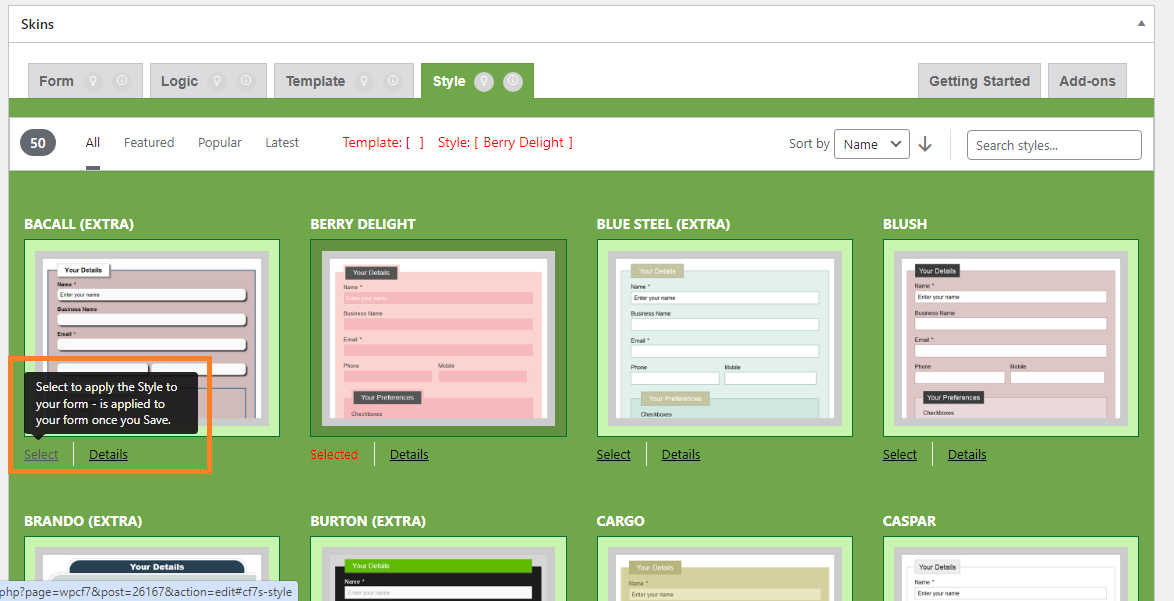
Clicking Select on Different Style (07_Style Tab – Clicking Select on Different Style_V2.7.0_commit-2f4d7d2_2024-08-01.png)
Clicked on Select Different Style (08_Style Tab – Clicked Select on Different Style_V2.7.0_commit-2f4d7d2_2024-08-01.png)

Checklist

  1. After clicking on “Select” button of different style, the button changes to “Selected”
  2. The previously selected style’s “Selected” button changes to “Select”
  3. After Clicking on Select, the Style Status shows the selected style name.

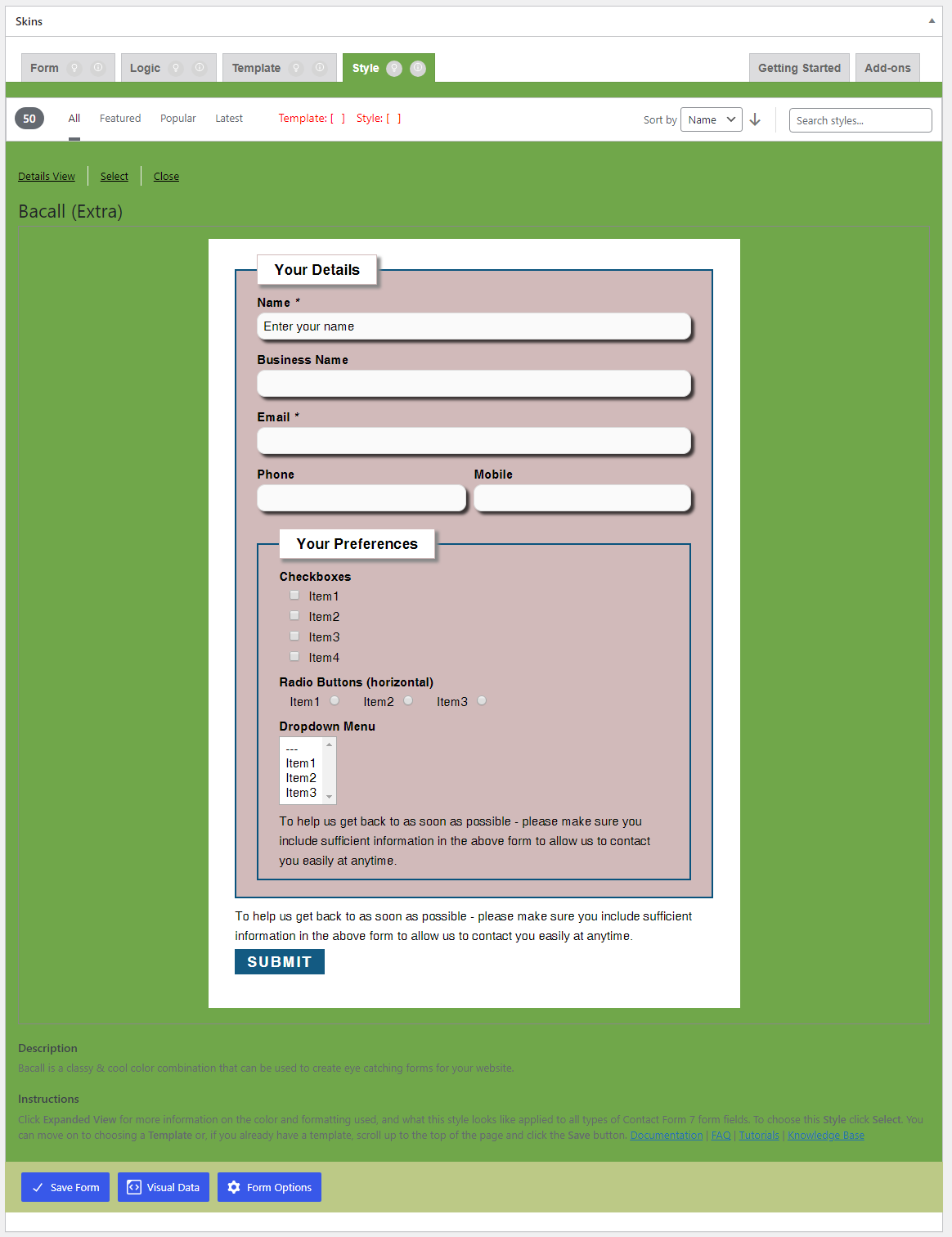
Details View #

back to top

Images – ..\Sync\..\Testing\Test Site\Manual Testing\ACTIONS\Styles Tab – Details View\

Clicking on Details (01_Style Tab – Clicking on Details_V2.7.0_commit-2f4d7d2_2024-08-02.png)
Clicked on Details (02_Style Tab – Clicked on Details_V2.7.0_commit-2f4d7d2_2024-08-02.png)

Checklist

  1. After Clicking on “Details View”, it is opening the Detailed View window
  2. Style Description and Instructions matches the style

Select Style – Details View #

back to top

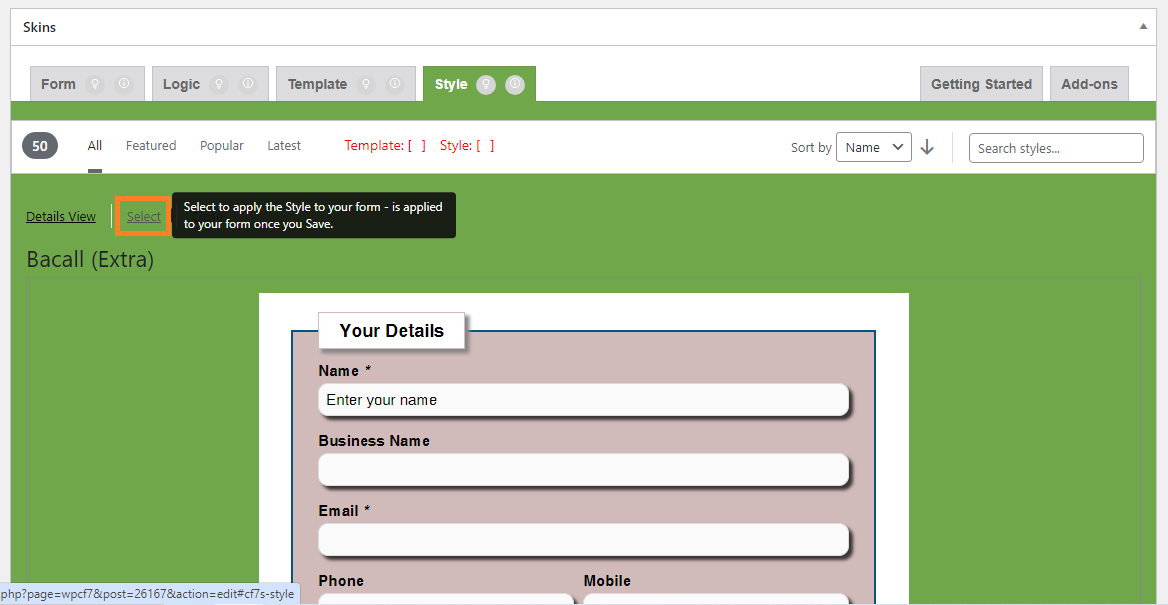
Clicking on Select – Style Tab – Details View (03_Style Tab – Details View – Clicking on Select_V2.7.0_commit-2f4d7d2_2024-08-02.png)
Clicked on Select – Style Tab – Details View (04_Style Tab – Details View – Clicked on Details_V2.7.0_commit-2f4d7d2_2024-08-02.png)

Checklist

  1. After clicking on Select button it chages to Selected
  2. Style Status is showing the current selected Style

Deselect Style – Details View #

back to top

Clicking on Deselect – Style Tab – Details View (05_Style Tab – Details View – Clicking on Deselect_V2.7.0_commit-2f4d7d2_2024-08-02.png)
Clicked on Deselect – Style Tab – Details View (06_Style Tab – Details View – Clicked on Deselect_V2.7.0_commit-2f4d7d2_2024-08-02.png)

Checklist

  1. While hovering on “Selected” button, it changes to “Deselect”.
  2. Once Clicked on “Deselect” button, it changes to “Select”.

Close Details – Details View #

back to top

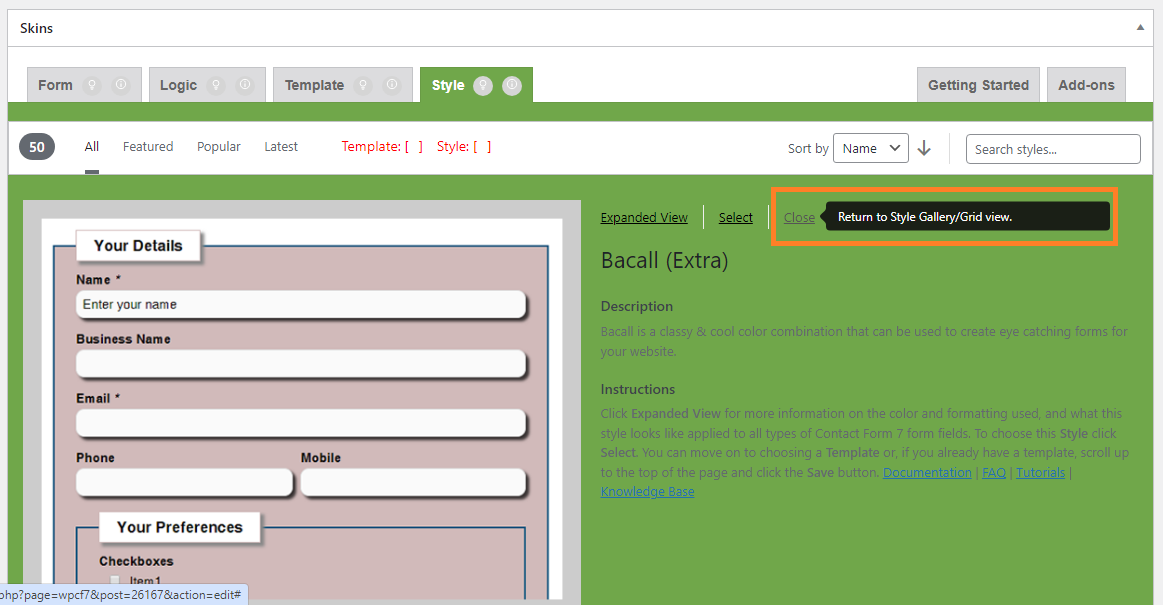
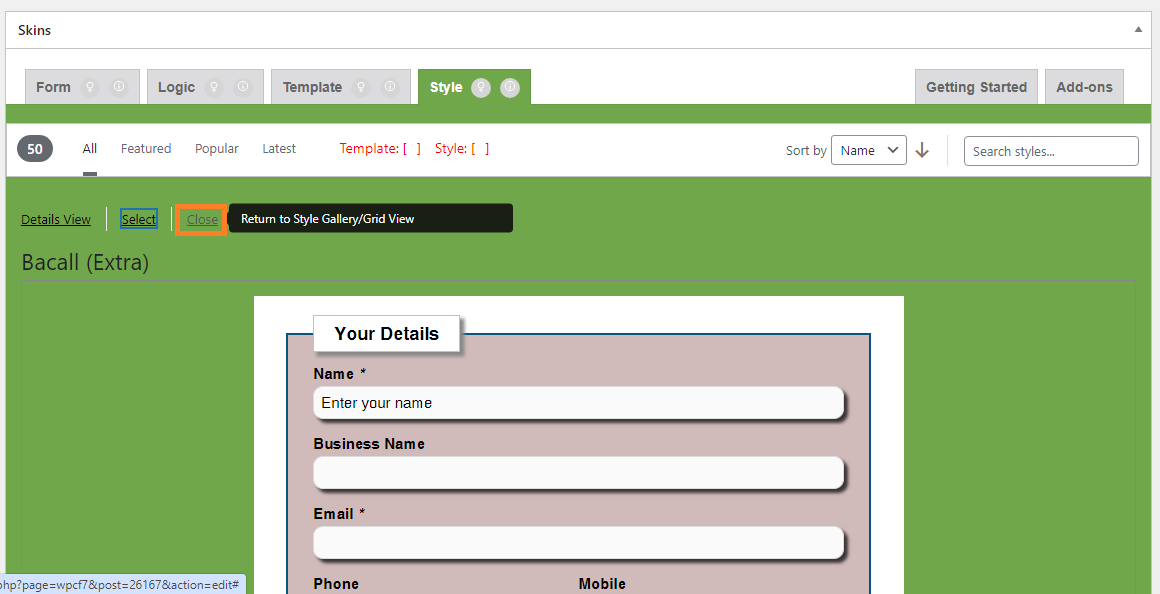
Clicking on Close – Style Tab – Details View (07_Style Tab – Details View – Clicking on close_V2.7.0_commit-2f4d7d2_2024-08-02.png)
Clicked on Close – Style Tab – Details View (08_Style Tab – Details View – Clicked on close_V2.7.0_commit-2f4d7d2_2024-08-02.png)

Checklist

  1. The details view getting disappeared when clicked on “Close”

Expanded View #

back to top

Images – ..\Sync\..\Testing\Test Site\Manual Testing\ACTIONS\Styles Tab – Expanded View\

Clicking on Expanded View (01_Style Tab – Clicking on Expanded View_V2.7.0_commit-2f4d7d2_2024-08-02.png)
Clicked on Expanded View (02_Style Tab – Clicked on Expanded View_V2.7.0_commit-2f4d7d2_2024-08-02.png)

Checklist

  1. After Clicking on Expanded view, the Expanded View window is opening
  2. Style Description and Instructions matches the style

Select Style – Expanded View #

back to top

Clicking on Select Style – Style Tab – Expanded View (03_Style Tab – Clicking on Select Style_V2.7.0_commit-2f4d7d2_2024-08-02.png)
Clicked on Select Style – Style Tab – Expanded View (04_Style Tab – Clicked on Select Style_V2.7.0_commit-2f4d7d2_2024-08-02.png)

Checklist

  1. After clicking on Select button it chages to Selected
  2. Style Status is showing the current selected Style

Deselect Style – Expanded View #

back to top

Clicking on deselect Style – Style Tab – Expanded View (05_Style Tab – Clicking on Deselect Style_V2.7.0_commit-2f4d7d2_2024-08-02.png)
Clicked on deselect Style – Style Tab – Expanded View (06_Style Tab – Clicked on Deselect Style_V2.7.0_commit-2f4d7d2_2024-08-02.png)

Checklist

  1. While hovering on “Selected” button, it changes to “Deselect”.
  2. Once Clicked on “Deselect” button, it changes to “Select”.

Close Details – Expanded View #

back to top

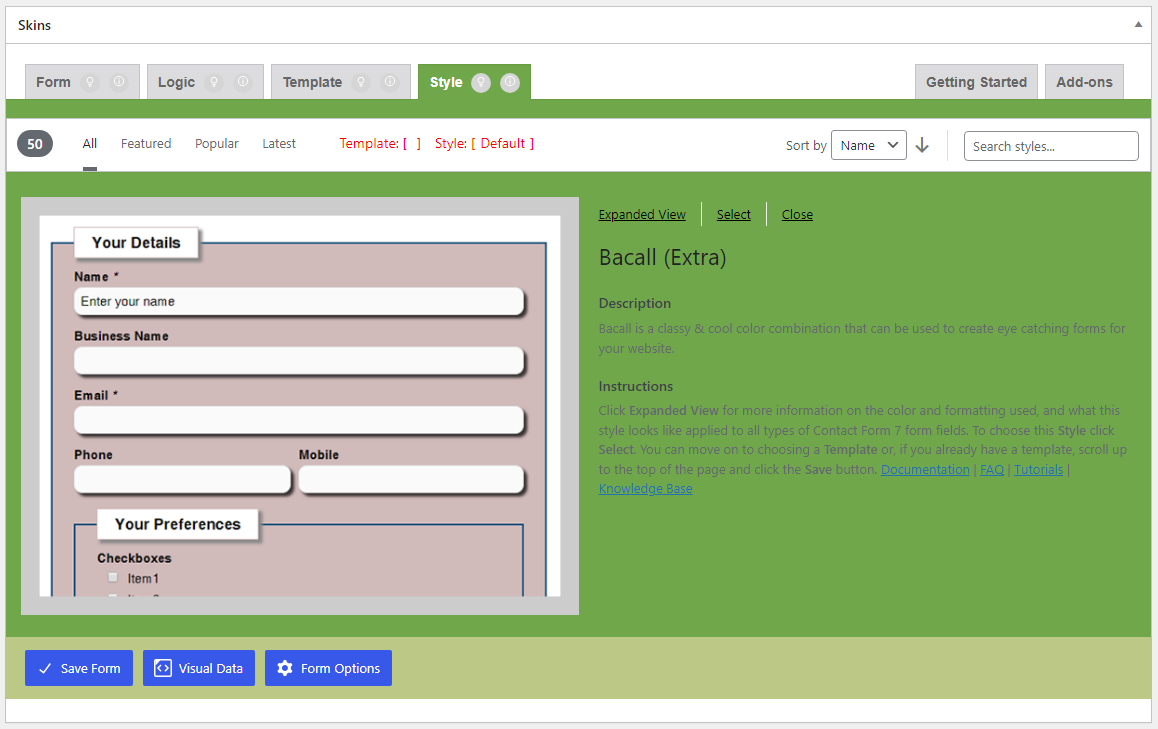
Clicking on close details – Style Tab – Expanded View (07_Style Tab – Clicking on close details_V2.7.0_commit-2f4d7d2_2024-08-02.png)
Clicked on close details – Style Tab – Expanded View (08_Style Tab – Clicked on close details_V2.7.0_commit-2f4d7d2_2024-08-02.png)

Checklist

  1. The details view getting disappeared when clicked on “Close”

Sort Style #

back to top

Images – ..\Sync\..\Testing\Test Site\Manual Testing\ACTIONS\Styles Tab- Sort Styles\

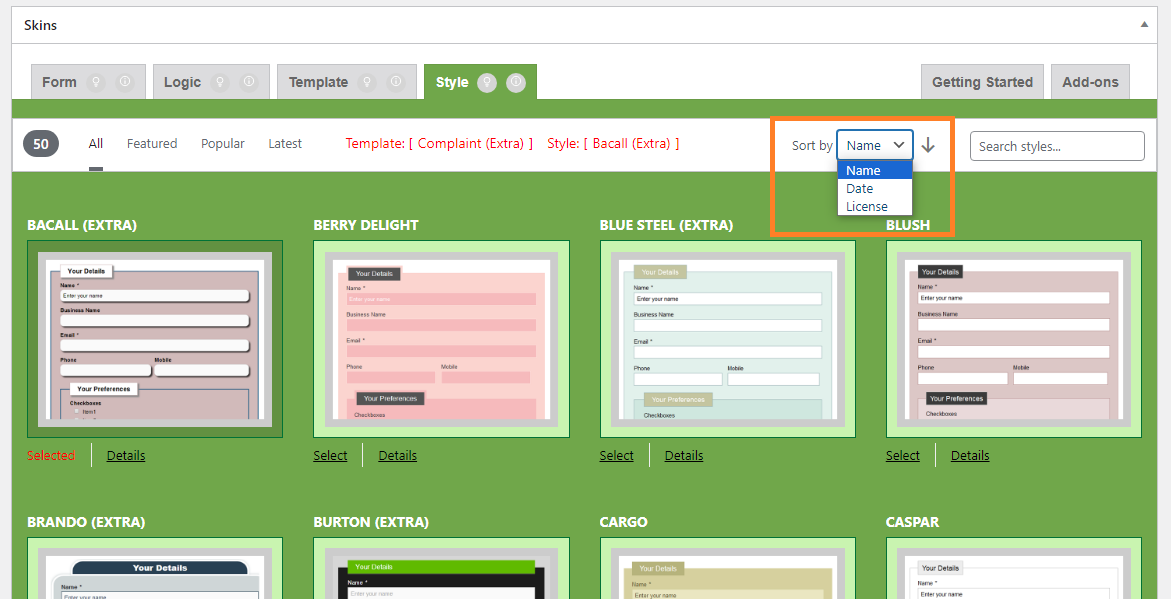
Sort Options – Style Tab (01_Sort by options – Style Tab_V2.7.0_commit-1cfc73a_2024-08-05.png)
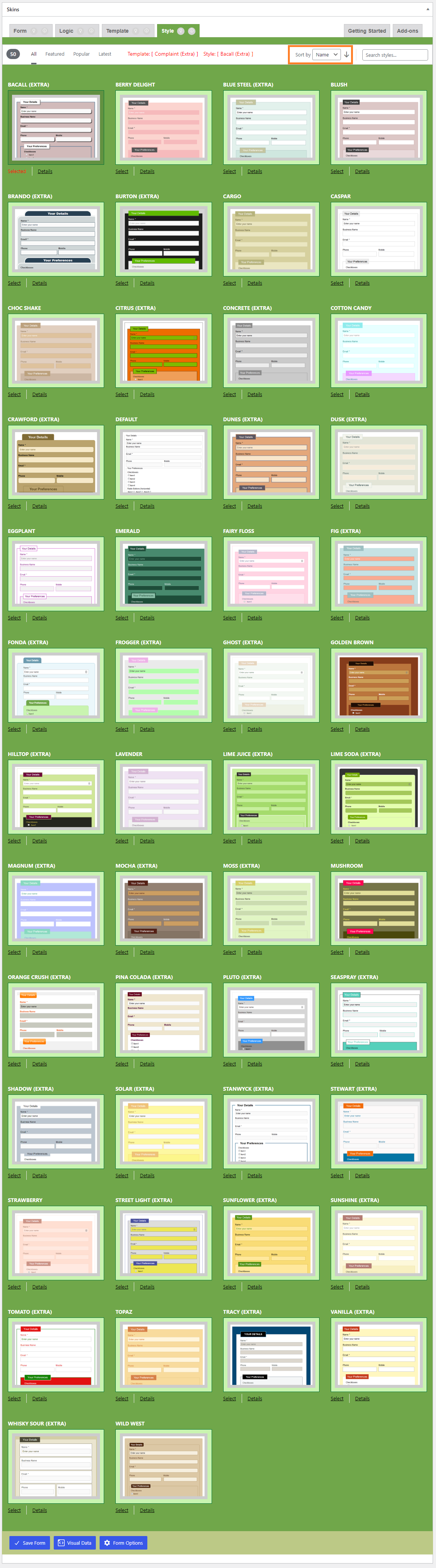
Sort by Name Ascending – Style Tab (02_Sort by Name Ascending – Style Tab_V2.7.0_commit-1cfc73a_2024-08-05.png)
Sort by Name Descending – Style Tab (03_Sort by Name Descending – Style Tab_V2.7.0_commit-1cfc73a_2024-08-05.png)
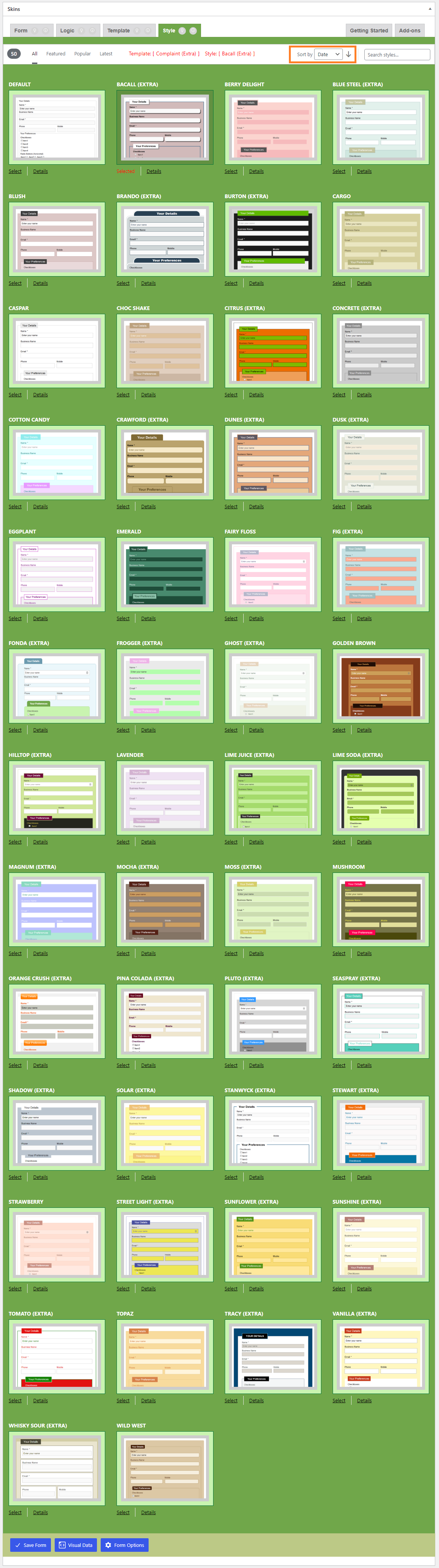
Sort by Date Ascending – Style Tab (04_Sort by Date Ascending – Style Tab_V2.7.0_commit-1cfc73a_2024-08-05.png)
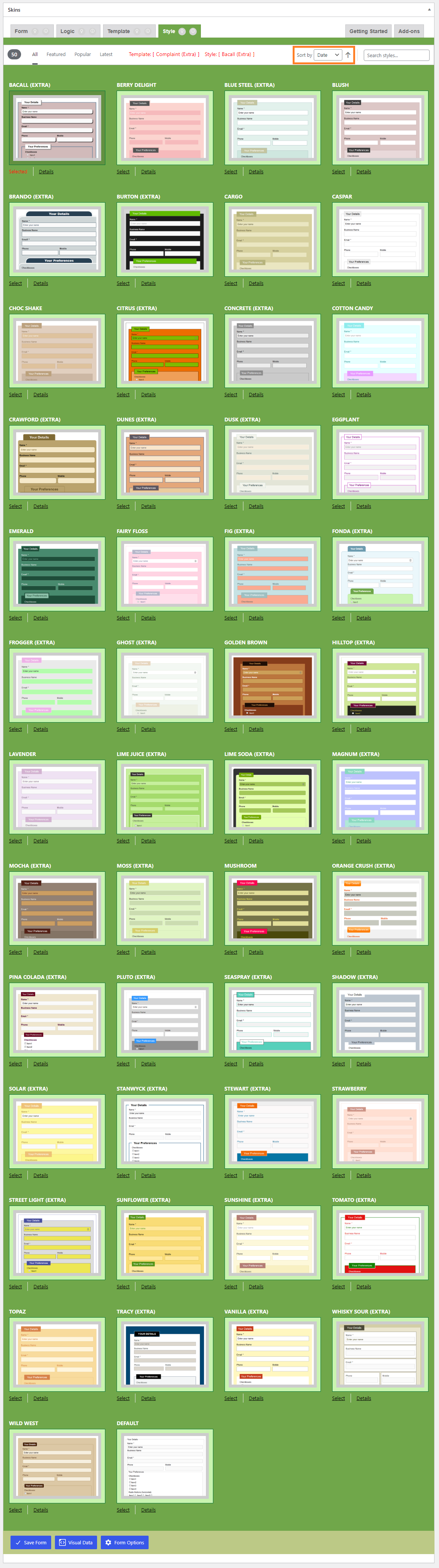
Sort by Date Descending – Style Tab (05_Sort by Date Descending – Style Tab_V2.7.0_commit-1cfc73a_2024-08-05.png)
Sort by License Ascending – Style Tab (06_Sort by License Ascending – Style Tab_V2.7.0_commit-1cfc73a_2024-08-05.png)
Sort by License Descending – Style Tab (07_Sort by License Descending – Style Tab_V2.7.0_commit-1cfc73a_2024-08-05.png)

Checklist

  1. The styles are sorted as ascending order (A-Z) and descending order (Z-A)
  2. The sort option select box changed to “Name”
  3. Repeat the Test with Date and License, also check this checklist item 1 and 2 for corresponding options.

back to top


Edit Field #

back to top

Images – ..\Sync\..\Testing\Test Site\Manual Testing\ACTIONS\Edit Field\

Edit Field Checklist #

Edit Field – Hidden Lists #

back to top

Checklist

  1. Clicking on Edit Button opens the Edit Dialog box
  2. All label positions are displayed in label position select box
  3. Add values to field and edit default values
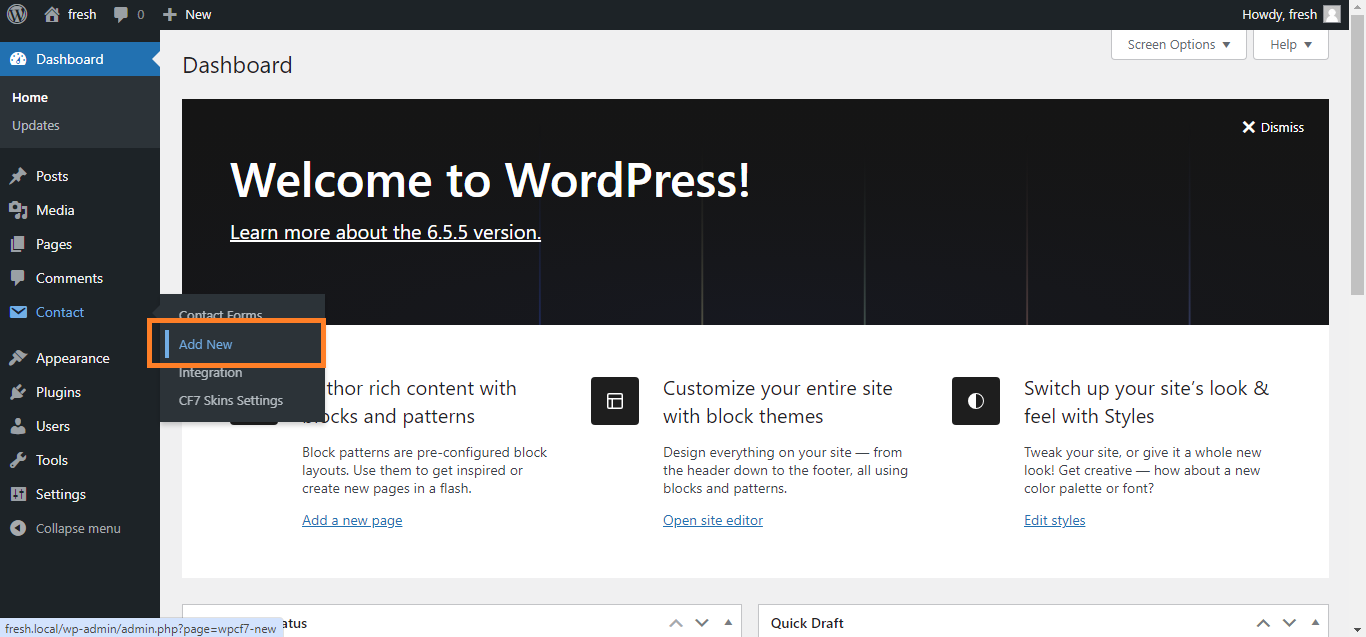
Edit Field – Click on Edit Field – Hidden Lists (Hidden Lists_01_Edit Field – Click on Edit Field_commit-3c95728_2024-07-11.png)
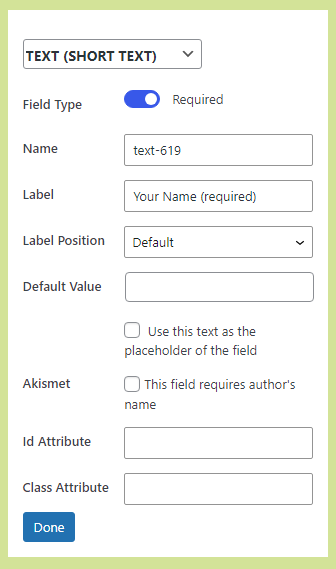
Edit Field – Dialog – Open – Hidden Lists (Hidden Lists_02_Edit Field – Dialog-open_commit-3c95728_2024-07-11.png)
Edit Field – Dialog – Edit – Hidden Lists (Hidden Lists_03_Edit Field – Dialog-edit_commit-3c95728_2024-07-11.png)

Edit Field – Visible Lists #

back to top

Checklist

  1. Clicking on Edit Button opens the Edit Dialog box
  2. All label positions are displayed in label position select box
  3. Add values to field and edit default values
Edit Field – Click on Edit Field – Visible Lists (Visible Lists_04_Edit Field – Click on Edit Field_commit-3c95728_2024-07-11.png)
Edit Field – Dialog – Open – Visible Lists (Visible Lists_05_Edit Field – Dialog-edit_commit-3c95728_2024-07-11.png)
Edit Field – Dialog – Edit – Visible Lists(Visible Lists_06_Edit Field – Dialog-open_commit-3c95728_2024-07-11.png)

Duplicate Field #

back to top

Images – ..\Sync\..\Testing\Test Site\Manual Testing\ACTIONS\Duplicate Field\

Checklist #

Duplicate Field – Hidden Lists #

back to top

Checklist

  1. Click Duplicate Field
  2. Clicked Duplicate Field and Field Duplicated
  3. Check Duplicated Field Options
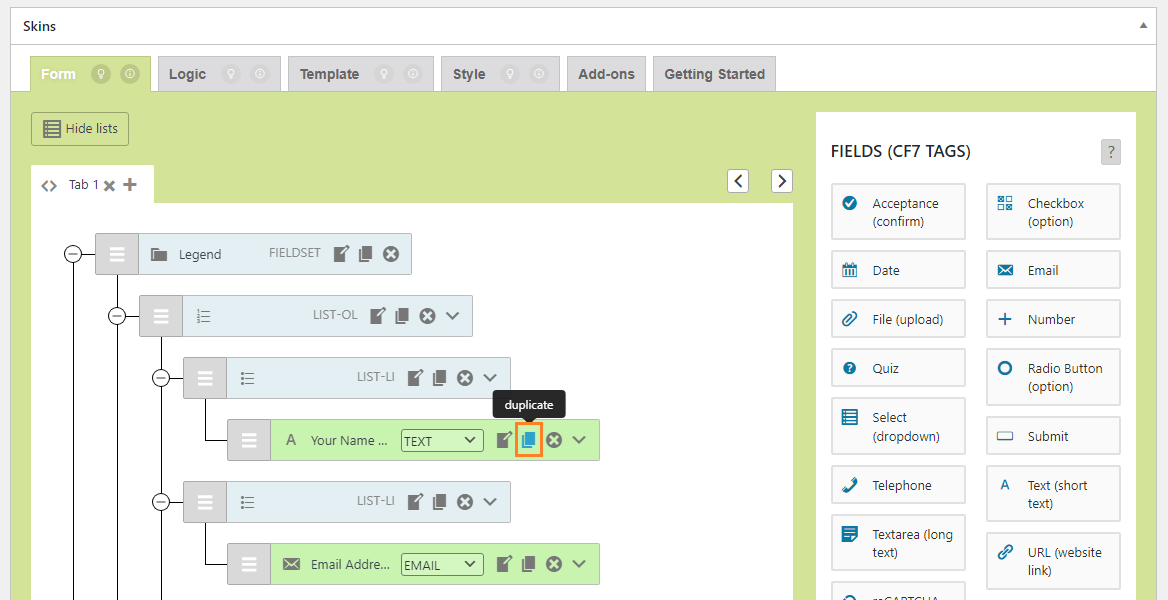
Click Duplicate Field – Hidden Lists (Hidden Lists_01_Duplicate Field – Click on duplicate field_commit-3c95728_2024-07-12.png)
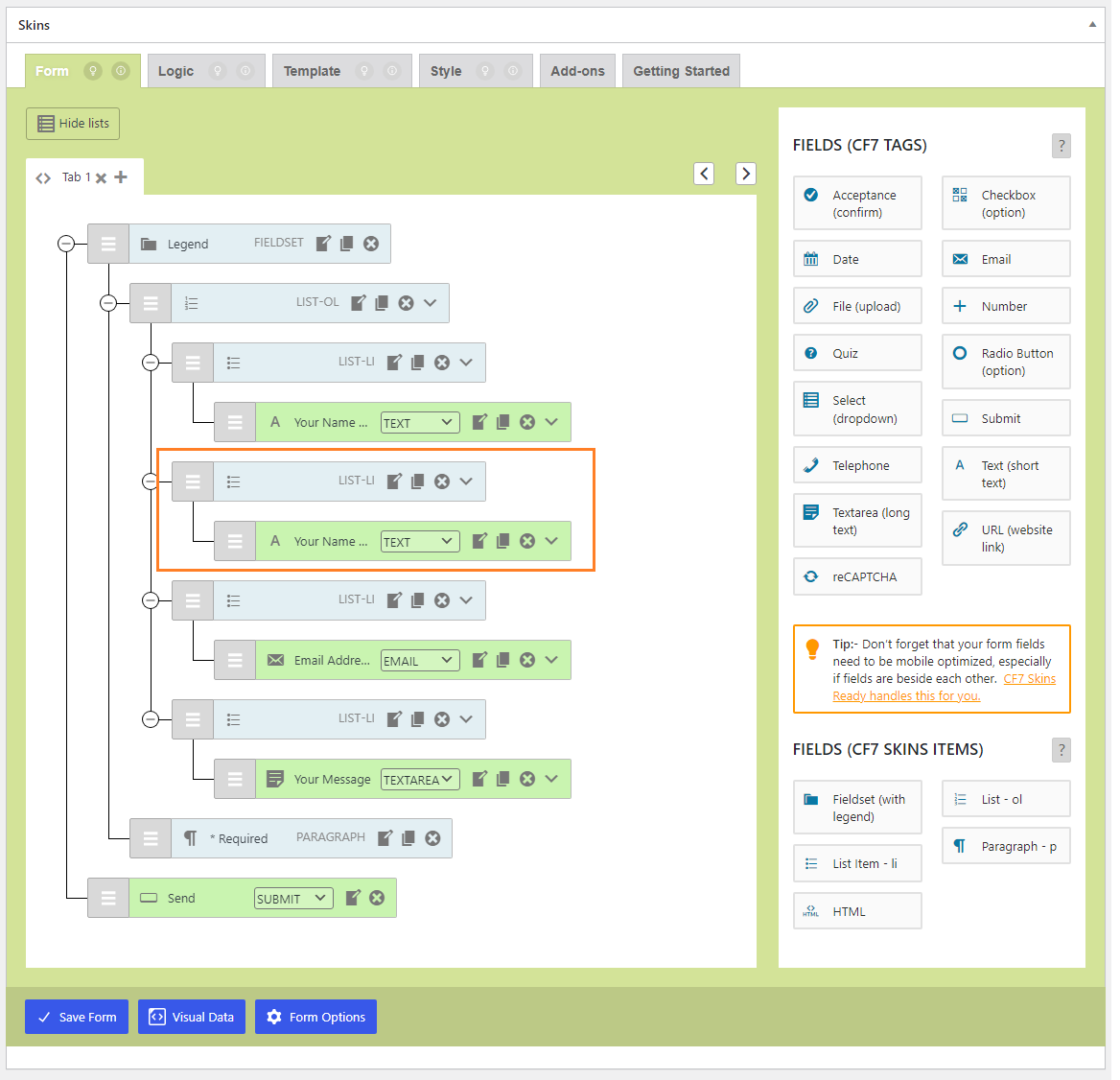
Clicked Duplicate Field and Field Duplicated – Hidden Lists (Hidden Lists_02_Duplicate Field – Clicked on duplicate field & field duplicated_commit-3c95728_2024-07-12.png)
Duplicate Field Options – Hidden Lists (Hidden Lists_03_Duplicate Field – duplicated field details_commit-3c95728_2024-07-12.png)

Duplicate Field – Visible Lists #

back to top

Checklist

  1. Click Duplicate Field
  2. Clicked Duplicate Field and Field Duplicated
  3. Check Duplicated Field Options
Click Duplicate Field – Visible Lists (Visible Lists_04_Duplicate Field – Click on duplicate field_commit-3c95728_2024-07-12.png)
Clicked Duplicate Field and Field Duplicated – Visible Lists (Visible Lists_05_Duplicate Field – Clicked on duplicate field & field duplicated_commit-3c95728_2024-07-12.png)
Check Duplicated Field Options – Visible Lists (Visible Lists_06_Duplicate Field – duplicated field details_commit-3c95728_2024-07-12.png)

Move Field #

back to top

Images – ..\Sync\..\Testing\Test Site\Manual Testing\ACTIONS\Move Field\

Checklist #

  1. Move Field – Hidden Lists
  2. Move Field – Visible Lists

Move Field – Hidden Lists #

back to top

checklist

  1. Form before Moving Field
  2. Click on Drag Field Button and Drag
  3. Form after Moving Field
Form before Moving Field – Hidden Lists (Hidden Lists_01_Form before moving field_commit-3c95728_2024-07-16.png)
Click on Drag Field Button and Drag – Hidden Lists (Hidden Lists_02_Click on Drag Field Button and Drag to move field_commit-3c95728_2024-07-16.png)
Form after Moving Field – Hidden Lists (Hidden Lists_03_Form after moving the field_commit-3c95728_2024-07-16.png)

Move Field – Hidden Lists #

back to top

checklist

  1. Form before Moving Field
  2. Click on Drag Field Button and Drag
  3. Form after Moving Field
Form before Moving Field – Visible Lists (Visible Lists_04_Form before moving field_commit-3c95728_2024-07-16.png)
Click on Drag Field Button and Drag – Visible Lists (Visible Lists_05_Click on Drag Field Button and Drag to move field_commit-3c95728_2024-07-16.png)
Form after Moving Field – Visible Lists (Visible Lists_06_Form after moving the field_commit-3c95728_2024-07-16.png)

Show Field Name #

back to top

Images – ..\Sync\..\Testing\Test Site\Manual Testing\ACTIONS\Show Field Name\

Checklist #

back to top

  1. Show Field Name – Hidden Lists
  2. Show Field Name – Visible Lists

Show Field Name – Hidden Lists #

back to top

Checklist

  1. Disabled show field name
  2. Enabling show field name

Disabled show field name #

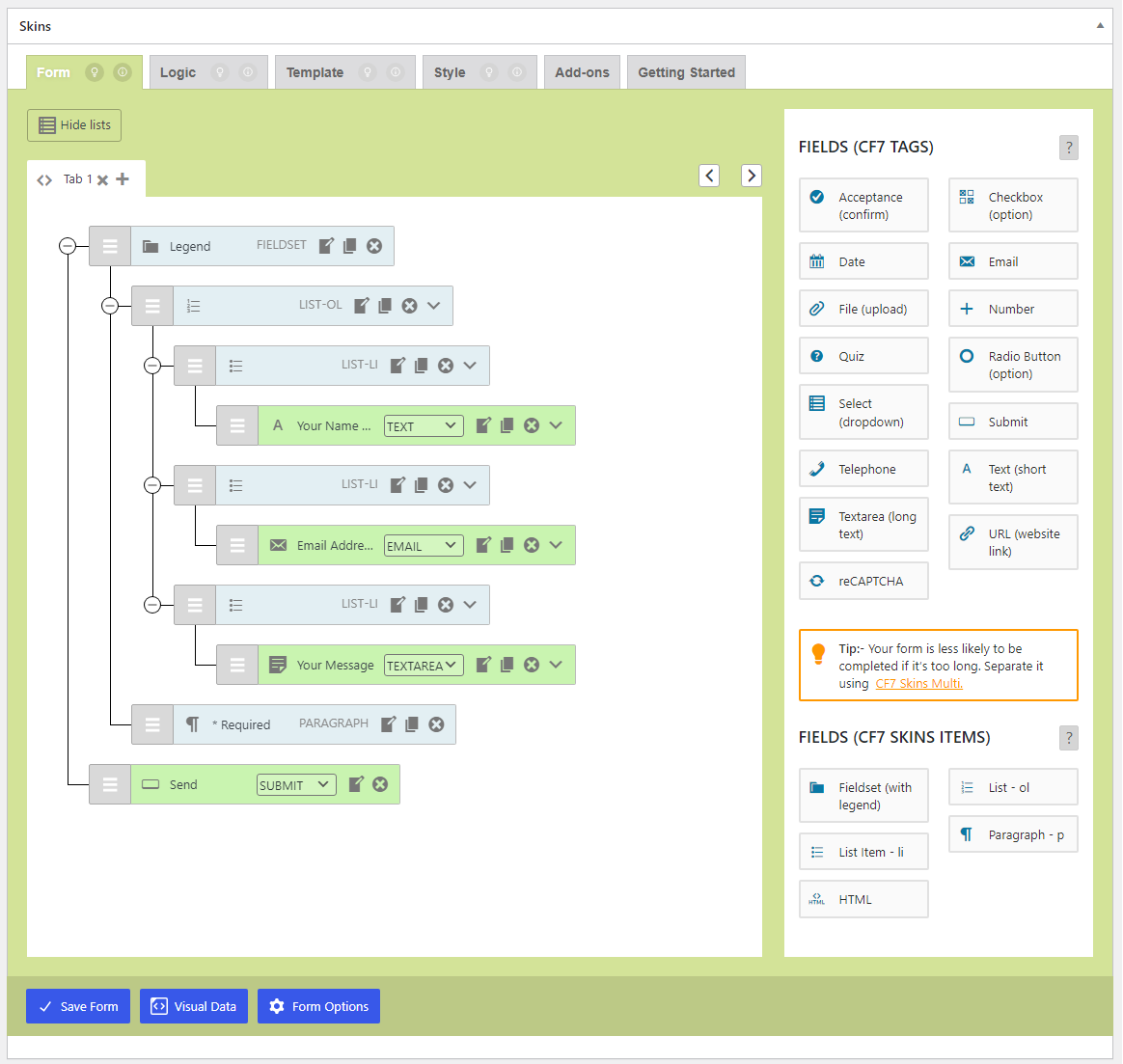
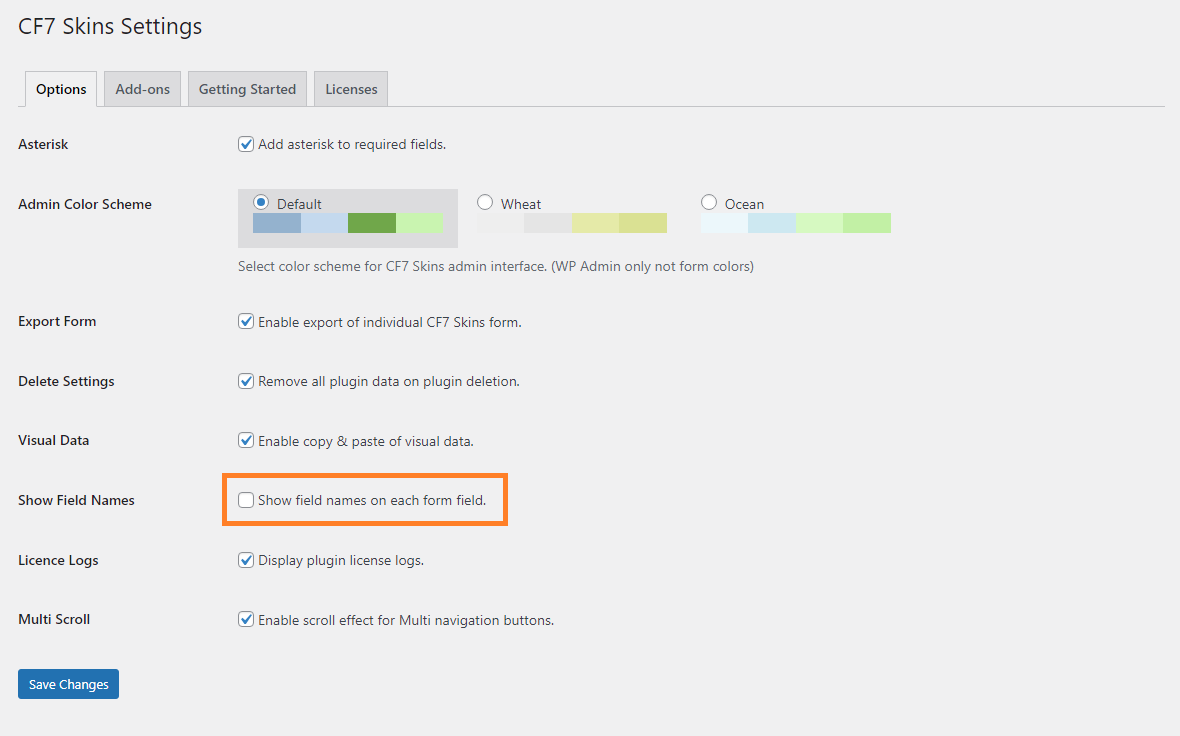
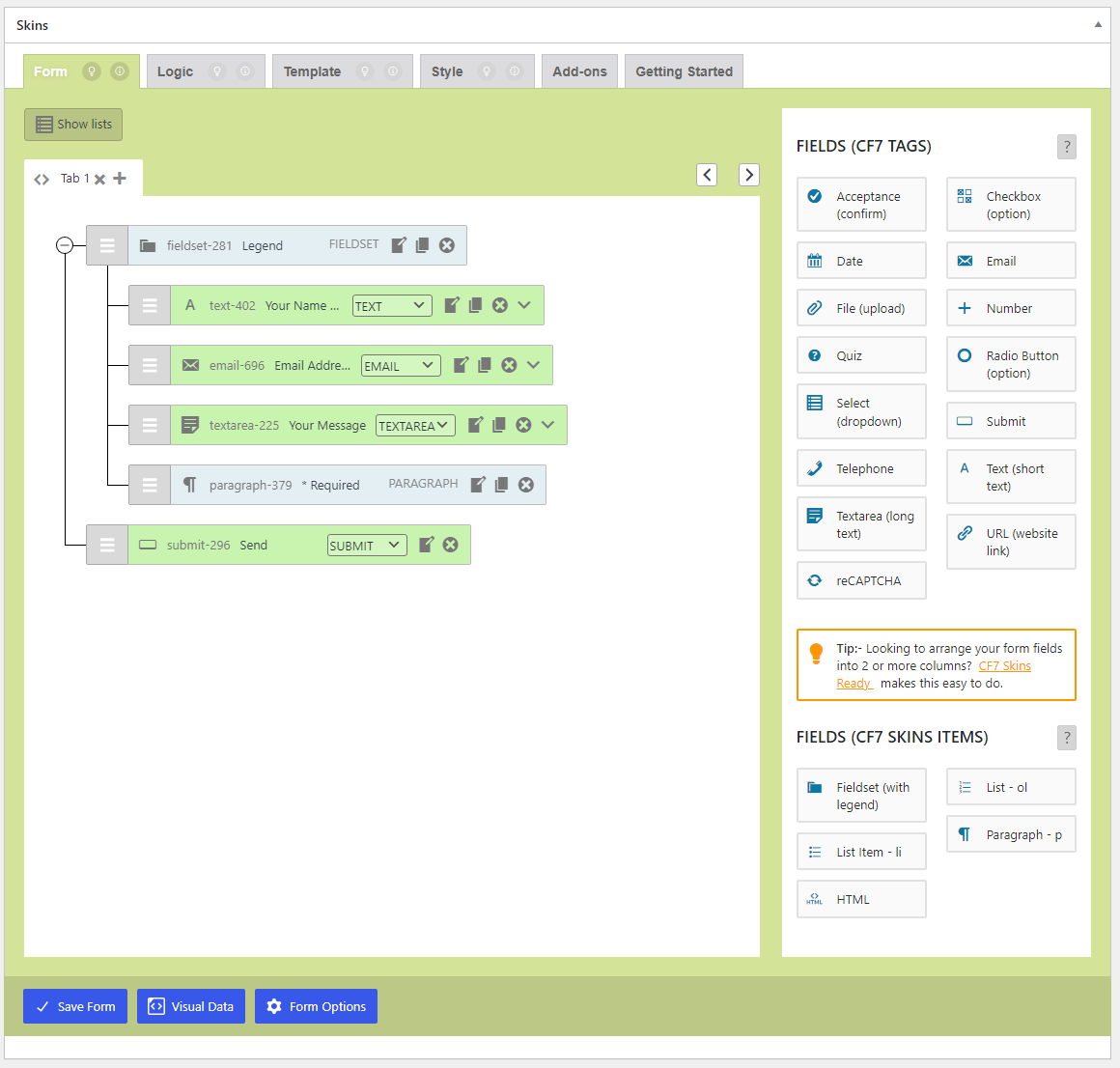
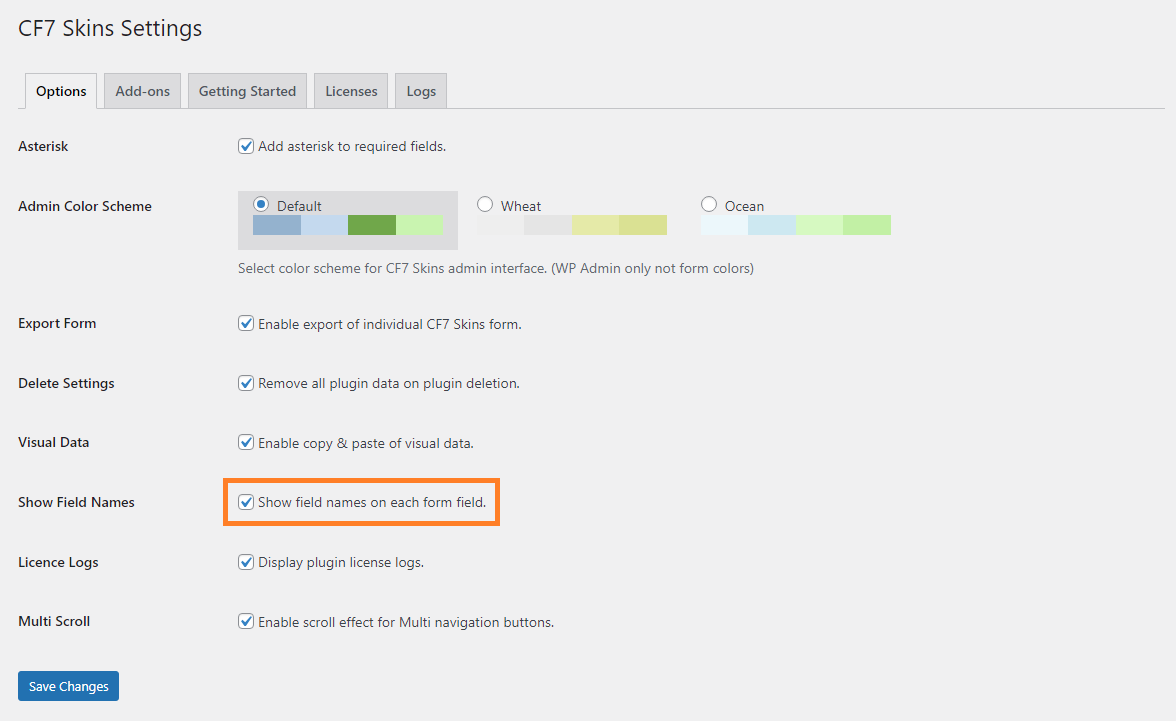
If the Show Field Names checkbox is unchecked, the field names is hidden on the Visual Form

Disabled show field names checkbox – Hidden Lists (Hidden Lists_01_Disabled show field names checkbox_Show Field Name_commit-3c95728_2024-07-17.png)
Demo Visual Form – Field Name Disabled – Hidden Lists (Hidden Lists_02_Demo Visual Form – field name disabled_commit-3c95728_2024-07-17.png)

Enabled show field name #

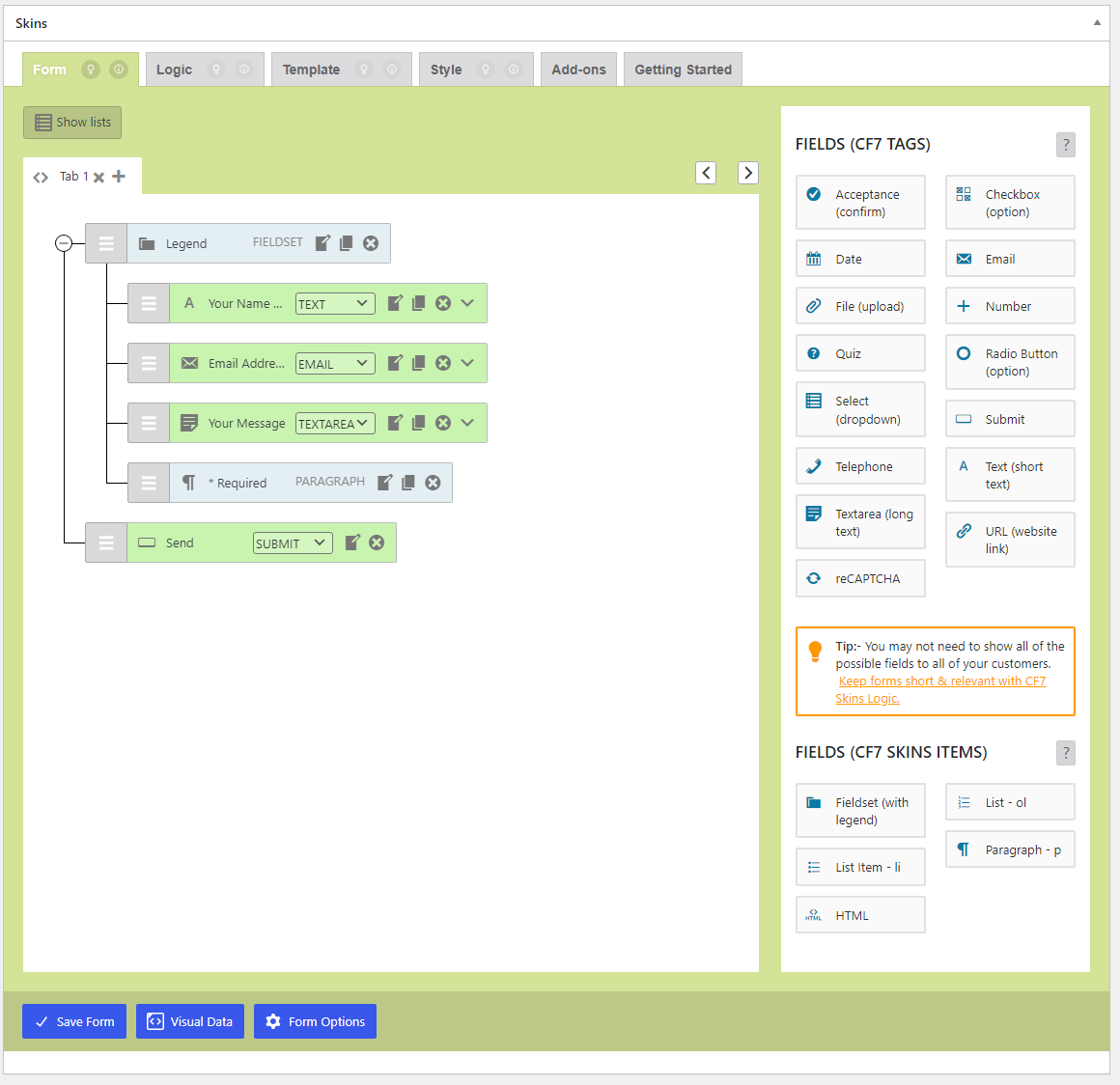
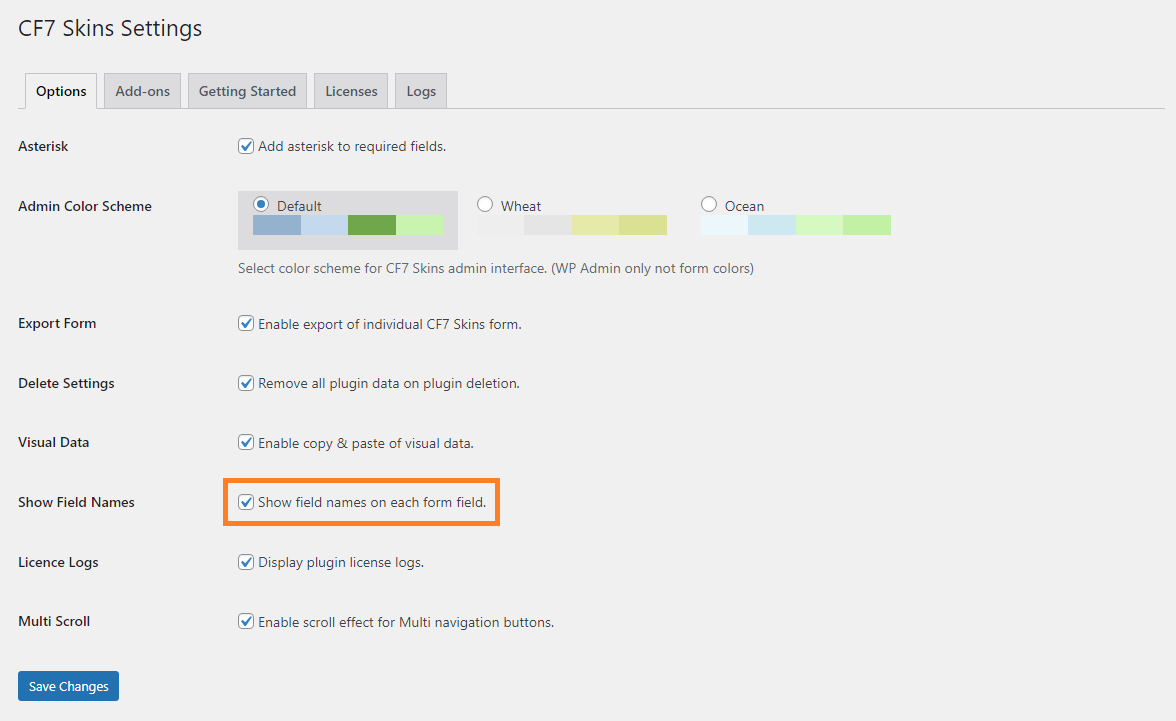
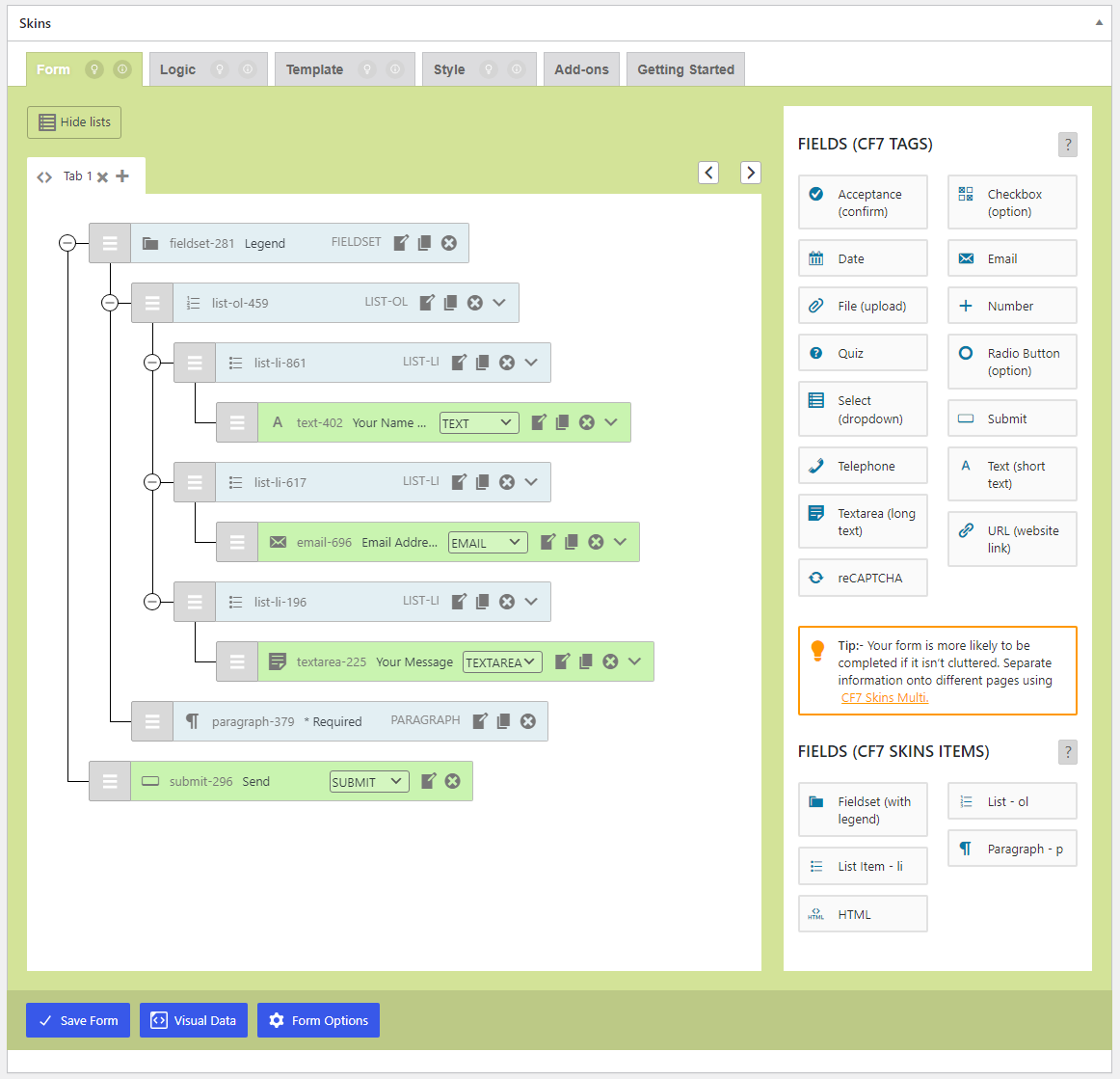
If the Show Field Names checkbox is checked, the field names appear on the Visual Form

Disabled show field names checkbox – Hidden Lists (Hidden Lists_03_Enabled show field names checkbox_Show Field Name_commit-3c95728_2024-07-17.png)
Demo Visual Form – Field Name Enabled – Hidden Lists (Hidden Lists_04_Demo Visual Form – field name enabled_commit-3c95728_2024-07-17.png)

Show Field Name – Visible Lists #

back to top

Checklist

  1. Disabled show field name
  2. Enabling show field name

Disabled show field name #

Checklist

  1. If the Show Field Names checkbox is unchecked, the field names is hidden on the Visual Form
Disabled show field names checkbox – Visible Lists (Visible Lists_05_Disabled show field names checkbox_Show Field Name_commit-3c95728_2024-07-17.png)
Demo Visual Form – Visible Lists (Visible Lists_06_Demo Visual Form – field name disabled_commit-3c95728_2024-07-17.png)

Enabled show field name #

Checklist

  1. If the Show Field Names checkbox is checked, the field names appear on the Visual Form
Disabled show field names checkbox – Visible Lists (Visible Lists_07_Enabled show field names checkbox_Show Field Name_commit-3c95728_2024-07-17.png)
Demo Visual Form – Visible Lists (Visible Lists_08_Demo Visual Form – field name enabled_commit-3c95728_2024-07-17.png)

Copy Visual Data #

back to top

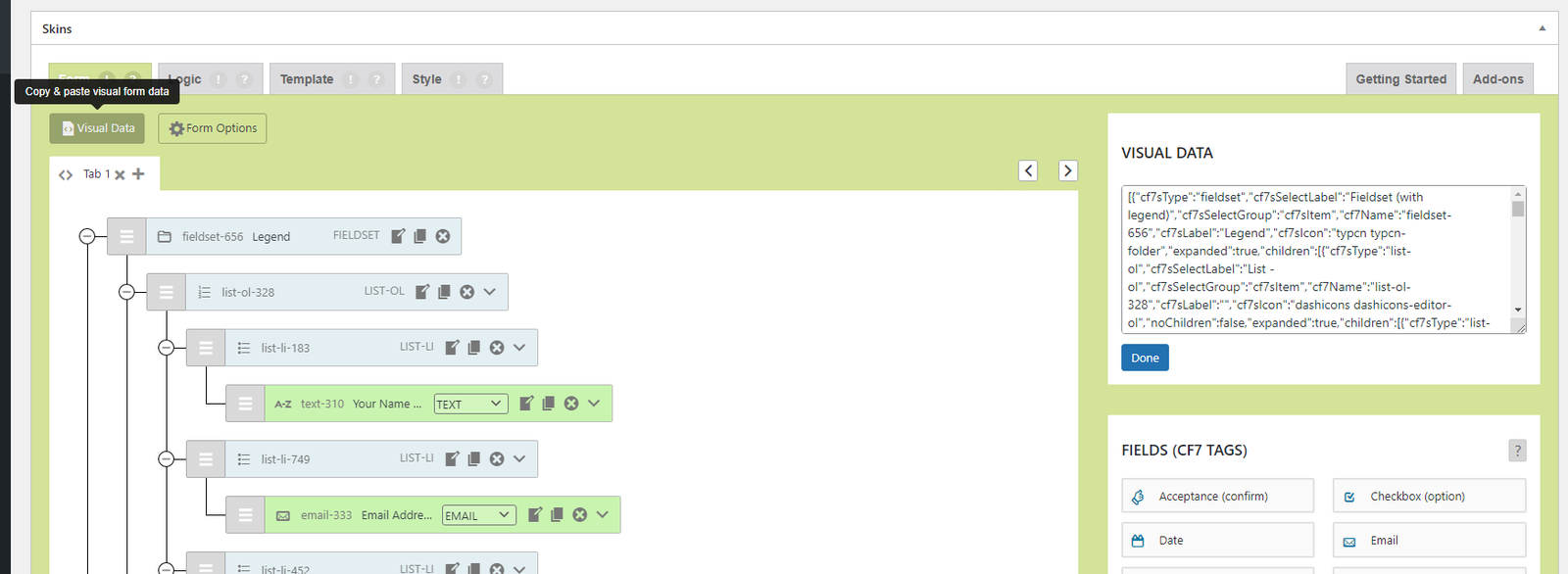
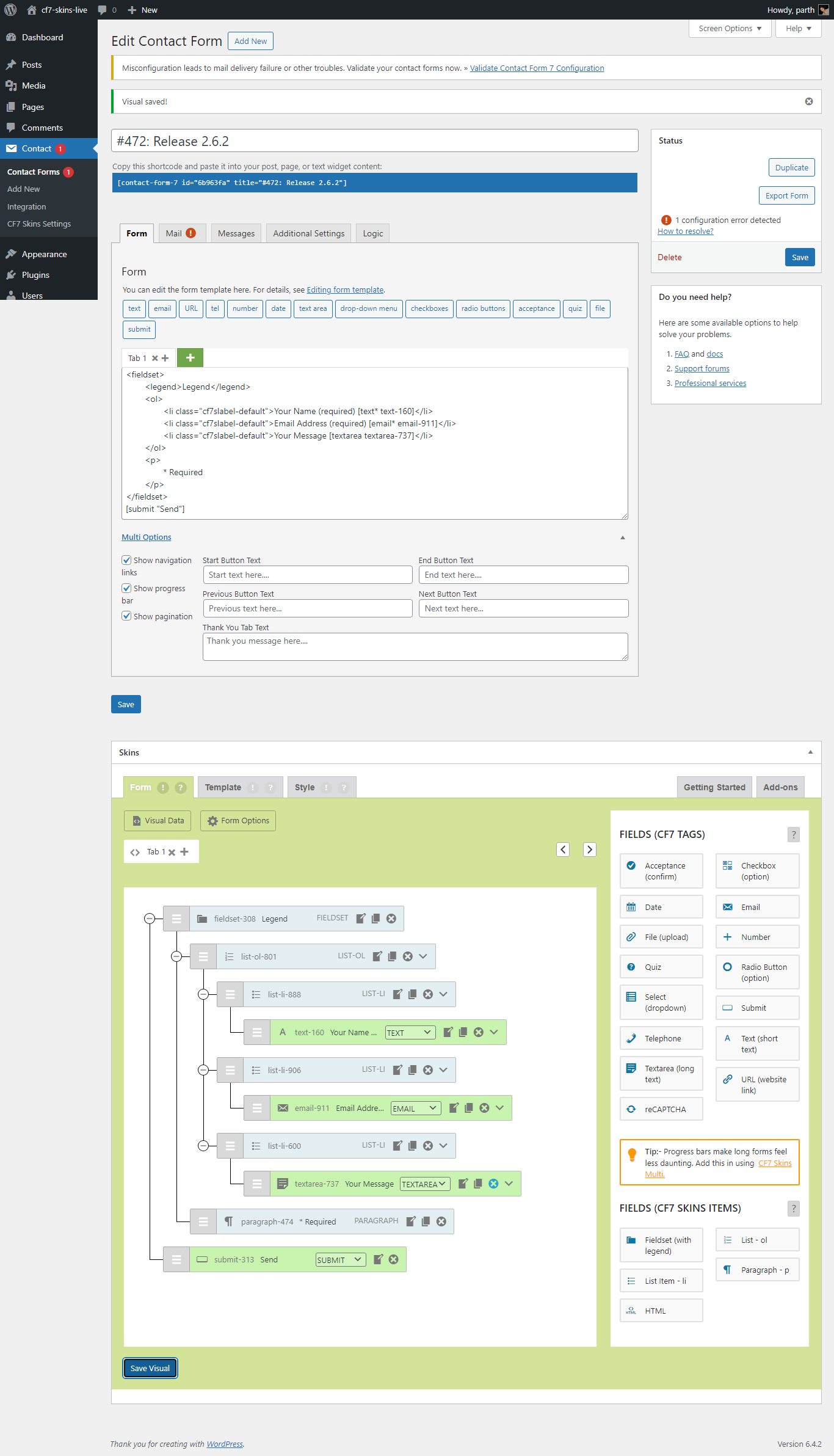
Copy Visual Data – Complete Form (Copy – Visual Data – Complete Form_v2.5.2_2022-05-20.png)

Checklist

  1. Click on the Visual Data button on the Visual Form Area
  2. Copy visual data value on the Visual Data dialog

Click on the Visual Data button on the Visual Form Area #

Copy Visual Data – Click on the Visual Data button on the Visual Form (Copy- Visual Data – Click on the Visual Data button on the Visual Form_v2.5.2_2022-05-20.png)

Copy visual data value on the Visual Data dialog #

Copy Visual Data – Copy visual data value on the Visual Data dialog (Copy – Visual Data – Copy visual data value on the Visual Data dialog_v2.5.2_2022-05-20.png)

back to top


Save CF7 Area #

back to top

Images – ..\Sync\..\Testing\Test Site\Manual Testing\ACTIONS\Save CF7 Area\

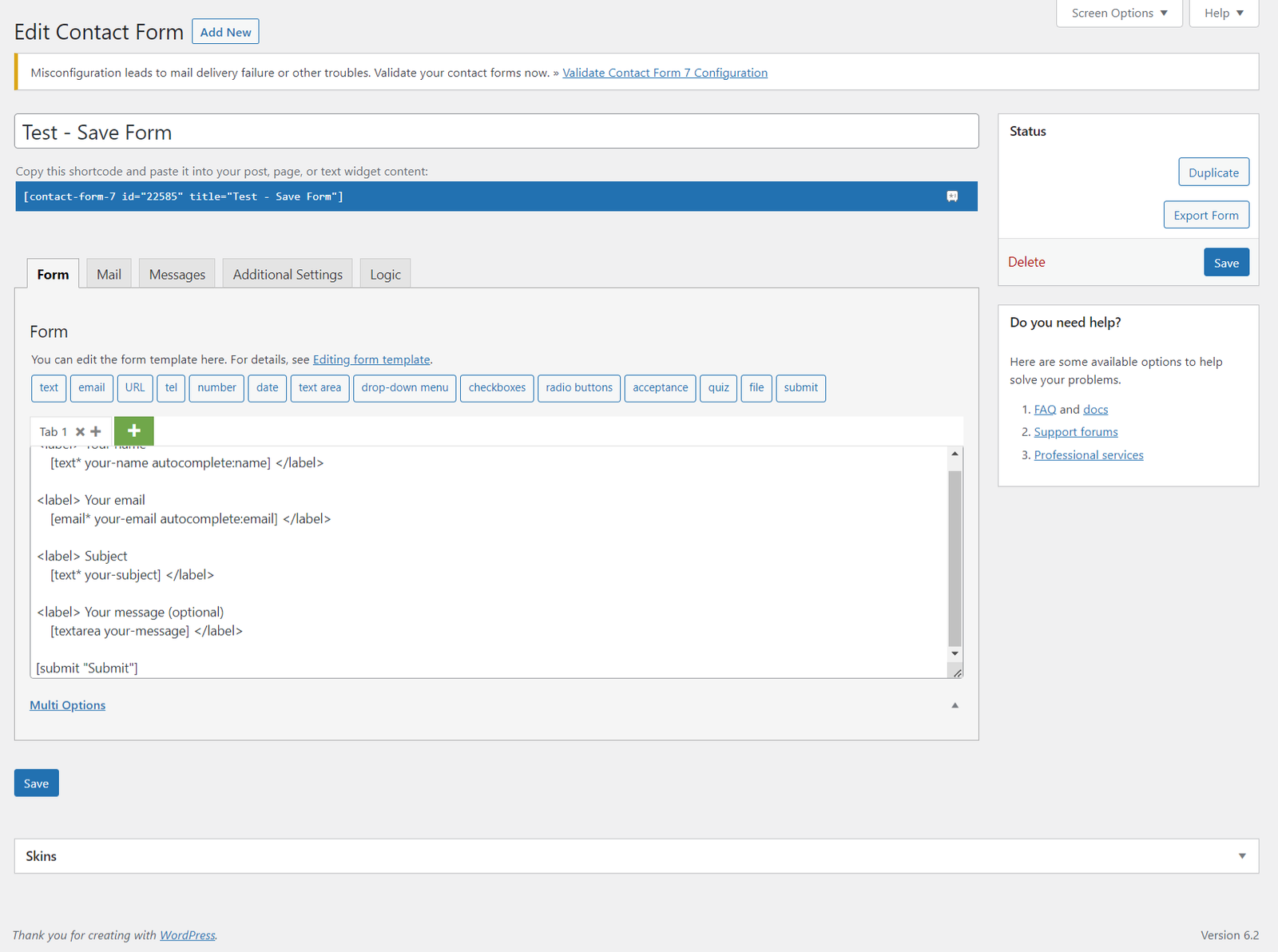
Save-to-CF7 Area (Save-to-CF7 Area_v2.5.1_2023-04-02.png)

NOTE: In testing this action we are concerned with what happens when we use the Save button in the CF7 Area.
Using the Save Visual button is documented as a separate action.

Checklist

  1. Save new form
  2. Save edited form
  3. Save selected / deselected Template and Style
  4. Save expanded / collapsed Skins Metabox

Save new form #

[ADD image]

back to top

Save edited form #

Save – Click on Save Button (…_v2.6.2_2024-01-26.png)

back to top

Save selected / deselected template and style #

Save – Template Deselected (01_Save – Template Deselected_V2.6.2_2024-01-26.png)
Save – Template Selected (02_Save – Template Selected_V2.6.2_2024-01-26.png)
Save – Template and Style Selected (05_Save – Template and Style Selected_V2.6.2_2024-01-26.png)

back to top

Save expanded / collapsed Skins Metabox #

Save – Collapsed Visual Metabox (03a_01_Save-expanded-collapsed-visual-metabox-collapsed-visual-metabox_v2.6.2_2024-01-26.png)
Save – Expanded Visual Metabox (03a_02_Save-expanded-collapsed-visual-metabox-clicked-on-collapsed-save-button_v2.6.2_2024-01-26.png)

back to top


Save Visual #

back to top

Images – ..\Sync\..\Testing\Test Site\Manual Testing\ACTIONS\Save Visual\

checklist #

  1. Save Visual – Hidden Lists
  2. Save Visual – Visible Lists

Save Visual – Hidden Lists #

back to top

Click on Save Visual – Hidden Lists (Hidden Lists_01_Click on Save Visual_commit_3c95728_2024-07-22.png)
Clicked on Save Visual – Hidden Lists (Hidden Lists_02_Clicked Save Visual_commit_3c95728_2024-07-22.png)
Reopened Visual Form – Hidden Lists (Hidden Lists_03_Reopened_Visual Form_commit_3c95728_2024-07-22.png)
Edit Field Dialog Reopened – Hidden Lists (Hidden Lists_04_Edit Field – Dialog-Reopen_commit_3c95728_2024-07-22.png)

Checklist

  1. After clicking on Save Visual, Ensure that the “Visual Saved” message is appearing.
  2. After clicking on save visual reopen the form and check the edited values remain the same in both Contact Form 7 Area and Field Edit box

Save Visual – Visible Lists #

back to top

Click on Save Visual (Visible Lists_05_Click on Save Visual_commit_3c95728_2024-07-22.png)
Clicked on Save Visual (Visible Lists_06_Clicked Save Visual_commit_3c95728_2024-07-22.png)
Reopened Visual Form – (Visible Lists_07_Reopened_Visual Form_commit_3c95728_2024-07-22.png)
Edit Field Dialog Reopened (Visible Lists_08_Edit Field – Dialog-Reopen_commit_3c95728_2024-07-22.png)

Checklist

  1. After clicking on Save Visual, Ensure that the “Visual Saved” message is appearing.
  2. After clicking on save visual reopen the form and check the edited values remain the same in both Contact Form 7 Area and Field Edit box
back to top


Activate Deactivate License #

back to top

Images – ..\Sync\..\Testing\Test Site\Manual Testing\ACTIONS\Activate deactivate license\

Checklist

  1. Default
  2. Added Available Licenses – Pasted / Typed
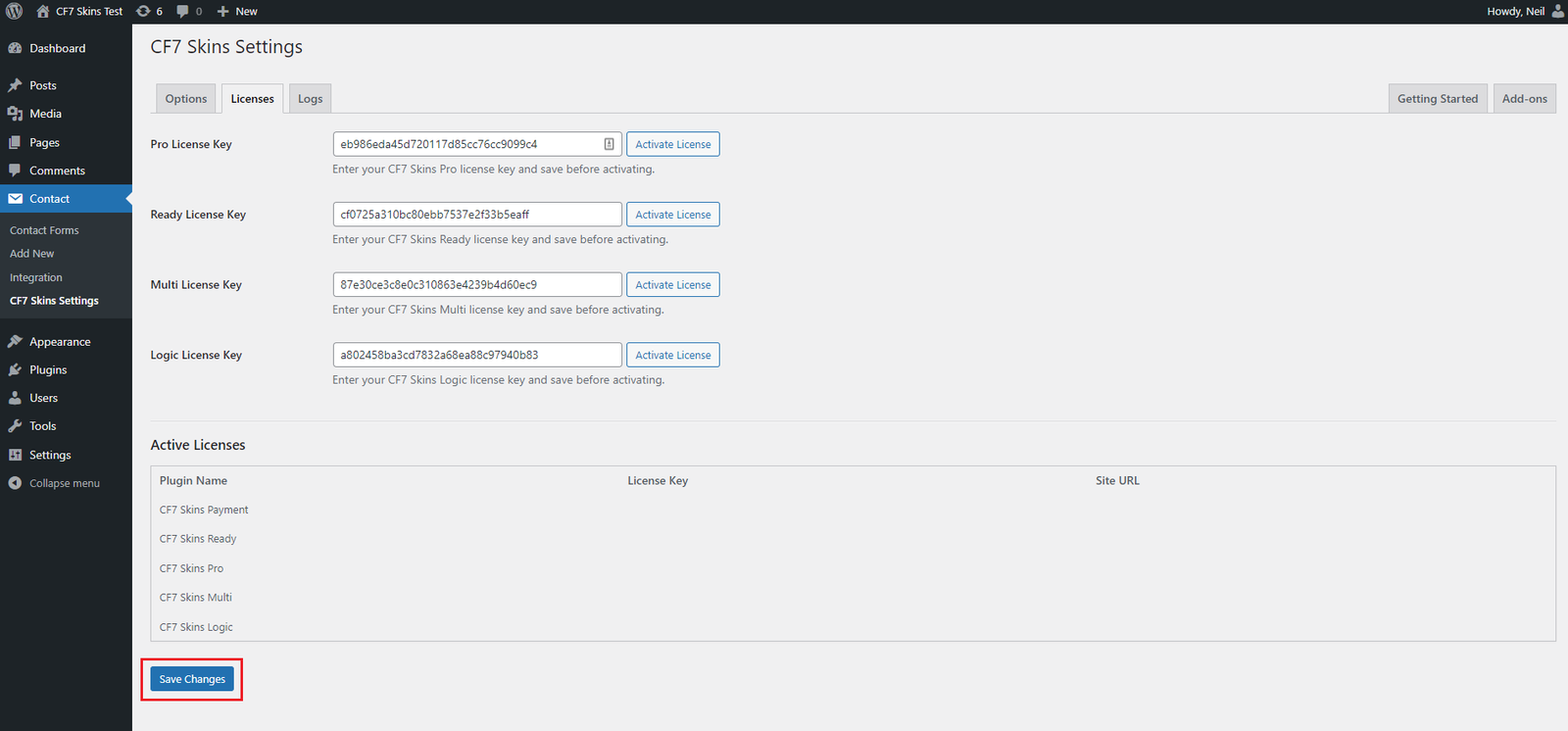
  3. Saving After Adding Licenses – Clicking on Save Changes Button
  4. Saved Licenses
  5. Activating Licenses – Clicking on Activate License Button
  6. Activated License
  7. Activated All Licenses

Default #

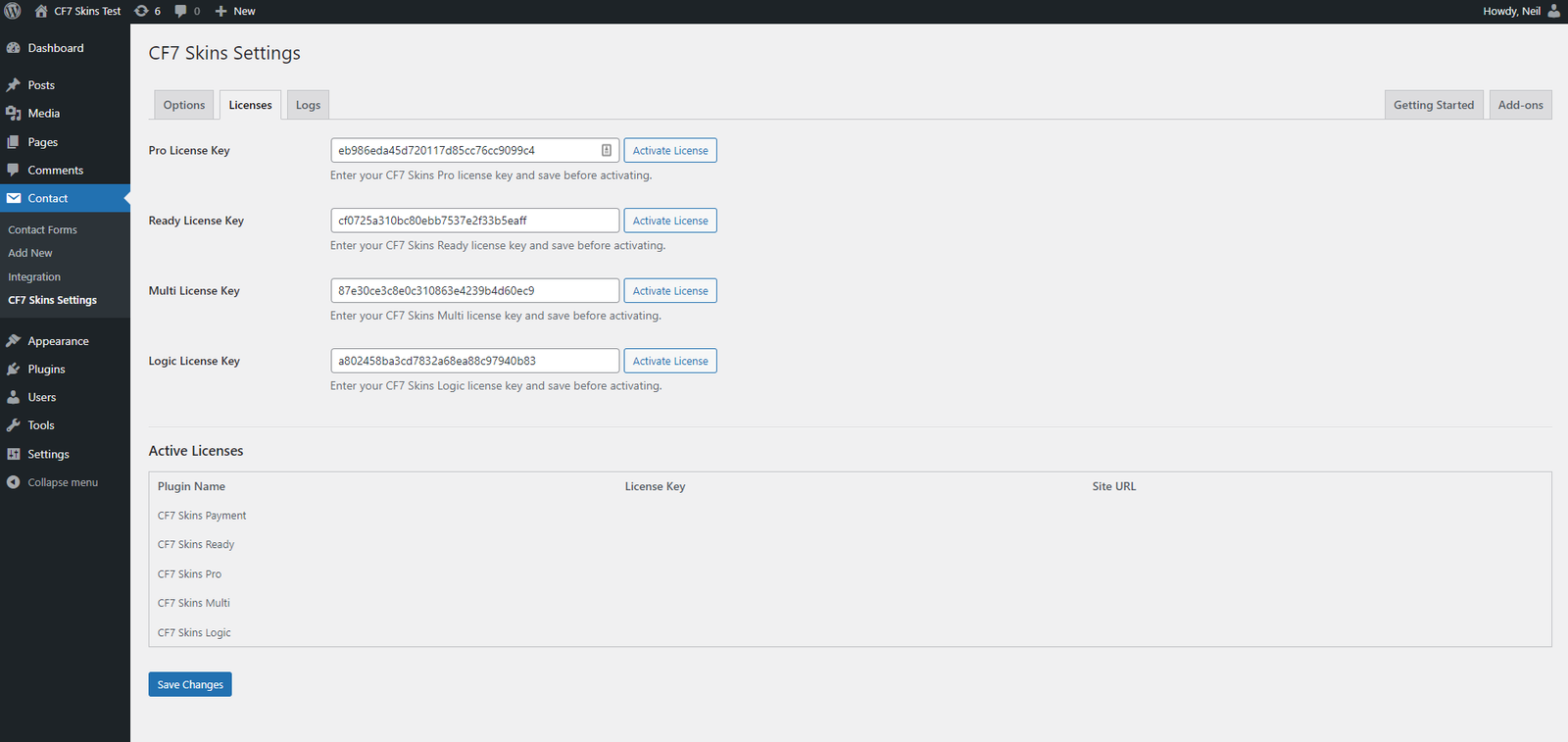
Activate Deactivate License – Default (Activate deactivate license – default_2.5.3_B_2022-07-05.png)

Added Available Licenses – Pasted / Typed #

Added Available Licenses (Pasted / Typed) (Activate deactivate license – paste available license keys_2.5.3_B_2022-07-05.png)

Saving After Adding Licenses – Clicking on Save Changes Button #

back to top

Saving After Adding Licenses – Clicking on Save Changes Button)(Activate deactivate license – click on save changes button_2.5.3_B_2022-07-05.png)

Saved Licenses #

Saved Licenses (Activate deactivate license – clicked on save changes button_2.5.3_B_2022-07-05.png)

Activating Licenses – Clicking on Activate License Button #

Activating Licenses – Clicking on Activate License Button (Activate deactivate license – click on activate license button_2.5.3_B_2022-07-05.png)

Activated License #

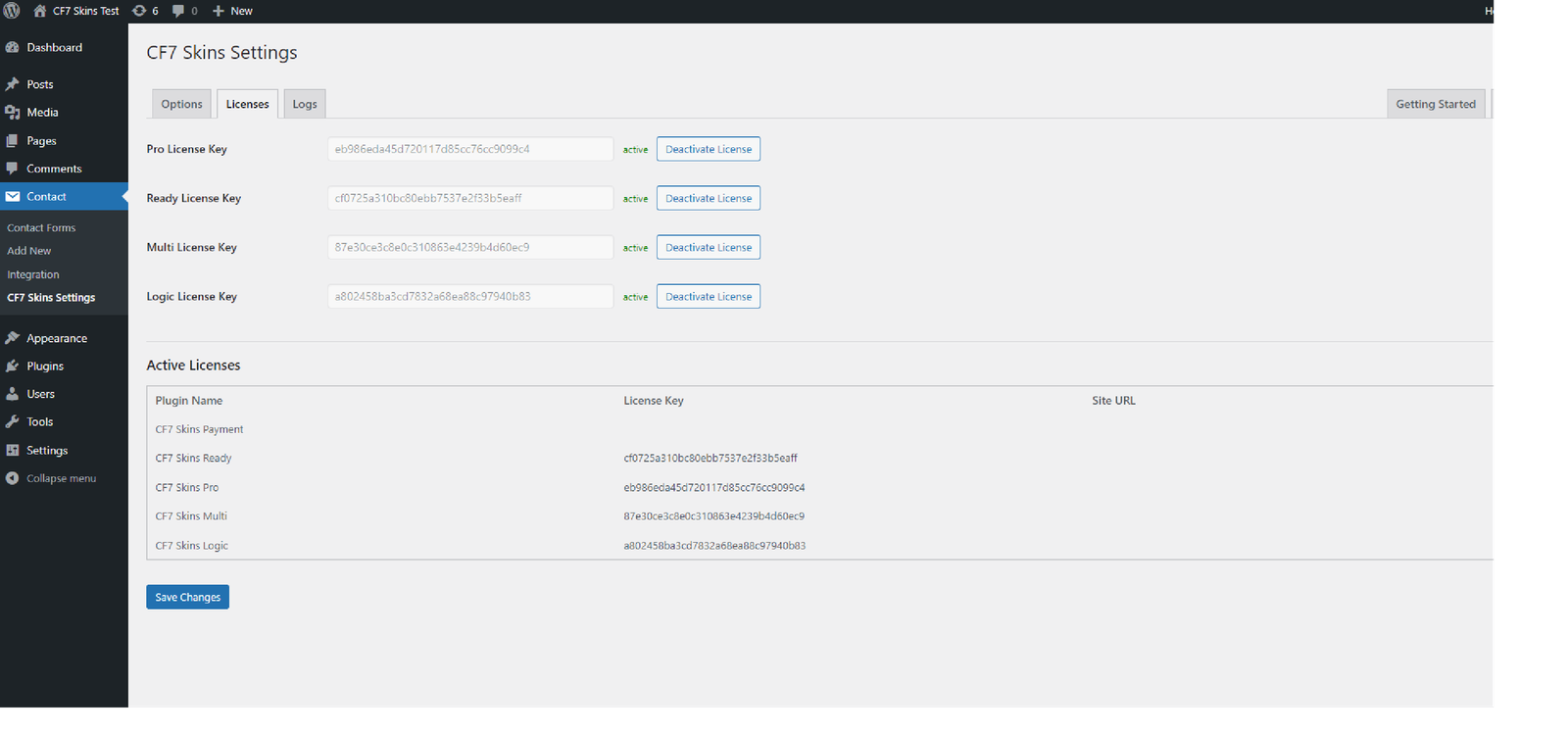
Activated License (Activate deactivate license – clicked on activate license button_2.5.3_B_2022-07-05.png)

Activated All Licenses #

Activated All Licenses (Activate deactivate license – clicked on all activate license button_2.5.3_B_2022-07-05.png)

back to top

Further reading:


NOTES #

Add notes here.