Last Updated on October 28, 2024 by Neil Murray
Manual Testing – Sections
UI Areas – what user sees in an area before taking any user actionActions – changes that happen when user takes action in the UITesting Sequences – follow these sequences to test changes & releasesLogic – testing CF7 Skins Logic (both Backend & Frontend)Testing Forms – CF7 Skins forms used to help with testingFront End Forms – how CF7 Skins forms display on WordPress websiteResponsive Styling – WP Backend/Admin at different screen sizes
UI AREAS #
UI Areas – what user sees before taking any user action, in that area.
Instructions : Manual Testing Images – ..\Sync\..\Testing\Test Site\Manual Testing\UI AREAS\
Checklist #
Images – ..\Sync\..\Testing\Test Site\Manual Testing\UI AREAS\Skins Metabox\
back to top
Checklist #
back to top
Images – ..\Sync\..\Testing\Test Site\Manual Testing\UI AREAS\Skins Metabox\
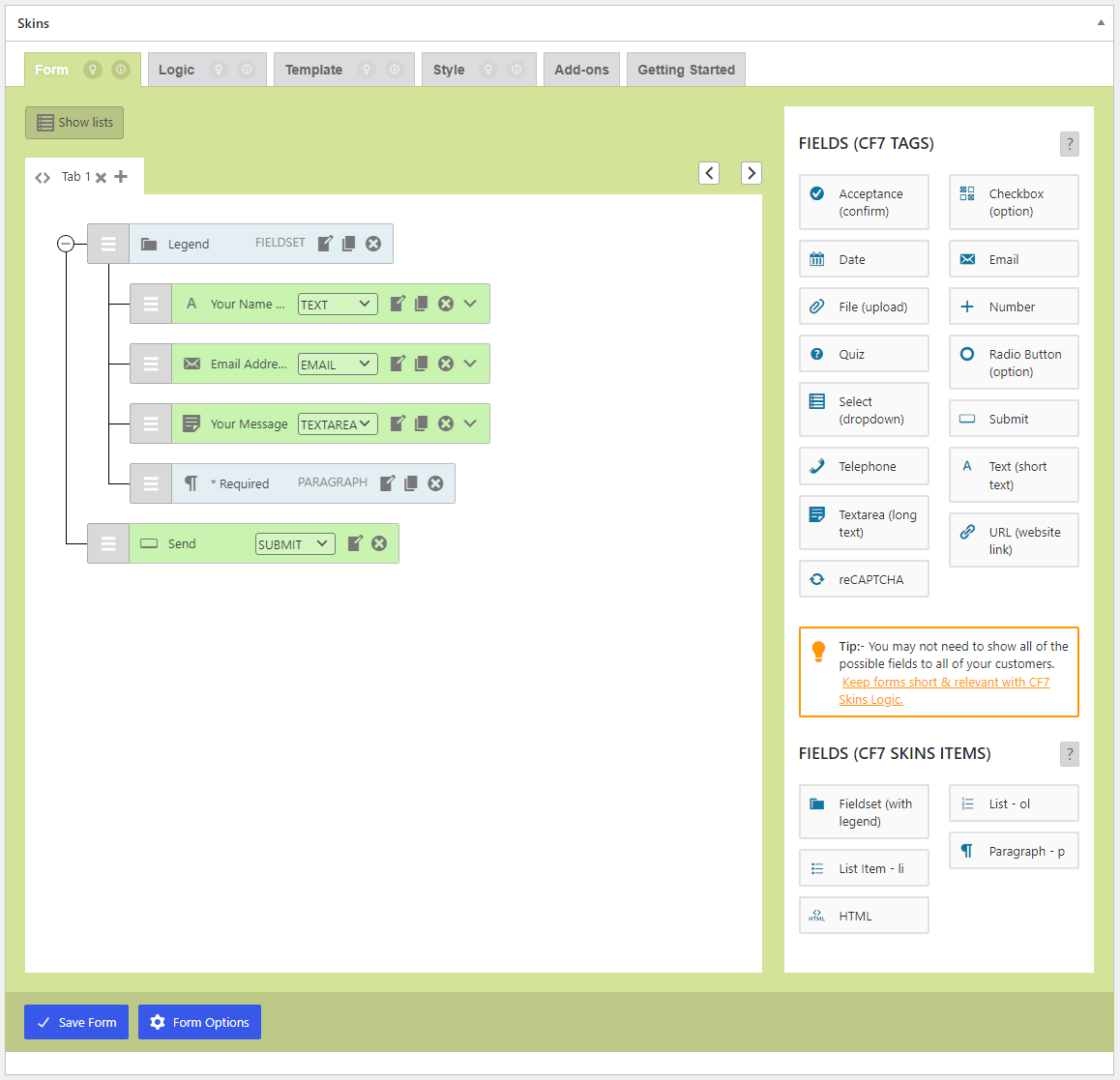
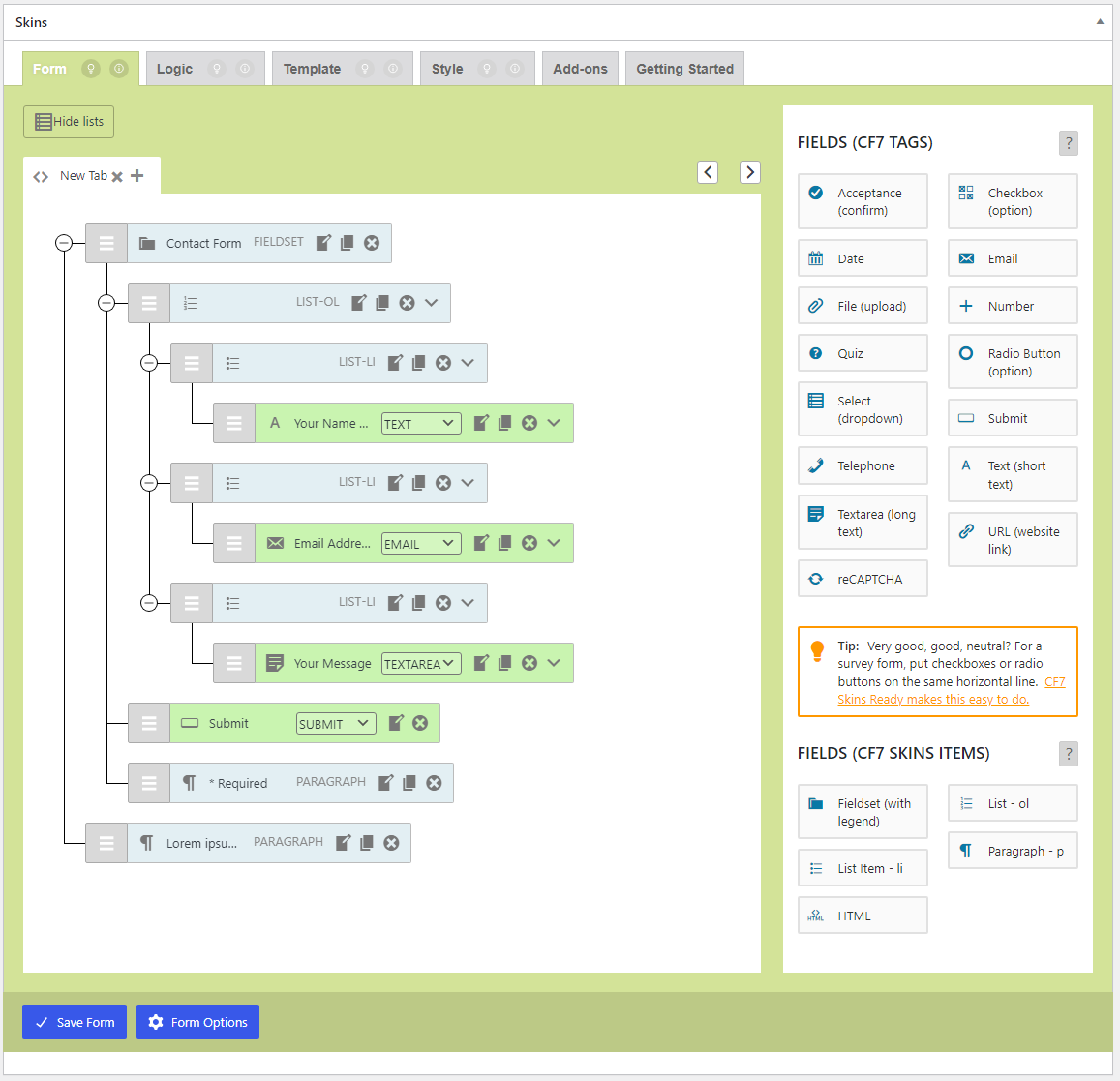
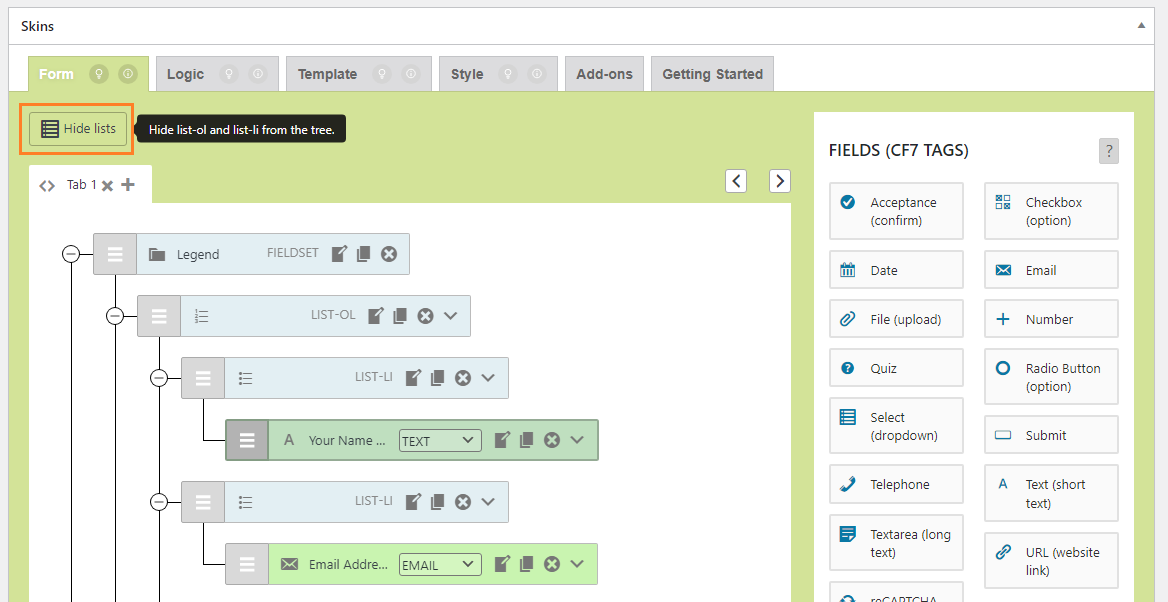
Hidden Lists – Skins Metabox (Hidden Lists_01_Skins Metabox_v2.3.0_commit-c60cc69_2024-06-17.png)
back to top
Images – ..\Sync\..\Testing\Test Site\Manual Testing\UI AREAS\Skins Metabox\
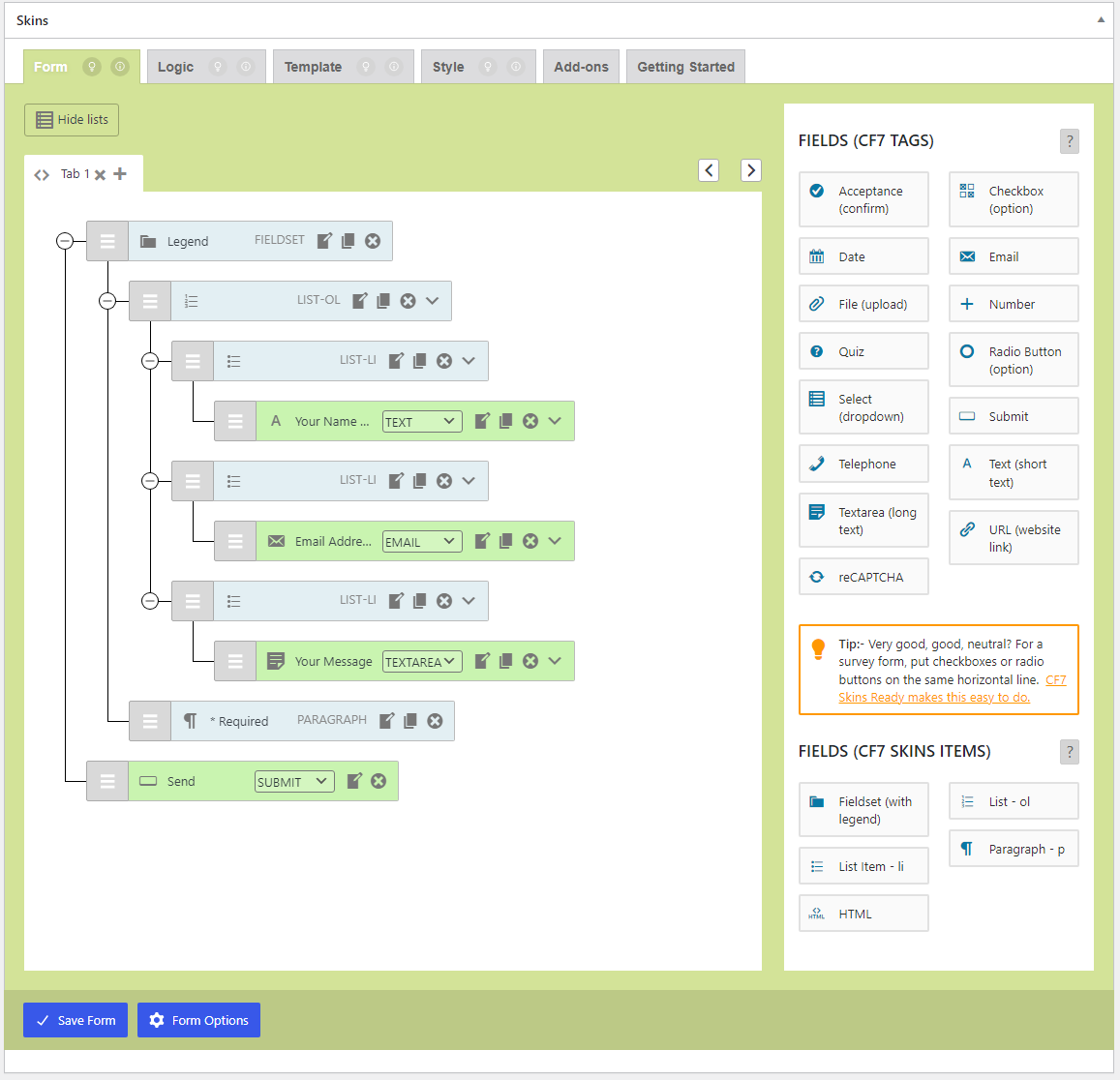
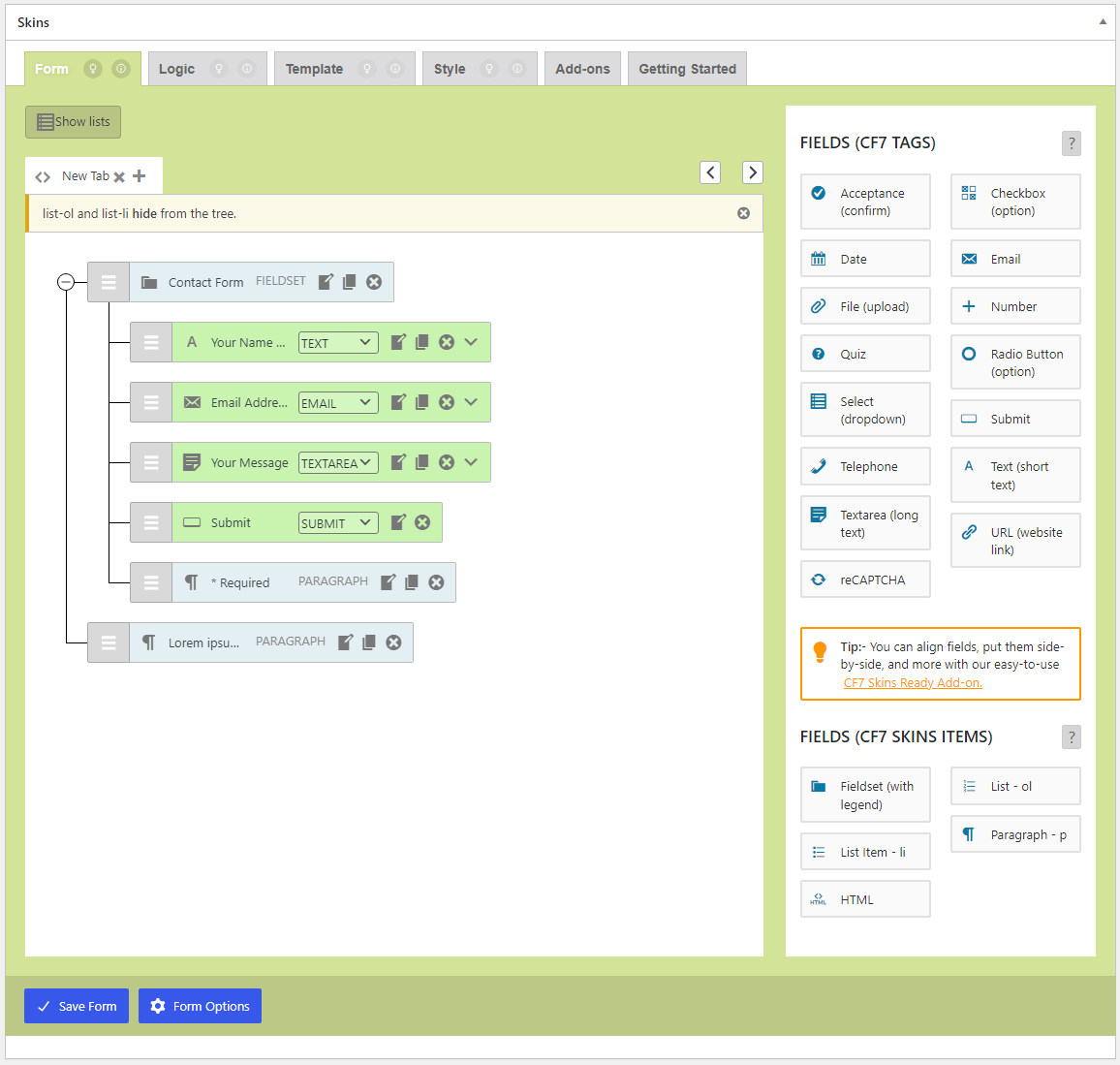
Visible Lists – Skins Metabox (Visible Lists_02_Skins Metabox_v2.3.0_commit-c60cc69_2024-06-17.png) back to top
Images – ..\Sync\..\Testing\Test Site\Manual Testing\UI AREAS\Form Tab\
Checklist #
back to to p
Images – ..\Sync\..\Testing\Test Site\Manual Testing\UI AREAS\Form Tab\
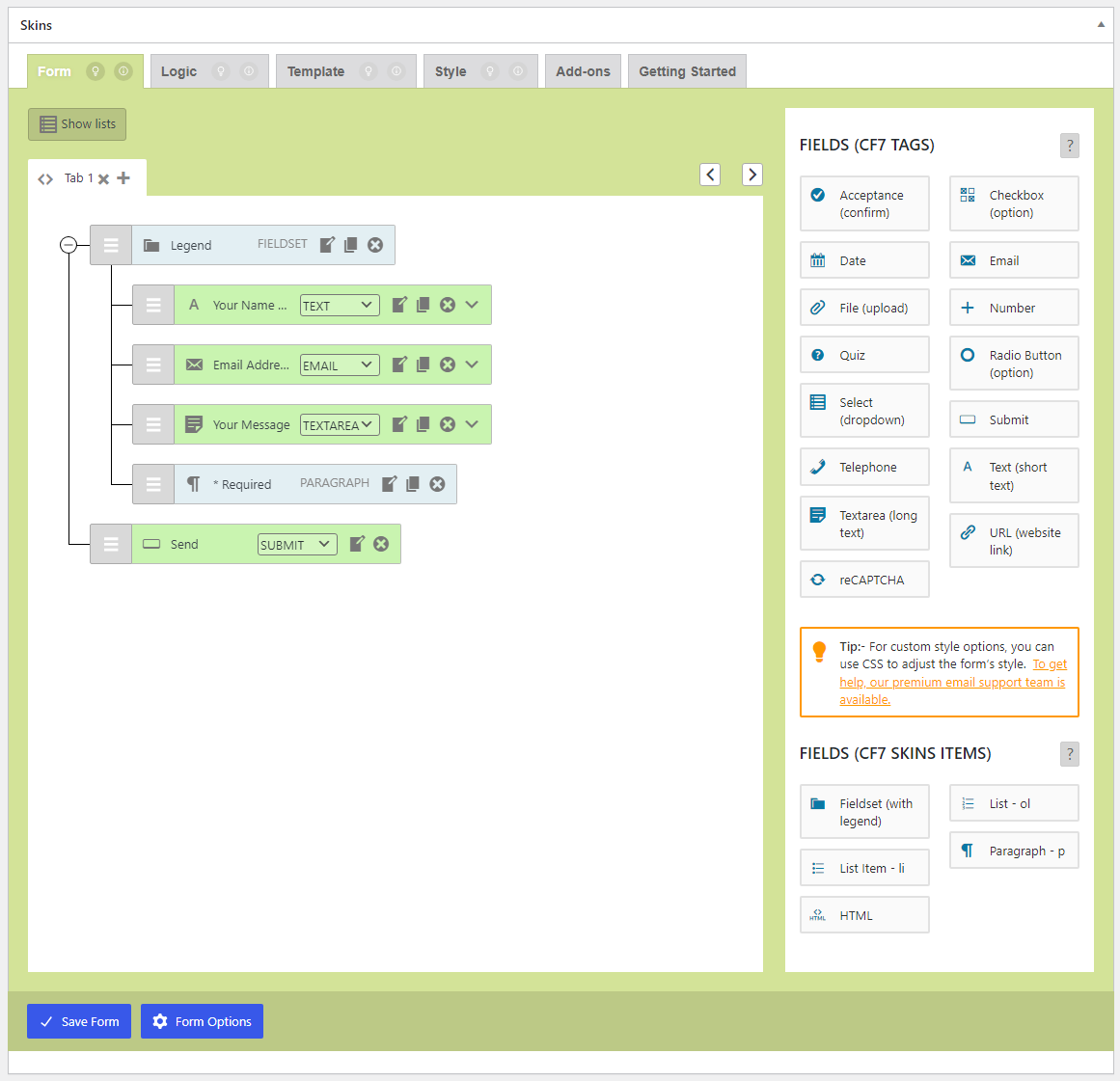
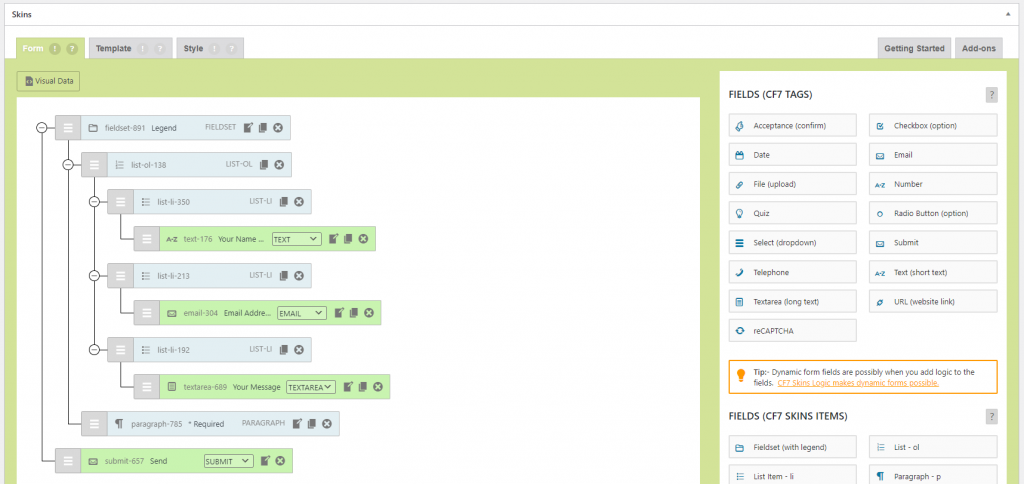
Hidden Lists – Form Tab (Hidden Lists_01_Form Tab_v3.0_commit-c60cc69_2024-06-17.png)
back to to p
Images – ..\Sync\..\Testing\Test Site\Manual Testing\UI AREAS\Form Tab\
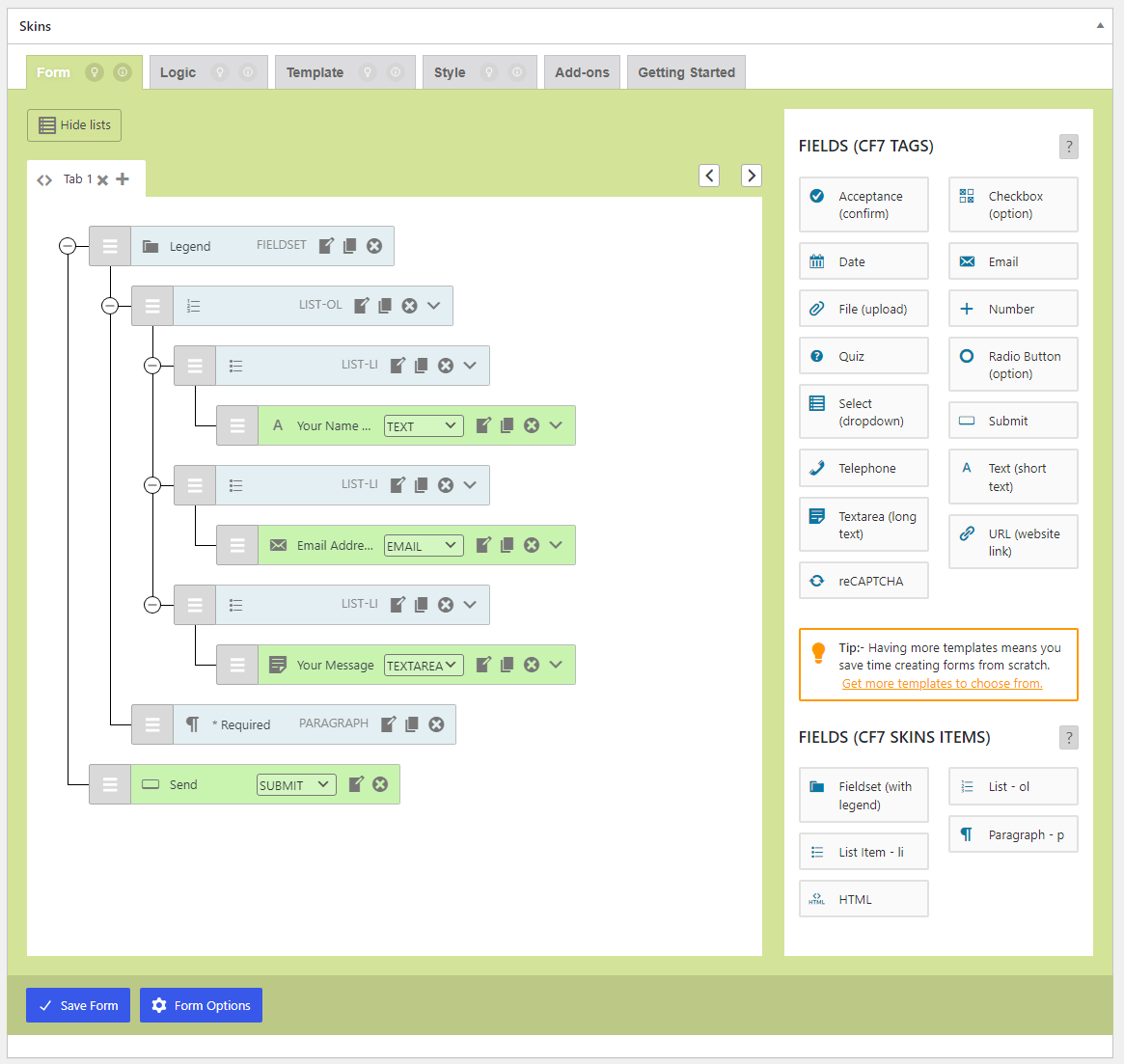
Visible Lists Form Tab (Visible Lists_02_Form Tab_v3.0_commit-c60cc69_2024-06-17.png) Checklist #
back to top
Images – ..\Sync\..\Testing\Test Site\Manual Testing\UI AREAS\Form Options\
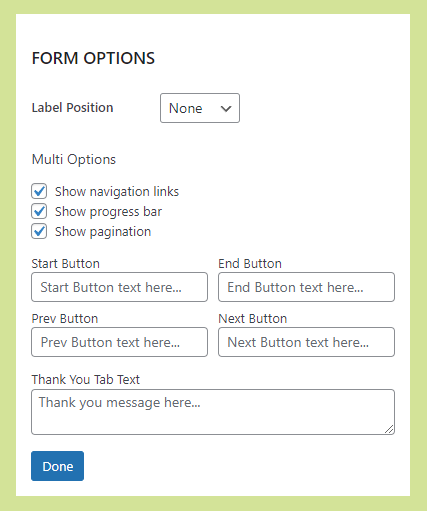
Form Options (Form Options_logic v2.0.0_ALL_2023-09-26.png) Form Options (Form Options Section_v2.5.1-FREE_2022-05-07.png) Checklist #
Visual Data Dialog Form Options Dialog (Addons – Multi & Styles)
Visual Data Dialog #
back to top
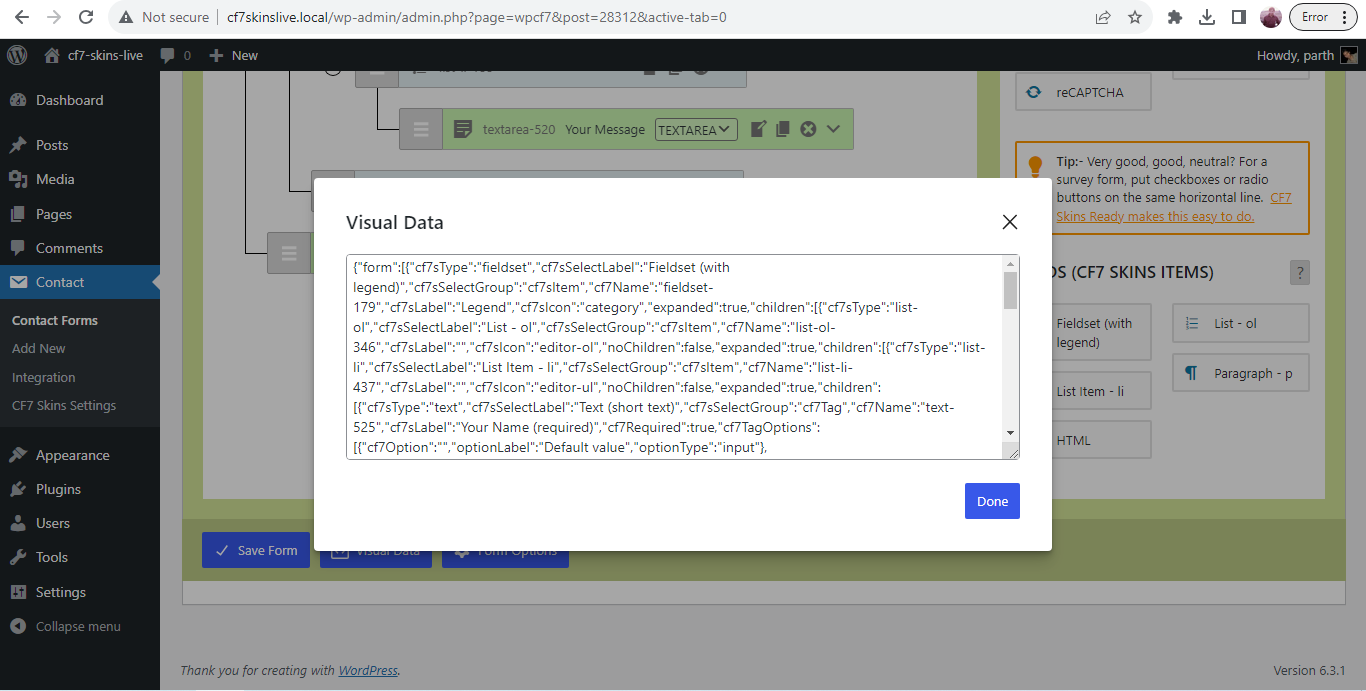
Visual Data Dialog (Visual Data_logic v2.0.0_ALL_2023-09-26.png)
Checklist
Clicking the Visual Data button opens the Visual Data in the right panel.
Initial click inside the input area of the box selects all visual data.
back to top
Addons – Multi & Styles
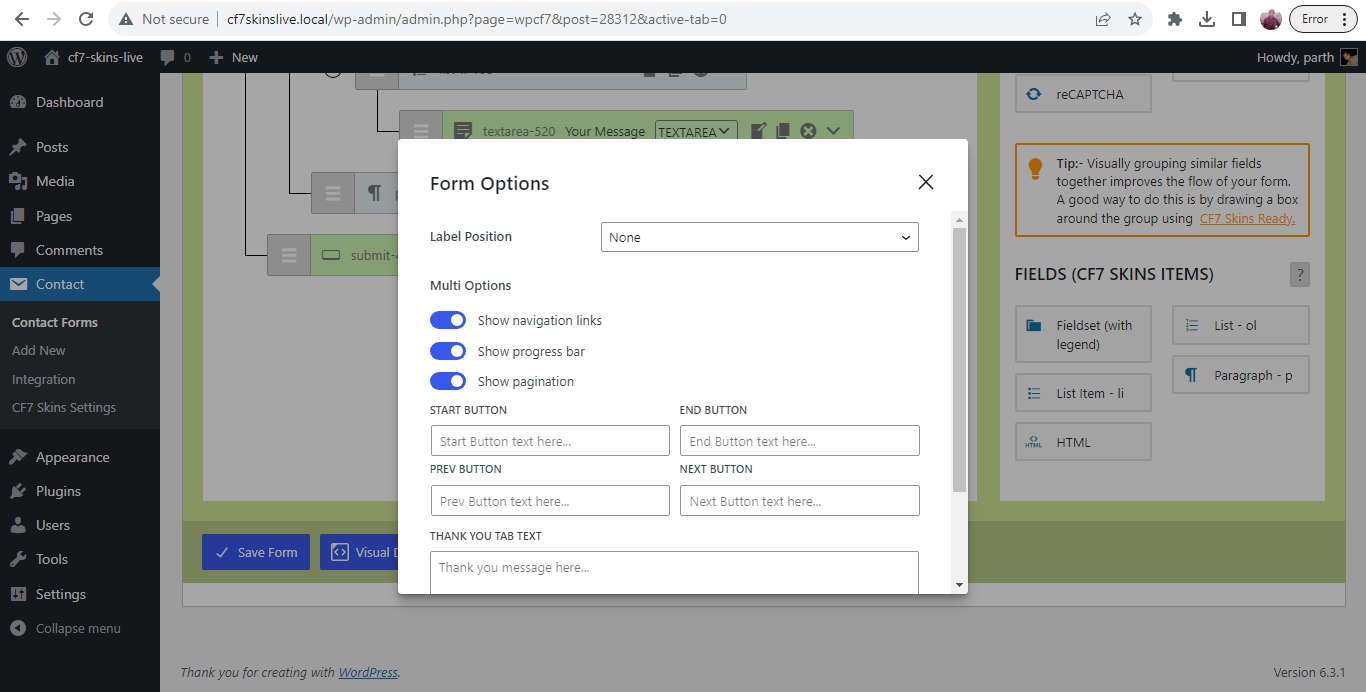
Form Options Dialog (Form Options Dialog_v2.5.1_2022-01-18_01.png) Checklist
Clicking on Form Options button opens the form options in right panel
Displaying all label positions in label position select box.
Clicking on Done button closes the form options
back to top
Images – …\Sync\…\Testing\Test Site\Manual Testing\UI AREAS\Show or Hide Lists\
Checklist #
back to top
Lists Visible (03_Show or Hide Lists – Lists Visible_v3.0_2024-04-30.png)
back to top
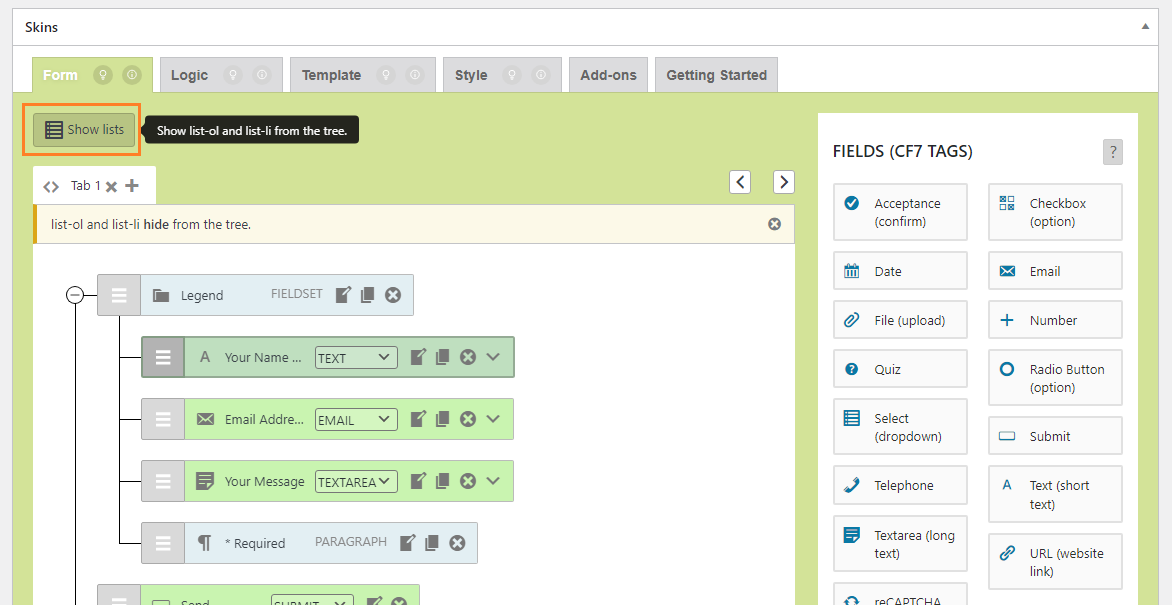
Lists Hidden (04_Show or Hide Lists – Lists Hidden_v3.0_2024-04-30.png)
back to top
Images – ..\Sync\..\Testing\Test Site\Manual Testing\UI AREAS\Form Items\
checklist #
back to top
Images – ..\Sync\..\Testing\Test Site\Manual Testing\UI AREAS\Form Items\
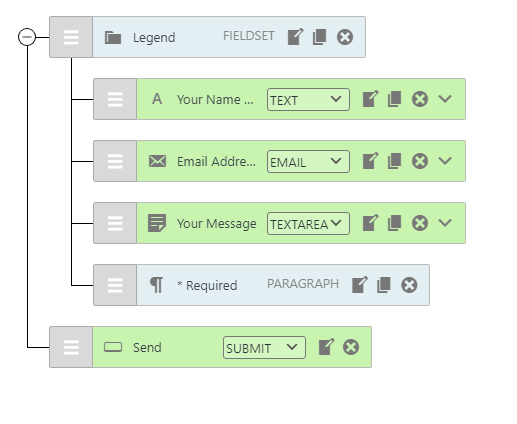
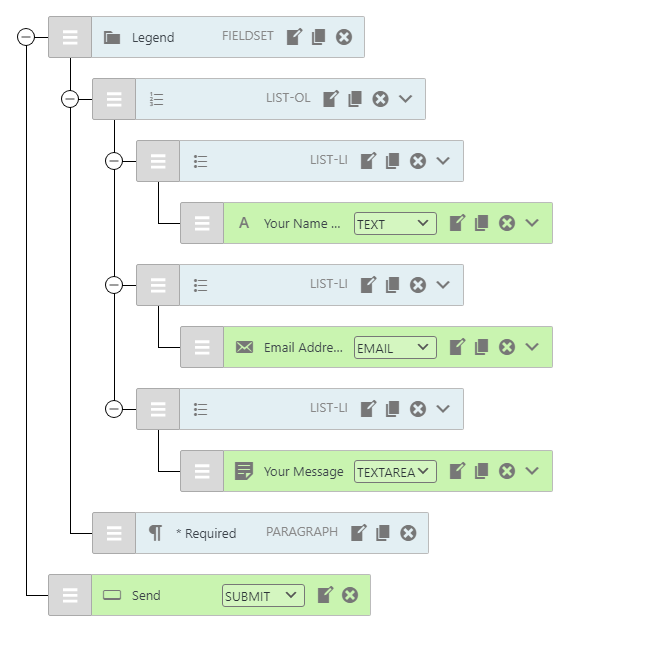
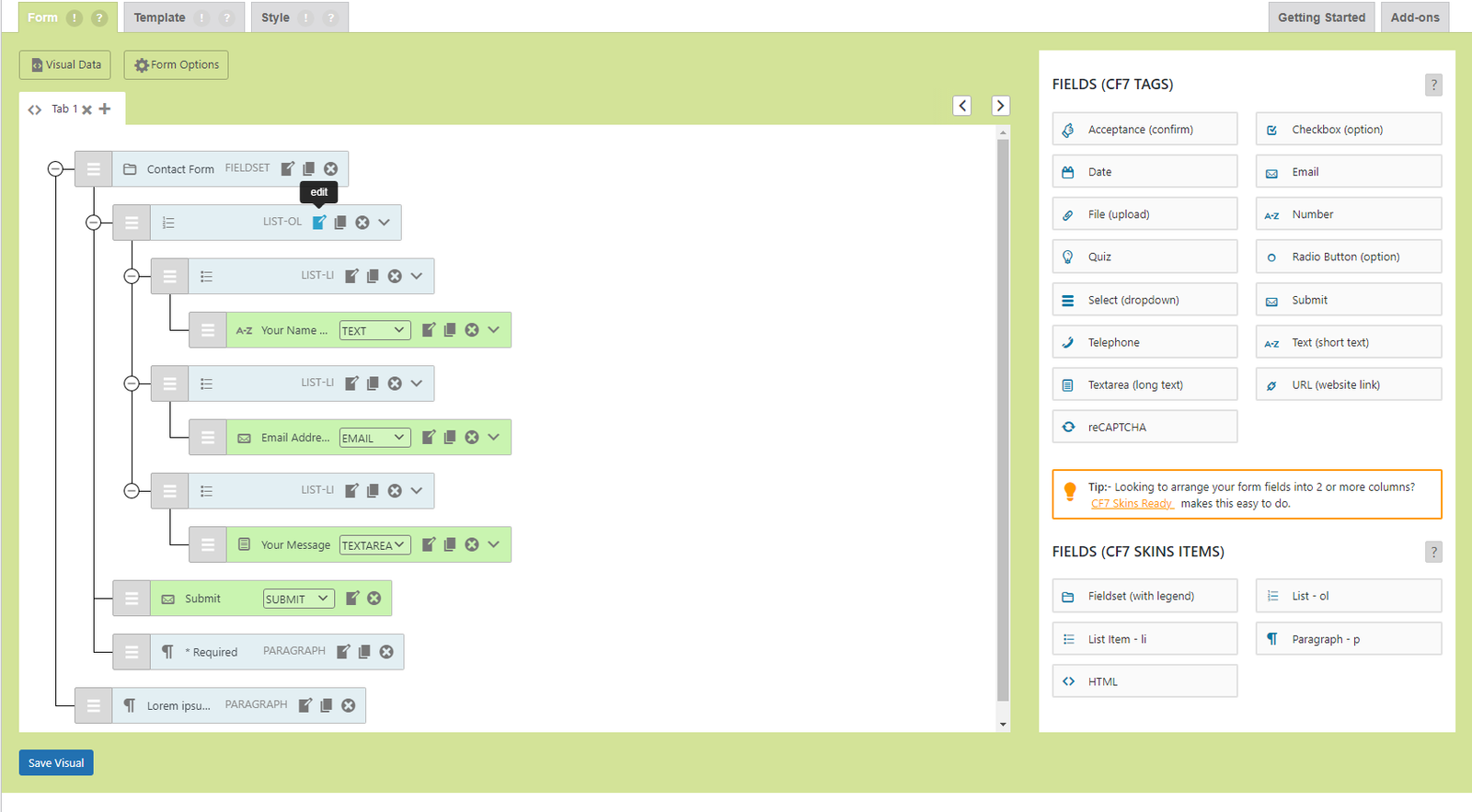
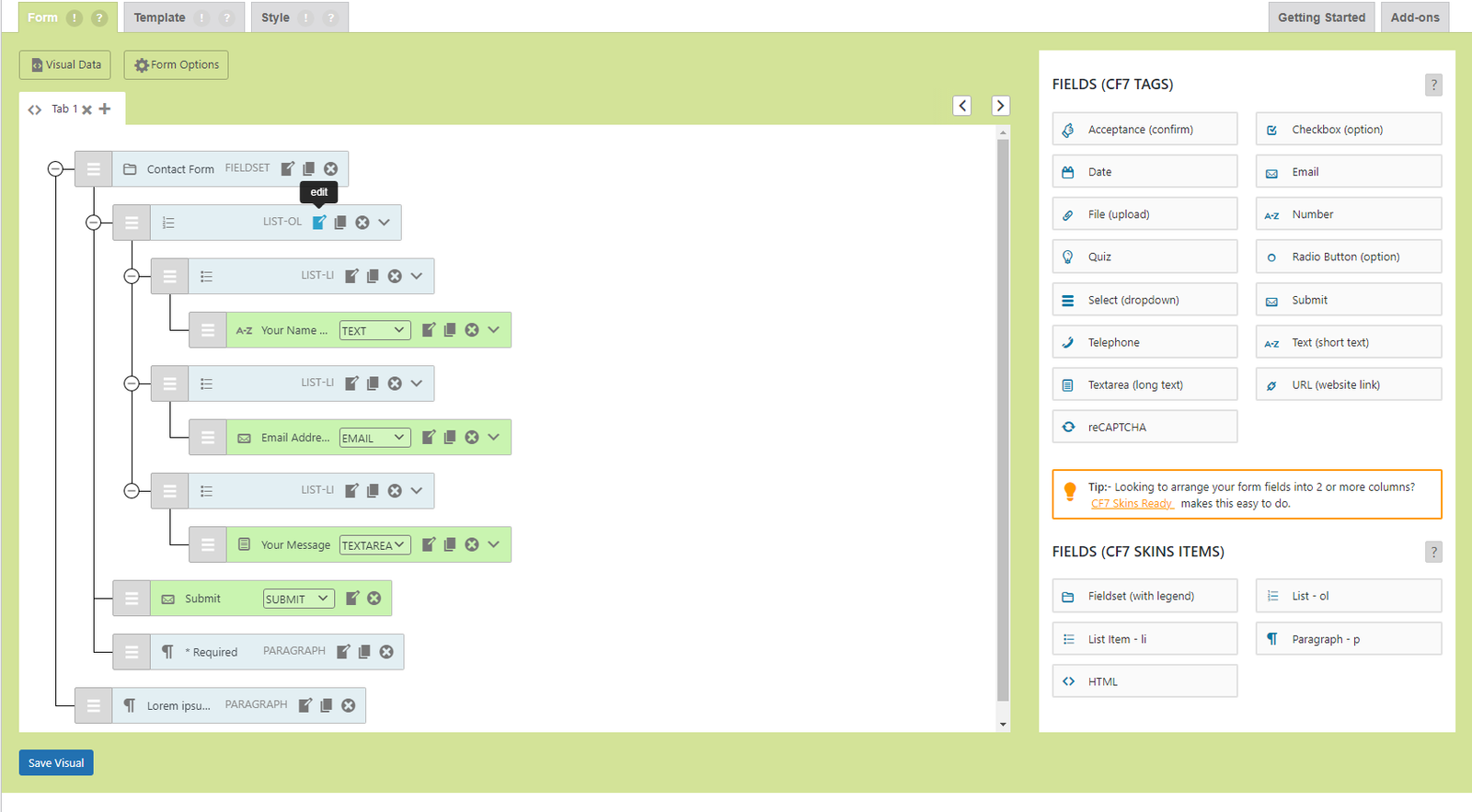
Hidden Lists – Form Items (Hidden Lists_01_Form Items_v3.0_commit-c60cc69_2024-06-17.png)
Checklist – Hidden Lists #
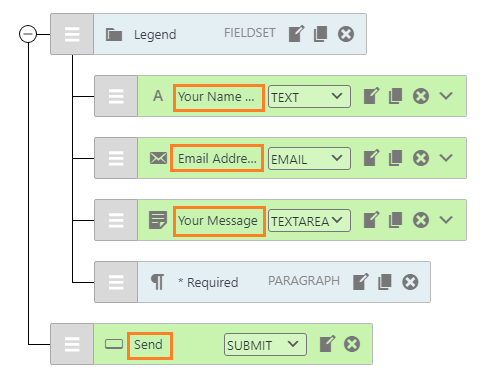
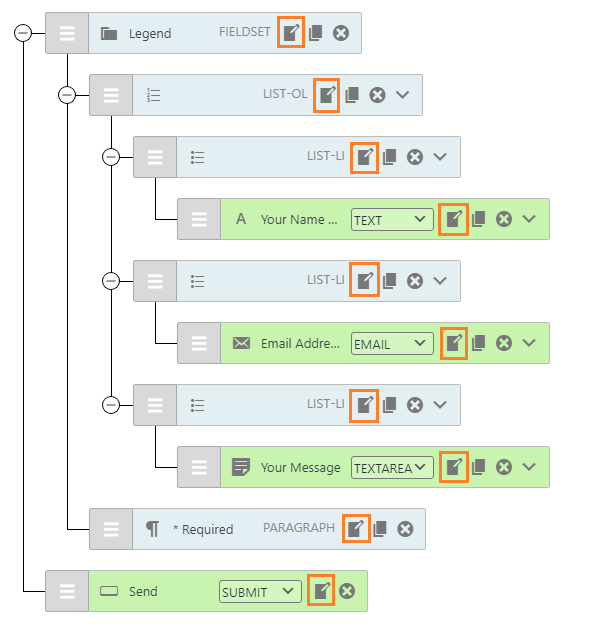
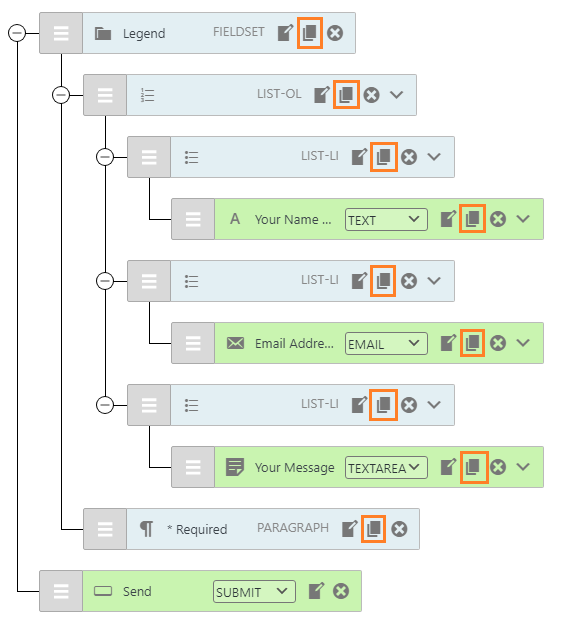
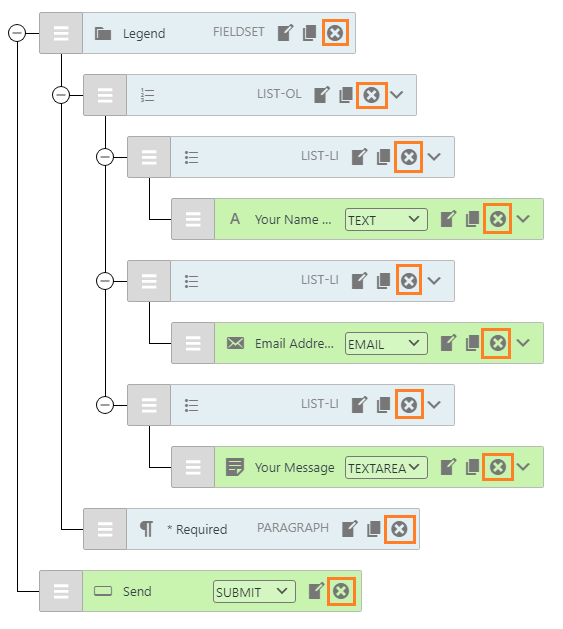
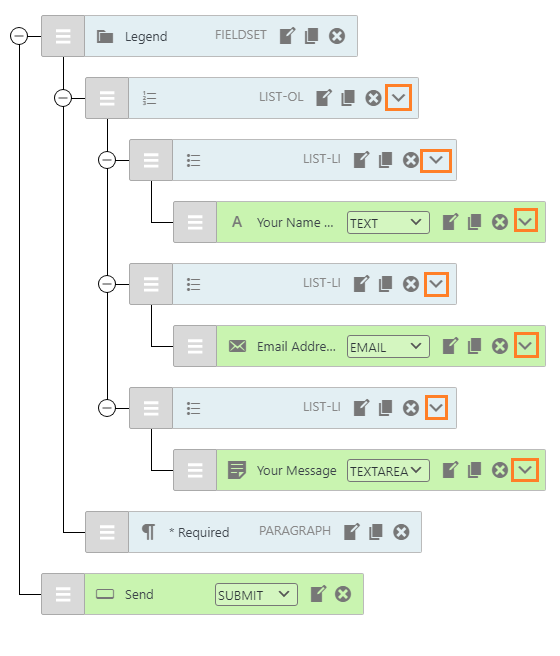
Expand/Collapse – Hidden Lists Drag/Move Field – Hidden Lists Field Icon – Hidden Lists Field Name (optional) – Hidden Lists Field Label – Hidden Lists Field Type – Hidden Lists Edit – Hidden Lists Duplicate – Hidden Lists Delete – Hidden Lists Add-on options (Drop-down menu) – Hidden Lists
back to top
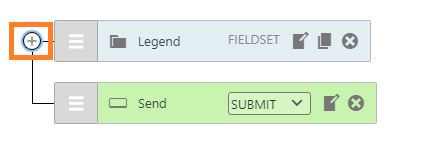
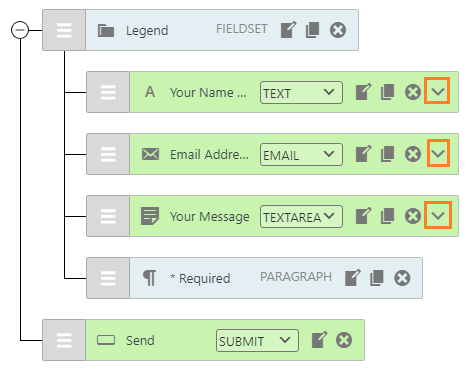
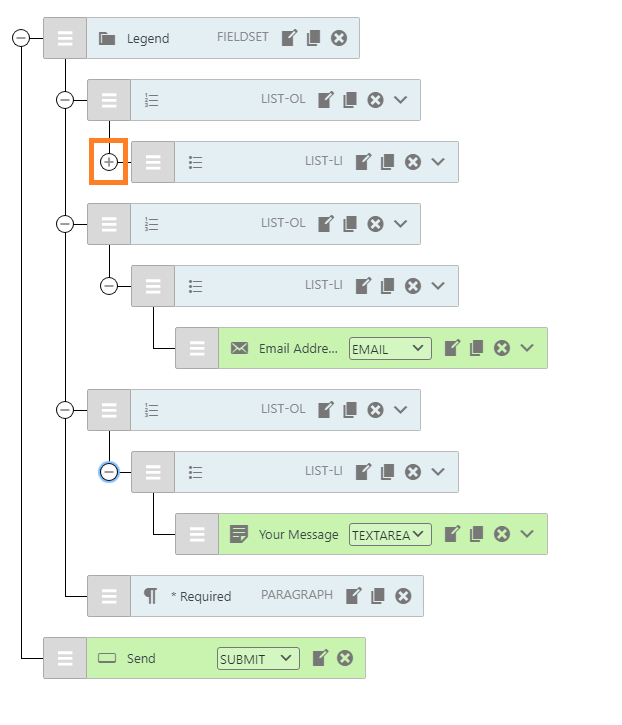
Hidden Lists – Form Items – Expand (Hidden Lists_03_Form Items – Expand_v3.0_commit-c60cc69_2024-06-17.png)
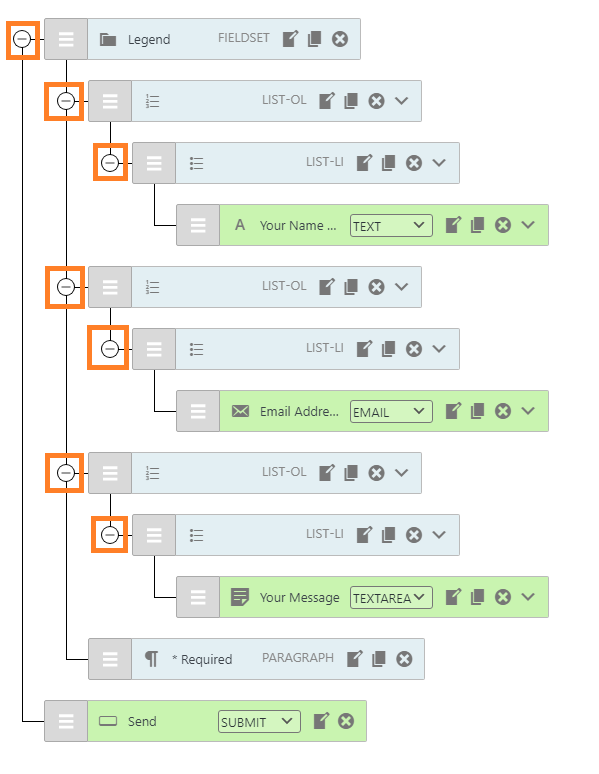
Hidden Lists – Form Items – Collapse (Hidden Lists_05_Form Items – Collapse_v3.0_commit-c60cc69_2024-06-17.png)
back to top
Hidden Lists – Form Items – Drag Move Field (Hidden Lists_07_Form Items – Drag Move Field_v3.0_commit-c60cc69_2024-06-17.png)
back to top
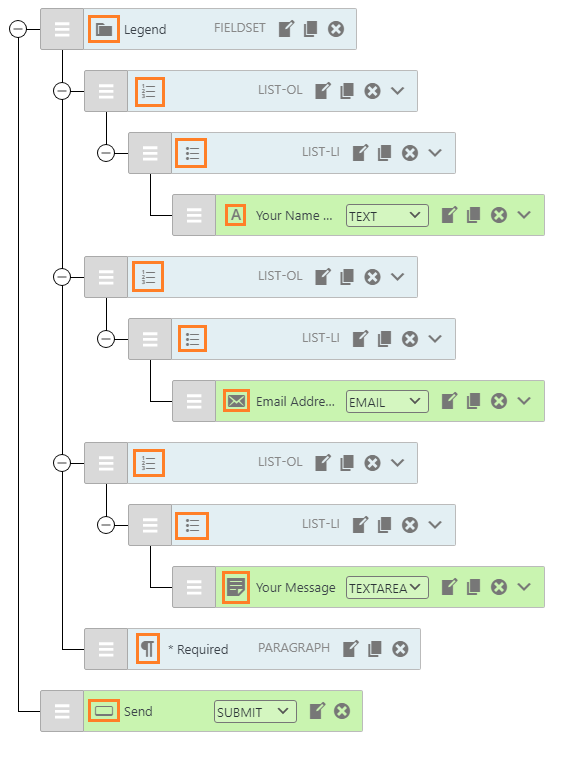
Hidden Lists – Form Items – Field Icon (Hidden Lists_09_Form Items – Field Icon_v3.0_commit-c60cc69_2024-06-17.png)
back to top
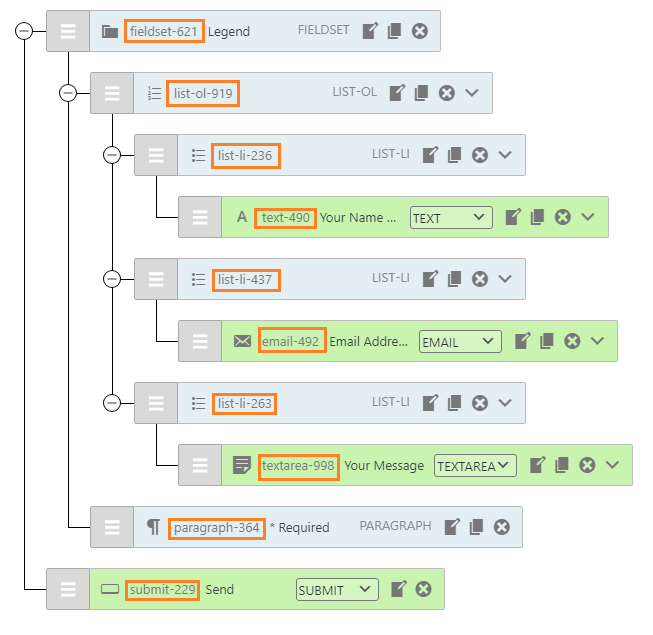
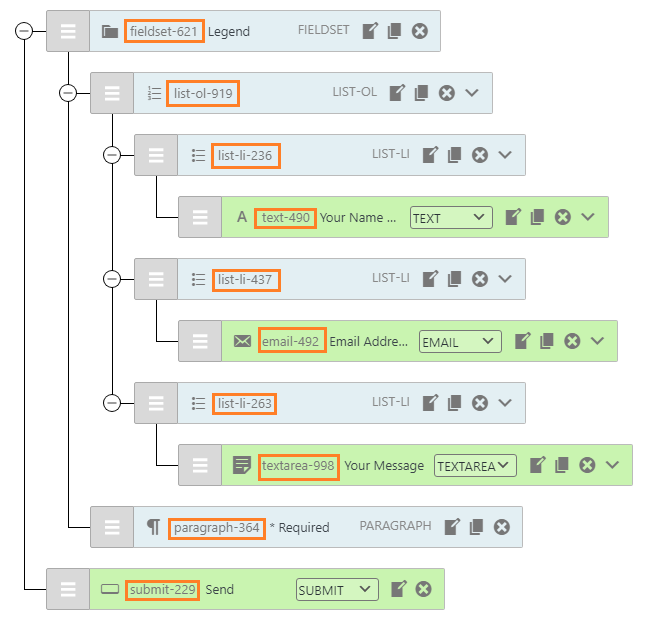
Hidden Lists – Form Items – Field Name (Hidden Lists_11_Form Items – Field-Names-Shown_v3.0_commit-c60cc69_2024-06-17.png)
back to top
Hidden Lists – Form Items – Field Label (Hidden Lists_13_Form Items – Field Label_v3.0_commit-c60cc69_2024-06-17.png)
back to top
Hidden Lists – Form Items – Field Type (Hidden Lists_15_Form Items – Field Type_v3.0_commit-c60cc69_2024-06-17.png)
back to top
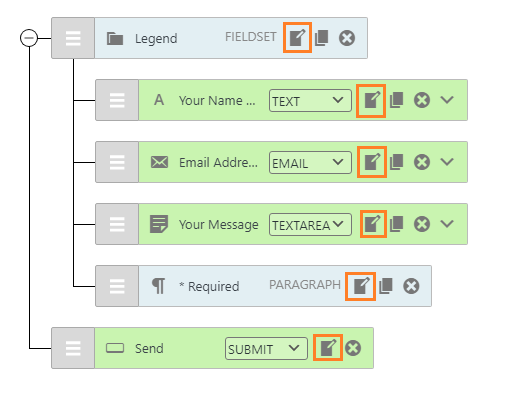
Hidden Lists – Form Items – Edit (Hidden Lists_17_Form Items – Edit_v3.0_commit-c60cc69_2024-06-17.png)
back to top
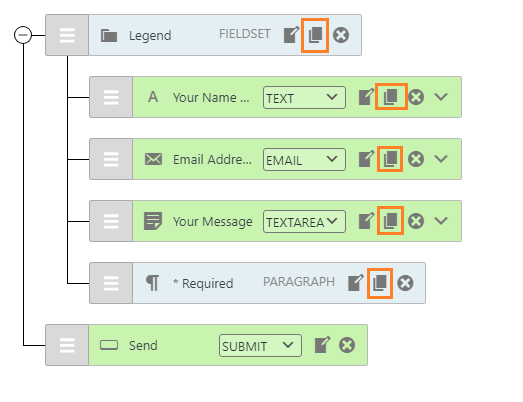
Hidden Lists – Form Items – Duplicate (Hidden Lists_19_Form Items – Duplicate_v3.0_commit-c60cc69_2024-06-17.png)
back to top
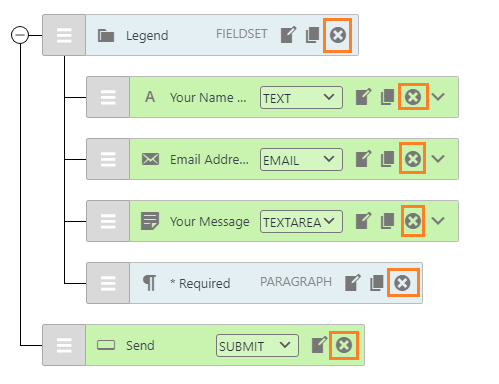
Hidden Lists – Form Items – Delete (Hidden Lists_21_Form Items – Delete_v3.0_commit-c60cc69_2024-06-17.png)
back to top
Hidden Lists – Form Items – Add-on options (Hidden Lists_23_Form Items – Add-on options_v3.0_commit-c60cc69_2024-06-17.png)
back to top
back to top
Images – ..\Sync\..\Testing\Test Site\Manual Testing\UI AREAS\Select Section\
Select Section (02_Select with pro activated_v2.7.0._2023-10-31.png) back to top
Images – ..\Sync\..\Testing\Test Site\Manual Testing\UI AREAS\Fields – CF7 Tags\
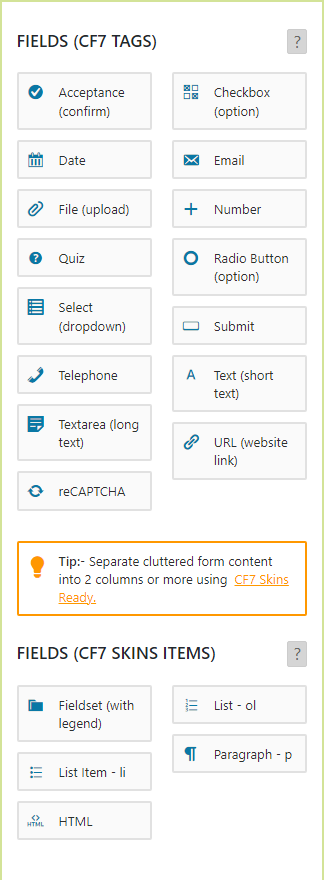
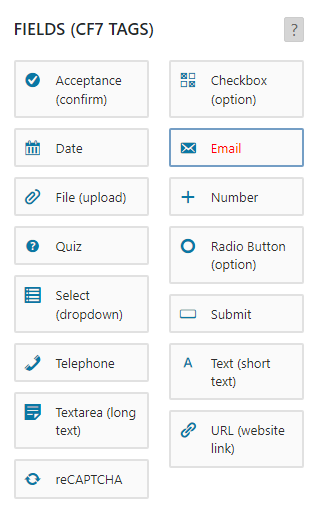
Fields – CF7 Tags – Select (Fields – CF7 Tags – Select_v2.7.0_2023-10-31.png) Checklist #
back to top
Single Field Card (single field card_cf7 tags_v2.5.3_B_2022-07-18.png) Checklist
Field Card Icon
Field Card Name
Acceptance #
back to top
Acceptance Field (acceptance_field_cf7 tags_v2.5.1_2022-02-21.png) Checkbox #
back to top
Checkbox (checkbox_field_cf7 tags_v2.5.1_2022-02-21.png) Date #
back to top
Date Field (date_field_cf7 tags_logic-v2.0.0_2022-09-23.png) Email #
back to top
Email (email_field_cf7 tags_v2.5.1_2022-02-21.png) File Upload #
back to top
File Field (upload_field_cf7 tags_v2.5.1_2022-02-21.png) Number #
back to top
Number Field (number_field_cf7 tags_v2.5.1_2022-02-21.png) Quiz #
back to top
Quiz Field (quiz_field_cf7 tags_logic-v2.0.0_2023-09-27.png) back to top
Radio Button Field (radio_field_cf7 tags_v2.5.1_2022-02-21.png) Select (Drop Down) #
back to top
Select (select_field_cf7 tags_logic-v2.0.0_2023-09-27.png) back to top
Submit Field (submit_field_cf7 tags_v2.5.1_2022-02-22.png) Telephone #
back to top
Telephone Field (phone_field_cf7 tags_v2.5.1_2022-02-21.png) Text #
back to top
Text Field (text_field_cf7 tags_v2.5.1_2022-02-21.png) Textarea #
back to top
Textarea Field (textarea_field_cf7 tags_v2.5.1_2022-02-21.png) Recaptcha #
back to top
Recaptcha Field (recaptcha_field_cf7 tags_v2.5.1_2022-02-21.png) URL #
back to top
URL Field(url_field_cf7 tags_v2.5.1_2022-02-21.png)
Checklist
Displaying all options in Label Position select box.
Checkboxes are working properly
Field Name is auto generated
back to top
Images – ..\Sync\..\Testing\Test Site\Manual Testing\UI AREAS\Select Section\Tips\
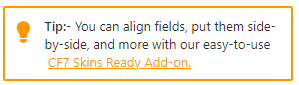
Tips – Select (05_Tips – Select_v2.7.0_2023-10-31.png)
Checklist
There is no effect on hover
Tip content will be changed randomly if any button on Fields (CF7 Tags) or Fields (CF7 Skins Items) is clicked.
back to top
Images – ..\Sync\..\Testing\Test Site\Manual Testing\UI AREAS\Fields – CF7 Skins Items\
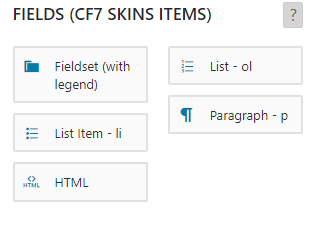
Fields – CF7 Skins Items – Select (01_Fields – CF7 Skins Items – Select_v2.7.0_2023-10-31.png) Checklist #
Single Field Card #
back to top
Single Field Card (single field card_cf7 skins items_v2.5.3_B_2022-07-18.png) Checklist
Field Card Icon
Field Card Name
Fieldset #
back to top
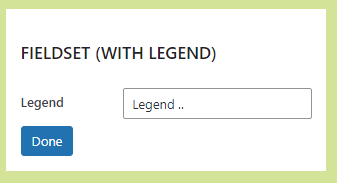
Fieldset (fieldset_cf7skins items_Logic v2.0.0_2023-09-27.png) Checklist
Label – Text
Textbox – Placeholder
Button
List – OL #
back to top
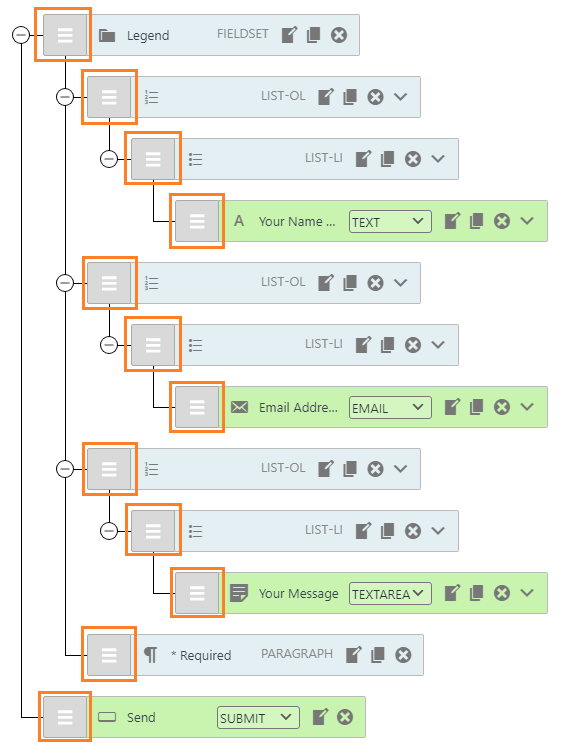
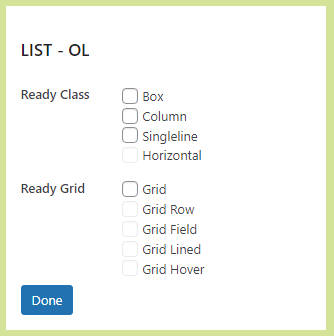
List – OL (list-ol_cf7skins items_Logic v2.0.0_2023-09-27.png)
List – IL #
back to top
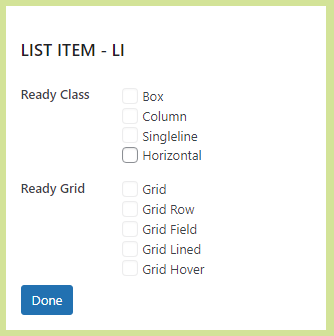
List -LI(list-li_cf7skins items_v2.5.1_2023-09-23.png)
Paragraph – p #
back to top
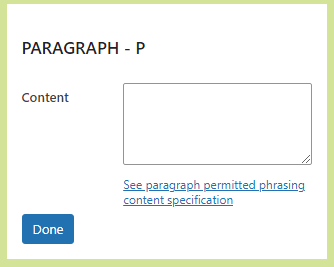
Paragraph – p (paragraph_cf7skins items_Logic v2.0.0_2023-09-23.png)
HTML #
back to top
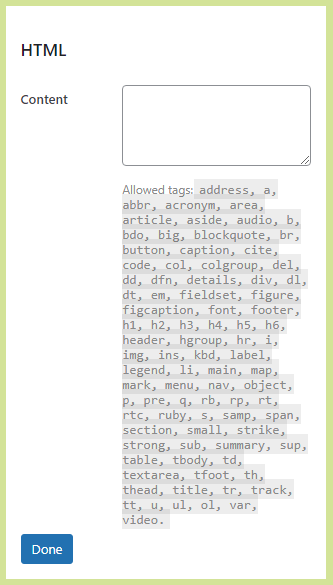
HTML (html_cf7skins items_Logic v2.0.0_2023-09-23.png) back to top
Save Visual #
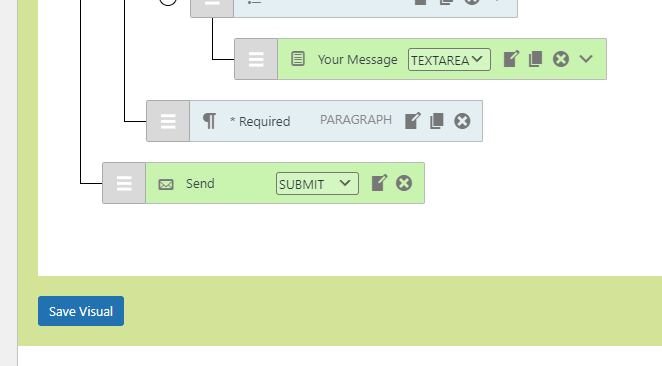
Save Visual Button – (Save Visual_v2.5.1_2022-01-29.png) Template Tab #
back to top
Images – ..\Sync\..\Testing\Test Site\Manual Testing\UI AREAS\Template Tab\
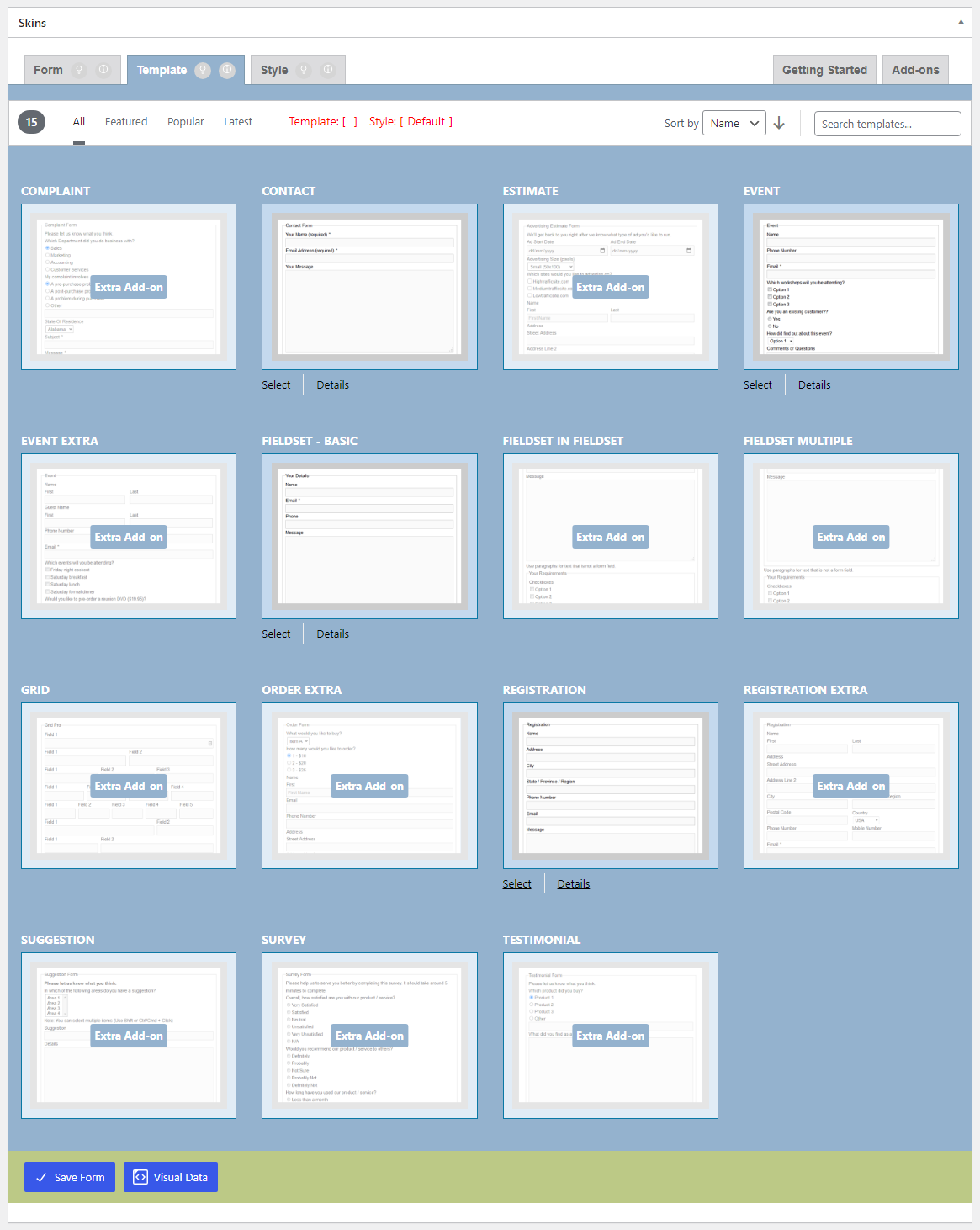
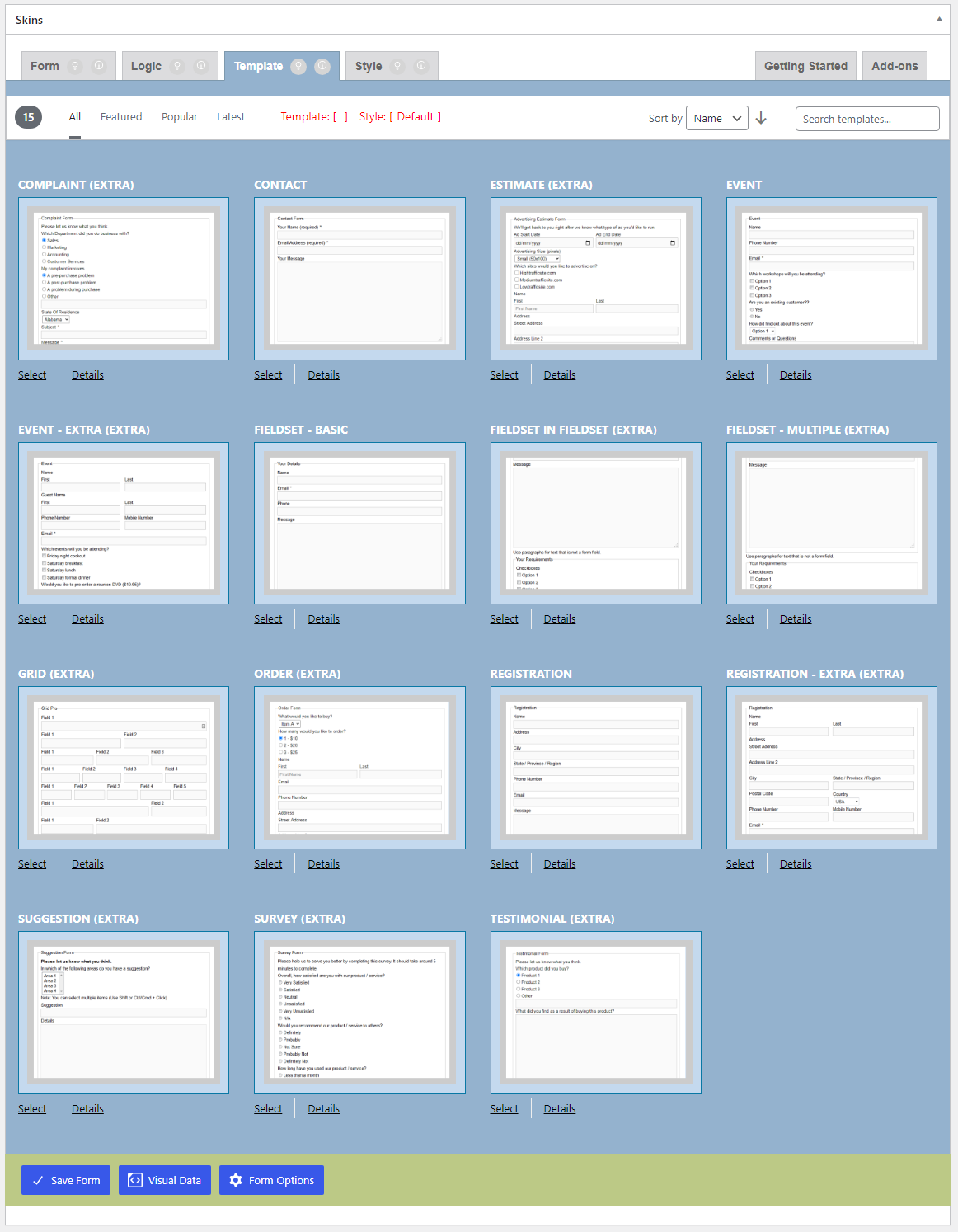
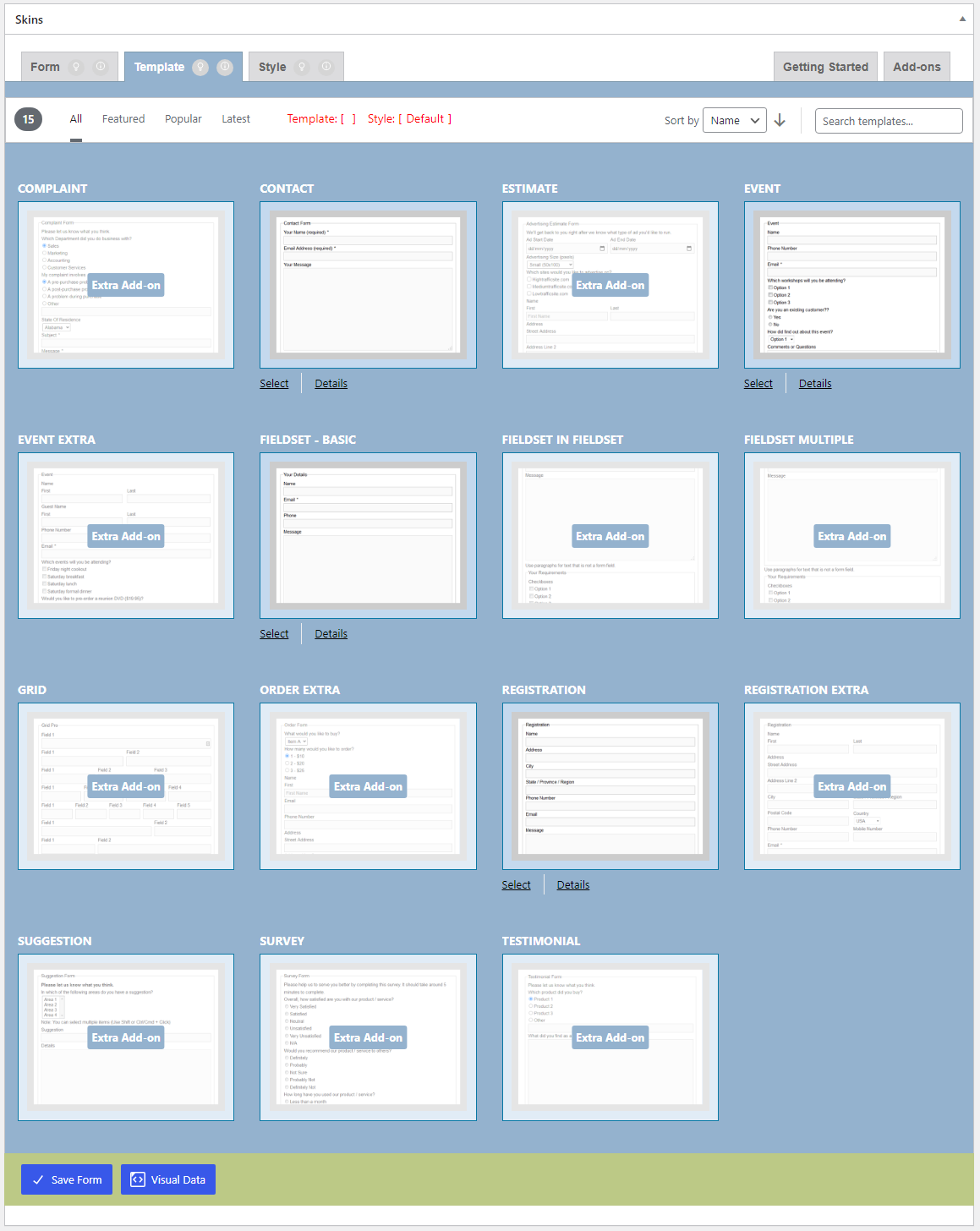
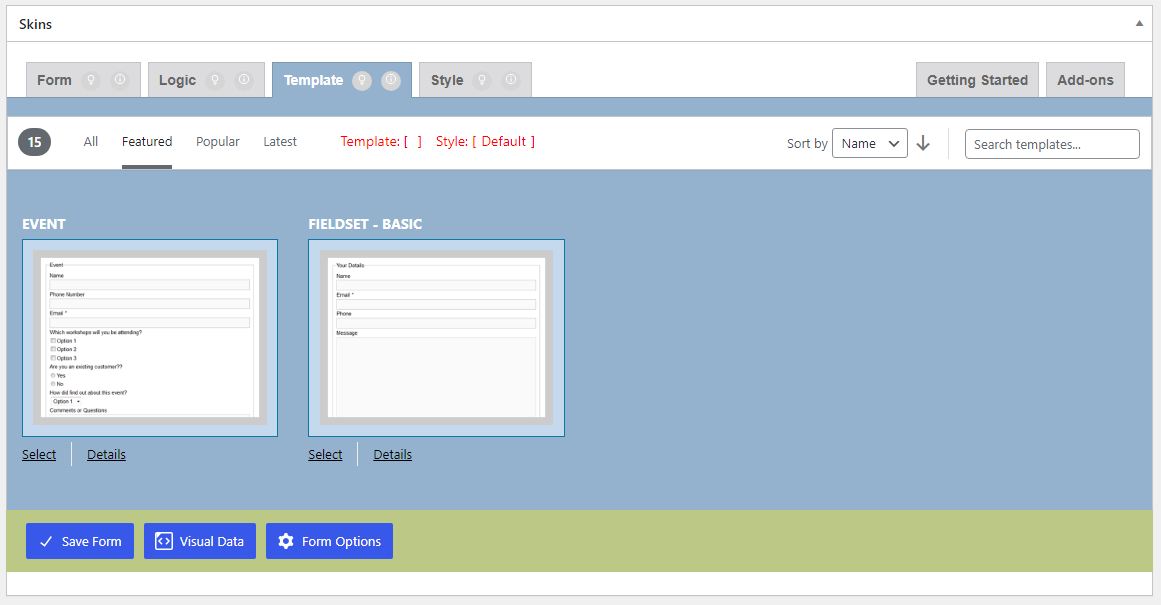
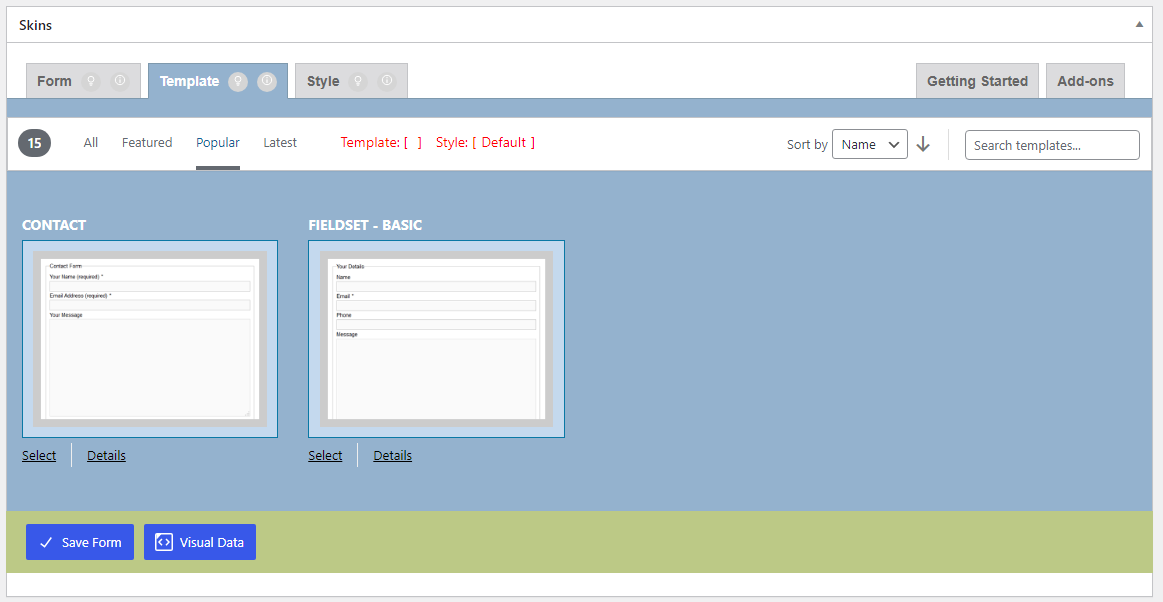
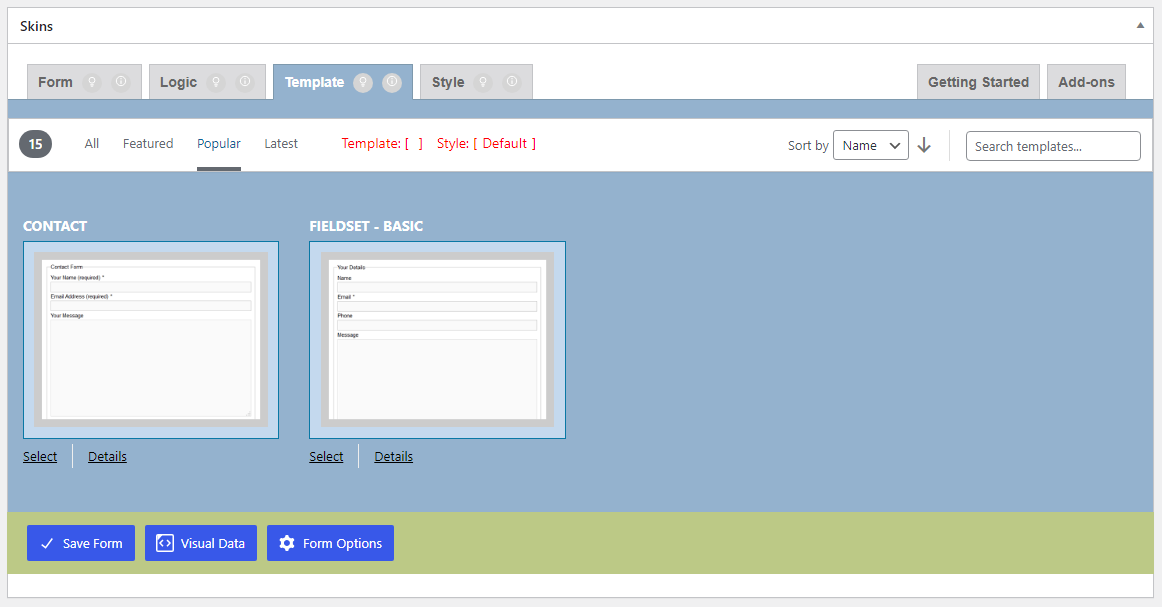
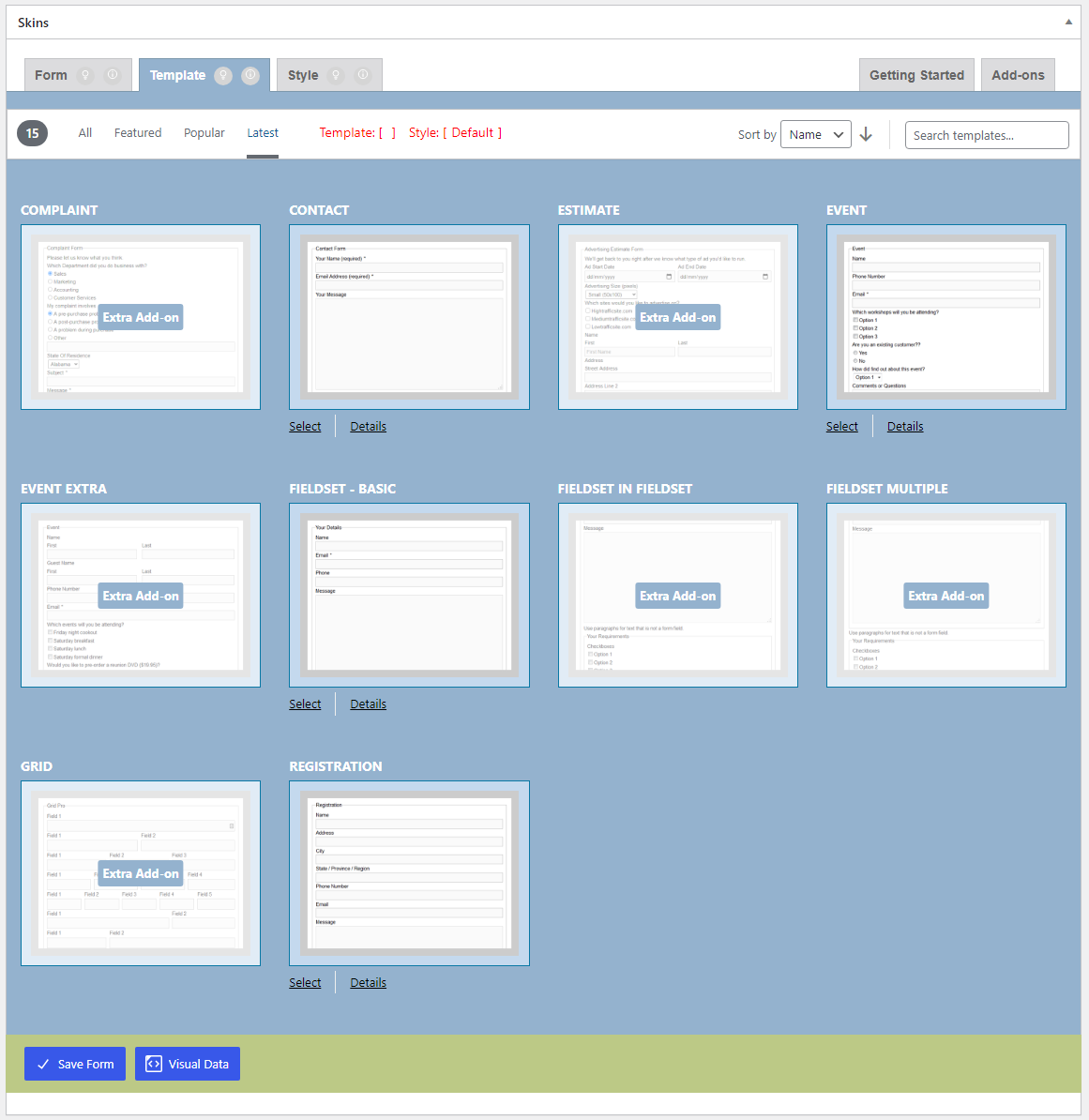
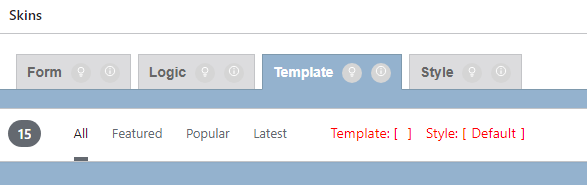
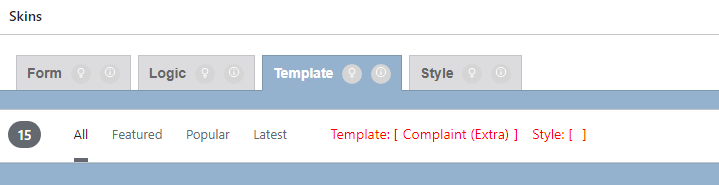
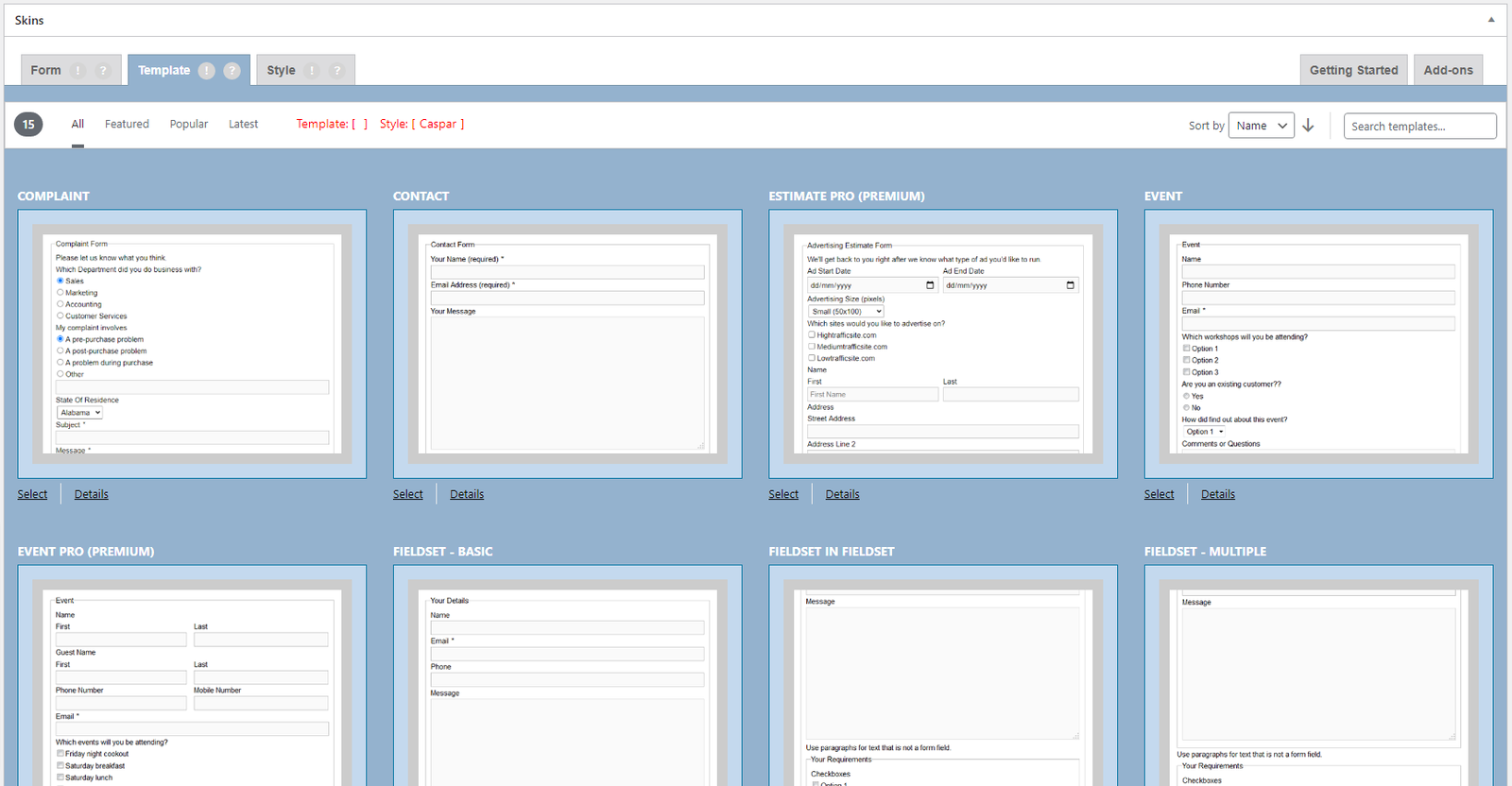
Template Tab – Free (08_CF7Skins Free – Template Tab_V2.7.0_commit-aad741d_2024-07-29.png) Template Tab – Add-ons – (01_Template Tab_V2.7.0_commit-aad741d_2024-07-29.png) See also Template Actions
Checklist
Template Sub Tabs Template Details CF7 Skins Free Template Extra Add-on
Template Sub Tabs #
back to top
Checklist #
All (Free) All (Add-ons) Featured (Free) Featured (Add-ons) Popular (Free) Popular (Add-ons) Latest (Free) Latest (Add-ons)
All (Free) #
Template Tab – All – Free (09_CF7Skins Free – Template – Sub Tabs – All_V2.7.0_commit-aad741d_2024-07-29.png) back to top
All (Add-ons) #
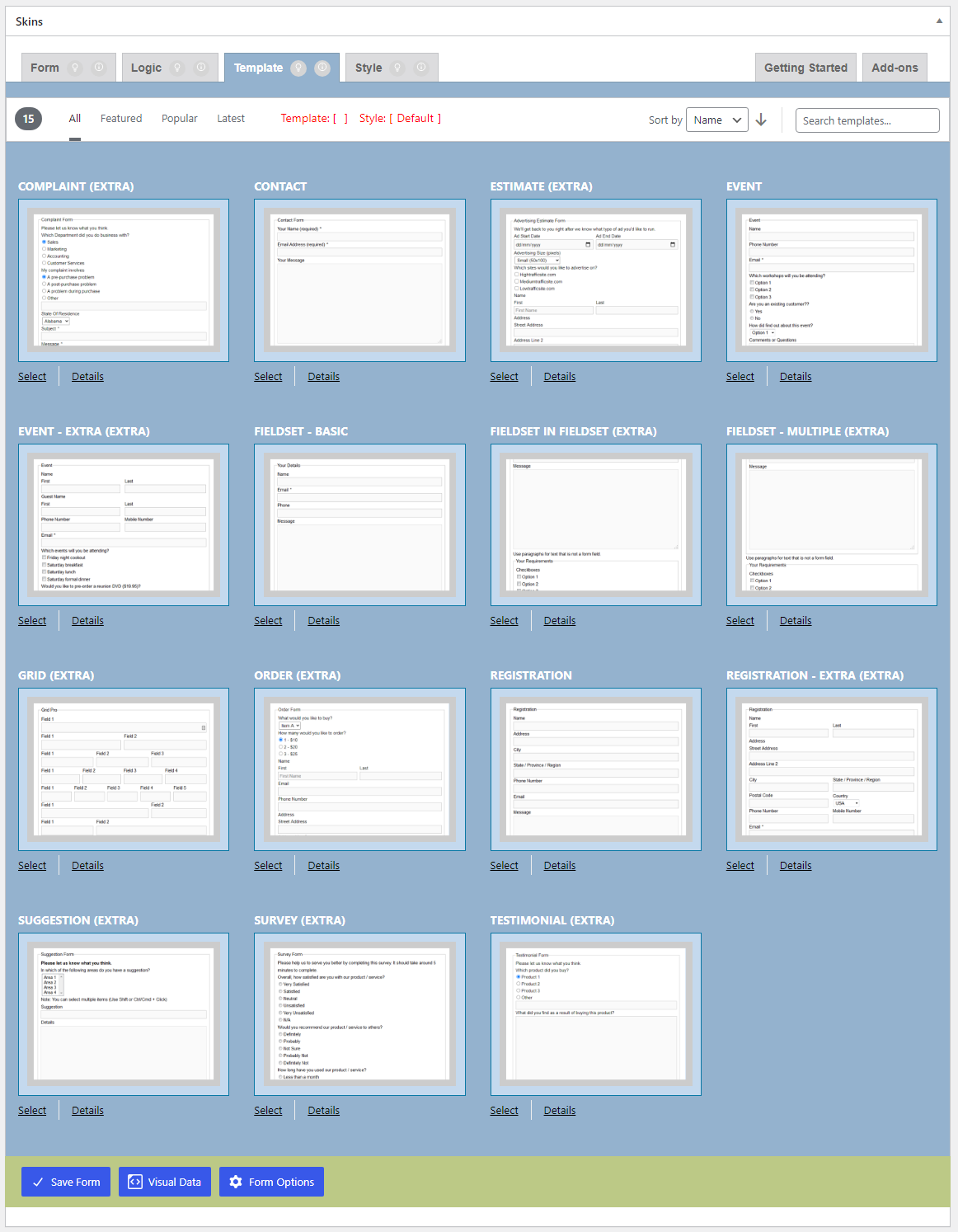
Template Tab – All – Add-ons (02_Template – Sub Tabs – All_V2.7.0_commit-aad741d_2024-07-29.png) back to top
Featured (Free) #
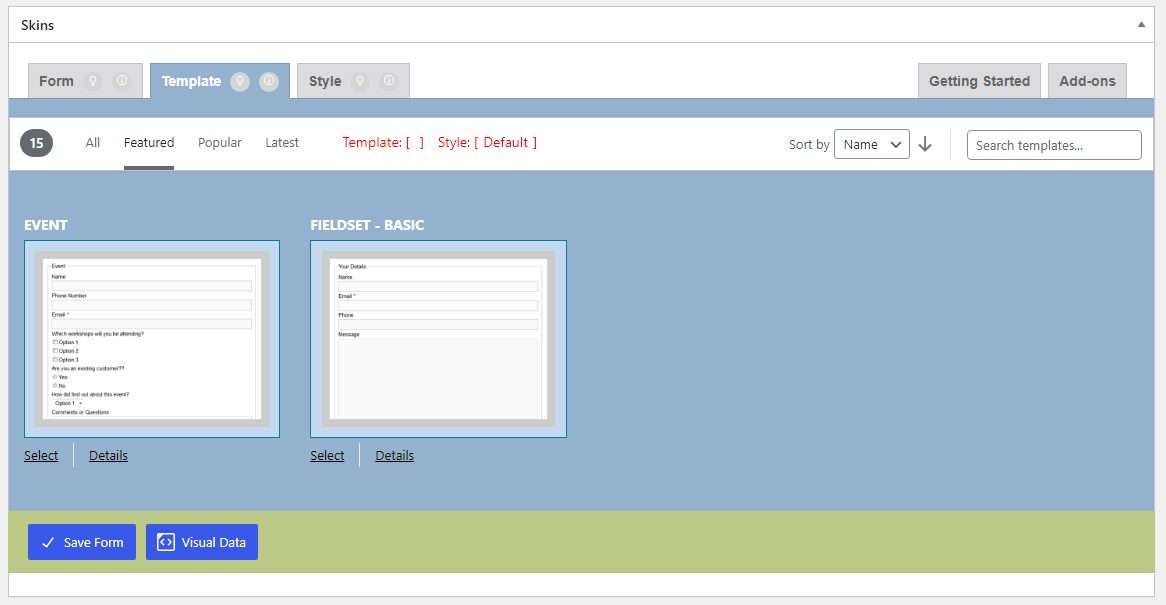
Templates Tab – Featured – Free (10_CF7Skins Free – Template – Sub Tabs – Featured_V2.7.0_commit-aad741d_2024-07-29.png) back to top
Featured (Add-ons) #
Template Tab – Featured – Add-ons (03_Template – Sub Tabs – Featured_V2.7.0_commit-aad741d_2024-07-29.png) back to top
Popular (Free) #
Template Tabs – Popular – Free (11_CF7 Skins Free – Template – Sub Tabs – Popular_V2.7.0_commit-aad741d_2024-07-29.png) back to top
Popular (Add-ons) #
Template Tab – Popular – Add-ons (04_Template – Sub Tabs – Popular_V2.7.0_commit-aad741d_2024-07-29.png) back to top
Latest (Free) #
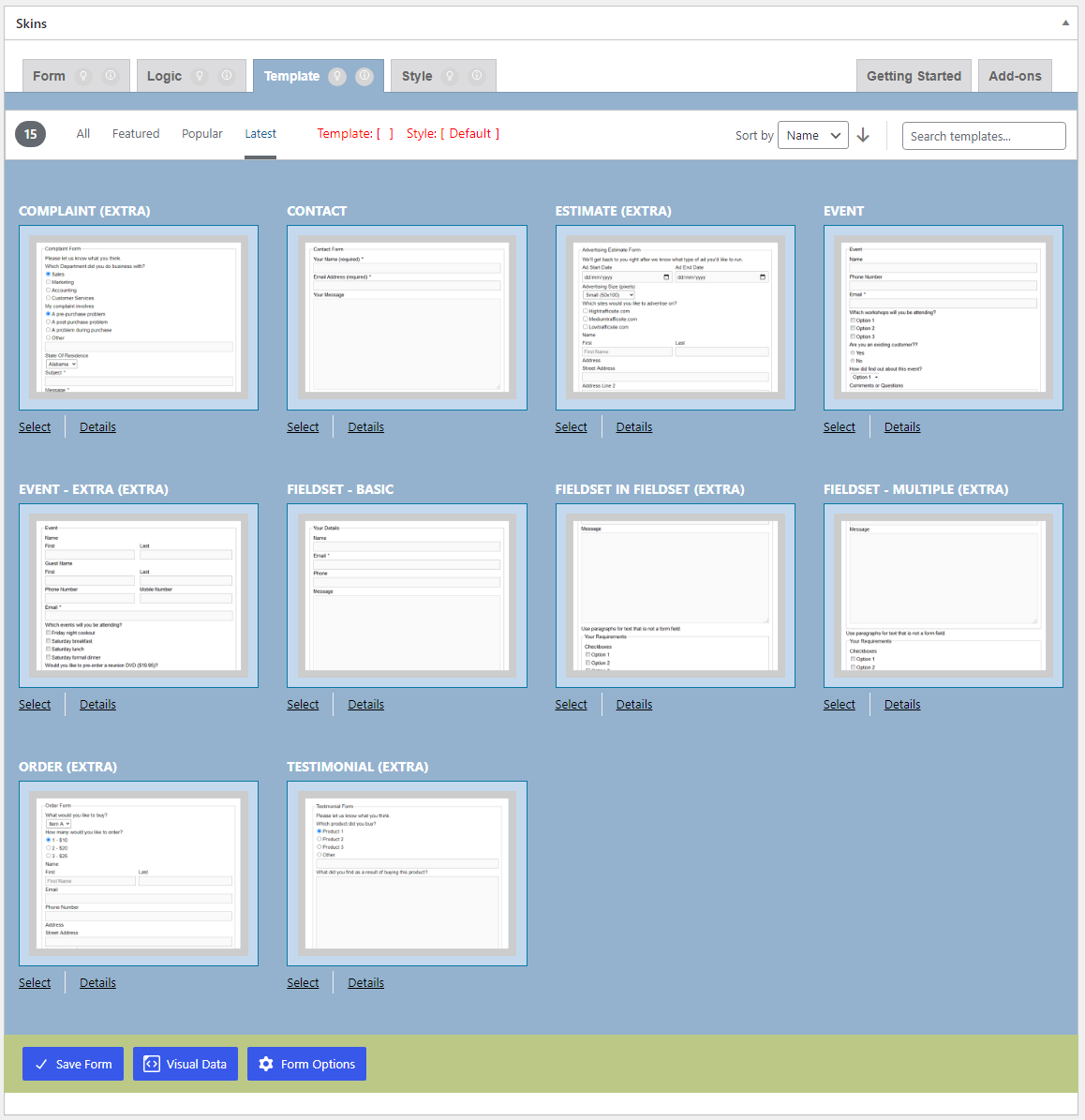
Template Tab – Latest – Free (12_CF7Skins Free – Template – Sub Tabs – Latest_V2.7.0_commit-aad741d_2024-07-29.png) back to top
Latest (Add-ons) #
Template Tab – Latest – Addons (05_Template – Sub Tabs – Latest_V2.7.0_commit-aad741d_2024-07-29.png) back to top
Template Details #
back to top
Checklist
Details View Expanded View
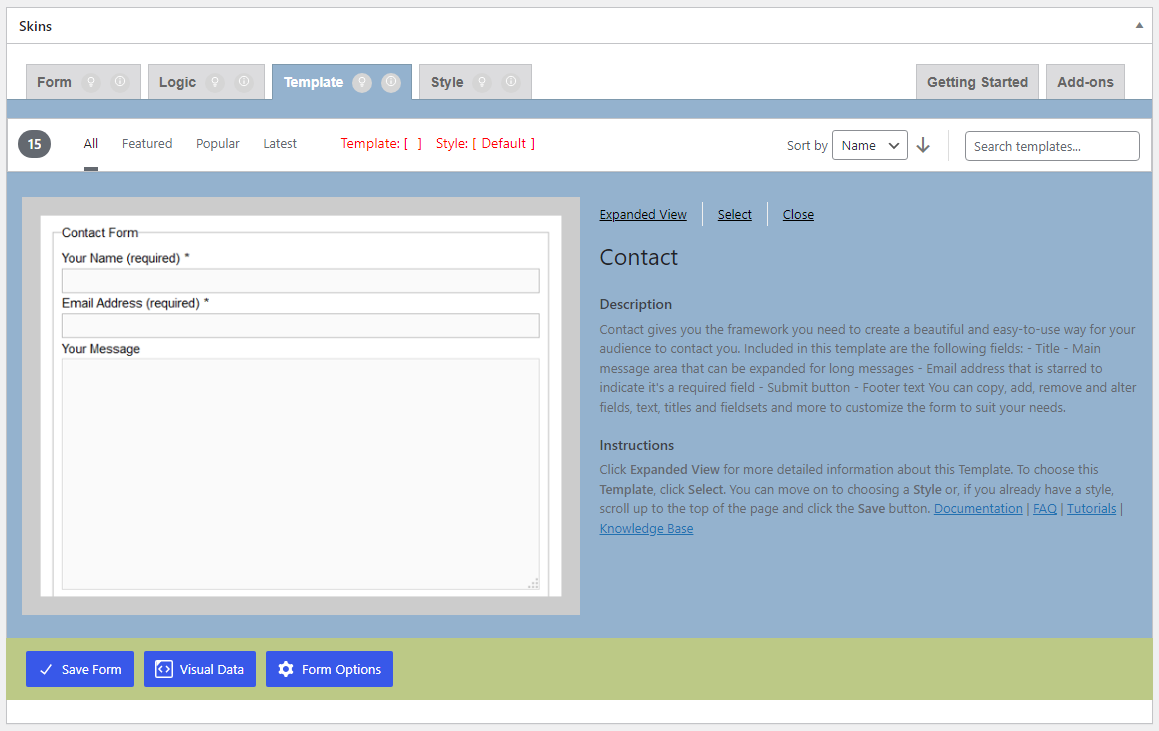
Details View # Template Tab – Details View (06_Template Tabs – Details View_V2.7.0_commit-aad741d_2024-07-29.png)
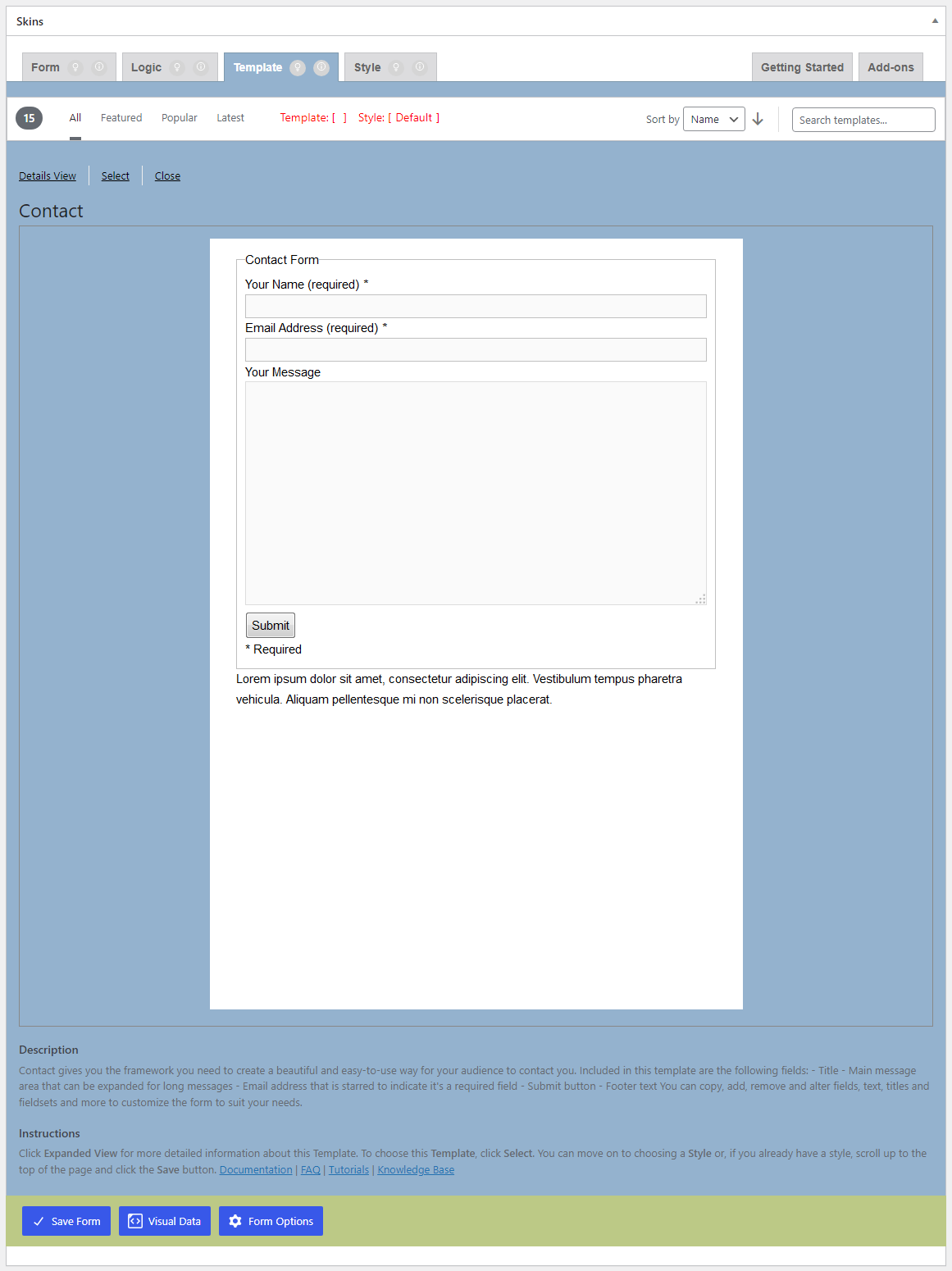
Expanded View # Template Tab – Expanded View (07_Template Tabs – Expanded View_V2.7.0_commit-aad741d_2024-07-29.png) back to top
Checklist
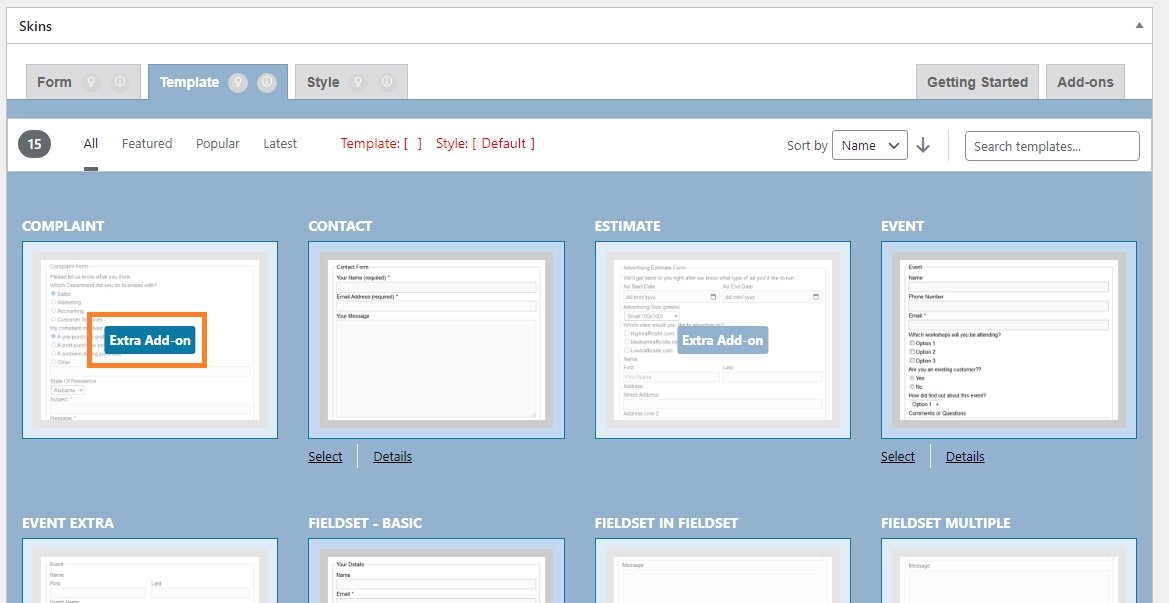
Click on Extra Add-on Link
Clicking on Extra Add-on link should go to CF7 Skins Pro in New Tab
CF7 Skins Free – Extra Add-on Link (13_CF7 Skins Free – Template – Click in Extra Addon button_V2.7.0_commit-aad741d_2024-07-29.png)
Style Tab #
back to top
Images – ..\Sync\..\Testing\Test Site\Manual Testing\UI AREAS\Style Tab\
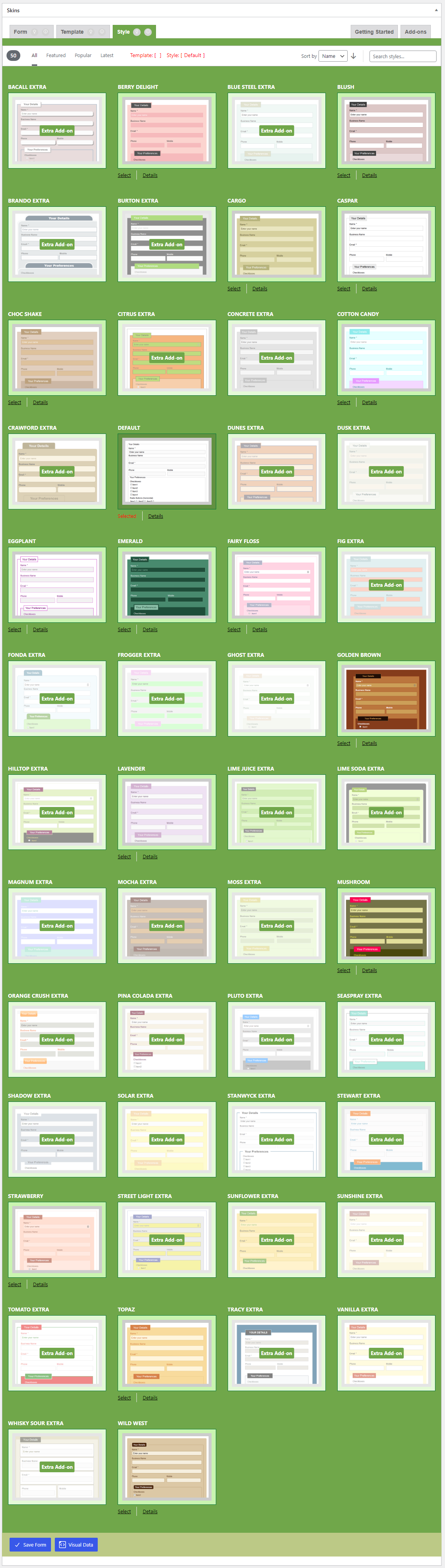
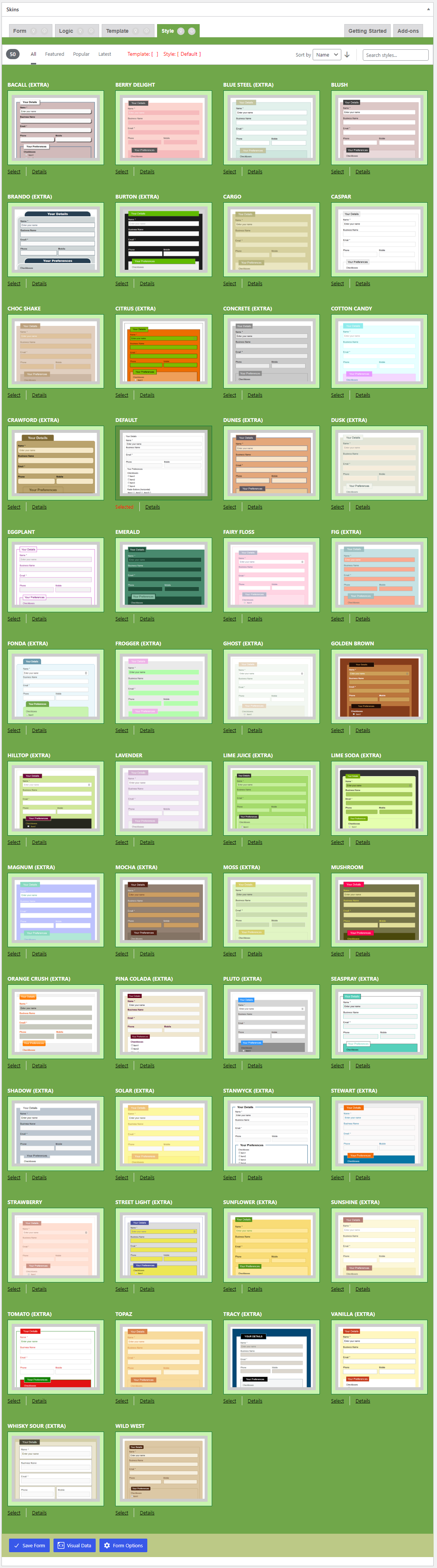
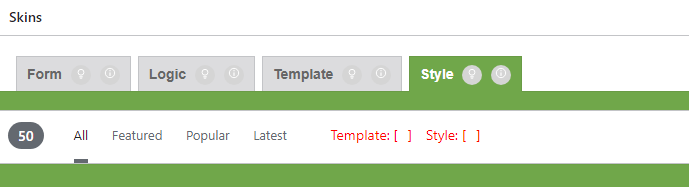
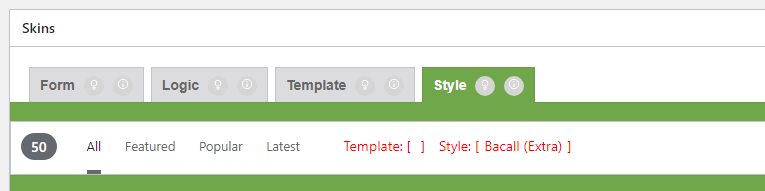
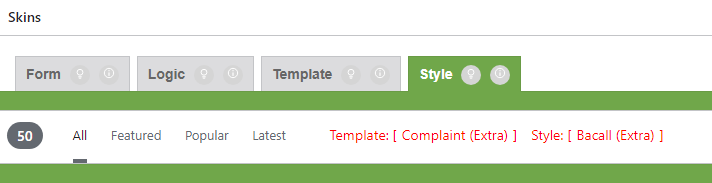
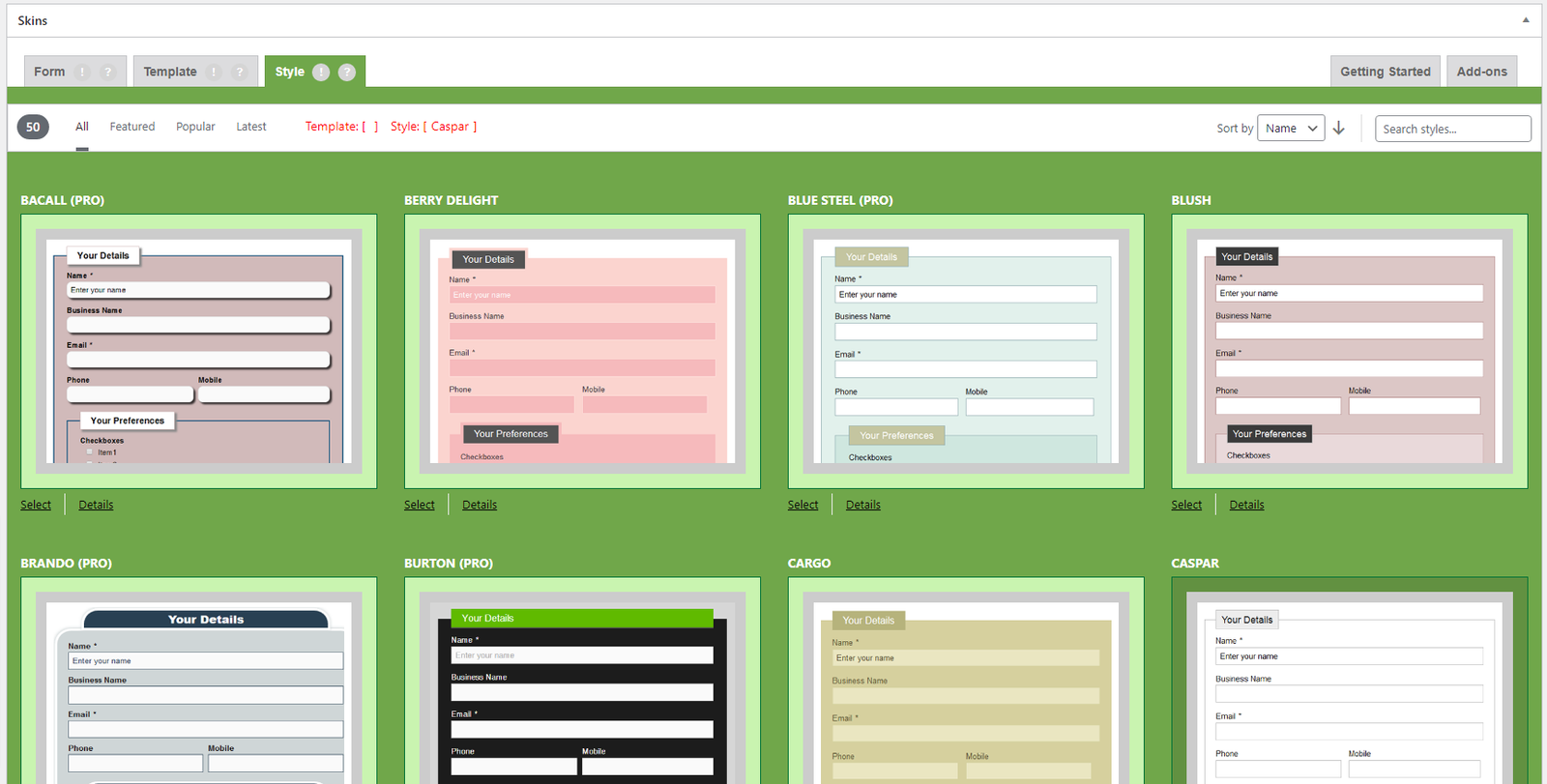
Style Tab – Free (02_CF7Skins Free – Style Tab_V2.7.0_commit-aad741d_2024-07-29.png) Style Tab – Addons (01_Style Tab_V2.7.0_commit-aad741d_2024-07-29.png)
Checklist
Repeat Sub Tabs , Details View for Styles Tab
Check Details and images are matching with the Style/Template.
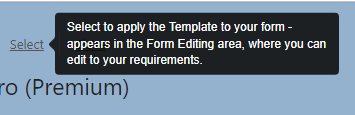
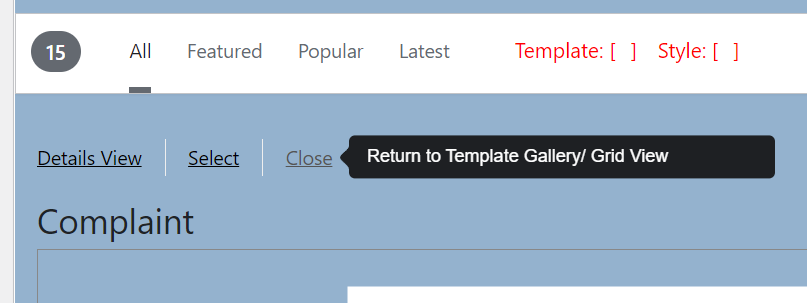
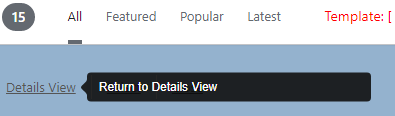
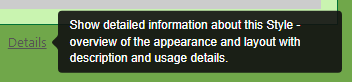
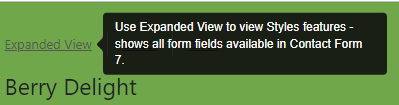
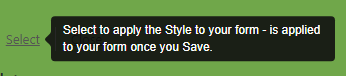
Hovering on Details and Select shows related tooltips
Selected Template/Style shows the “Select” button as “Selected”
Hovering on Selected button of Selected Style/Template changes it to Deselect
Template & Style Status #
back to top
Images – ..\Sync\..\Testing\Test Site\Manual Testing\UI AREAS\Template Style Status\
Getting Started Tab #
back to top
Images – ..\Sync\..\Testing\Test Site\Manual Testing\UI AREAS\Getting Started Tab\
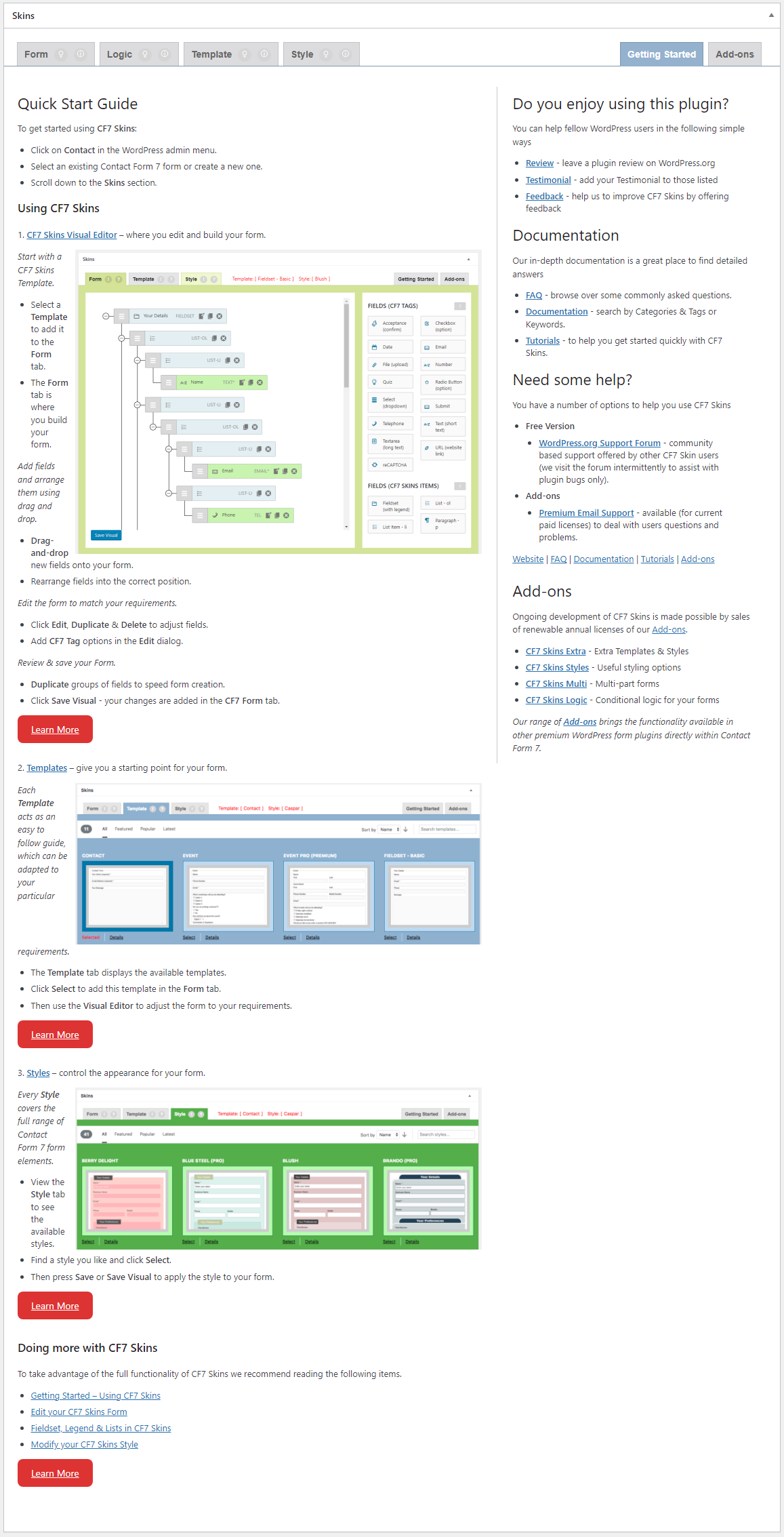
Getting Started Tab (01_Getting Started Tab – Complete _V2.7.0_commit-aad741d_2024-07-29.png)
Checklist
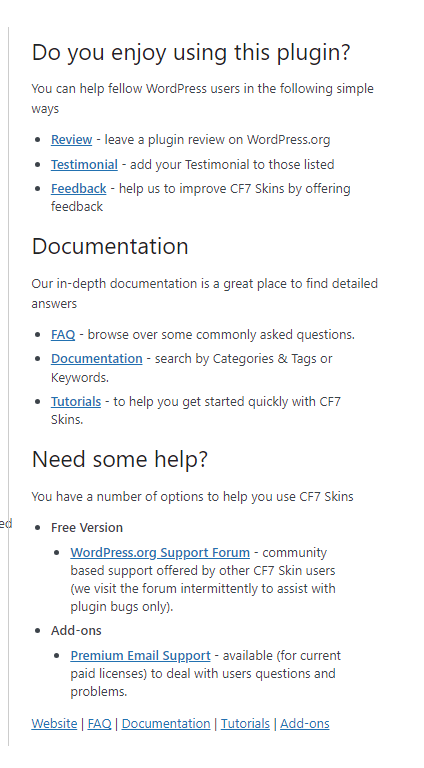
Information Sidebar
Getting Started Tab – Information (02_Getting Started Tab – Information_V2.7.0_commit-aad741d_2024-07-29.png) Getting Started Tab – Sidebar (03_Getting Started Tab – Sidebar_V2.7.0_commit-aad741d_2024-07-29.png)
Add-ons Tab #
back to top
Images – ..\Sync\..\Testing\Test Site\Manual Testing\UI AREAS\Add-ons Tab\
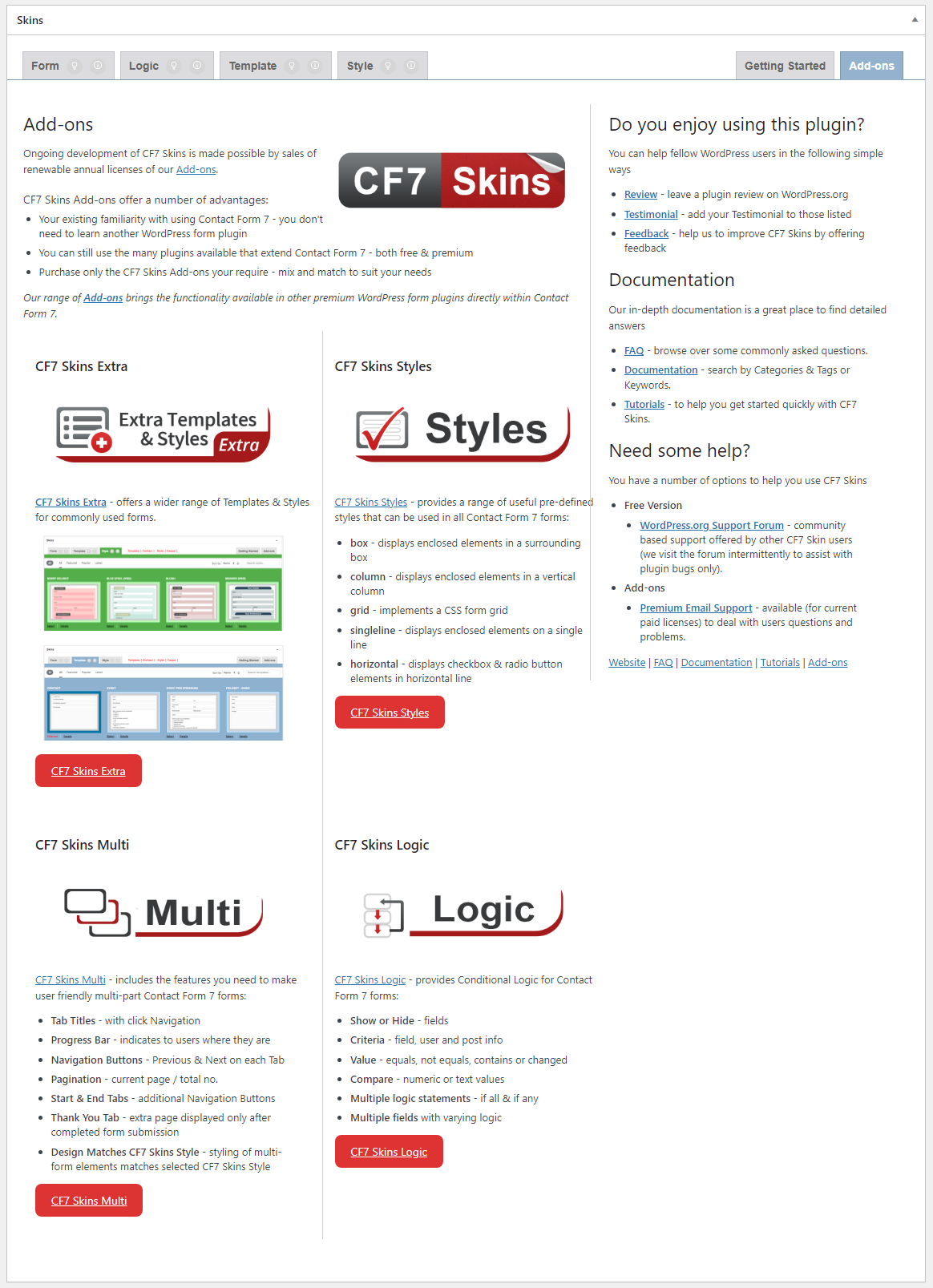
Add-ons Tab (01_Add-ons Tab – Complete_V2.7.0_commit-aad741d_2024-07-29.png)
Checklist
Information Sidebar
Add-ons Tab – Information (02_Add-ons Tab – Information_V2.7.0_commit-aad741d_2024-07-29.png) Add-ons Tab – Sidebar (03_Add-ons Tab – Sidebar_V2.7.0_commit-aad741d_2024-07-29.png) back to top
Images – ..\Sync\..\Testing\Test Site\Manual Testing\UI AREAS\Tooltips\
Tooltips – (Tooltips_v2.5.2_ALL_2020-04-15.png) Checklist
Contact Form 7 – Form Area Skin Metabox
back to top
Images – ..\Sync\..\Testing\Test Site\Manual Testing\UI AREAS\Tooltips – Contact Form 7 Form Area\
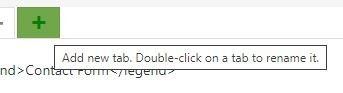
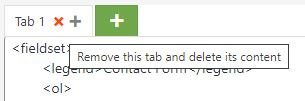
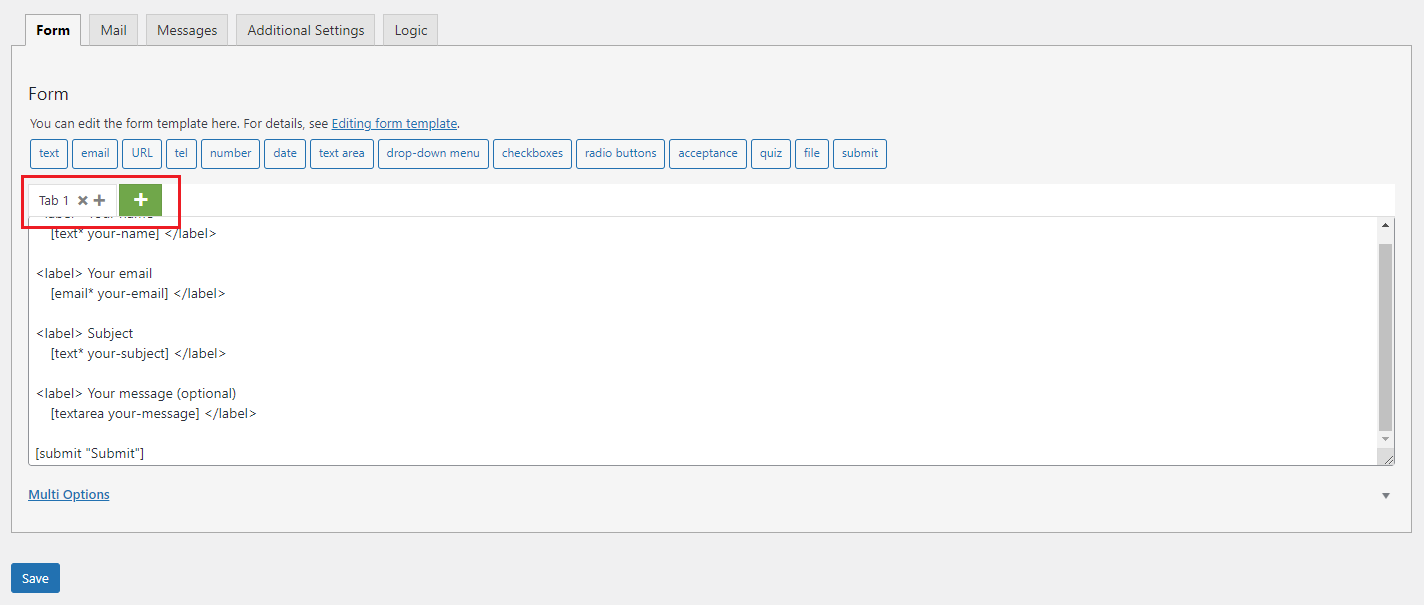
Multi Tab – CF7 Area (Multi Tabs – CF7 Area_v2.5.1_2022-02-25.png) Tooltips – CF7 Form Area – Add Multi Tab (Tooltips – CF7 Form Area – Add Multi Tab_v2.5.2_2022-04-14.jpg) Tooltips – CF7 Form Area – Remove Multi Tab (Tooltips – CF7 Form Area – Remove Multi Tab_v2.5.2_2022-04-14.jpg) Checklist
Hovering on Icons will show the Tooltip
The tooltip text hides when not hovering
back to top
Images – ..\Sync\..\Testing\Test Site\Manual Testing\UI AREAS\Tooltips – Skins Metabox\
Tooltips – Skins Metabox (Tooltips – Skins Metabox_v2.5.2_ALL_2022-04-16.png) Checklist
Form Tab Form Item Lo g ic Tab Multi Tab Select Help Template Tab Style Tab
back to top
Images – ..\Sync\..\Testing\Test Site\Manual Testing\UI AREAS\Tooltips – Form Tab\
Skins Metabox – Form Tab (Skins Metabox – Form Tab_v2.5.2_ALL_2022-04-16.png) Checklist
Alert Icon Question Icon Show Lists Hidden Lists Visual Data Form Options Form Item Multi Tab CF7 Tags – Help CF7 Skins Items – Help
back to top
Alert Icon #
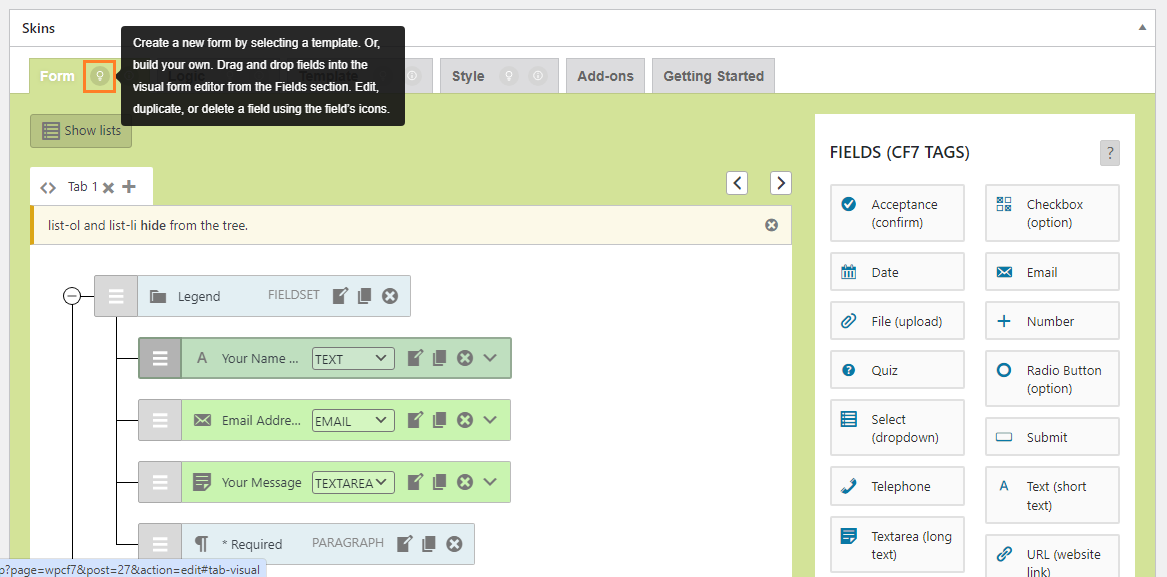
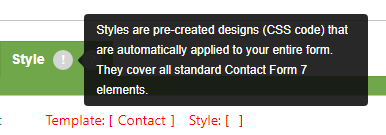
Tooltips – Form Tab – Alert Icon (01_Tooltips – Form Tab – Alert Icon_v3.0_commit-c60cc69_2024-06-18.png)
Question Icon #
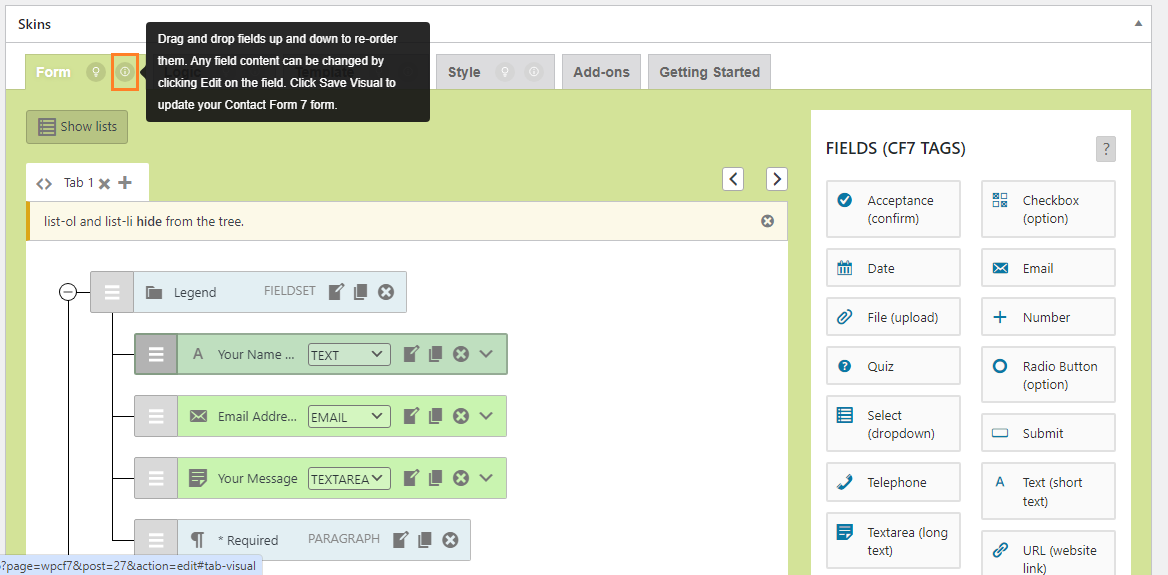
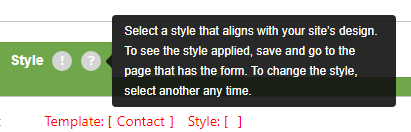
Tooltips – Form Tab – Question Icon (02_Tooltips – Form Tab – Question Icon_v3.0_commit-c60cc69_2024-06-18.png) Show Lists #
Tooltips – Form Tab – Show Lists (03_Tooltips – Form Tab – Show Lists_v3.0_commit-c60cc69_2024-06-18.png)
Hidden Lists #
Tooltips – Form Tab – Hidden Lists (04_Tooltips – Form Tab – Hide Lists_v3.0_commit-c60cc69_2024-06-18.png)
Visual Data #
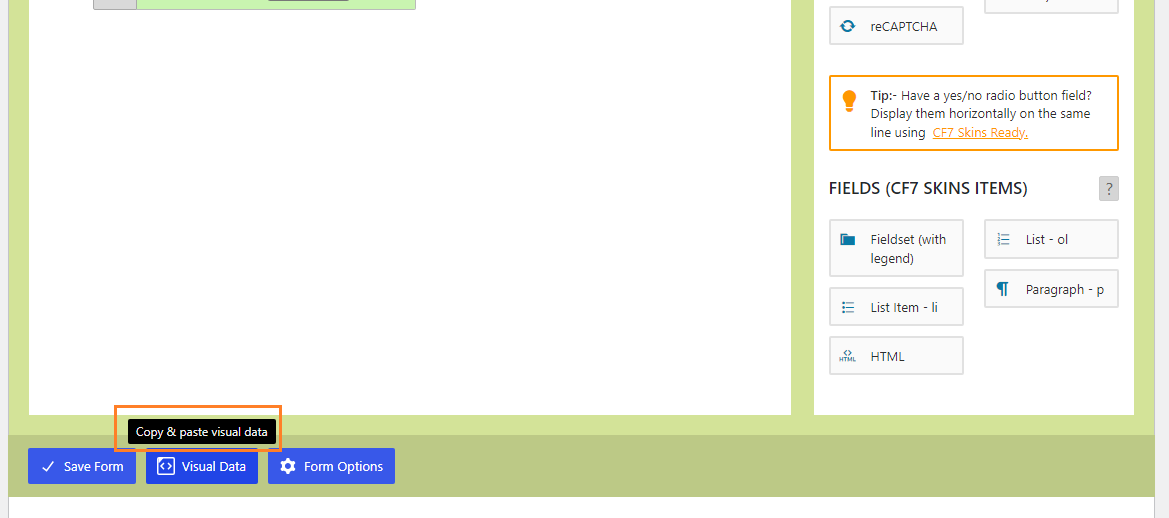
Tooltips – Form Tab – Visual Data (05_Tooltips – Form Tab – Visual Data_v3.0_commit-c60cc69_2024-06-18.png)
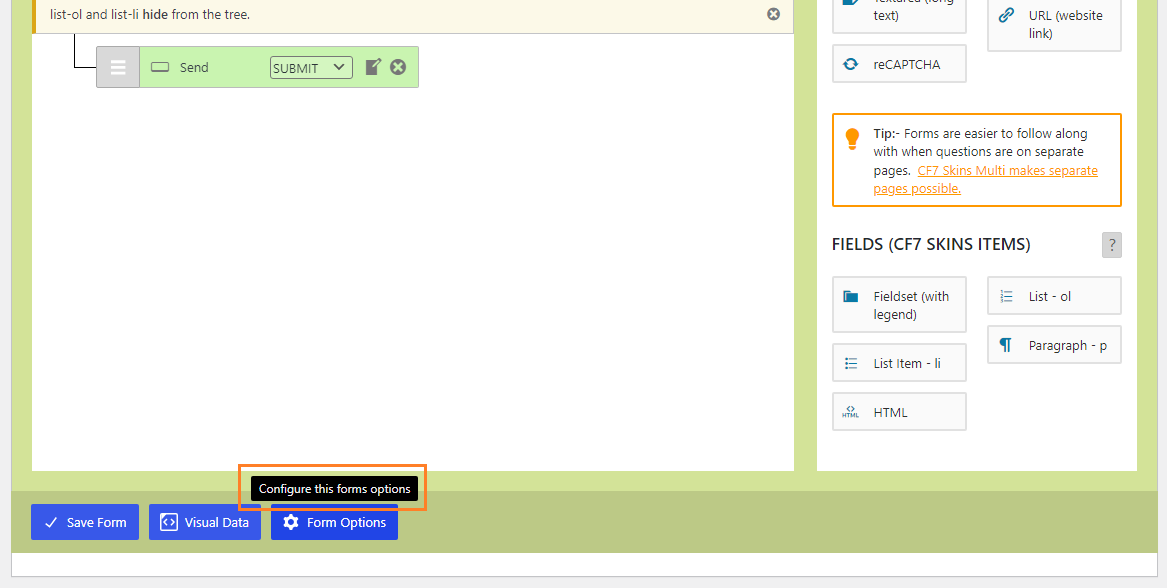
Tooltips – Form Tab – Form Options (06_Tooltips – Form Tab – Form Option_v3.0_commit-c60cc69_2024-06-18.png) back to top
back to top
Images – ..\Sync\..\Testing\Test Site\Manual Testing\UI AREAS\Tooltips – ..\
Checklist #
Edit Duplicate Delete Add-on Options
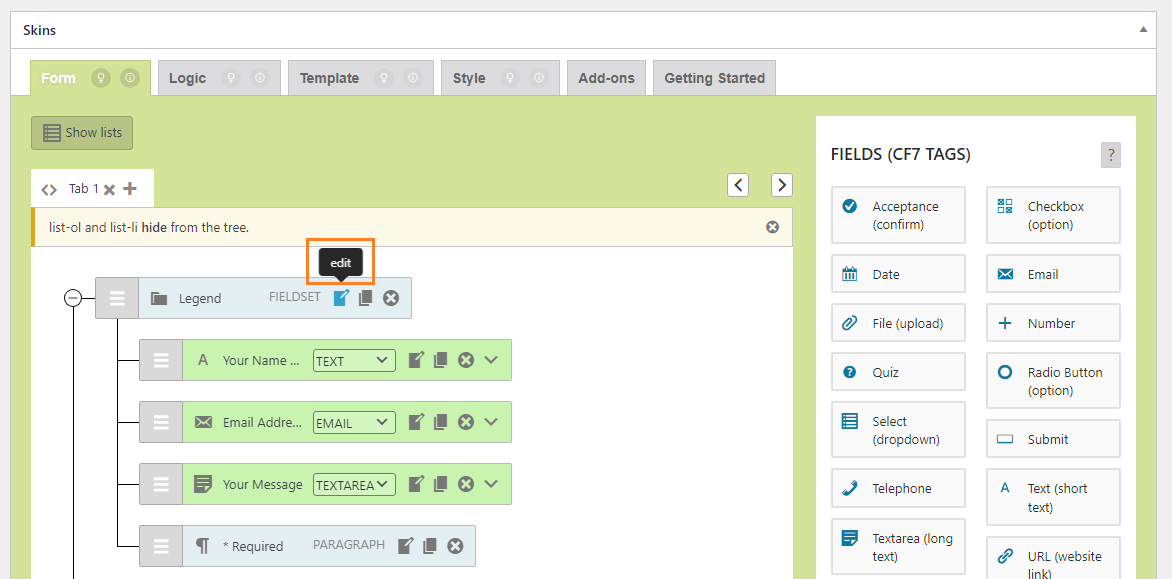
Tooltips – Form Tab – Edit (07_Tooltips – Form Tab – Form Item Edit_v3.0_commit-c60cc69_2024-06-18.png)
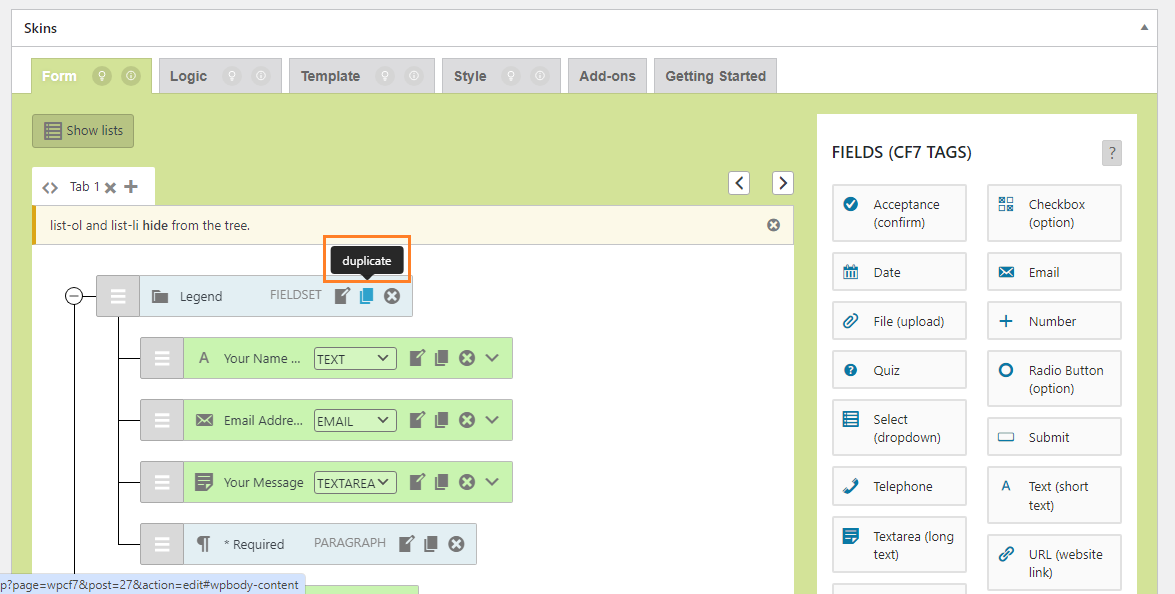
Tooltips – Form Tab – Duplicate (08_Tooltips – Form Tab – Form Item Duplicate_v3.0_commit-c60cc69_2024-06-18.png)
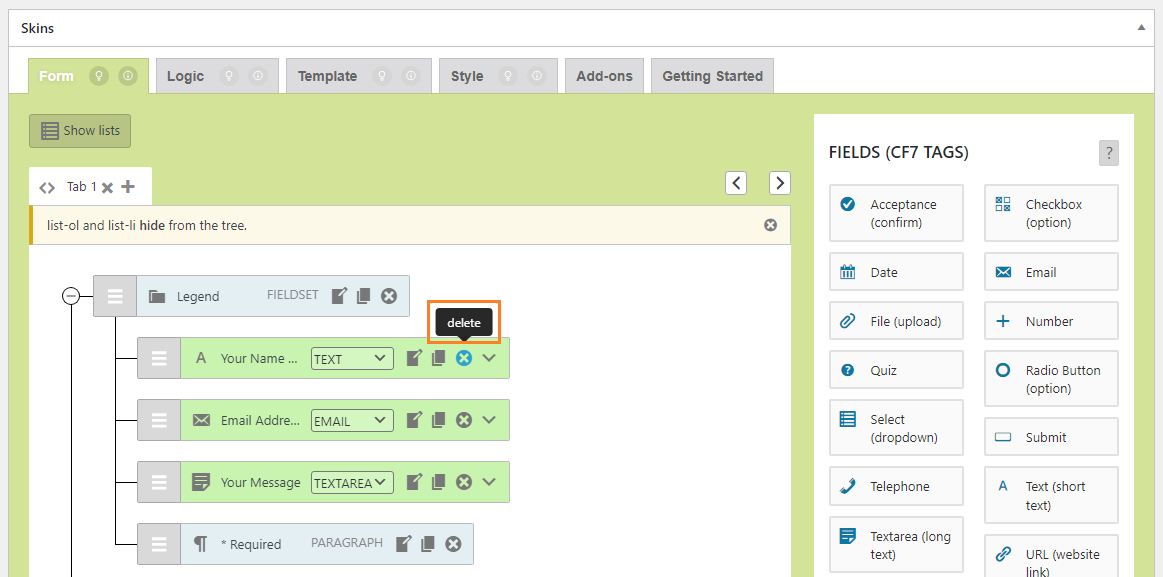
Tooltips – Form Tab – Delete (09_Tooltips – Form Tab – Form Item Delete_v3.0_commit-c60cc69_2024-06-18.png)
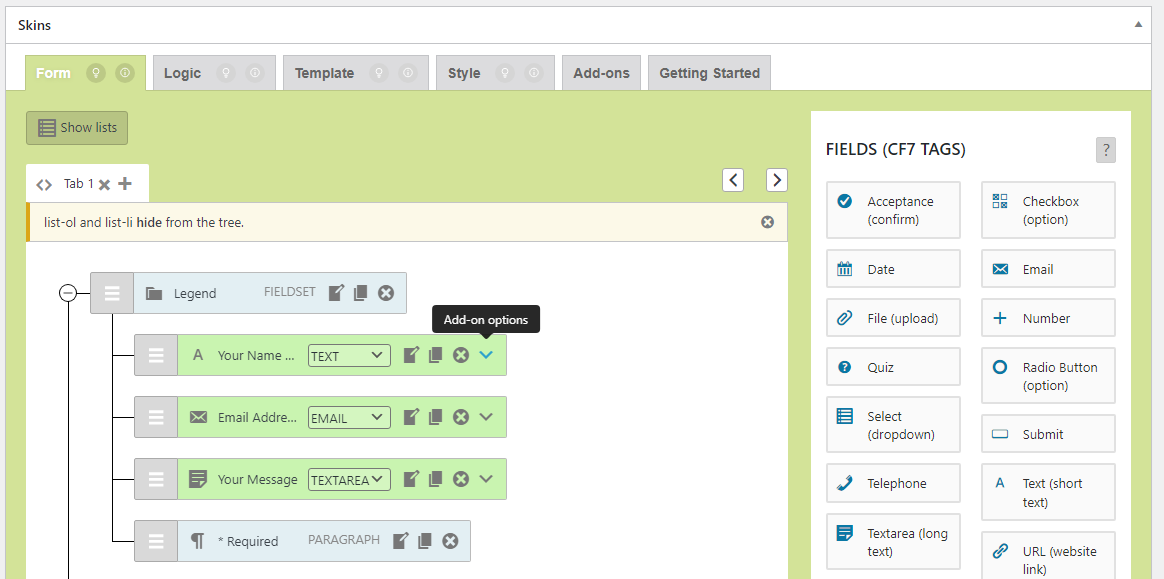
Tooltips – Form Tab – Add-on options (10_Tooltips – Form Tab – Form Item Addon Options_v3.0_commit-c60cc69_2024-06-18.png) back to top
back to top
Images – ..\Sync\..\Testing\Test Site\Manual Testing\UI AREAS\Tooltips – ..\
Checklist #
[ADD Checklist]
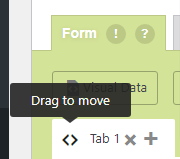
Multi Tab – Drag to move #
Tooltips – Form Tab – Drag (Tooltips -Form Tab – Drag_v2.5.2_2022-04-14.png)
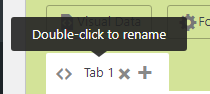
Multi Tab – Rename Tab #
Tooltips – Form Tab – Rename Tab (Tooltips – Form Tab – Rename Tab_v2.5.2_2022-04-14.png)
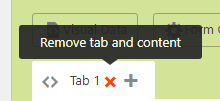
Multi Tab – Remove Tab #
Tooltips – Form Tab – Remove Tab (Tooltips – Form Tab – Remove Tab_v2.5.2_2022-04-14_10.png)
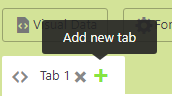
Multi Tab – Add New Tab #
Tooltips – Form Tab – Add New Tab (Tooltips – Form Tab – Add New Tab_v2.5.2_2022-04-14.png) back to top
back to top
Images – ..\Sync\..\Testing\Test Site\Manual Testing\UI AREAS\Tooltips – ..\
CF7 Tags – Help #
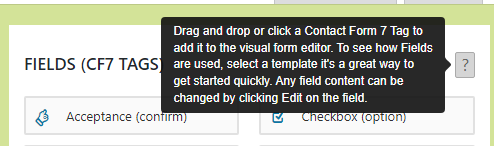
Tooltips – Form Tab – Fields – CF7 Tags (Tooltips – Form Tab – Fields – CF7 Tags_v2.5.2_2022-04-14.png)
CF7 Skins Items – Help #
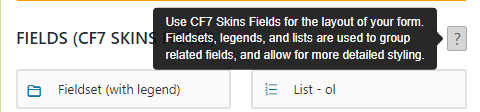
Tooltips – Form Tab – Field – CF7 Skins Items (Tooltips – Form Tab – Field – CF7 Skins Items_v2.5.2_2022-04-14.png) back to top
back to top
Images – ..\Sync\..\Testing\Test Site\Manual Testing\UI AREAS\Tooltips – Template Tab\
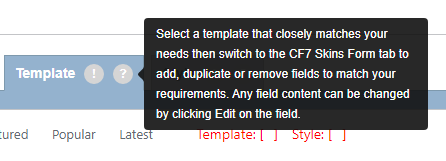
Skins Metabox – Template Tab (Skins Metabox – Template Tab_v2.5.2_2022-04-18.png) Checklist
Alert Icon
Question Icon
All
Featured
Popular
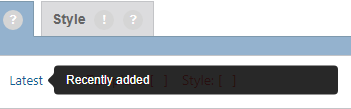
Latest
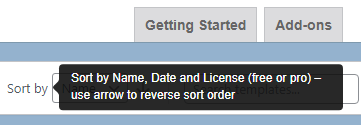
Sort by
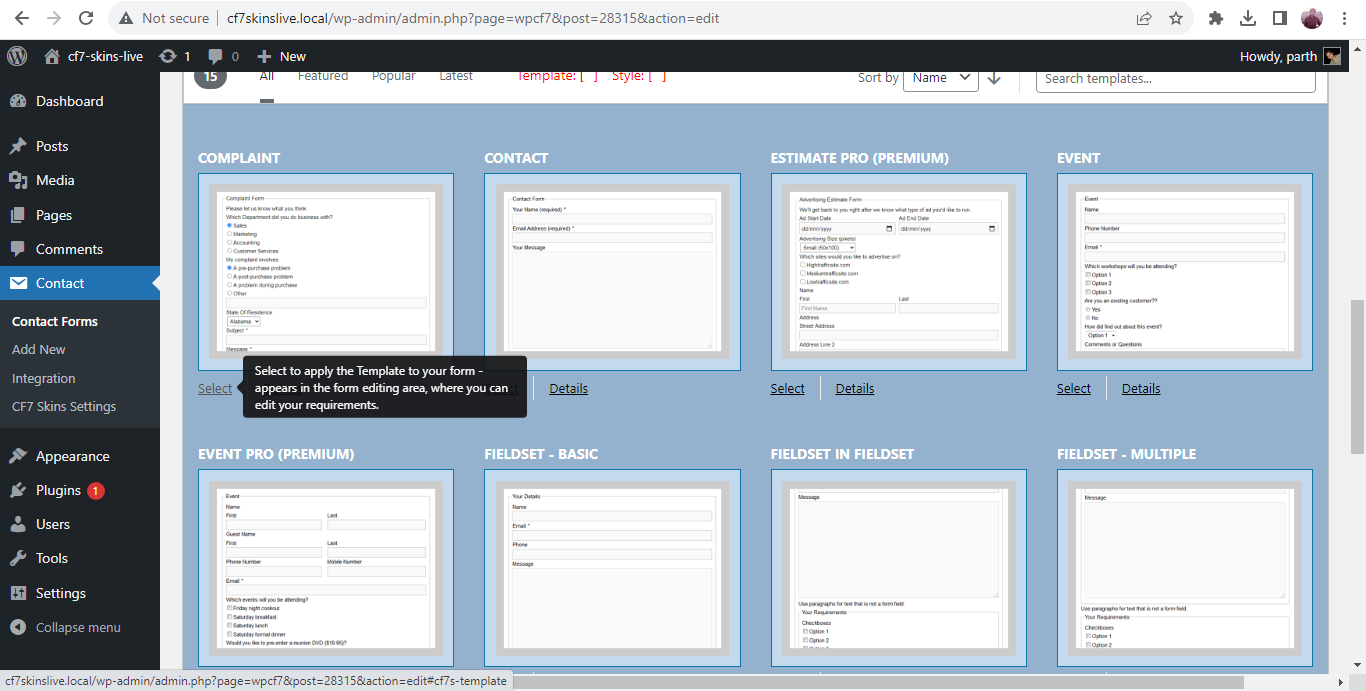
Select
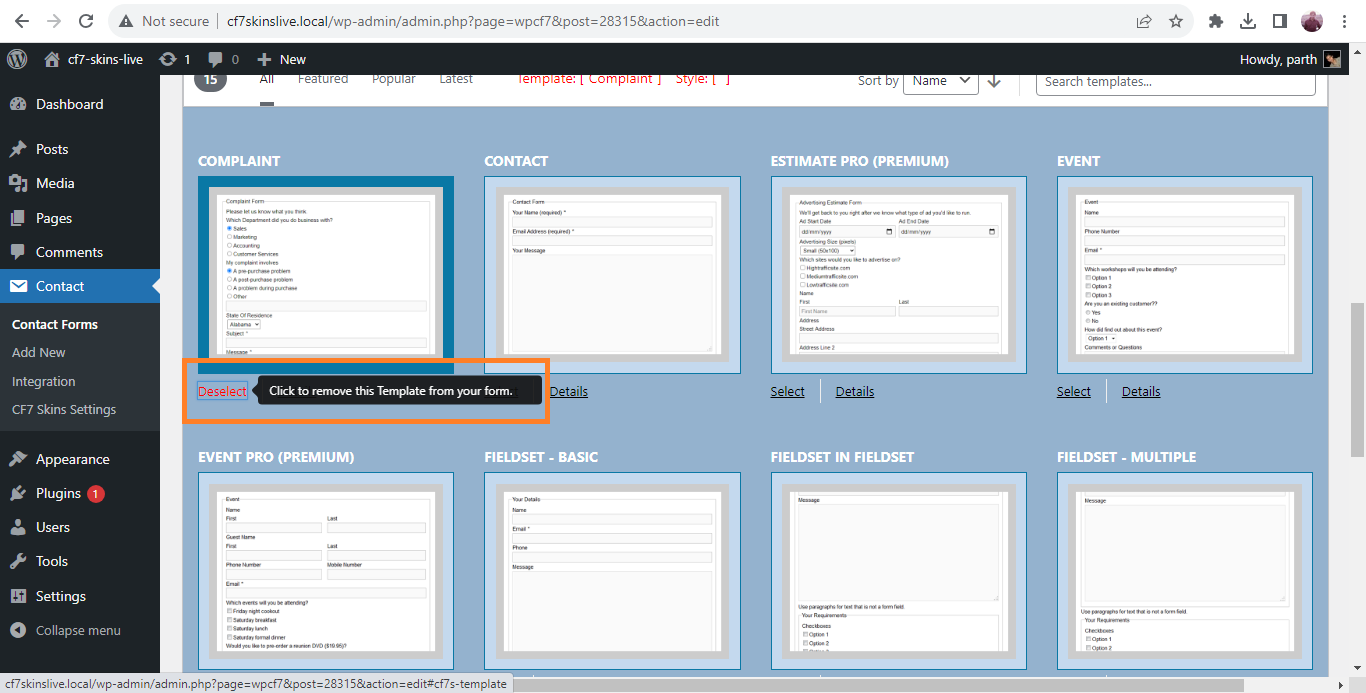
Deselect
Details
Details View – Expanded View
Details View – Select
Details View – Deselect
Details View – Close
Expanded View – Select
Expanded View – Close
Expanded View – Deselect
Expanded View – Details View
Alert Icon
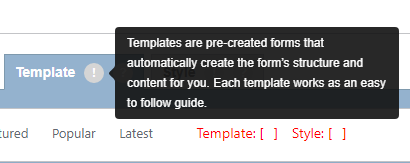
Tooltips – Skins Metabox – Template Tab – Alert Icon (Tooltips – Skins Metabox – Template Tab – Alert Icon_v2.5.2_2022-04-14.png)
Question Icon
Tooltips – Skins Metabox – Template Tab – Question Icon (Tooltips – Skins Metabox – Template Tab – Question Icon_v2.5.2_2022-04-14.png)
All
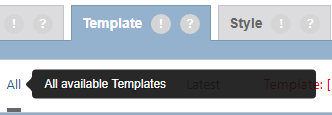
Tooltips – Skins Metabox – Template Tab – All Templates (Tooltips – Skins Metabox – Template Tab – All Templates_v2.5.2_2022-04-14.png)
Featured
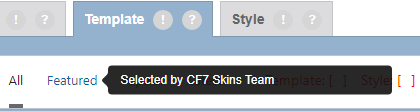
Tooltips – Skins Metabox – Template Tab – All Templates (Tooltips – Skins Metabox – Template Tab – All Templates_v2.5.2_2022-04-14.png)
Popular
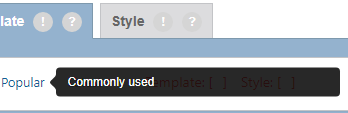
Tooltips – Skins Metabox – Template Tab – Popular Templates (Tooltips – Skins Metabox – Template Tab – Popular Templates_v2.5.2_2022-04-14.png)
Latest
Tooltips – Skins Metabox – Template Tab – Latest Templates (Tooltips – Skins Metabox – Template Tab – Latest Templates_v2.5.2_2022-04-14.png)
Sort by
Tooltips – Skins Metabox – Template Tab – Sort by (Tooltips – Skins Metabox – Template Tab – Sort by_v2.5.2_2022-04-14.png)
Select
Tooltips – Skins Metabox – Template Tab – Select Template (01_Tooltips – Skins Metabox – Template Tab – Select Template_Logic v2.0.0_2023-09-29.png)
Deselect
Tooltips – Skins Metabox – Template Tab – Deselect Template (02_Tooltips – Skins Metabox – Template Tab – Deselect Template_Logic v2.0.0_2023-09-29.png)
Details
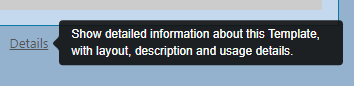
Tooltips – Skins Metabox – Template Tab – Details View (Tooltips – Skins Metabox – Template Tab – Details View_v2.5.2_2022-04-14.png)
Details View – Expanded View
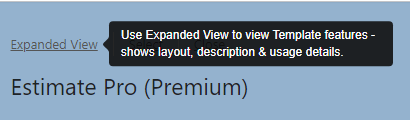
Tooltips – Skins Metabox – Template Tab – Detailed View – Expanded View (Tooltips – Skins Metabox – Template Tab – Detailed View – Expanded View_v2.5.2_2022-04-14.png)
Details View – Select
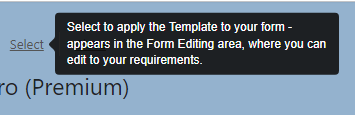
Tooltips – Skins Metabox – Template Tab – Detailed View – Select Template (Tooltips – Skins Metabox – Template Tab – Detailed View – Select Template_v2.5.2_2022-04-14.png)
Details View – Close
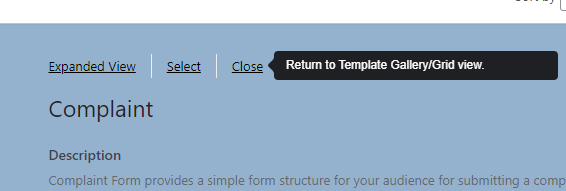
Tooltips – Skins Metabox – Template Tab – Detailed View – Close (Tooltips – Skins Metabox – Template Tab – Detailed View – Select Template_v2.5.2_2022-04-14.png)
Expanded View – Select
Tooltips – Skins Metabox – Template Tab – Expanded View – Select (Tooltips – Skins Metabox – Template Tab – Expanded View – Select_v2.5.2_2022-04-14.png)
Expanded View – Close
Tooltips – Skins Metabox – Template Tab – Expanded View – Close View (Tooltips – Skins Metabox – Template Tab – Expanded View – Close View_v2.5.2_2022-04-14.png)
Expanded View – Details View
Tooltips – Skins Metabox – Template Tab – Expanded View – Detailed View (Tooltips – Skins Metabox – Template Tab – Expanded View – Detailed View_v2.5.2_2022-04-14.png)
Expanded View – Deselect
Tooltips – Skins Metabox – Template Tab – Detailed View – Deselect Template (Tooltips – Skins Metabox – Template Tab – Detailed View – Deselect Template_v2.5.2_2022-04-14.png) Checklist
Hovering on Icons will show the Tooltip
The tooltip text hides when not hovering
back to top
Images – ..\Sync\..\Testing\Test Site\Manual Testing\UI AREAS\Tooltips – Style Tab\
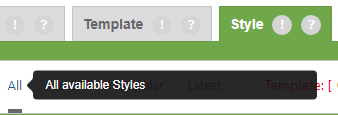
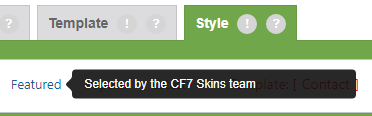
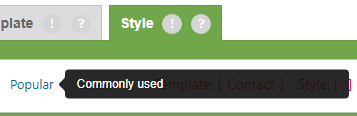
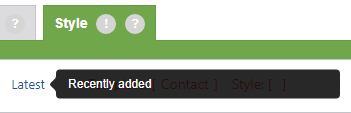
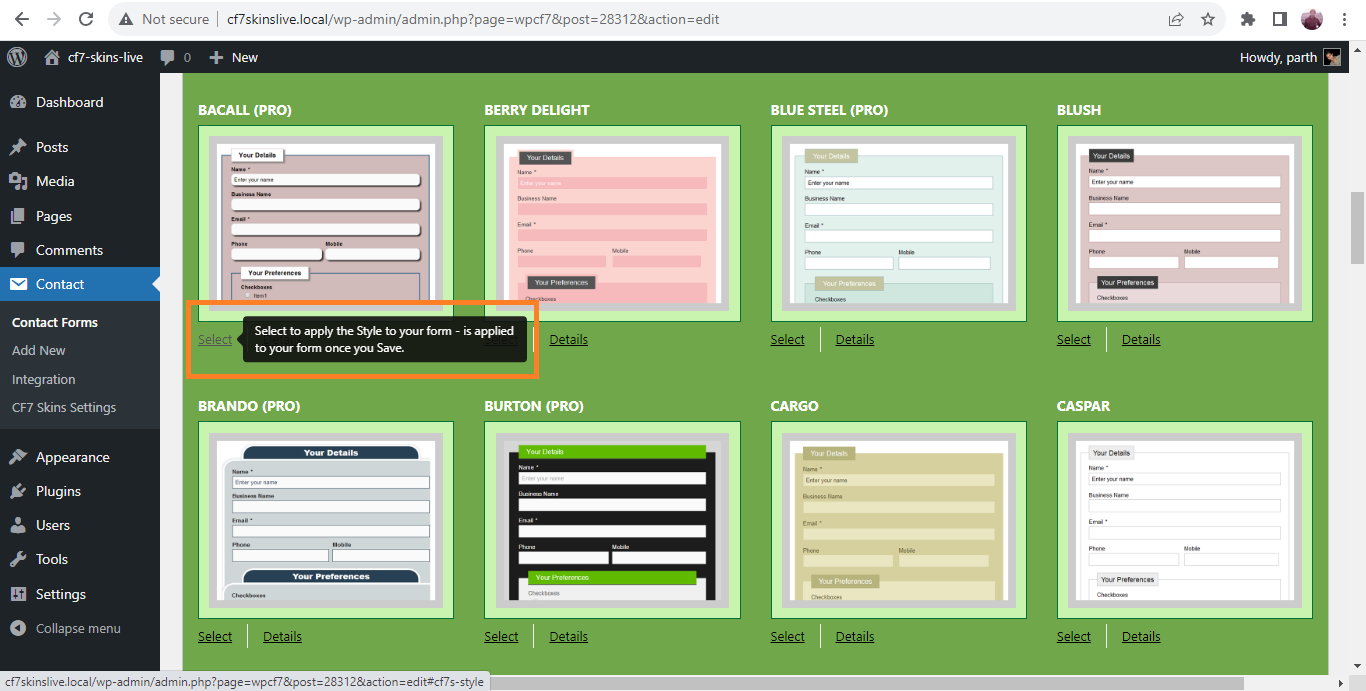
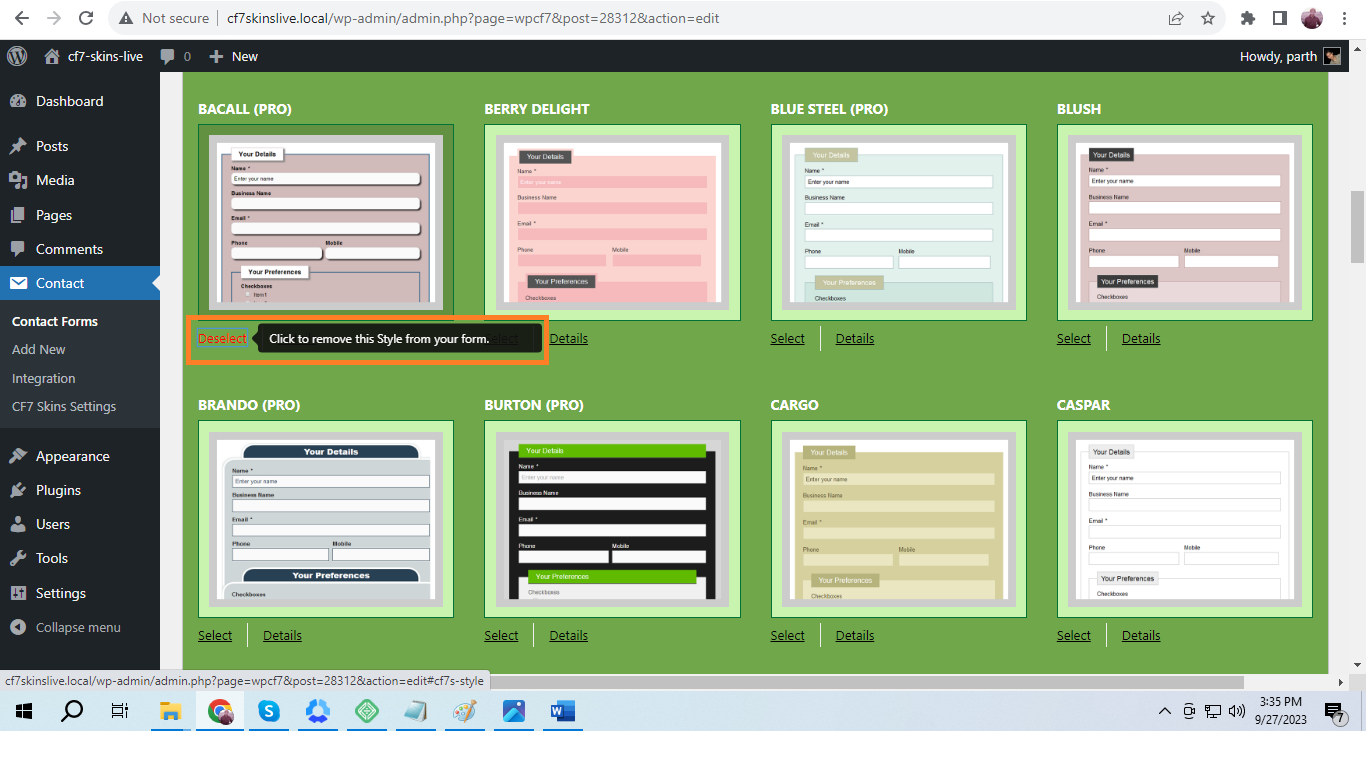
Skins Metabox – Style Tab (Skins Metabox – Style Tab_v2.5.2_2022-04-18.png) Tooltips – Style Tab – Alert Icon (Tooltips – Style Tab – Alert Icon_v2.5.2_2022-04-14.png) Tooltips – Style Tab – Question Icon (Tooltips – Style Tab – Question Icon_v2.5.2_2022-04-14.png) Tooltips – Style Tab – All Styles (Tooltips – Style Tab – All Styles_v2.5.2_2022-04-14.png) Tooltips – Style Tab – Featured Styles (Tooltips – Style Tab – Featured Styles_v2.5.2_2022-04-14.png) Tooltips – Style Tab – Popular Styles (Tooltips – Style Tab – Popular Styles_v2.5.2_2022-04-14.png) Tooltips – Style Tab – Latest Styles (Tooltips – Style Tab – Latest Styles_v2.5.2_2022-04-14.png) Tooltips – Style Tab – Select Styles (01_Tooltips – Style Tab – Select Style_v2.0.0_2023-09-27.png) Tooltips – Style Tab – Deselect Style (Tooltips – Style Tab – Deselect Style_v2.0.0_2023-09-27.png) Tooltips – Style Tab – Details View (Tooltips – Style Tab – Details View_v2.5.2_2022-04-14.png) Tooltips – Style Tab – Expanded View (Tooltips – Style Tab – Expanded View Link_v2.5.2_2022-04-14.png) Tooltips – Style Tab – Detailed View – Select Style (Tooltips – Style Tab – Detailed View – Select Style_v2.5.2_2022-04-14.png) Tooltips – Style Tab – Detailed View – Deselect Style (Tooltips – Style Tab – Detailed View – Deselect Style_v2.5.2_2022-04-14.png) Tooltips – Style Tab – Expanded View – Close View (Tooltips – Style Tab – Expanded View – Close View_v2.5.2_2022-04-14.png) Checklist
Hovering on Icons will show the Tooltip
The tooltip text hides when not hovering
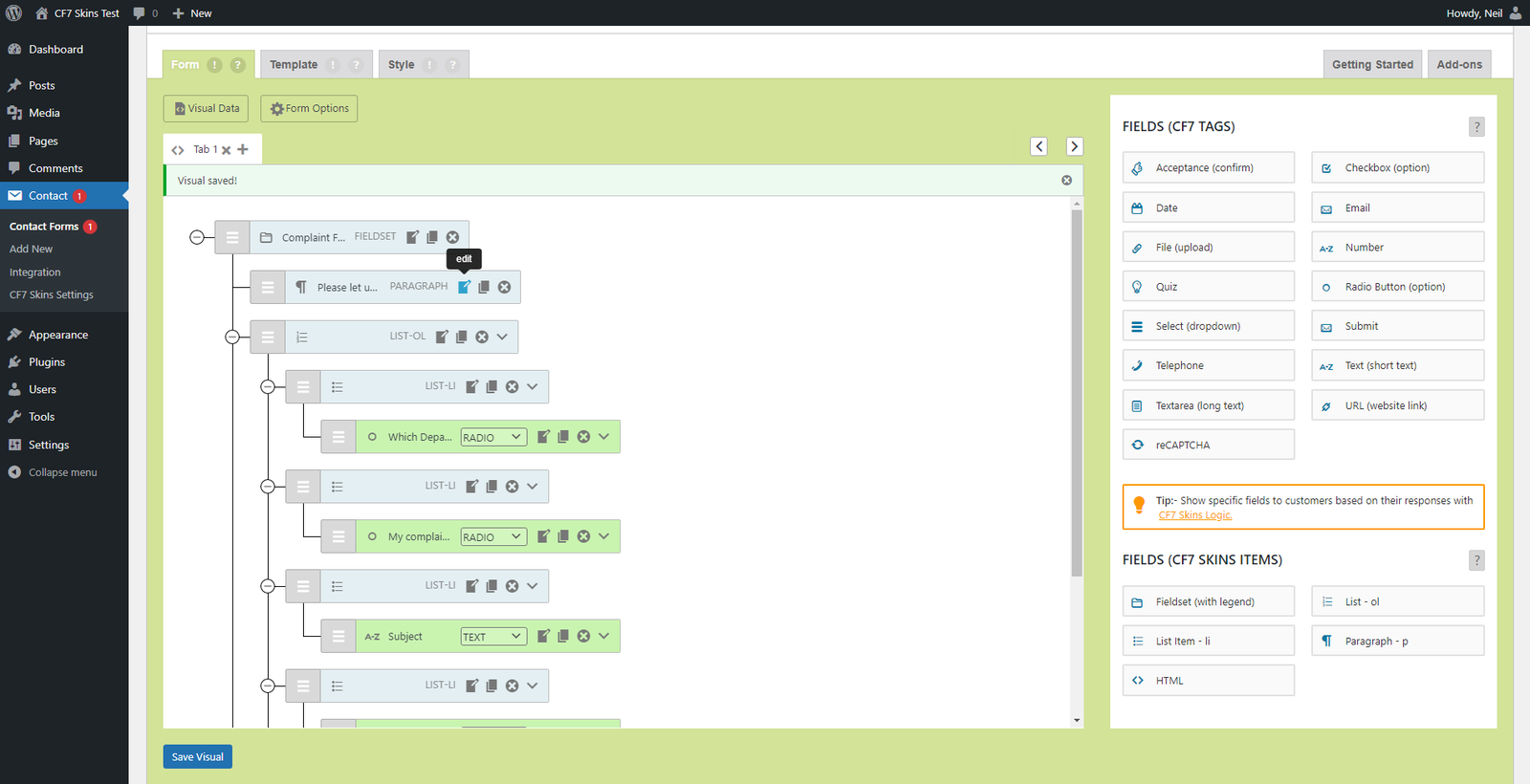
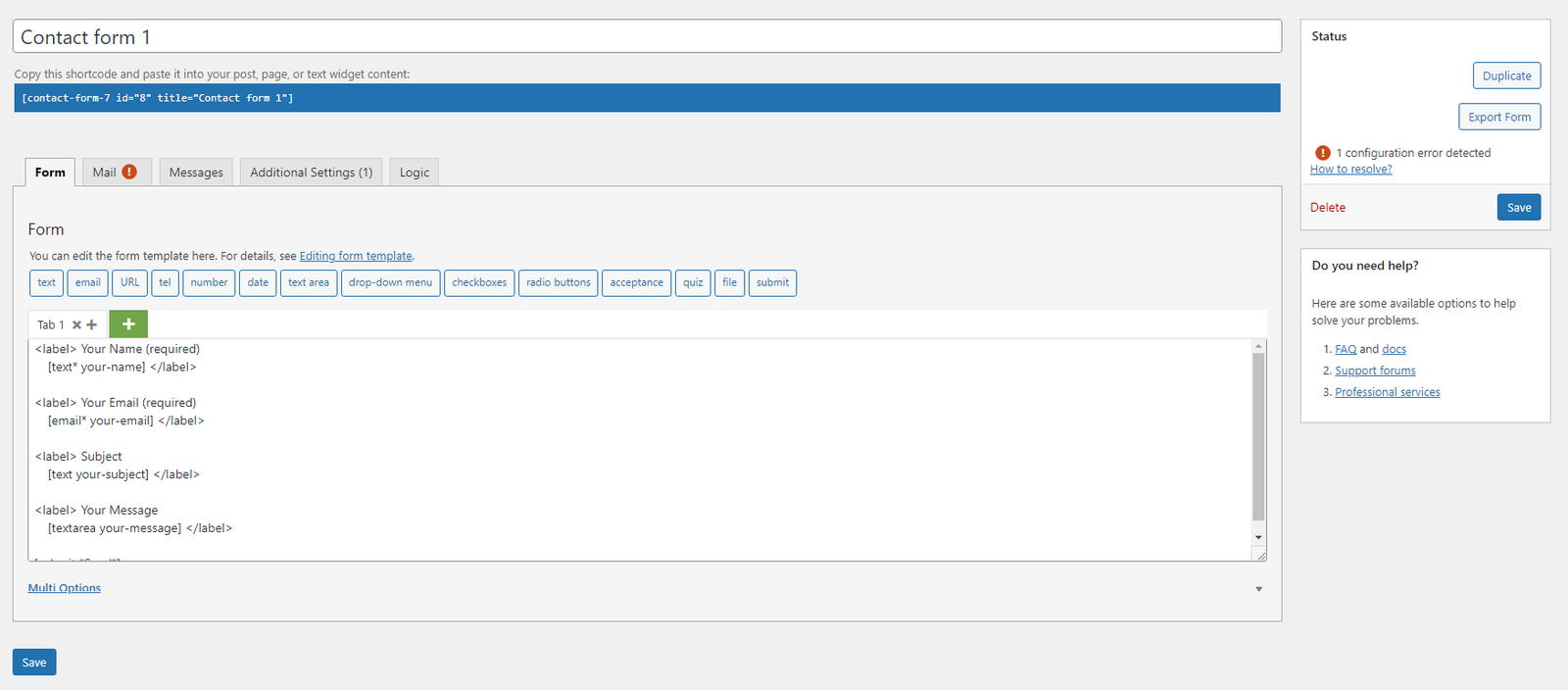
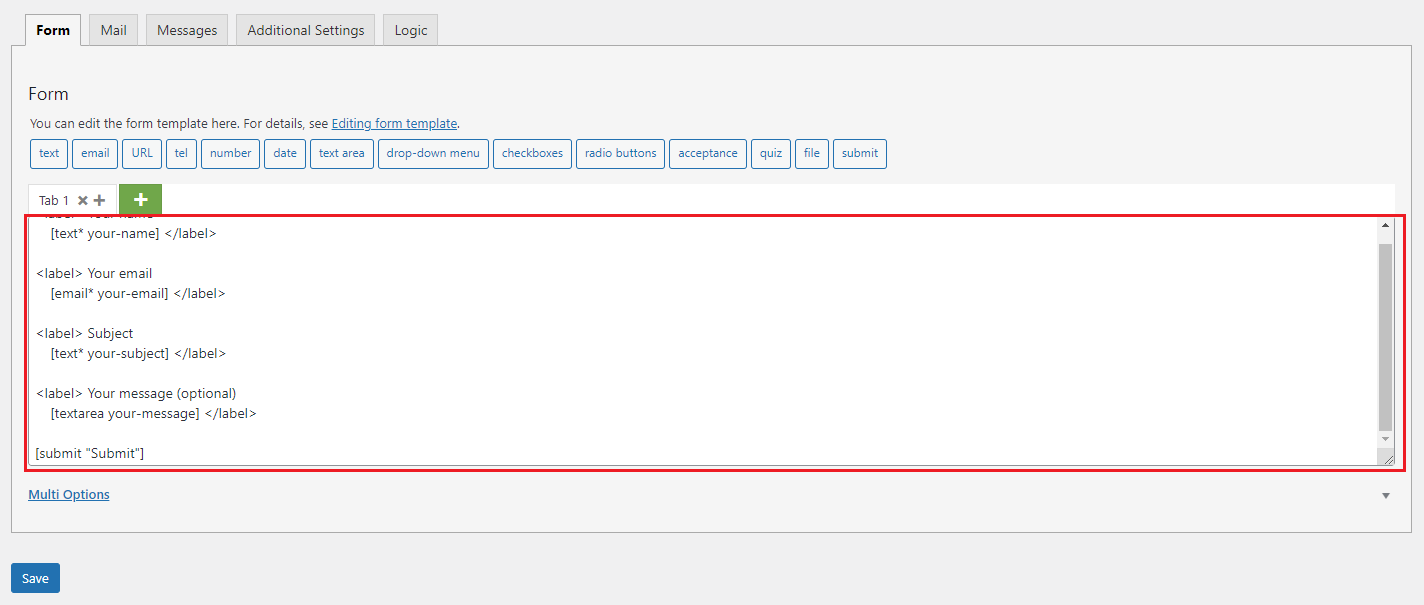
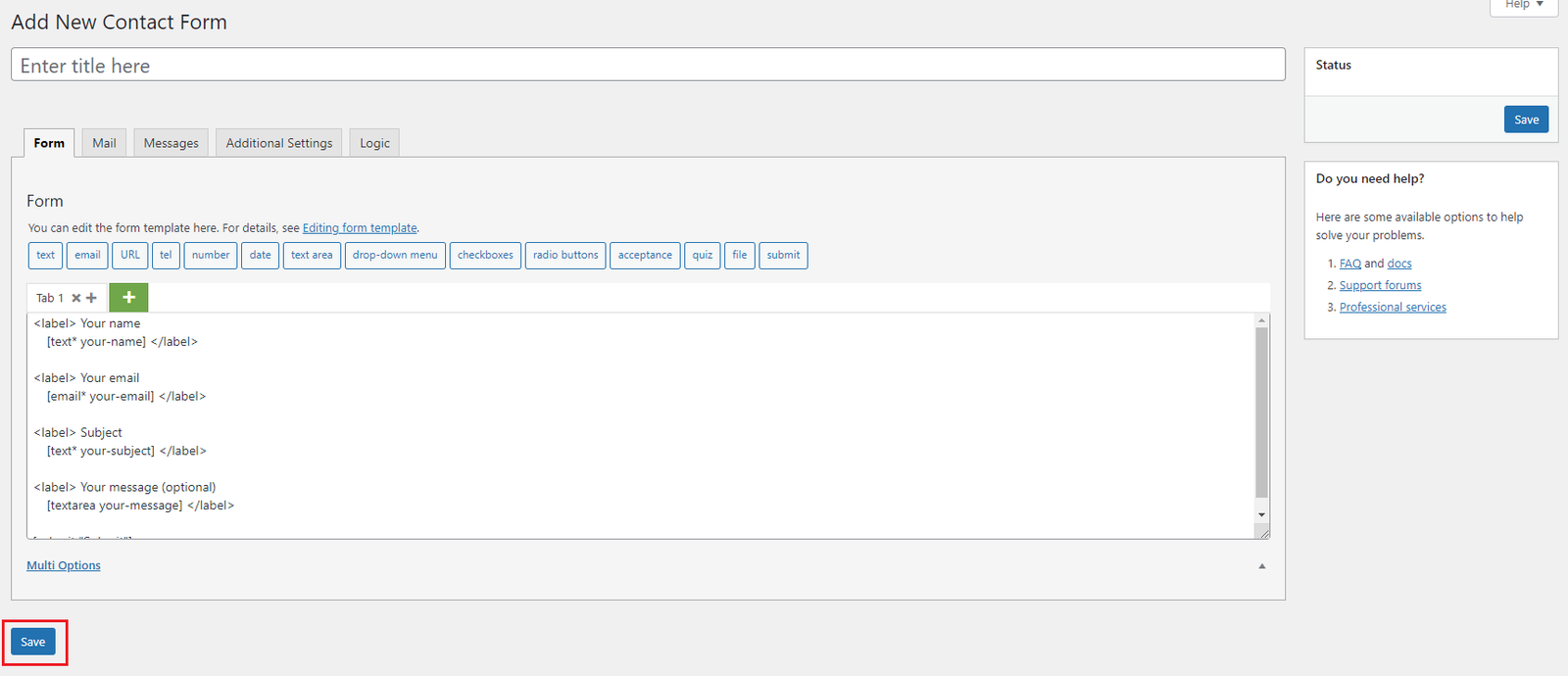
CF7 Area – Form Tab (CF7 Area – Form Tab_Logic v2.0.0_2023-09-27.png) Checklist
Available Fields Multi Tab Buttons Form Area
Form Tab – Available Fields (CF7 Area – Available Fields_2.5.3_B_2022-07-04.png)
Form Tab – Multi Tab Buttons (CF7 Area – Form Tab – Multi Tab Buttons_2.5.3_B_2022-07-04.png)
Form Tab – Form Area (CF7 Area – Form Tab – Form Area_2.5.3_B_2022-07-04.png)
Mail Tab #
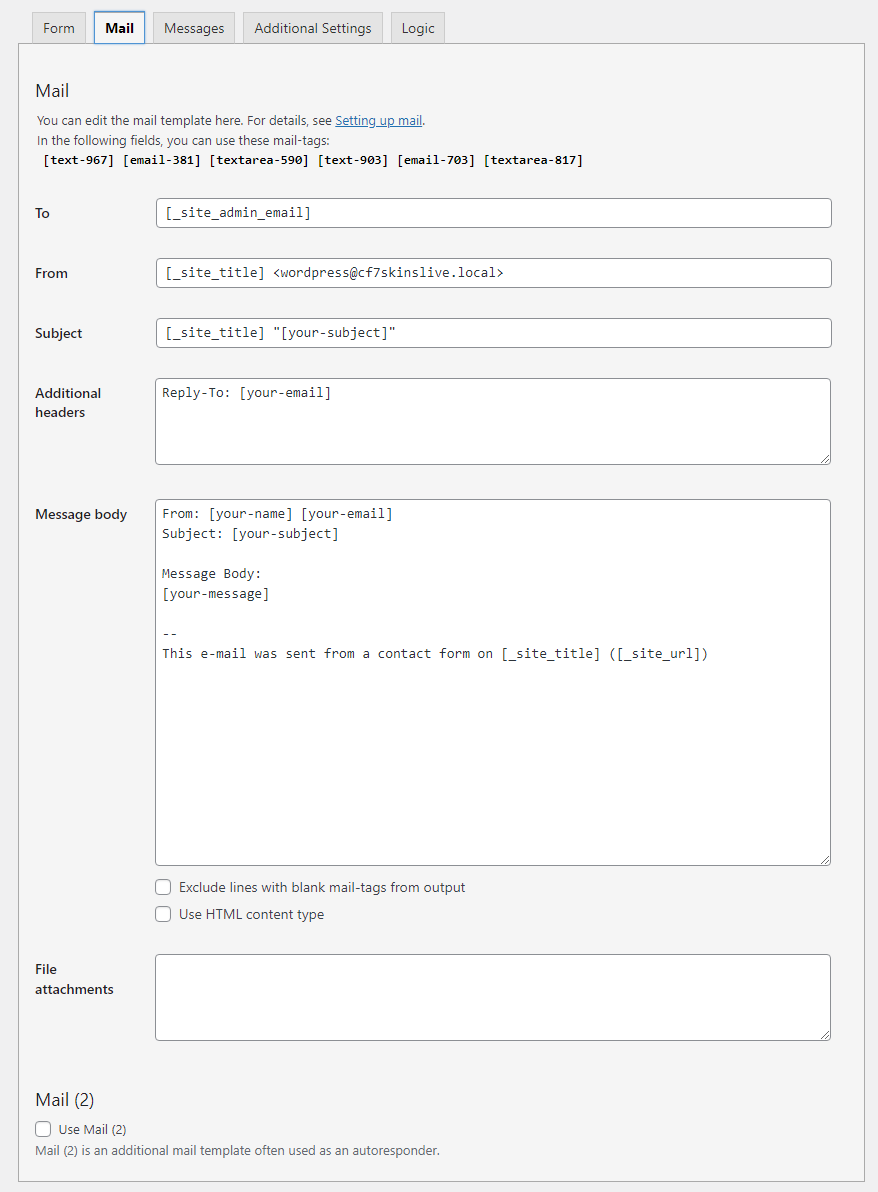
CF7 Area – Mail Tab (CF7 Area – Mail Tab_Logic V2.0.0_2023-09-27.png)
Messages Tab #
back to top
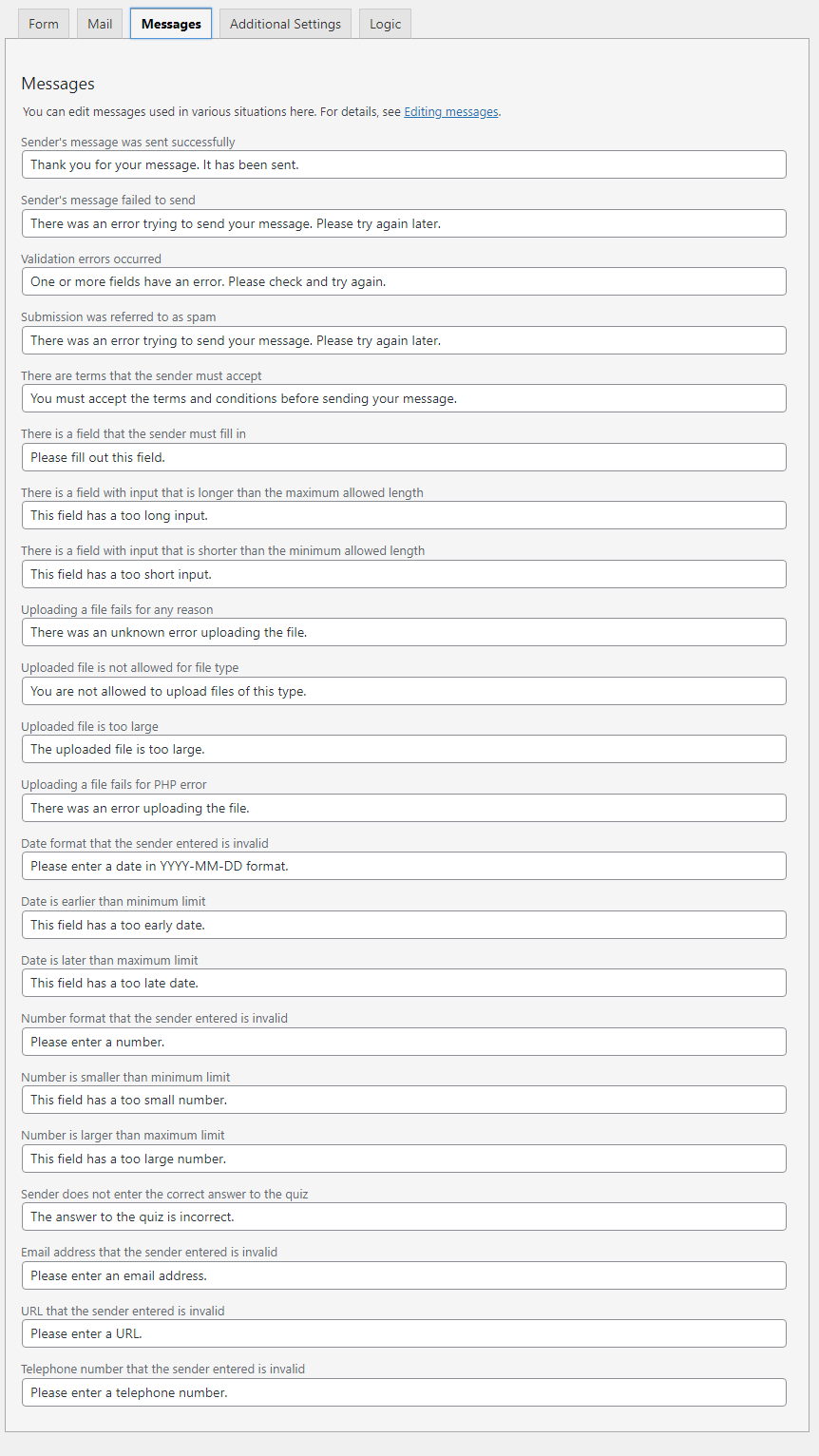
CF7 Area – Messages Tab (CF7 Area – Messages Tab_Logic V2.0.0_2023-09-27.png)
Additional Settings Tab #
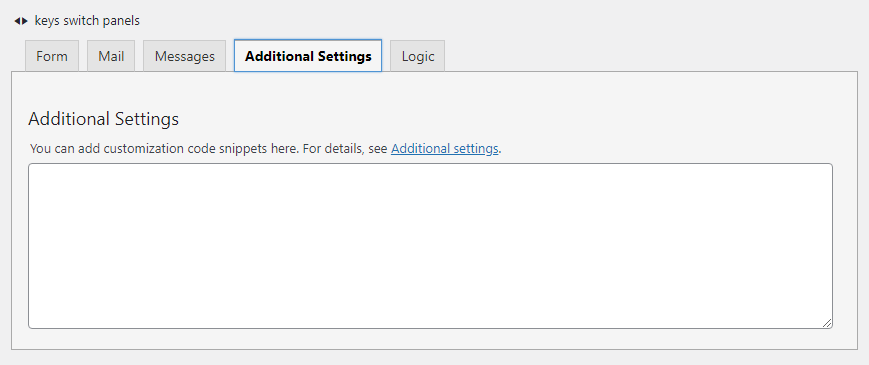
CF7 Area – Additional Settings Tab (CF7 Area – Additional Settings_Logic V2.0.0_2023-09-27.png)
Logic Tab #
back to top
CF7 Area – Logic Tab (CF7 Area – Logic Tab_2.5.3_B_2022-07-04.png)
CF7 Area – Save Button (CF7-Area – Save-Button_2.5.3_B_2022-07-04.png)
CF7 Overall #
back to top
Images – ..\Sync\..\Testing\Test Site\Manual Testing\UI AREAS\CF7 Overall\
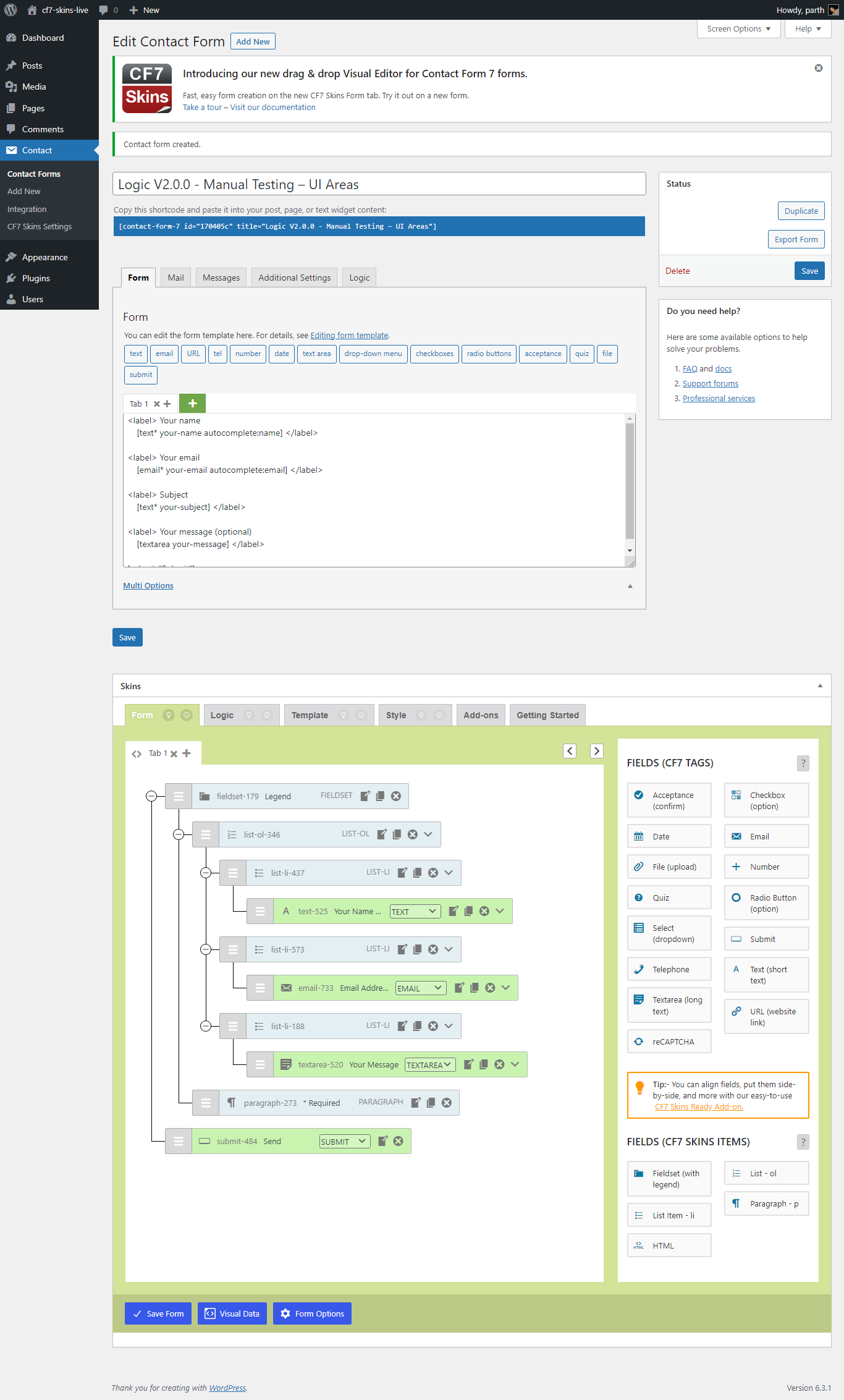
CF7 Overall (CF7 Overall_Logic v2.0.0_2023-09-26.png) CF7 Skins Settings #
back to top
Images – ..\Sync\..\Testing\Test Site\Manual Testing\UI AREAS\CF7 Skins Settings\
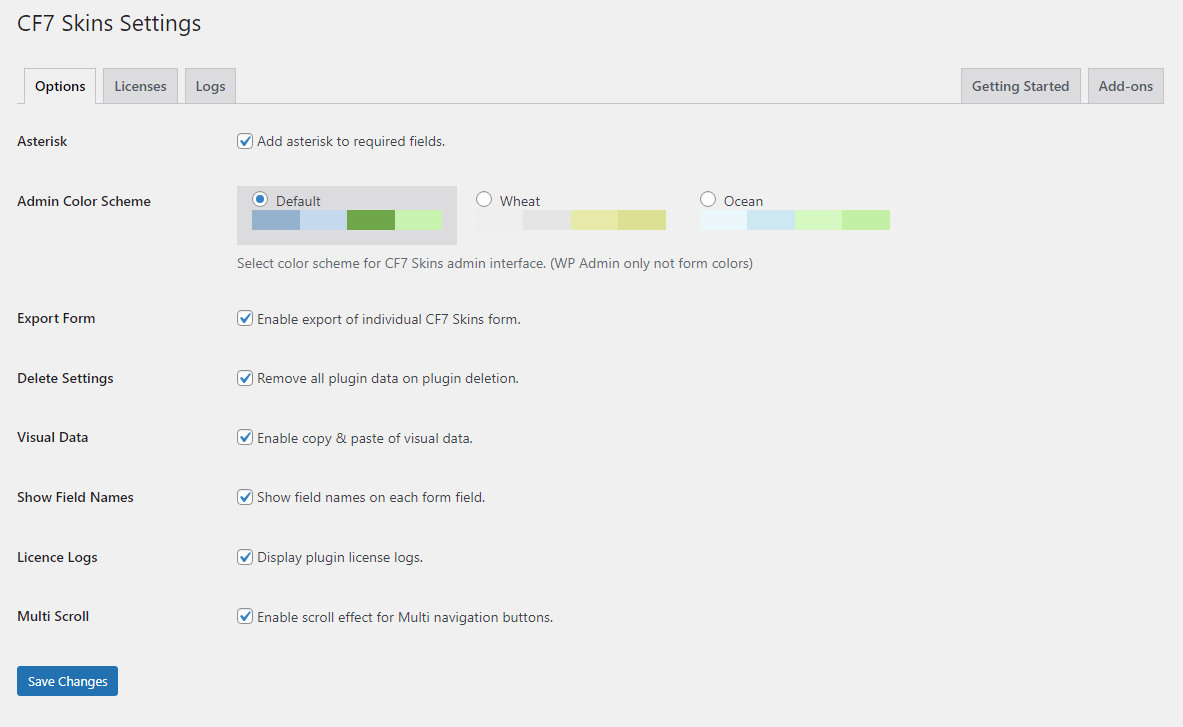
CF7 Skins Settings (CF7 Skins Settings_v2.6.2_2024-01-23.png) Options Tab #
back to top
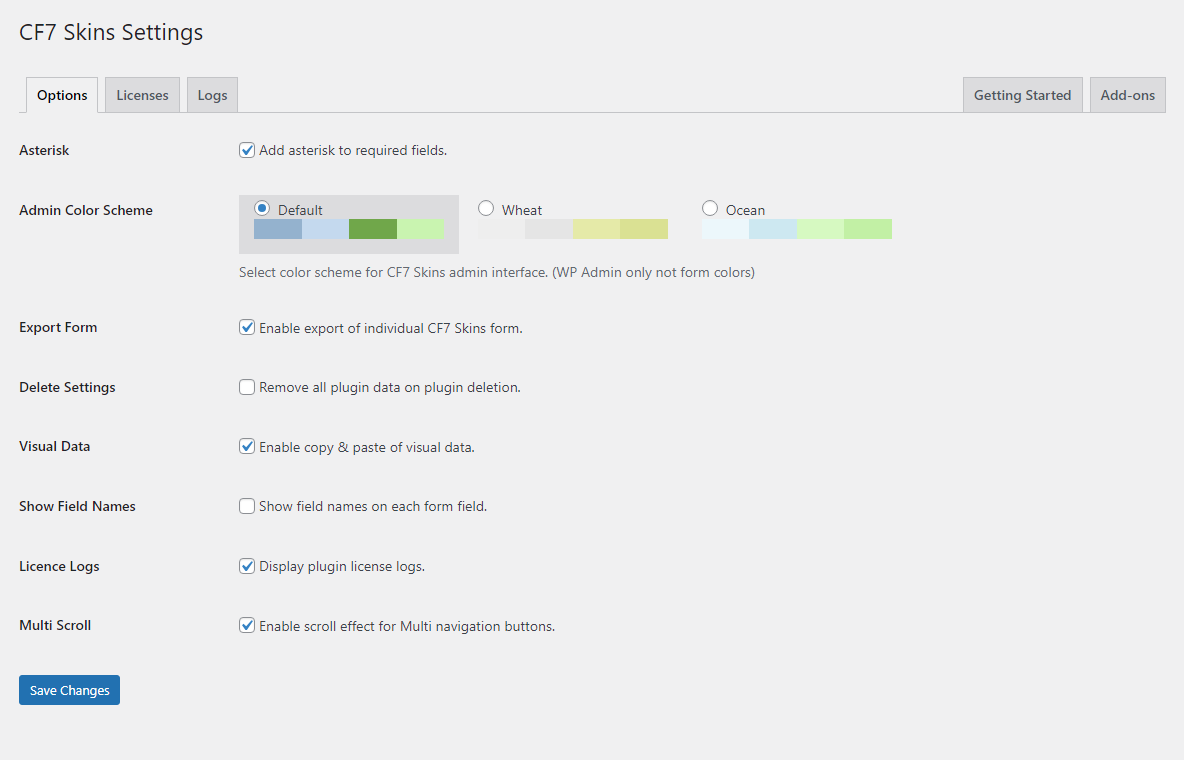
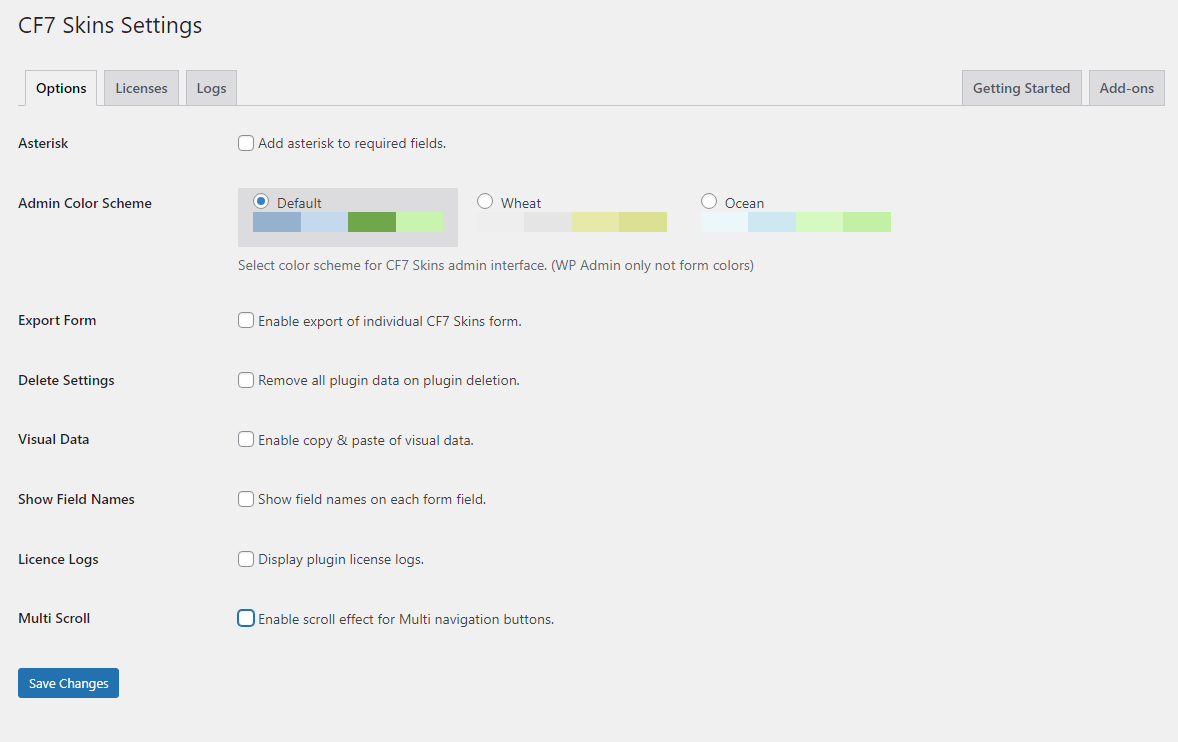
Options Tab (CF7 Skins Settings_Options Tab_v2.6.2_2024-01-23.png) Checklist
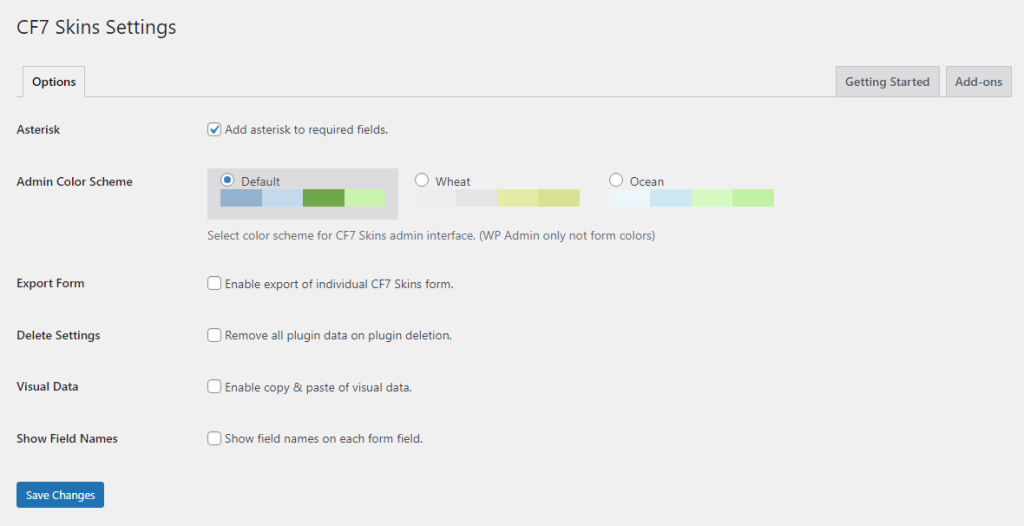
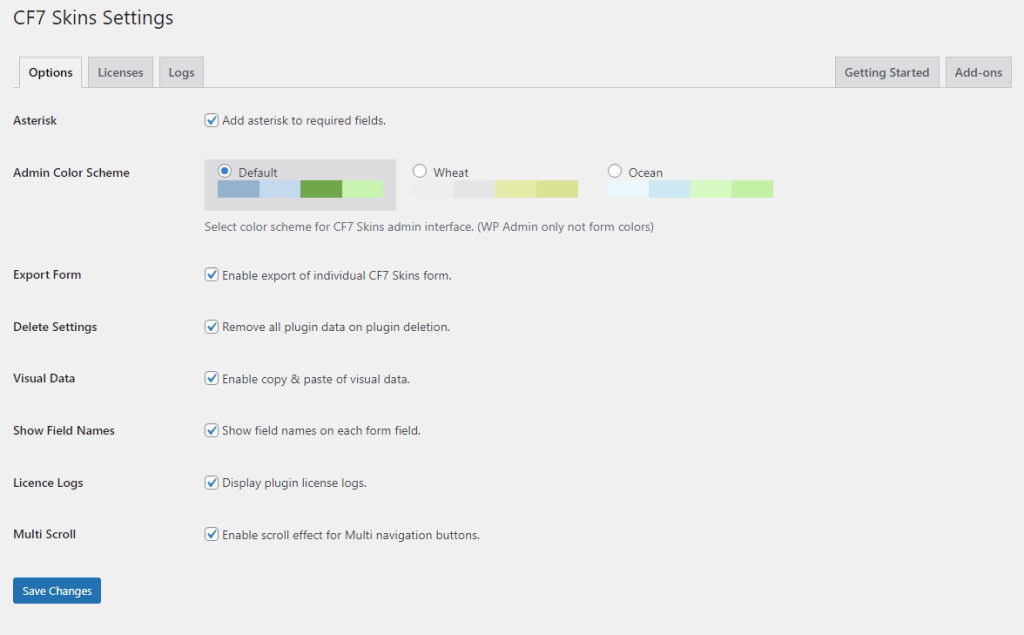
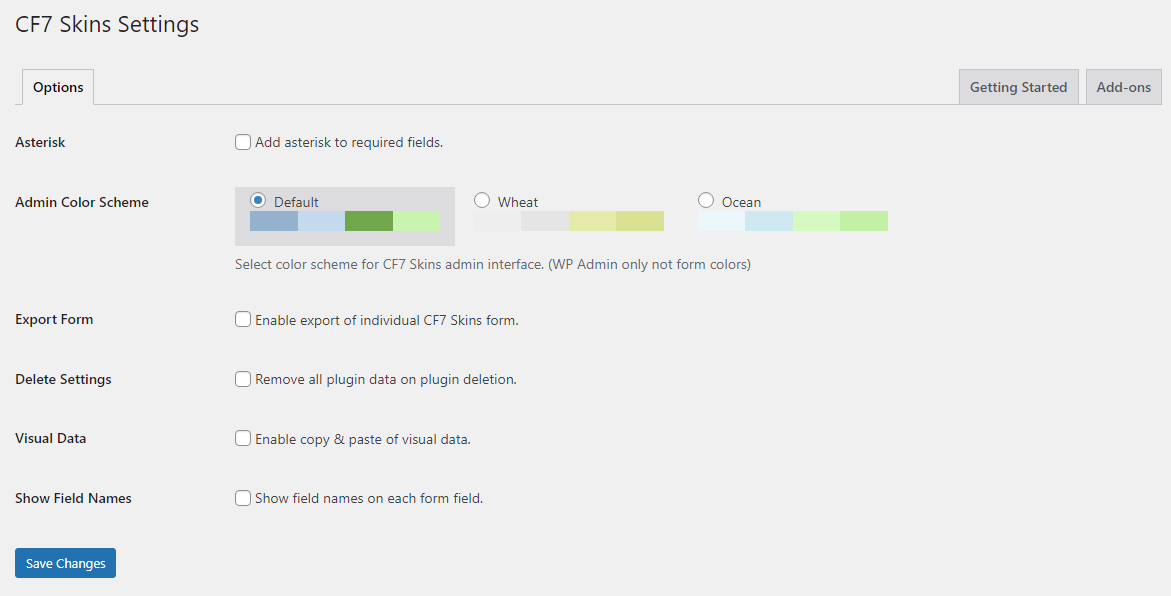
Options Tab Default (Free) Options Tab Default (Add-ons) Options Tab Unchecked (Free) Options Tab Unchecked (Add-ons) Options Tab Checked (Free) Options Tab Checked (Add-ons)
Options Tab Default (Free) #
Options Tab Default – Free (01_CF7 Skins Settings Default_logic-v2.0-free_2024-02-22.png)
Options Tab Default (Add-ons) #
Options Tab Default – Multi (CF7 Skins Settings_Options Tab_Multi_v2.6.2_2024-01-23.png) Options Tab Unchecked (Free) #
Unchecked – Options Tab (02_CF7 Skins Settings_Options Tab_Unchecked_logic-v2.0-free_2024-02-22.png) Options Tab Unchecked (Add-ons) #
Unchecked – Options Tab (CF7 Skins Settings_Options Tab_Unchecked_v2.6.2_2024-01-23.png) Options Tab checked (Free) #
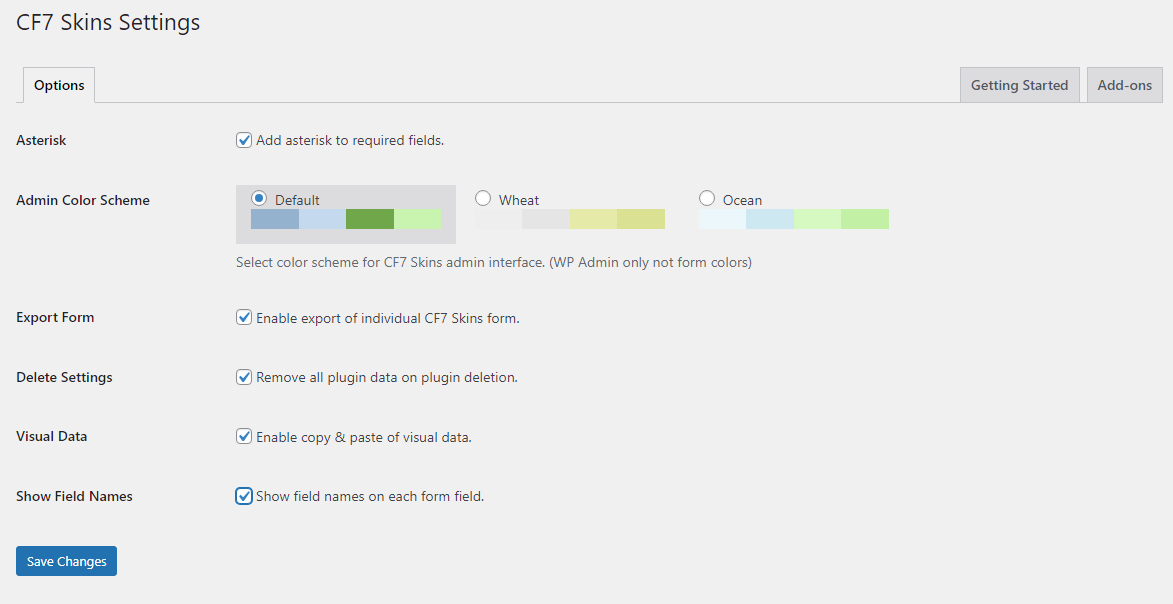
Unchecked – Options Tab (03_CF7 Skins Settings_Options Tab_Checked_logic-v2.0-free_2024-02-22.png) Options Tab Checked (Add-ons) #
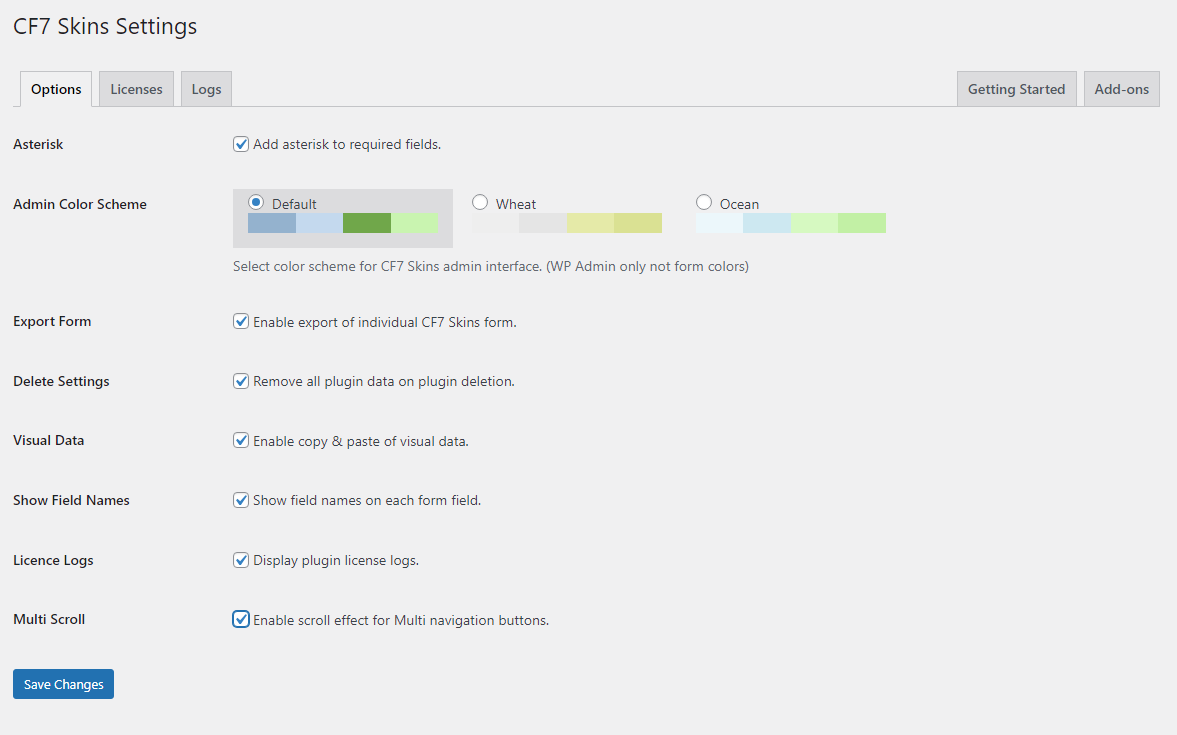
Checked – Options Tabs (CF7 Skins Settings_Options Tab_Checked_v2.6.2_2024-01-23.png) Licenses Tab #
back to top
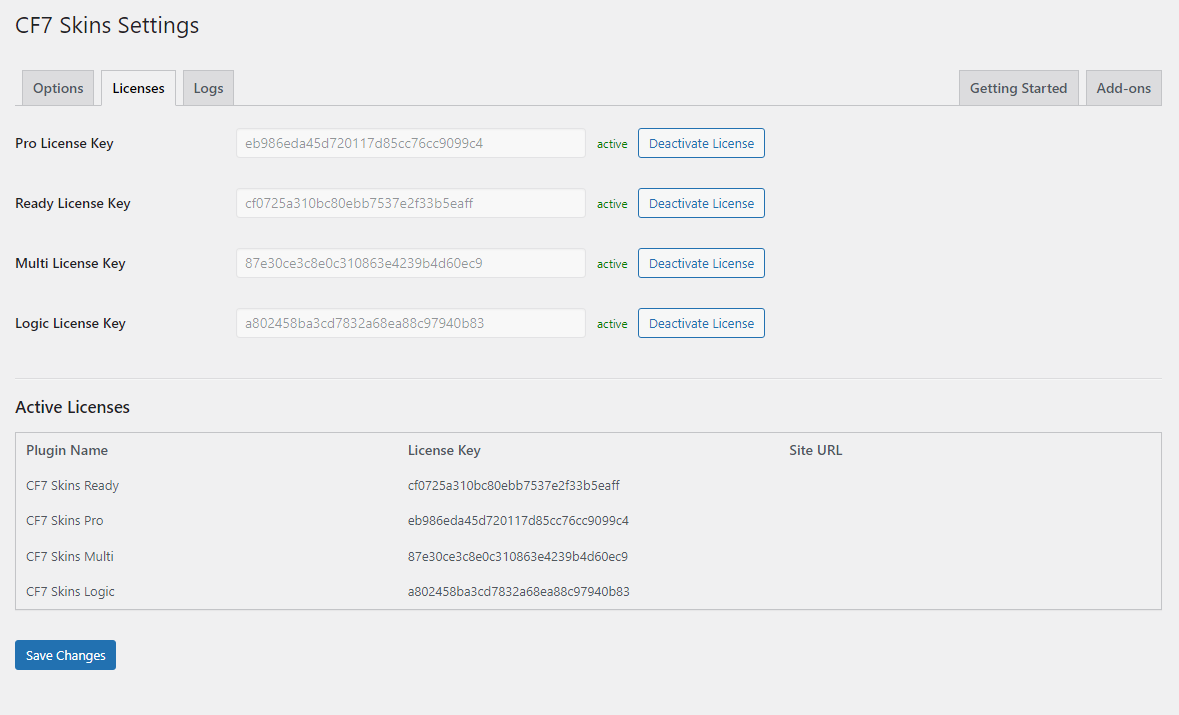
Licenses Tab (Licences Tab_v2.6.2_ALL_2024-01-23.png) Checklist
License Key Fields Activated License Key Fields Deactivated Active Licenses Area
License Key Fields Activated #
back to top
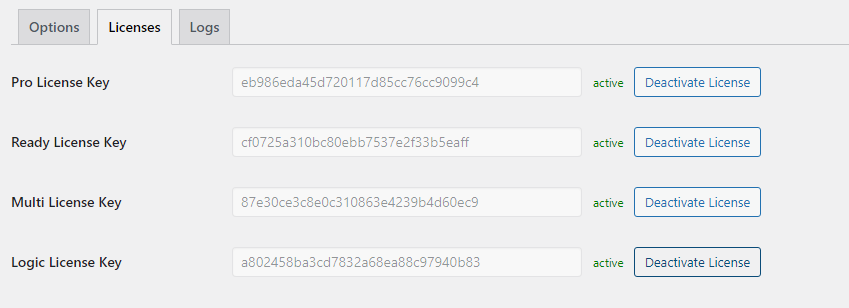
Licenses Tab – License Key Fields – Activated (Licenses Tab – License Key Fields_Activated_v2.6.2_2024-01-23.png) Checklist
The license key field is uneditable if the license key is active
Clicking on Deactivate License button will deactivate the license
License Key Fields Deactivated #
back to top
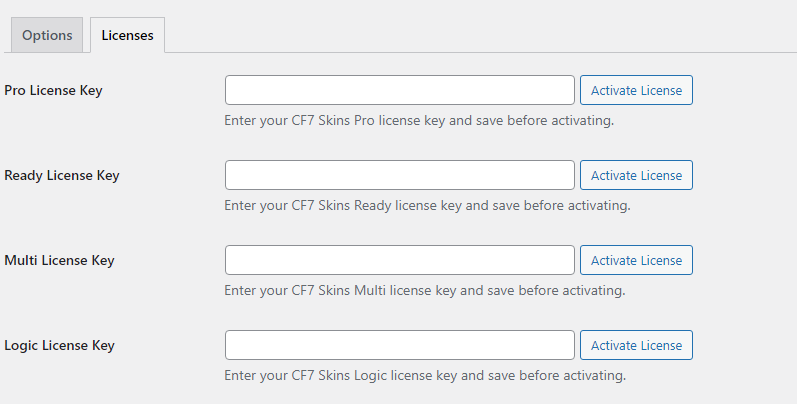
Licenses Tab – License Key Fields – Deactivated (Licenses Tab – License Key Fields_Deactivated_v2.6.2_2024-01-23.png) Checklist
Double click on the license key field will select all text inside the field
The license key field is uneditable if the license key is active
Clicking on Activate License button will activate the license
Active Licenses Area #
back to top
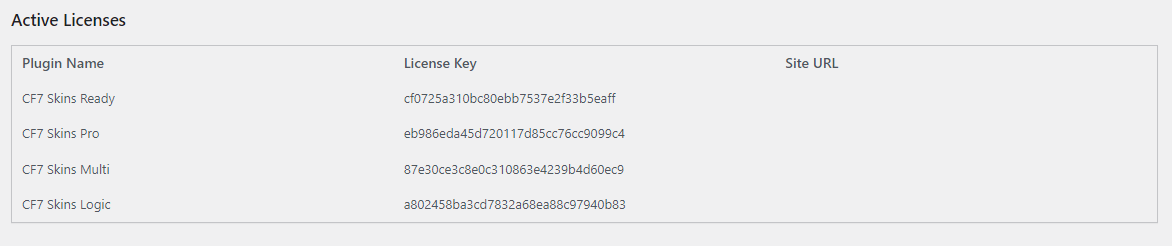
Licenses Tab – Active Licenses Area (Licenses Tab – Active Licenses Area_v2.6.2_2024-01-23.png) Logs Tab #
back to top
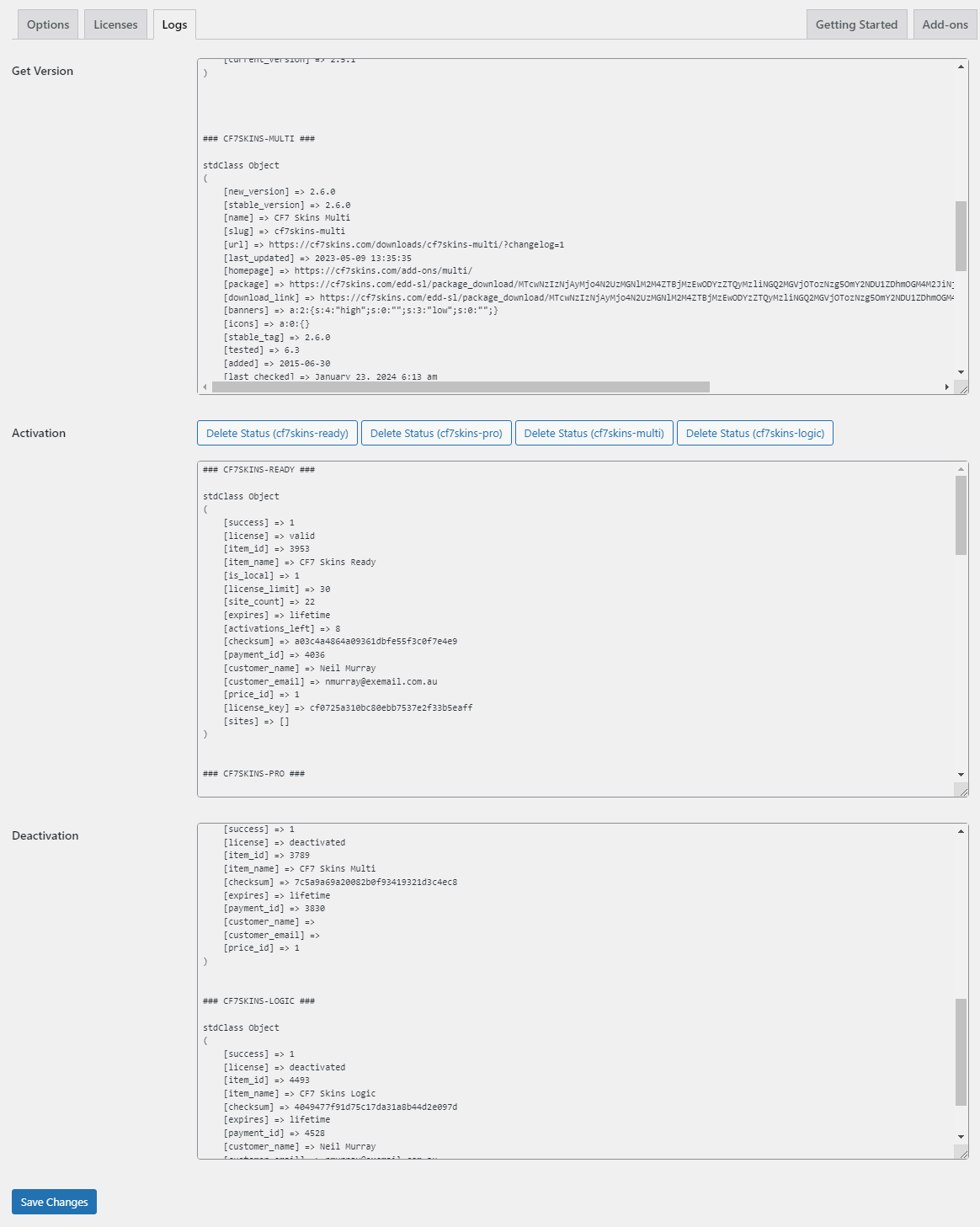
Logs Tab (Logs Tab_v2.6.2_2024-01-23.png) Checklist
Get Version Activation Deactivation
Get Version #
b ack to top
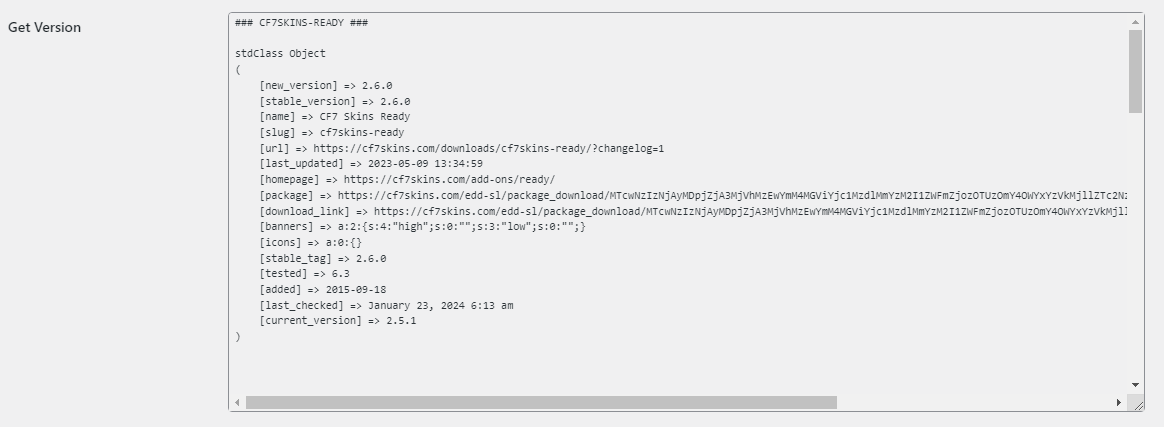
Get Version – Logs Tab (Logs Tab_Get Version_v2.6.2_2024-01-23.png) Checklist
The text area is scrollable
Click-hold and drag on the text area will select the log
Activation #
b ack to top
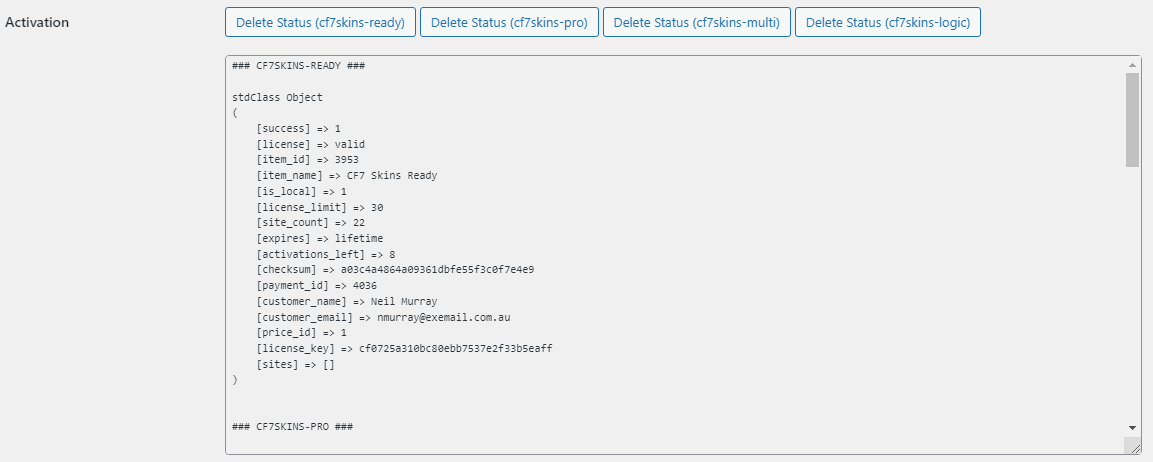
Activation – Logs Tab (Logs Tab_Activation _v2.6.2_2024-01-23.png) Checklist
The text area is scrollable
Click-hold and drag on the text area will select the log
If the Delete Status button is clicked, the activation log inside the text area deleted
Deactivation #
b ack to top
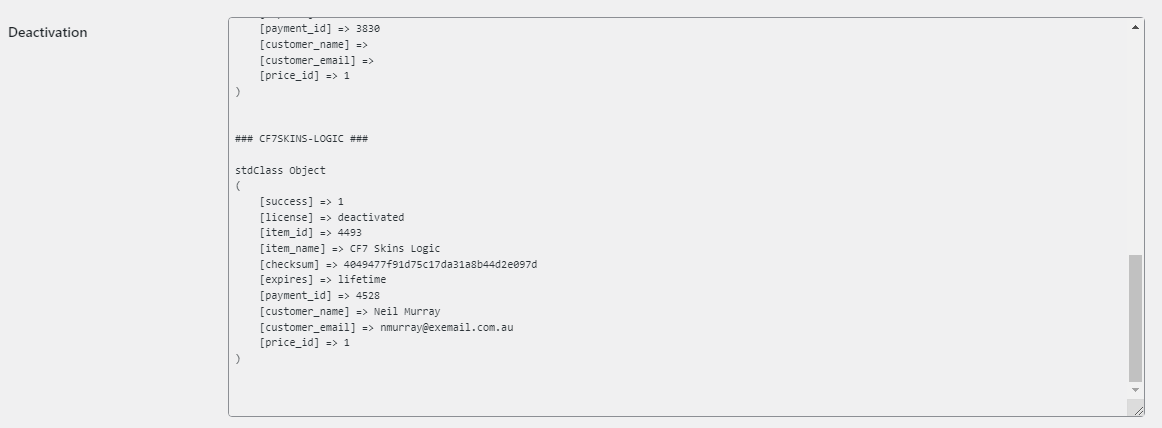
Deactivation – Logs Tab (Logs Tab_Deactivation_v2.6.2_2024-01-23.png) Checklist
The text area is scrollable
Click-hold and drag on the text area will select the log
Further reading:
NOTES #
Add notes here.