
Last Updated on August 20, 2023 by Neil Murray
Manual Testing – Sections
- UI Areas – what user sees in an area before taking any user action
- Actions – changes that happen when user takes action in the UI
- Testing Sequences – follow these sequences to test changes & releases
- Logic – testing CF7 Skins Logic (both Backend & Frontend)
- Testing Forms – CF7 Skins forms used to help with testing
- Front End Forms – how CF7 Skins forms display on WordPress website
- Responsive Styling – WP Backend/Admin at different screen sizes
TESTING SEQUENCES #
Follow these sequences to test changes & releases.
Instructions:
Images – ..\Sync\..\Testing\Test Site\Manual Testing\TESTING SEQUENCES\
Checklist #
- Add-ons – enabled & disabled
- CF7 Overall
- CF7 Area
- CF7 Skins Settings
- Form Tab
- Logic Tab – in development
- Multi – Tabs
- Visual Add-ons Menu
- Plugin releases
- End-to-end testing sequence
We can use these sequences to test changes & releases.
Use varied sequences at different times
Record screenshots
Compare screenshots to previous version to find changes
Add-ons – enabled & disabled #
Checklist
- All Add-ons Enabled
- All Add-ons Disabled
- Individual Add-ons Enabled
Form Tab #
Images – ..\Sync\..\Testing\Test Site\Manual Testing\TESTING SEQUENCES\Form Tab\
Checklist
- Form Options Section
- Multi Tabs
- Form Items Section
- Select Section
- Form Actions
Form Options Section #
Checklist
- Form Options Section – UI
- Visual Data Dialog
- Form Options Dialog (Addons – Multi & Ready)
Multi Tabs #
Checklist
- Item
- Item
Form Items Section #
Checklist
- Form Items Section – Checklist – UI
- Visual Add-ons Menu – UI
- Add Ready Grid Component – Actions
Select Section #
Checklist
- Select Section – UI
- Select Fields – Actions
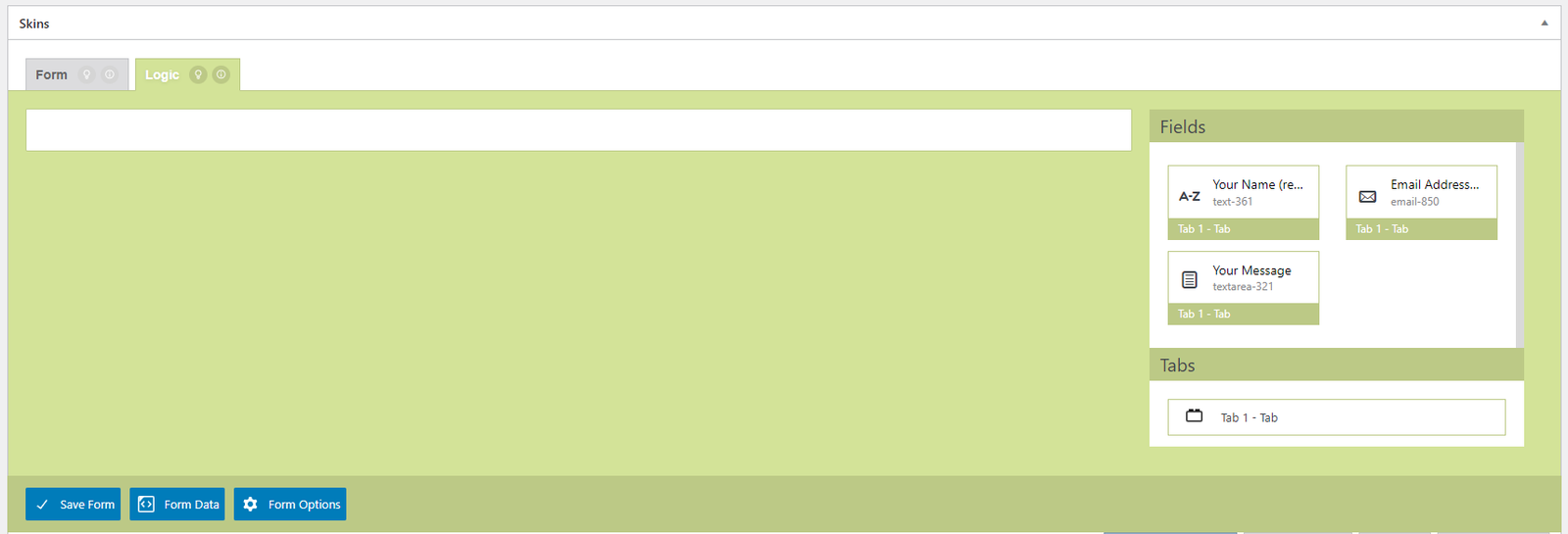
Checklist
- Creating Field Logic
- Duplicating Field Logic
- Removing Field Logic
Plugin releases #
Checklist
- confirm all translation files have been updated
- check, report & correct any instances where Development version & Build version files differ
End-to-end testing sequence #
FROM BITBUCKET
Core Functionalities of CF7 Skins Free Plugin
A. Visual Form Editing form (all different field types)
- Adding new fields
- Updating Existing Fields
- Deleting Fields
- Moving Field Positions
- Duplicating Fields
- Expand/Collapse functionality in the CF7Sking Area
B. Extra options in the form
- Using FieldSet
- Using Ordered List
- Using Unordered List
- Using Paragraph
C. Templates Tab – Checking different Templates
D. Styles – Checking Different Designs for the form.
E. CF7 Skins Settings option
- Enable export of individual CF7 Skins form. – Making Sure export and import functionality works
- Enable copy & paste of visual data. – Making sure copy & paste of visual data Works
- Show field names on each form field. – Making sure enabling/disabling the option works and functions as intended
F. Data sent in Email sent.
FROM PARTH – Testing Sequence
- Visual Form Editing Functionalities
- List of Different Types of Fields
- Templates Tab – Checking different Templates.
- Styles – Checking Different Designs for the form.
- CF7 Skins Settings option
a. Enable export of individual CF7 Skins form. – Making Sure export and import functionality works.
b. Enable copy & paste of visual data. – Making sure copy & paste of visual data Works.
c. Show field names on each form field. – Making sure enabling/disabling option works fine and functions as intended. - Data sent in Email sent.
- Visual Form Editing Functionalities
a. Adding new field
b. Updating Existing Fields
c. Deleting Fields
d. Move/Drag Field Positions
e. Duplicating Fields
f. Expand/Collapse functionality in the CF7Sking Area.
g. Field Icon
h. Field Name (optional)
i. Field Label
j. Field Type
k. Field Required check Box
- List of Different Types of Fields
a. Acceptance
b. Checkbox
c. Date
d. Email
e. File
f. Number
g. Quiz
h. Radio Button
i. Select
j. Submit
k. Telephone
l. Text
m. Textarea
n. reCAPTCHA
o. URL
p. Fieldset (CF7 Skin Item)
q. List – OL (CF7 Skin Item)
r. List item – IL (CF7 Skin Item)
s. Paragraph-p (CF7 Skin Item)
Further reading:
NOTES #
Add notes here.